How to Change Assistive Technology Settings in Windows 11

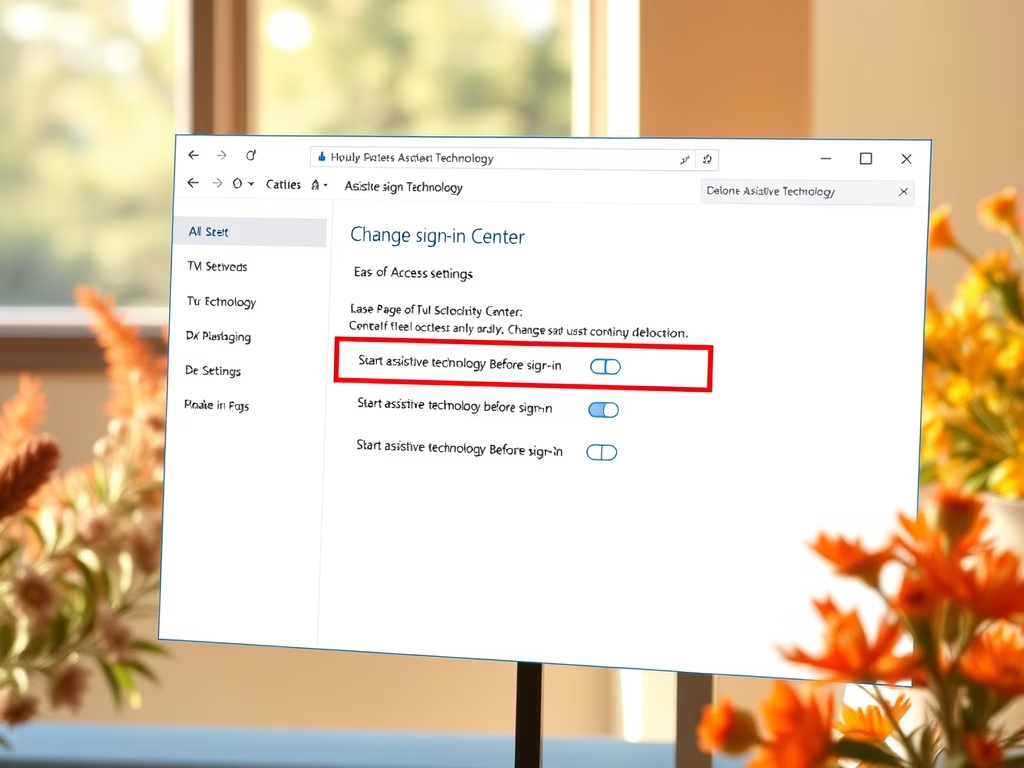
Open Control Panel , click Appearance and Personalization, then select Ease of Access Center. Click Change sign-in settings on the left, check the boxes for Start assistive technology before sign-in or after sign-in, then click OK. Your changes take effect immediately.
Why Use Assistive Technology?
Assistive Technology is the name for the accessibility tools built into Windows 11. They help people with disabilities see, hear, and control the computer more easily. Everything is included with Windows, so you don’t need to install anything. This tutorial covers when those tools start, either before or after you sign in.
What Happens When You Use These Tools?
Windows 11 includes several tools that make the computer easier to use. Narrator reads text aloud, Magnifier makes things bigger on screen, and Sticky Keys lets you press shortcut keys one at a time instead of all at once. Here is what each tool does:
- Narrator – reads text on your screen out loud.
- Magnifier – makes things on your screen bigger.
- Sticky Keys – helps you press keyboard shortcuts one key at a time.
- Filter Keys – ignores extra repeated key presses.
- Toggle Keys – plays sounds when you press Caps⇩, Num Lock, or Scroll Lock.
Starting them before sign-in is useful if you need help just to reach your password or PIN box. You can also turn most of them on and off individually in Settings Accessibility
How to Change When Assistive Features Turn On
The steps below set when Windows 11 starts your assistive technology: on the sign-in screen, after you sign in, or at both points. This setting only controls when the tools start. It doesn’t turn individual tools on or off.
- Open the Control Panel app. If you need help opening Control Panel, check this guide: How to Open Control Panel in Windows 11. The Control Panel window should now be open.
- In Control Panel , click Appearance and Personalization, then choose Ease of Access Center. If you don’t see it there, open the Ease of Access category instead. In the Large icons or Small icons view, Ease of Access Center is listed directly. The Ease of Access Center page should now open.
- On the left side of the Ease of Access Center page, click the link that says Change sign-in settings. A window with the sign-in options should now appear.
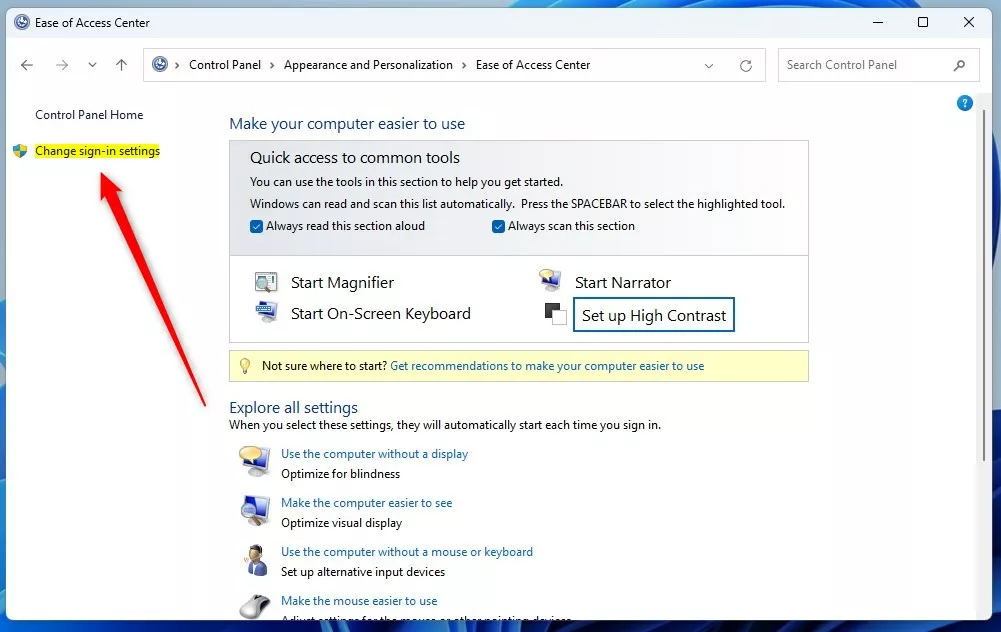
Windows Control Panel Change sign in settings link - Check the boxes for the options you want:
- Start assistive technology before sign-in.
- Start assistive technology after sign-in.
- Or both.
- Click OK to save your changes. If Windows asks for administrator approval, approve it or enter an administrator password. A standard account may not be allowed to change this setting.
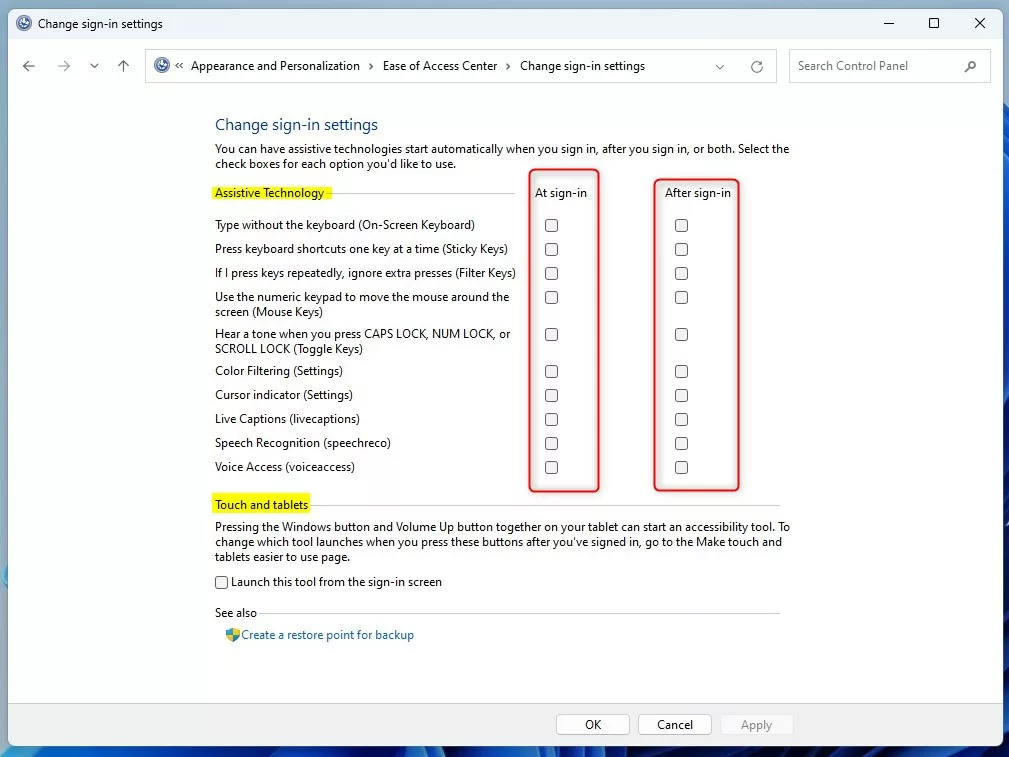
Windows Control Panel Change assistive technology options
To check the result, lock your computer or sign out and look at the sign-in screen. To undo the change, repeat the steps and clear the boxes you checked.
Summary
Windows 11 assistive technology offers simple tools to make computers easier for everyone to use. You can choose if these features start before or after you sign in, giving you control over your computer experience.- Windows 11 has helpful assistive technology features for people with disabilities.
- You can choose if these features start before or after you sign in to your computer.
- Changing these settings is easy through the Control Panel and the Ease of Access Center.
- Following these steps lets you customize your computer to work best for you.
- If you want to learn more about each assistive feature, check the links provided above.
Have a question about this guide?
Answered by AI from this guide. Good questions may be added to this page — please don't include personal details.
Did this guide fix your problem?

About the Author
Richard
Tech Writer, IT Professional
Richard is a writer at Geek Rewind who turns complex IT tasks into clear, step-by-step guides. He draws on years of hands-on experience in system administration and enterprise IT operations, focusing on Windows, Linux and WordPress: the problems people actually run into, and the fixes that work. His server and WordPress guides come from systems he runs himself. Richard builds and maintains the platform behind Geek Rewind, from its Ubuntu servers and Nginx configuration to its custom WordPress plugins. Many new tutorials start with readers' questions, and he's always glad to answer them in the comments.
No comments yet — be the first to share your thoughts!