Make Your Screen Easier to See with Windows 11 Color Filters

Color filters in Windows 11 change how colors look on your screen so different shades are easier to tell apart. They are built into the display settings, and they help people with color blindness because they shift specific hues to make text and images easier to read.
Red-green color deficiency affects about 1 in 12 men, which makes everyday screen tasks harder than they should be. You can turn on filters for red-green or blue-yellow deficiency, or switch the whole screen to black-and-white grayscale. The filters work in every edition, Home and Pro included, and you don’t need to restart.
The short version: open Settings , go to Accessibility, then click Color filters and turn them on. Pick the filter that matches your vision needs.
Windows 11 color filters shift colors across your display to make text and images easier to see. Open Settings , press Win+I, go to Accessibility, click Color filters, turn on the Use color filters toggle, then choose from red-green, blue-yellow, grayscale, or inverted options that match your vision needs.
What Are Color Filters?
The filter is applied at system level, so it affects every app, window and menu, not just one program. It only changes how colors are shown. Your files, photos and documents are not altered.
Windows 11 includes several filter profiles. Here is what each one is for:
- Red-Green (for different types of color blindness). There are two versions, one for green weakness and one for red weakness.
- Blue-Yellow, for people who have trouble telling blues and yellows apart.
- Grayscale (black and white). This removes color entirely, which some people find easier on the eyes or easier to read.
- Inverted colors (colors flipped like a photo negative). Light areas turn dark and dark areas turn light.
How to Turn On Color Filters in 🪟 Windows 11
You turn on Windows 11 color filters in the main Settings app . The feature helps people with color blindness or light sensitivity by changing the palette on your display. In short, you open the accessibility options, find the color filters page and switch the main toggle on. The change takes effect immediately, and you can undo it at any time by switching the toggle off again.
- Open Settings . Press
Windows key + Ion your keyboard. Or click the Start button , then click Settings. The Settings window should open with a list of categories on the left. - In the Settings window, click Accessibility on the left side. The accessibility options appear on the right.
- Scroll down and select Color filters on the right side, under the Vision group. The color filters page opens.
- Turn on the toggle switch under Use color filters. On some builds the toggle is labelled simply Color filters. The screen changes right away. Windows usually applies the grayscale filter first, so don’t be alarmed if everything turns black and white.
- Choose the filter that works best for you from the list. The preview is your own screen, so you can click each option and see the result at once:
- Red-green (green weak, deuteranopia)
- Red-green (red weak, protanopia)
- Blue-yellow (tritanopia)
- Grayscale
- Grayscale inverted
- Inverted
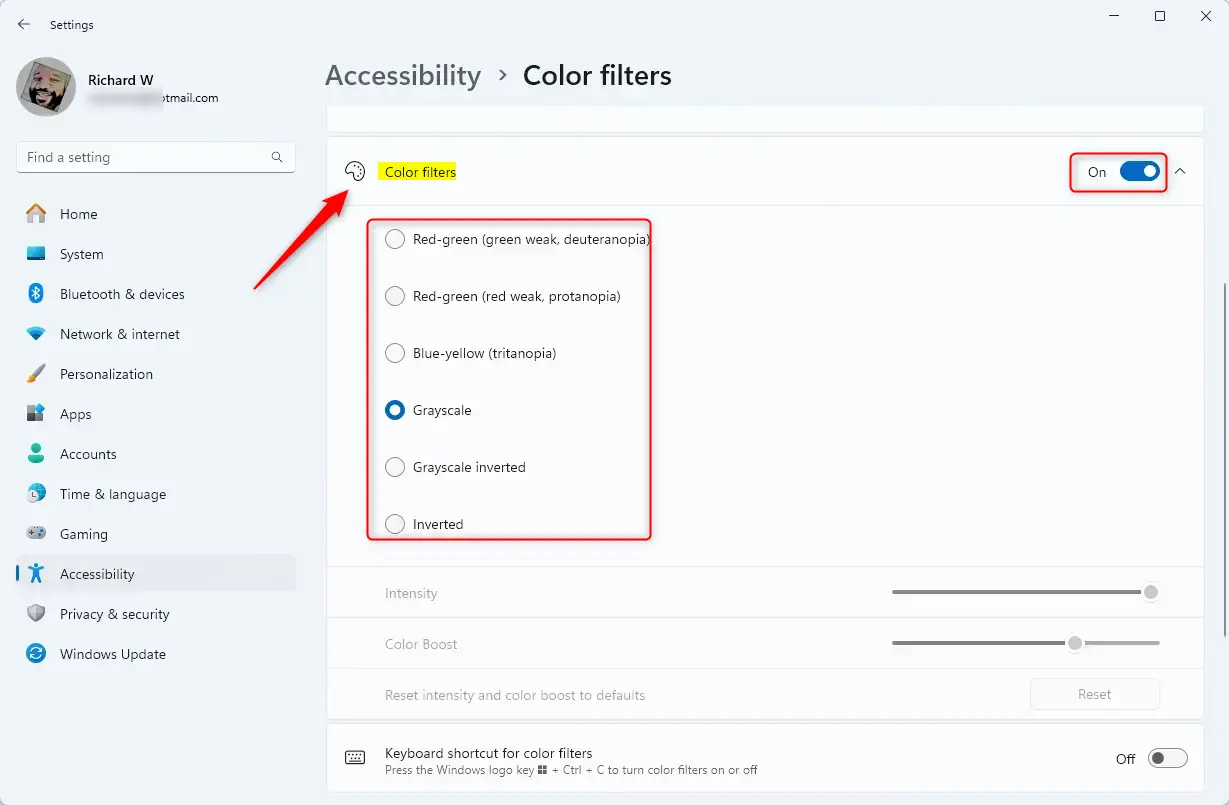
Windows key + Ctrl + C on your keyboard lets you toggle color filters on or off quickly.If the shortcut does nothing, go back to Settings Accessibility Color filters and make sure the keyboard shortcut option on that page is switched on. Then try it again.
If you can’t find the Color filters page, check Windows Update and install any pending updates, since page layouts shift a little between Windows 11 versions. To go back to normal colors, turn the Use color filters toggle off or press the shortcut again.
Why Use Color Filters?
- They help people who have trouble seeing certain colors, for example telling red from green on charts, links or status lights.
- They make text and images easier to see by increasing contrast.
- They can reduce eye strain for some users, especially with grayscale or inverted filters. How much they help varies from person to person.
Summary
- Windows 11 includes easy-to-use color filters to help everyone see the screen better, on both Home and Pro.
- You can find and turn on these filters in the Accessibility settings, and no restart is needed.
- Try different filters to see which one feels best for you. Give each one a few minutes of real work before you decide.
- Use the shortcut
Windows key + Ctrl + Cto switch filters on or off fast, once the shortcut is enabled in the Color filters settings.
Windows 11 color filters help you read text and view images more comfortably by adjusting the colors on your display. You can switch them on and off from the Accessibility menu or with a keyboard shortcut. Trying out the different filter options lets you find the setting that works best for your eyes, and you can change it again whenever your needs change.
Have a question about this guide?
Answered by AI from this guide. Good questions may be added to this page — please don't include personal details.
Did this guide fix your problem?

About the Author
Richard
Tech Writer, IT Professional
Richard is a writer at Geek Rewind who turns complex IT tasks into clear, step-by-step guides. He draws on years of hands-on experience in system administration and enterprise IT operations, focusing on Windows, Linux and WordPress: the problems people actually run into, and the fixes that work. His server and WordPress guides come from systems he runs himself. Richard builds and maintains the platform behind Geek Rewind, from its Ubuntu servers and Nginx configuration to its custom WordPress plugins. Many new tutorials start with readers' questions, and he's always glad to answer them in the comments.
No comments yet — be the first to share your thoughts!