How to Change Mouse Pointer Color in Windows 11

Mouse pointer color in Windows 11 (starting with version 22H2) changes the look of your cursor so you can spot it on busy screens. You can pick a bright preset shade or build a custom color. The change applies system-wide, takes effect immediately, and needs no restart. It works the same on Home and Pro.
Why Change Your Mouse Pointer Color?
- If you have trouble seeing the default white pointer, especially on light backgrounds such as a white web page or spreadsheet, a different color can make it much easier to find.
- It helps people with vision difficulties use their computer more easily. A strongly colored pointer is easier to follow across large or multiple monitors, and it pairs well with the pointer size slider on the same settings page.
- You can pick a color you like to make your computer look unique. It is a small change, and you can undo it at any time.
How to Change Your Mouse Pointer Color in 🪟 Windows 11
- Open Windows Settings : Click the Start button (the Windows icon) on the taskbar , then click Settings. Or press the Win+I to open Settings directly. The Settings window opens with a menu down the left side.
- Go to Accessibility: In the left-hand menu, click Accessibility. The right side now shows accessibility options grouped under Vision, Hearing and Interaction. If you don’t see the menu, widen the window, because a narrow Settings window collapses it behind a menu icon at the top left.
- Find Mouse Pointer Settings: Under Vision on the right side, click the tile called Mouse pointer and touch. If you can’t find it, scroll down a little. If it’s missing altogether, your PC is probably on a version of Windows 11 older than 22H2. Run Windows Update , then look again.
- Choose the Pointer Style: On this page, look for the Mouse pointer style options. You’ll see tiles for white, black, inverted and custom. Click the Custom tile to unlock color choices. The original instructions mentioned a pointer indicator toggle, but on current builds the color options appear under the pointer style tiles. If your build shows a toggle for a pointer indicator, switch it on before continuing.
- Pick a Color: Under Recommended colors, click a color you like. Your mouse pointer color changes right away, so move the mouse over a few different windows to check it stands out. Bright shades such as lime green, yellow and magenta tend to show up best on both light and dark backgrounds.
- Choose a Custom Color: If none of the recommended colors suit you, click the + button (Choose another color). A color picker opens. Drag in the color field or move the slider to find the shade you want, then click Done. The pointer updates to your new color.
- Close Settings: When you’re happy with your pointer color, close the Settings window. Windows saves the choice automatically and there is no Apply button. To undo it later, return to the same page and click the White tile to go back to the default pointer.
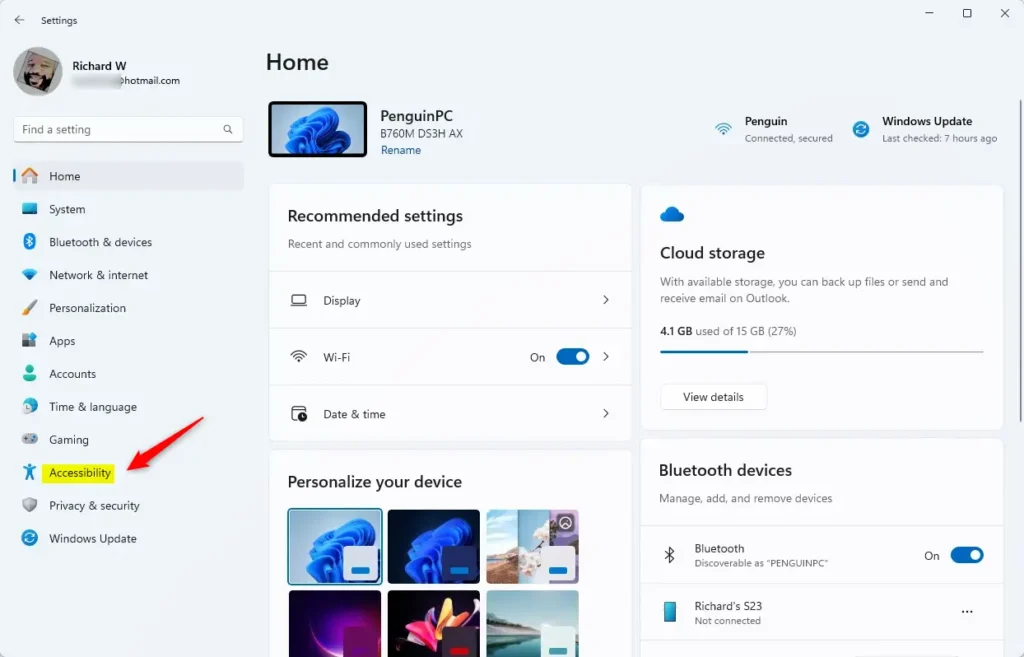
To change the mouse pointer color in Windows 11, open Settings by pressing the Win+I, click Accessibility in the left menu, and select Mouse pointer and touch. Choose the Custom pointer style, then pick one of the recommended colors or click the + button for your own shade. The change applies immediately and doesn’t need a restart.
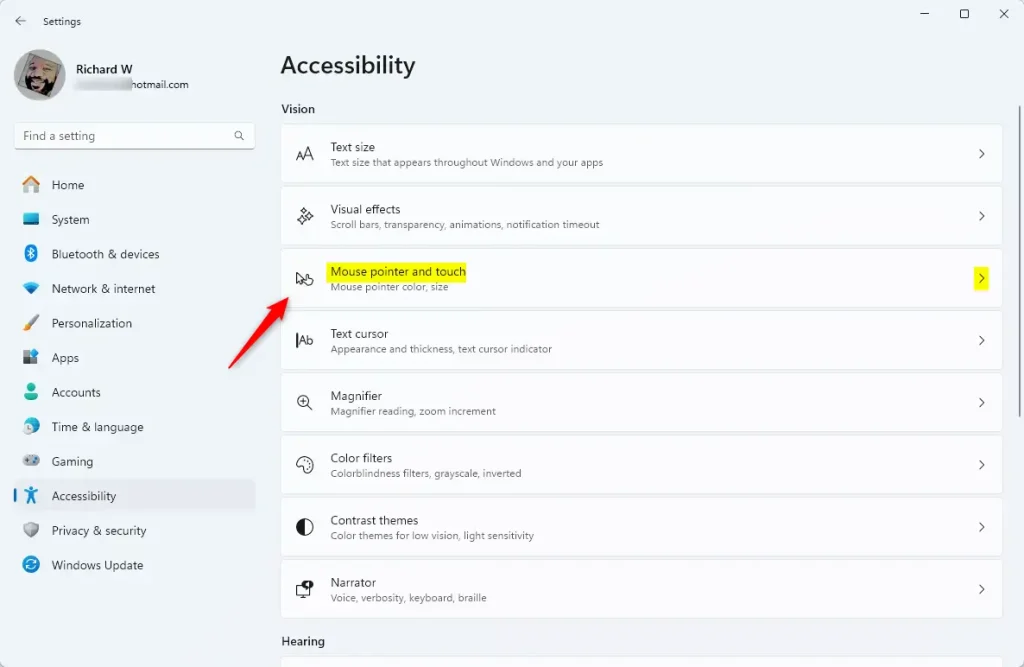
Windows 11 mouse pointer customization lets you change the pointer color to improve visibility. A pointer that contrasts with your background is easier to follow and helps you avoid clicking the wrong thing. For example, a bright green pointer is easy to track across a dark desktop. A black or dark custom color does the same job on a white document. If you’re not sure which works for you, the inverted style also adjusts to whatever is behind it.
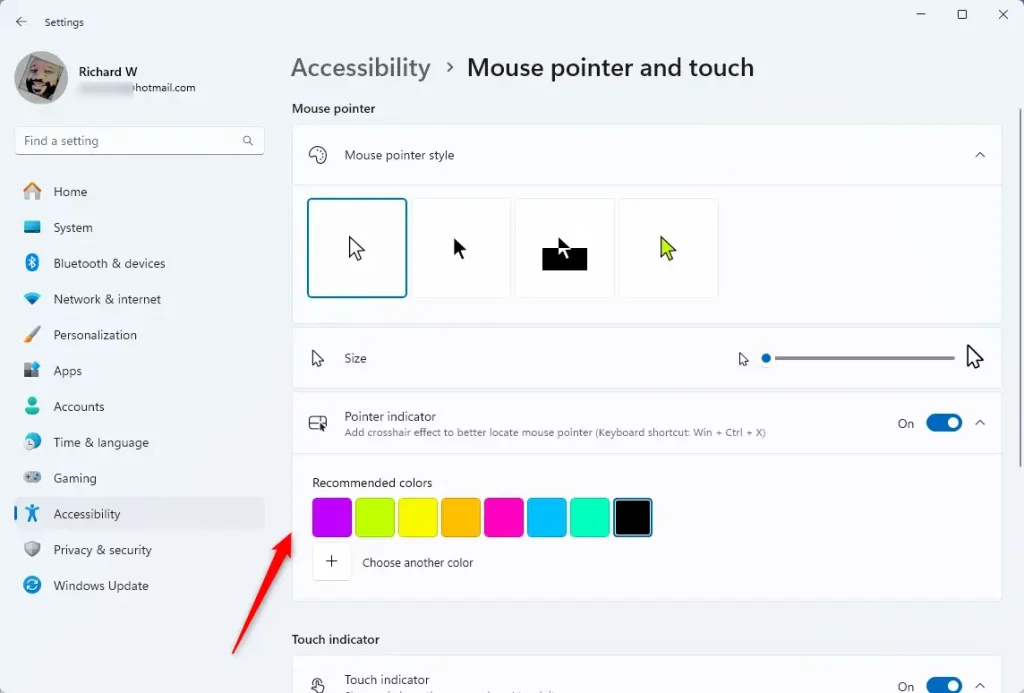
You can change your mouse pointer color in Windows 11 to see the pointer better on your screen. This makes it easier to track, especially on busy backgrounds like photos, wallpapers with lots of detail, or crowded spreadsheets. The setting is found under Accessibility, so it also works as a quick fix if you share a PC with someone who has trouble seeing the cursor.
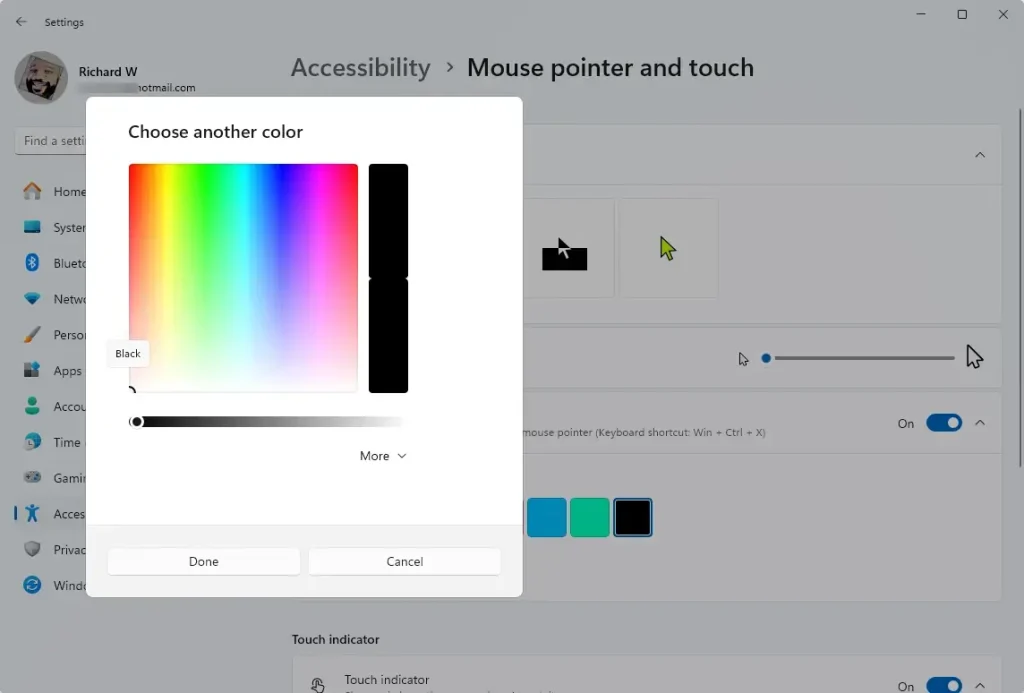
You can select from preset color options or choose a custom color. This improves visibility, especially on busy backgrounds. If you change your mind, go back to Mouse pointer and touch and select the White tile to restore the default. You can also pick another color at any time.
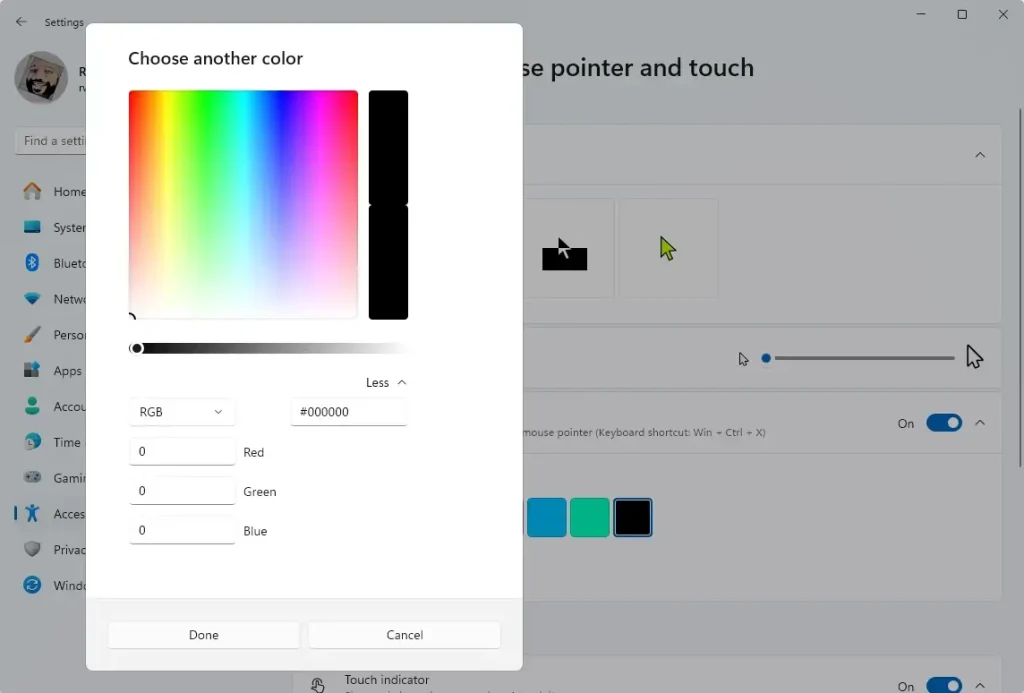
It takes less than a minute, costs nothing, and is easy to reverse. If the pointer is still hard to see, try making it larger with the size slider on the same page.
Summary
- Changing your mouse pointer color helps you see it better, especially if you have trouble with the default color. The setting is under Settings Accessibility Mouse pointer and touch.
- You can pick from preset colors or create your own custom color. Select the Custom style first, since the color choices only appear there.
- This feature makes your computer easier to use and lets you personalize how it looks. The change saves automatically, needs no restart, and can be undone by choosing the White style again.
Changing your mouse pointer color helps you spot the cursor faster on busy screens and can reduce eye strain. Windows 11 gives you preset options and custom shades, so you can pick the look that works best for your vision while personalizing your desktop at the same time. If the option is missing on your PC, check that you're running Windows 11 version 22H2 or later.
Have a question about this guide?
Answered by AI from this guide. Good questions may be added to this page — please don't include personal details.
Did this guide fix your problem?

About the Author
Richard
Tech Writer, IT Professional
Richard is a writer at Geek Rewind who turns complex IT tasks into clear, step-by-step guides. He draws on years of hands-on experience in system administration and enterprise IT operations, focusing on Windows, Linux and WordPress: the problems people actually run into, and the fixes that work. His server and WordPress guides come from systems he runs himself. Richard builds and maintains the platform behind Geek Rewind, from its Ubuntu servers and Nginx configuration to its custom WordPress plugins. Many new tutorials start with readers' questions, and he's always glad to answer them in the comments.
[…] Mouse pointers (the arrow or cursor) […]