How to Change Mouse Indicator Activation Method in Windows 11

Change the key press that shows the mouse indicator in Windows 11. You can use a single Ctrl key press or a double Ctrl key press. The change applies to your account only.
The mouse indicator is a circle that appears around your mouse pointer (the on-screen cursor) when you press Ctrl. It helps you find the pointer quickly.
Keep indicator visible until dismissed keeps the indicator on screen after you press Win+Ctrl+Shift+M. The indicator stays until you press those keys again, press Esc, or click or tap anything. You can turn it on or off in the same place as the activation method.
Windows 11 build 26340.9233 (Experimental 26H2) for Windows Insiders (people who test preview versions of Windows) added this setting.
Windows 11 build 26340.9502 (Experimental 26H2) for Windows Insiders added the option to switch the activation method to a single or double Ctrl key press.
Open Settings (Win+I), go to Accessibility Mouse pointer and touch, expand Mouse indicator, and pick Single Ctrl key press or Double Ctrl key press from the Activation method drop-down menu. You must turn Mouse indicator on first. The change applies only to your account, and you need Windows 11 build 26340.9502 (Experimental 26H2) for Insiders or later.
Option One
Change Mouse Indicator Activation Method in Settings
- Open Settings (Win+I).

Start Menu - Click Accessibility on the left. On the right, under “Vision”, click Mouse pointer and touch.
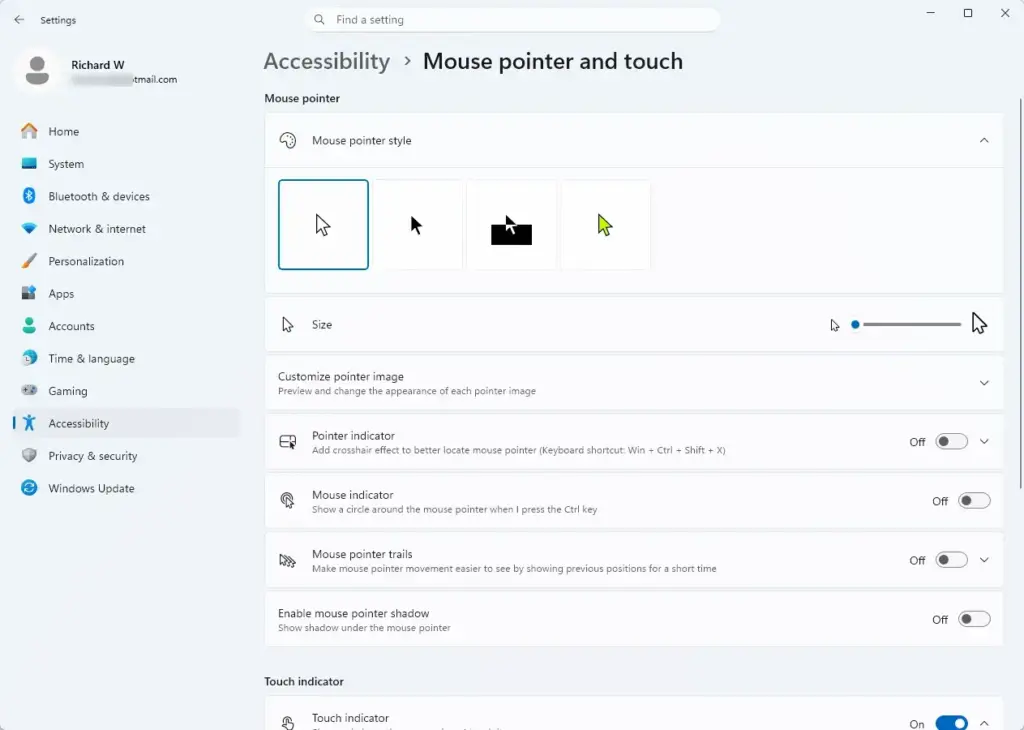
Settings › Accessibility › Mouse pointer and touch
Open Mouse pointer and touch settings
- Click Mouse indicator to expand it.
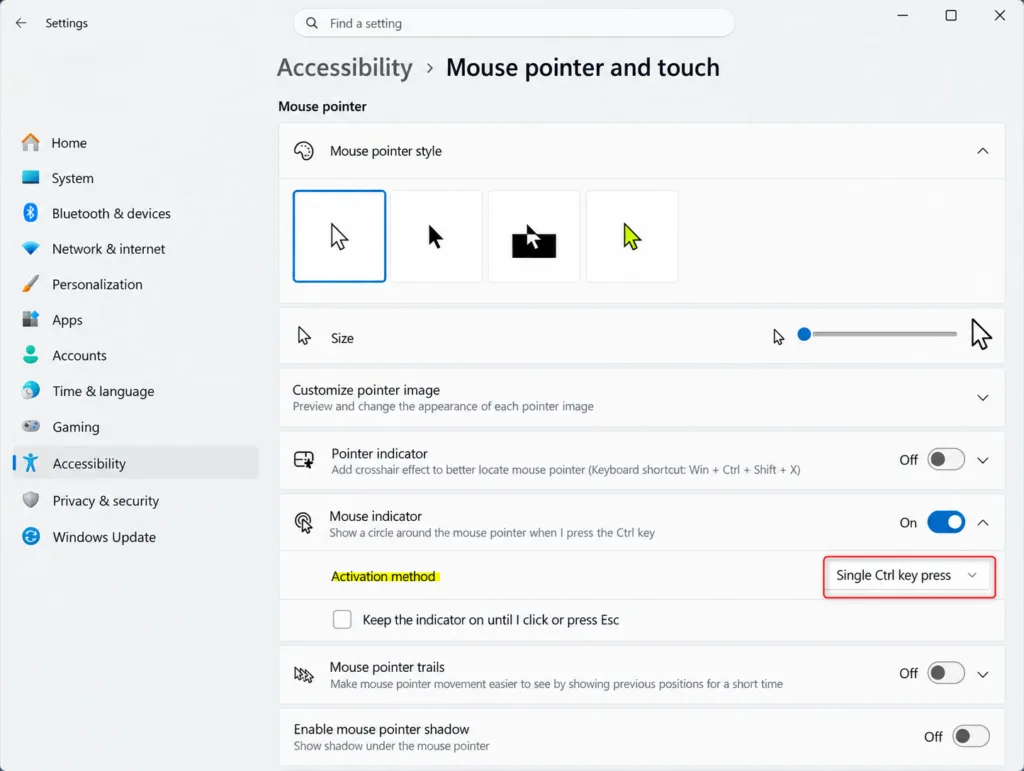
Settings > Accessibility > Mouse pointer and touch - Open the Activation method drop-down menu and select Single Ctrl key press (default) or Double Ctrl key press.
You must turn on Mouse indicator before you can change the Activation method.
- Close Settings.
Option Two
Change Mouse Indicator Activation Method using Registry
Registry Editor edits the registry, the settings database Windows keeps. Go to [Verification Required: full registry path for FindMyMousePersistent should be confirmed], then edit the FindMyMousePersistent value. The data you enter here also turns Keep indicator visible until dismissed on or off. Enter the value for the method you want.
- Open Registry Editor: press Win+R, type regedit, and press Enter.
- Go to this key:
🗝️HKEY_CURRENT_USER\
Control Panel\ Cursors - If the value does not exist, right-click the Cursors key, choose New DWORD (32-bit) Value, and name it FindMyMousePersistent.
- Double-click FindMyMousePersistent and enter one of the Value data entries below.
Use “Single Ctrl key press” Activation Method
Set Value data to one of these. One turns Keep indicator visible until dismissed on and the other turns it off.
- 1 = On
- 0 = Off
Set Value data to 1 to turn Keep indicator visible until dismissed on, or to 0 to turn it off. [Verification Required: Value data for the Single Ctrl key press method should be confirmed before publishing.]
Use “Double Ctrl key press” Activation Method
Set Value data to one of these. One turns Keep indicator visible until dismissed on and the other turns it off.
- 4 = On
- 5 = Off
If this didn’t work
The activation method option appears only on Windows 11 build 26340.9502 (Experimental 26H2) for Insiders or later. If you don’t see it, check your build number (the version number that identifies your Windows 11 update) against the build listed above, then update Windows if your build is older. To go back to the default, select Single Ctrl key press in the Activation method drop-down menu in Settings.
Have a question about this guide?
Answered by AI from this guide. Good questions may be added to this page — please don't include personal details.
Did this guide fix your problem?

About the Author
Richard
Tech Writer, IT Professional
Richard is a writer at Geek Rewind who turns complex IT tasks into clear, step-by-step guides. He draws on years of hands-on experience in system administration and enterprise IT operations, focusing on Windows, Linux and WordPress: the problems people actually run into, and the fixes that work. His server and WordPress guides come from systems he runs himself. Richard builds and maintains the platform behind Geek Rewind, from its Ubuntu servers and Nginx configuration to its custom WordPress plugins. Many new tutorials start with readers' questions, and he's always glad to answer them in the comments.
No comments yet — be the first to share your thoughts!