How to Enable RGB Accent Color Matching in Windows 11

RGB accent color matching in Windows 11 syncs your computer lights with your desktop theme. Your keyboard, mouse and other lit accessories can then match whatever accent color you pick. The feature is built in and works with Windows 11 version 22H2 and later (with current updates installed), so you don’t need a third-party lighting app.
You turn it on inside the Dynamic Lighting menu with the Match my Windows accent color toggle. Once it is on, compatible gear copies your current Windows accent color, the same color you see on the taskbar and window borders. If you change the accent color later, the lights follow.
Open Settings , click Personalization, then Dynamic Lighting. Turn on Use Dynamic Lighting on my devices first, then under Effects choose a solid color and enable Match my Windows accent color. Your RGB keyboard, mouse and compatible accessories immediately sync with your Windows accent color.
What is Dynamic Lighting?
Dynamic Lighting is a Windows 11 feature that lets the operating system control the RGB lights on your accessories, such as keyboards, mice and speakers, without the maker’s own software. Windows treats supported lighting devices like any other hardware and manages them from one place in Settings.
First, your device has to support Dynamic Lighting. Many newer RGB keyboards and mice do, but older gear may not show up at all. Second, if a brand’s own app (such as a vendor lighting suite) is running and controlling the same device, it can override or fight with Windows. If the colors look wrong later, close that app and check again.
How to Turn On RGB Accent Color Matching
The setting is the same on Windows 11 Home and Pro, and you shouldn’t need to restart. Connect your RGB devices before you begin so they appear in the list.
- Turn on Dynamic Lighting first. The toggle is called Use Dynamic Lighting on my devices, and it must be on or the accent color option won’t do anything. If you need help, see this easy guide: How to Turn On or Off Dynamic Lighting in Windows 11.
- Open the Settings app on your PC. Click the Start button and choose the gear icon, or press
Windows + I. The Settings window should open on the System page. - Click Personalization in the left-hand list. The page on the right now shows options such as Background, Colors and Themes.
- Find and click the Dynamic Lighting section. If you don’t see it, your Windows 11 build is probably too old, so run Windows Update (Settings Windows Update ) and check again. You should now see the master toggle and a list of your connected lighting devices.
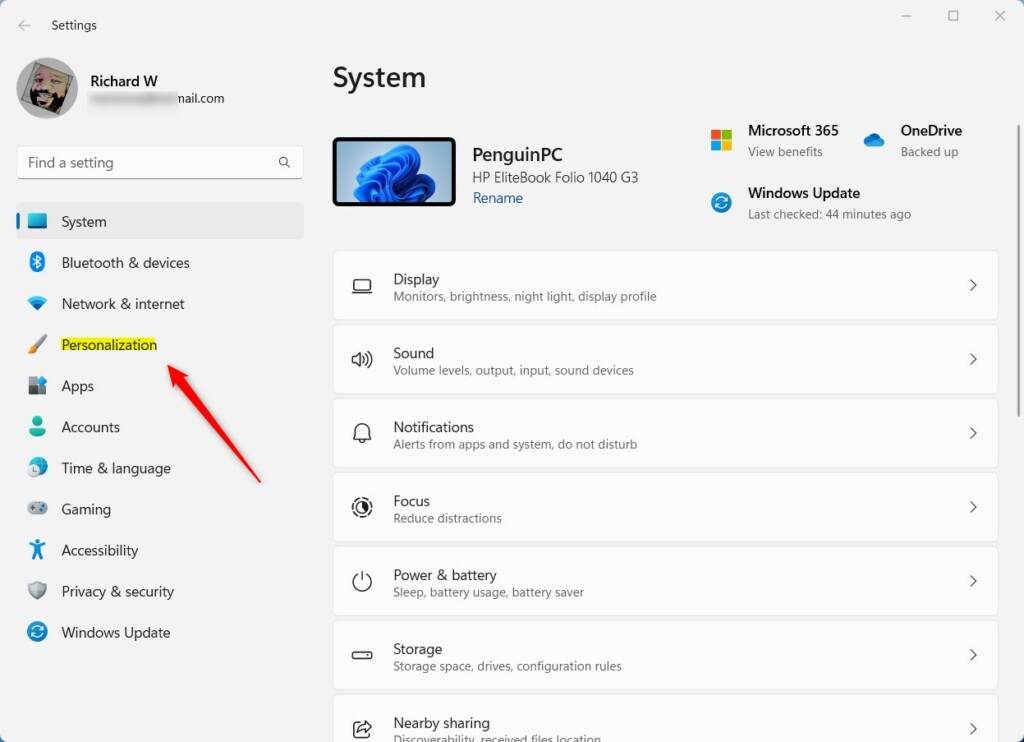 Open Personalization in Settings
Windows 11 Personalization in the Settings app
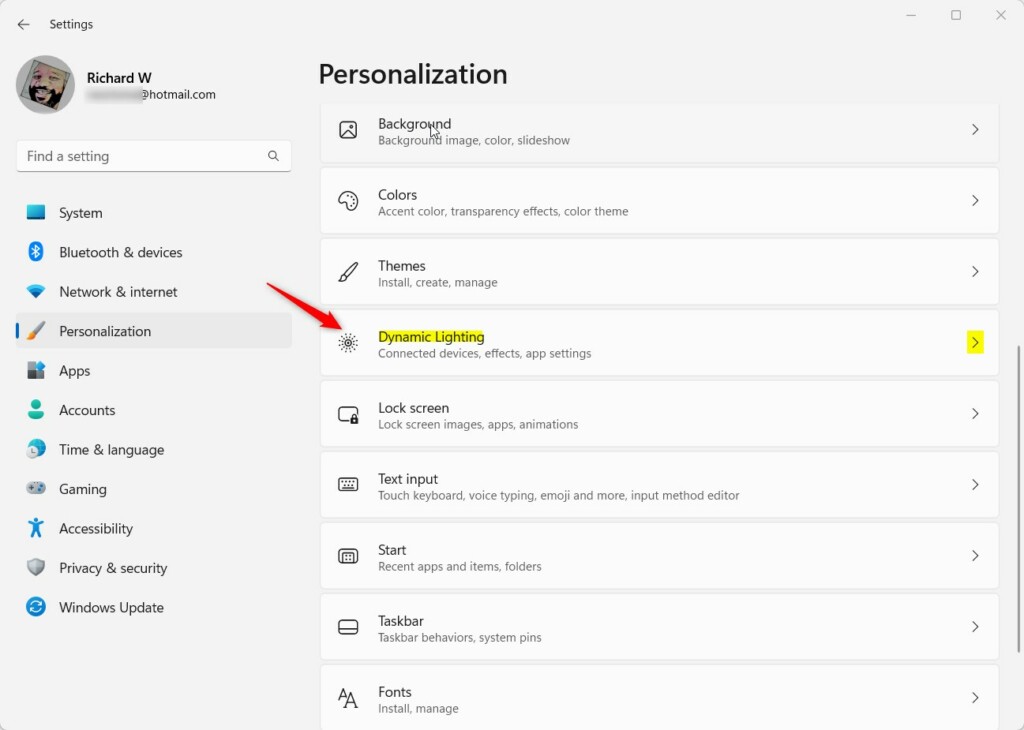
Windows 11 Dynamic Lighting settings Dynamic Lighting Settings - Under Effects, pick a color style that you like. Choose a solid color, since it shows your accent color most clearly. Effects like rainbow or wave keep changing the lights, so they won’t look like a match.
- Turn on the toggle for Match my Windows accent color. The color picker is replaced by your current Windows accent color, and your lights should change right away.
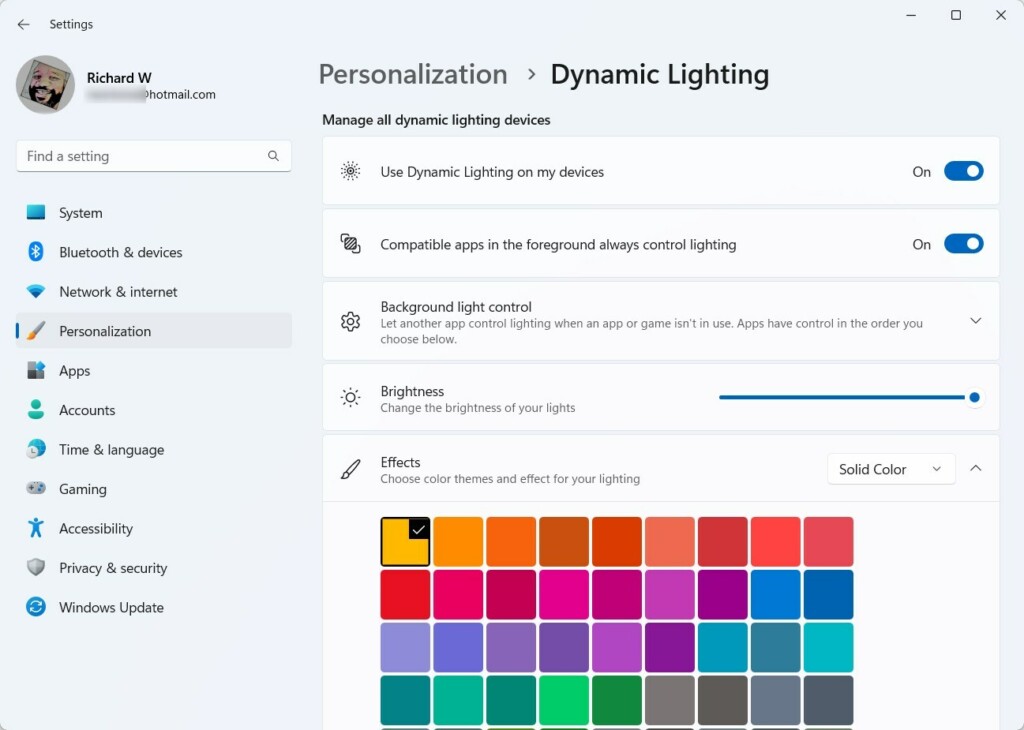
Match my Windows accent color toggle Turn on “Match my Windows accent color” - Check your accessories. Your keyboard, mouse and other supported devices should now light up in your Windows accent color. To change the color, go to Settings Personalization Colors and pick a new accent color. The lights follow it.
To undo the change, go back to Settings Personalization Dynamic Lighting and turn the Match my Windows accent color toggle off. If a device doesn’t change color, make sure it is plugged in and listed on that page, and close any vendor lighting app that may be controlling it.
Windows 11 RGB accent color matching makes your keyboard, mouse and other gear match your desktop theme automatically. To turn it on, open Settings, go to Personalization, then click Dynamic Lighting. Make sure Dynamic Lighting is switched on first and that your devices support it. Your lights then sync with your current Windows accent color, with no extra software from your hardware maker.
Summary
- Dynamic Lighting lets Windows 11 control the RGB lights on your devices without extra apps, as long as the devices support it.
- You can set your lights to match your Windows accent color for a unified look, and they follow the color if you change it.
- Just open Settings Personalization Dynamic Lighting to set it up.
- Toggle “Match my Windows accent color” on or off whenever you want. No restart is needed.
Windows 11 RGB accent color settings let you control your hardware lights directly from the operating system, without installing apps from different brands. You can turn the feature on or off at any time in Settings under Personalization and Dynamic Lighting. Once it is set up, all your supported device lights match your desktop look, and changing the accent color in Settings Personalization Colors updates them in one go.
Was this guide helpful?

About the Author
Richard
Tech Writer, IT Professional
Richard is a writer at Geek Rewind who turns complex IT tasks into clear, step-by-step guides. He draws on years of hands-on experience in system administration and enterprise IT operations, focusing on Windows, Linux and WordPress: the problems people actually run into, and the fixes that work. His server and WordPress guides come from systems he runs himself. Richard builds and maintains the platform behind Geek Rewind, from its Ubuntu servers and Nginx configuration to its custom WordPress plugins. Many new tutorials start with readers' questions, and he's always glad to answer them in the comments.


No comments yet — be the first to share your thoughts!