How to Turn On or off “Get Me up to Date” for Windows Update in Windows 11

The “Get me up to date” setting controls how soon Windows 11 restarts your PC after it installs updates. When it is on, Windows restarts as soon as it can, even during your usual work hours. When it is off, which is the default, Windows waits for a restart time that suits your active hours. This tutorial shows two ways to switch it: through Settings, and with commands.
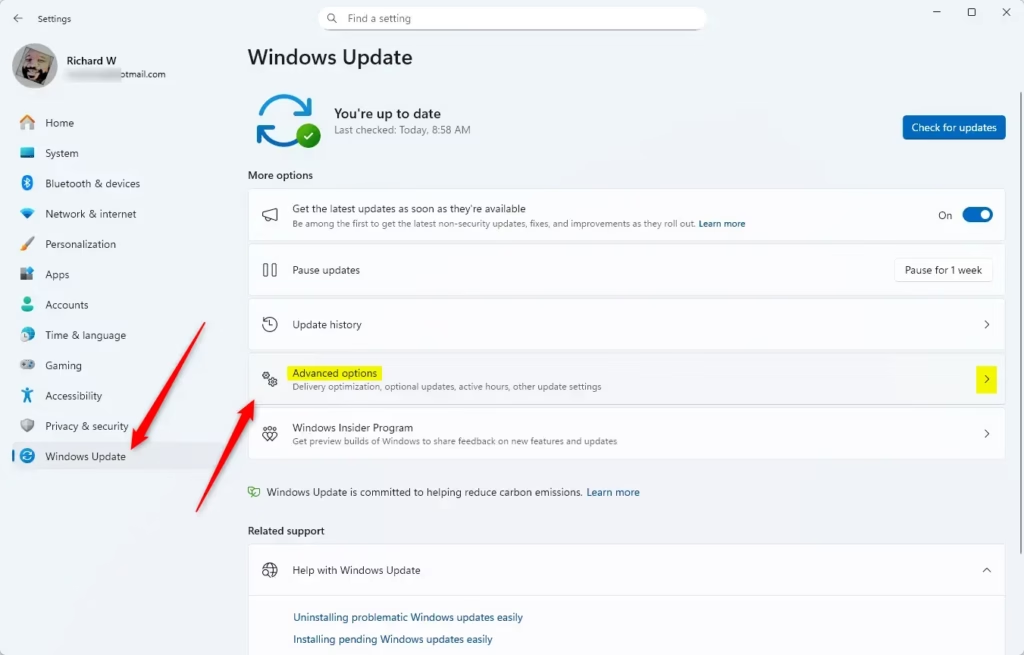
Open Settings , navigate to Windows Update , then Advanced options. Use the “Get me up to date” toggle to enable or disable the feature. This setting allows your device to restart quickly to install updates .
Why Update Your Windows?
Updates fix bugs and close security holes, but most of them only take effect after a restart. If you put restarts off for too long, the PC stays exposed to problems that have already been fixed.
What Does “Get me up to date” Do?
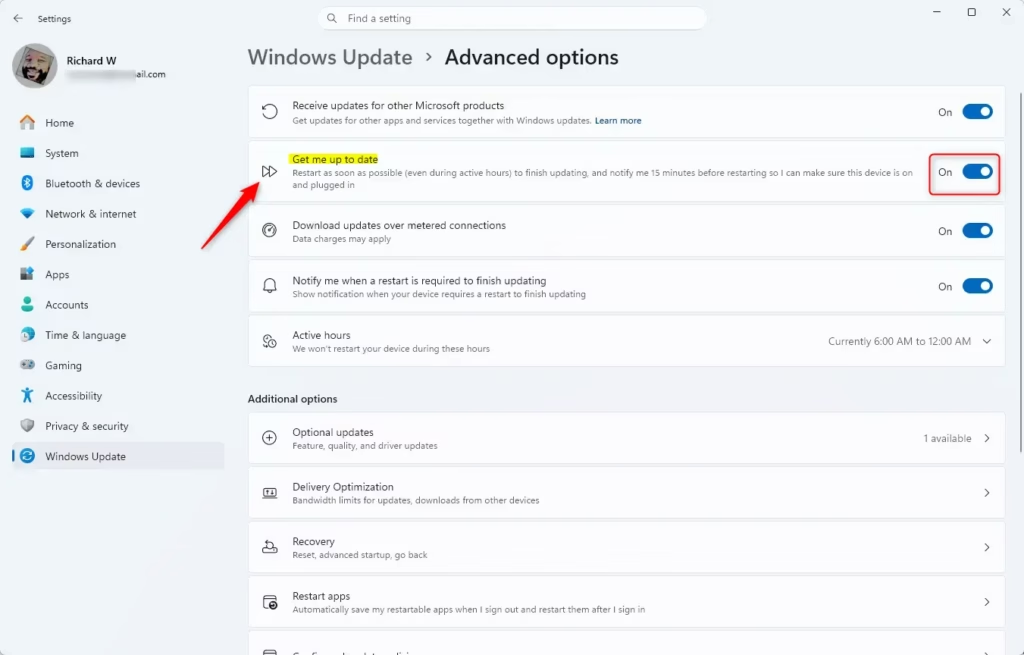
With “Get me up to date” turned on, Windows restarts your PC sooner once an update is ready to finish, and it does not wait for a quiet period. You get a 15-minute warning first, so save your work when the notice appears. Leave it off if you often have long-running jobs, open documents or remote sessions that a surprise restart would interrupt.
Option 1Use Settings
- Press
Win+Ito open Settings . - Click Windows Update in the left pane.
- On the right, click Advanced options. The page with extra update settings opens.
- Find the Get me up to date toggle and set it to On to restart sooner after updates. Set it to Off (the default) to keep the normal restart timing. The toggle shows the new state right away, and there is no Save button.
- Close Settings. You do not need to restart your PC for this change.
If the toggle is missing or greyed out, your PC is probably managed by an organization that controls update behavior through policy. In that case, ask your administrator. To undo the change, go back to the same page and flip the toggle.
Option 2Use Registry
Changing this setting with commands writes to the registry, so sign in with an administrator account first. A standard account will not be able to make the change.
Open the Windows Terminal app. If a command fails with an access denied error, close the window, right-click Windows Terminal, choose Run as administrator, and enter the commands again. Then enter the commands shown below for the option you want.
Turn On "Get me up to date" for Windows Update
reg add "HKLM\SOFTWARE\Microsoft\WindowsUpdate\UX\Settings" /v IsExpedited /t REG_DWORD /d 1 /f
Turn Off "Get me up to date" for Windows Update
This is the default setting. Use it to switch "Get me up to date" off again if you turned it on earlier.
reg add "HKLM\SOFTWARE\Microsoft\WindowsUpdate\UX\Settings" /v IsExpedited /t REG_DWORD /d 0 /f
Summary
To confirm the change, open Settings Windows Update Advanced options and check the Get me up to date toggle. If it still shows the old state, close and reopen Settings. In short, the setting makes Windows restart your PC after a 15-minute warning so updates finish sooner.
Was this guide helpful?

About the Author
Richard
Tech Writer, IT Professional
Richard is a writer at Geek Rewind who turns complex IT tasks into clear, step-by-step guides. He draws on years of hands-on experience in system administration and enterprise IT operations, focusing on Windows, Linux and WordPress: the problems people actually run into, and the fixes that work. His server and WordPress guides come from systems he runs himself. Richard builds and maintains the platform behind Geek Rewind, from its Ubuntu servers and Nginx configuration to its custom WordPress plugins. Many new tutorials start with readers' questions, and he's always glad to answer them in the comments.
[…] How to Turn On or Off “Get me up to date” for Windows Update in Windows 11 […]