How to Enable or Disable Chrome’s Bookmark Bar

Chrome’s bookmark bar is a strip of shortcuts directly below the address bar. It holds your saved websites so you can open them with one click. You can show or hide it in a few seconds by pressing Ctrl+Shift+B on Windows, or by using the Chrome menu.
Hiding the bar gives you a little more room for the page. Keeping it visible helps if you open the same dozen or so sites every day and don’t want to type their addresses. This guide covers the keyboard shortcut, the Settings page, and a registry policy for administrators who need the bar locked on or off.
Press Ctrl+Shift+B in Chrome to toggle the bookmark bar on or off immediately. Alternatively, open Chrome menu > Settings Appearance and switch on Show bookmarks bar. The bar appears below the address bar with no restart needed.
Enable/Disable the bookmark bar in Chrome
With a Chrome window active, hold Ctrl and Shift, then press B. The bar appears or disappears straight away. Press the same keys again to reverse it. The shortcut is a toggle, so it always flips whatever state the bar is in now.
You can also use the menu. Open the Chrome menu, click Settings, and select the Appearance page. The bookmark bar switch is on that page. The next section walks through it step by step.
Google changes the Chrome interface often, so the wording or position of the option can differ from the screenshots. In current versions the switch is labeled Show bookmarks bar. If you can’t find it, use the Search settings box at the top of the Settings page and type “bookmark”. Chrome jumps to the matching setting.
If the switch is greyed out, or the page says Chrome is managed by your organization, a policy is controlling the bar. That is usually the registry setting described later in this guide. Your administrator would have to change it.
Hiding the bookmark bar saves vertical screen space, which helps on small laptop screens. You can still reach your saved sites without it. Chrome's Side Panel lists your bookmarks and lets you open them from there.
Hiding the bar does not delete anything. Your bookmarks stay saved and show up again as soon as you turn the bar back on.
To change the setting manually, follow these steps. They work the same on Windows 11 Home and Pro.
- Open the Google Chrome browser. A normal browser window is fine.
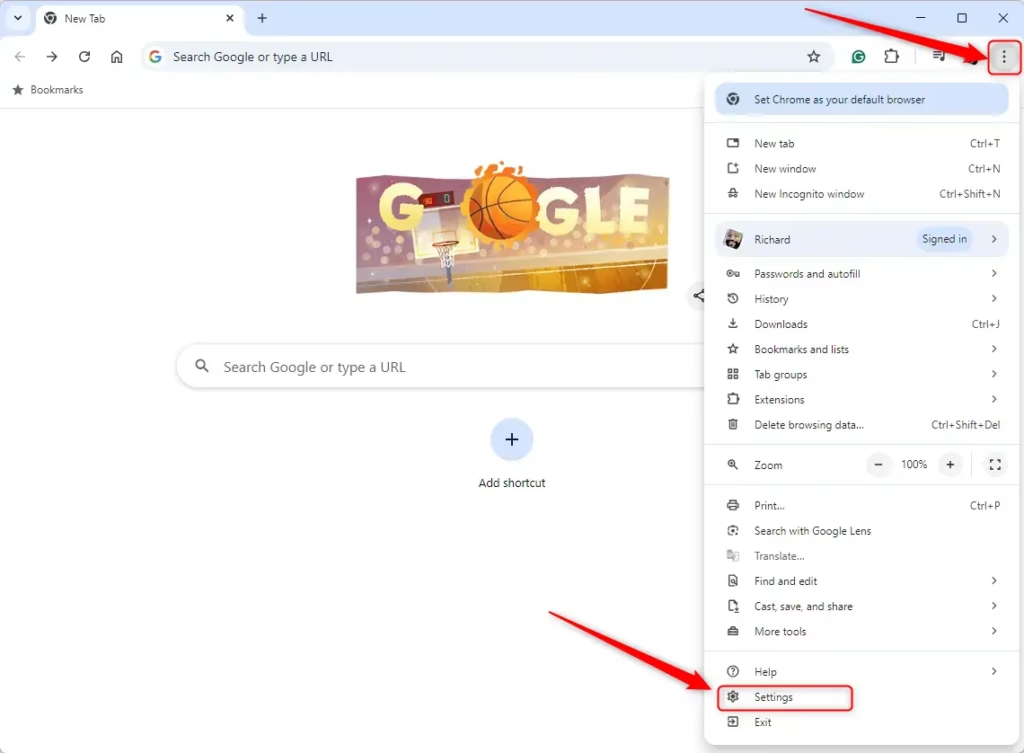
- Click the three vertical dots in the top right corner. The Chrome menu opens.
- Select Settings. The Settings page opens in a new tab.
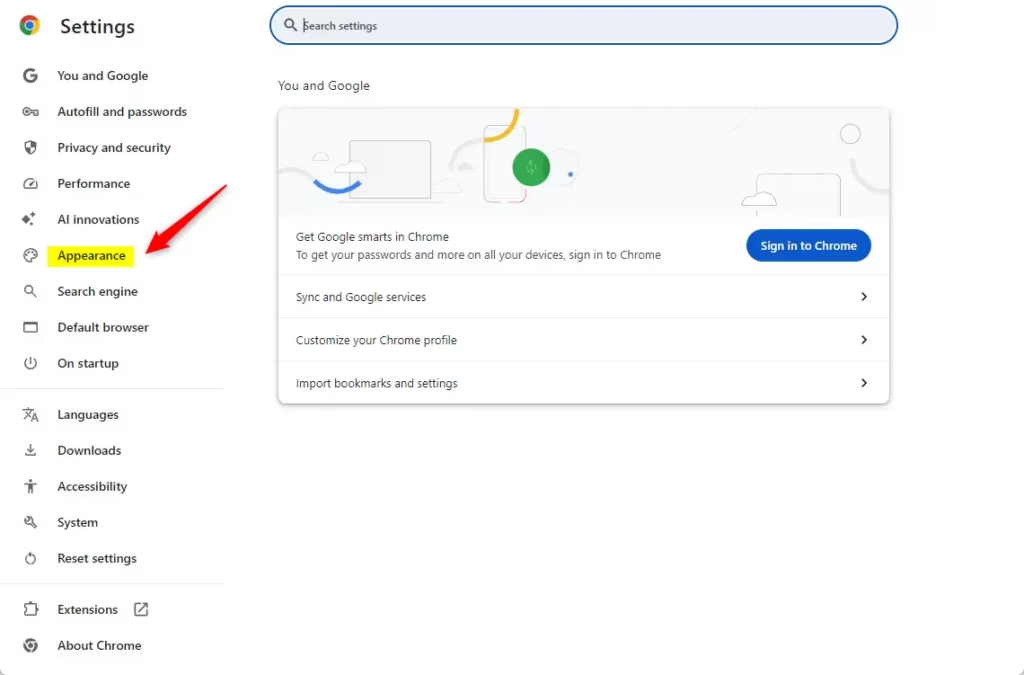
- Click Appearance on the left menu. The appearance options, including the bookmarks bar switch, now appear on the right.
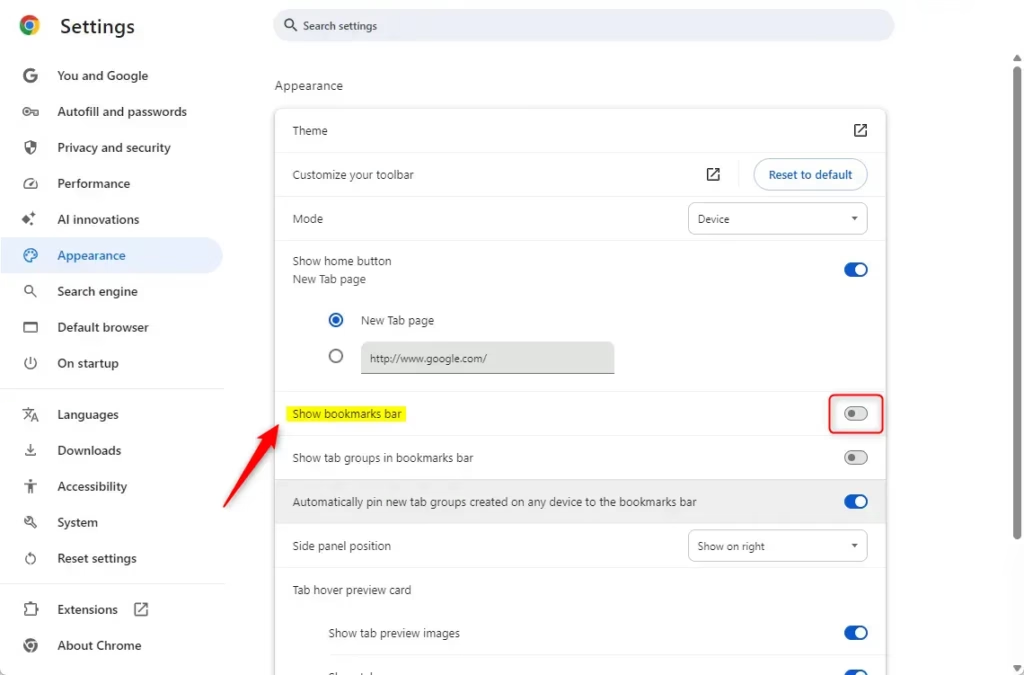
- Find the Show bookmarks bar option (older versions say "Show bookmark bar") and switch it on or off. The bar appears below the address bar when it is on and disappears when it is off. The change applies immediately, with no Save button.
Close the Settings tab. Chrome saves the change on its own, so nothing else is needed. To undo it, repeat the steps and flip the switch back, or press Ctrl+Shift+B.
Advanced/Enterprise: Enable/Disable the bookmark bar using the Registry
You can force Chrome to show or hide the bookmark bar by creating a new DWORD value named BookmarkBarEnabled in the Registry Editor at HKEY_LOCAL_MACHINE\SOFTWARE\Policies\Google\Chrome. Setting the value to 1 forces the bar to stay visible for all users on the computer. Setting it to 0 hides it completely.
Once the policy is in place, users can no longer change the bar from Settings or with the keyboard shortcut. The switch in Settings is greyed out.
Administrators use this method to manage Chrome across a fleet of computers. It keeps every employee's browser consistent and stops users from changing the bookmark bar. The Registry Editor is included in both Home and Pro editions of Windows 11. You need an administrator account, and you will likely see a User Account Control prompt.
Open the Windows Registry Editor and navigate to this path:
Computer\HKEY_LOCAL_MACHINE\SOFTWARE\Policies\Google\Chrome
Then you can roll back if something goes wrong.
- Check whether the Google and Chrome keys exist under Policies. On many computers they don't.
- If they are missing, right-click the Policies folder and select New Key. Name the new key Google. Then right-click Google, select New Key, and name it Chrome.
- Right-click an empty area in the right pane of the Chrome key and select New DWORD (32-bit) Value. A DWORD is a type of registry entry that stores a number.
- Name the new value BookmarkBarEnabled.
The BookmarkBarEnabled value controls whether the bookmark bar is visible. To set it, double-click the value, type the number in the Value data box, and click OK.
- Set it to 0 to hide the bookmark bar.
- Set it to 1 to show the bookmark bar.
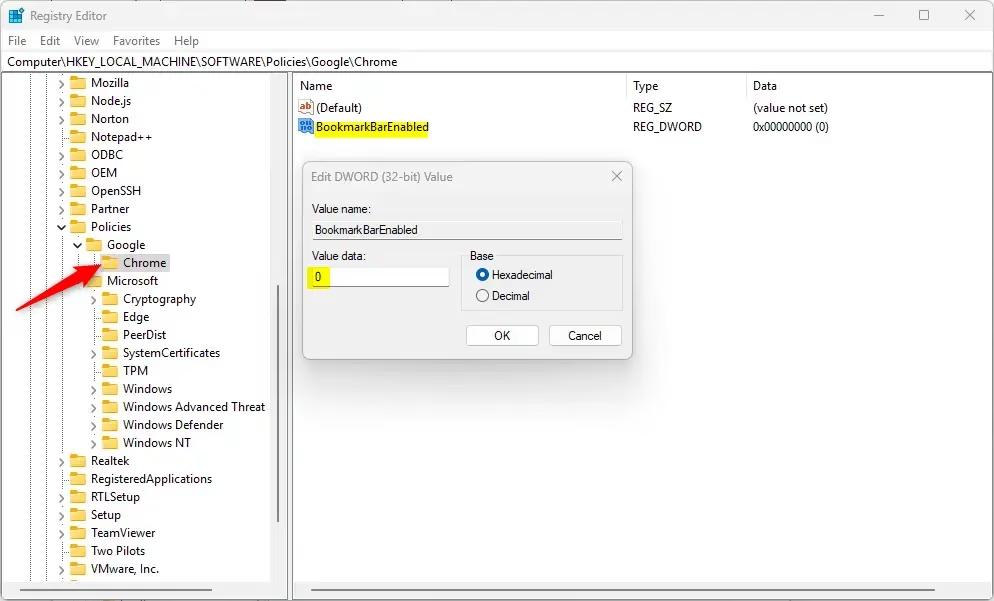
Close and reopen Chrome so it reads the new policy. Make sure no Chrome window is left running in the background. If the bar doesn't change, restart the computer.
To undo the change, go back to the same key and delete the BookmarkBarEnabled value. Chrome then returns control of the bar to the user.
Reference: Chrome Enterprise Policy
A bookmark bar set up to suit you makes browsing faster. For most people, the Ctrl+Shift+B shortcut or the Appearance setting is enough. Use the registry policy only when you need to lock the bar on or off for other users.
Have a question about this guide?
Answered by AI from this guide. Good questions may be added to this page — please don't include personal details.
Did this guide fix your problem?

About the Author
Richard
Tech Writer, IT Professional
Richard is a writer at Geek Rewind who turns complex IT tasks into clear, step-by-step guides. He draws on years of hands-on experience in system administration and enterprise IT operations, focusing on Windows, Linux and WordPress: the problems people actually run into, and the fixes that work. His server and WordPress guides come from systems he runs himself. Richard builds and maintains the platform behind Geek Rewind, from its Ubuntu servers and Nginx configuration to its custom WordPress plugins. Many new tutorials start with readers' questions, and he's always glad to answer them in the comments.
No comments yet — be the first to share your thoughts!