How to Turn Google Translate on or off in Chrome


Google Translate in Chrome is a built-in tool that turns foreign web pages into your preferred language. It supports more than 100 languages. You can turn it on or off at any time in Chrome settings, and the change takes effect straight away.
With the feature on, you can read overseas news, recipes and product pages right away, without installing a browser extension. With it off, pages stay in their original language and Chrome stops offering to translate them.
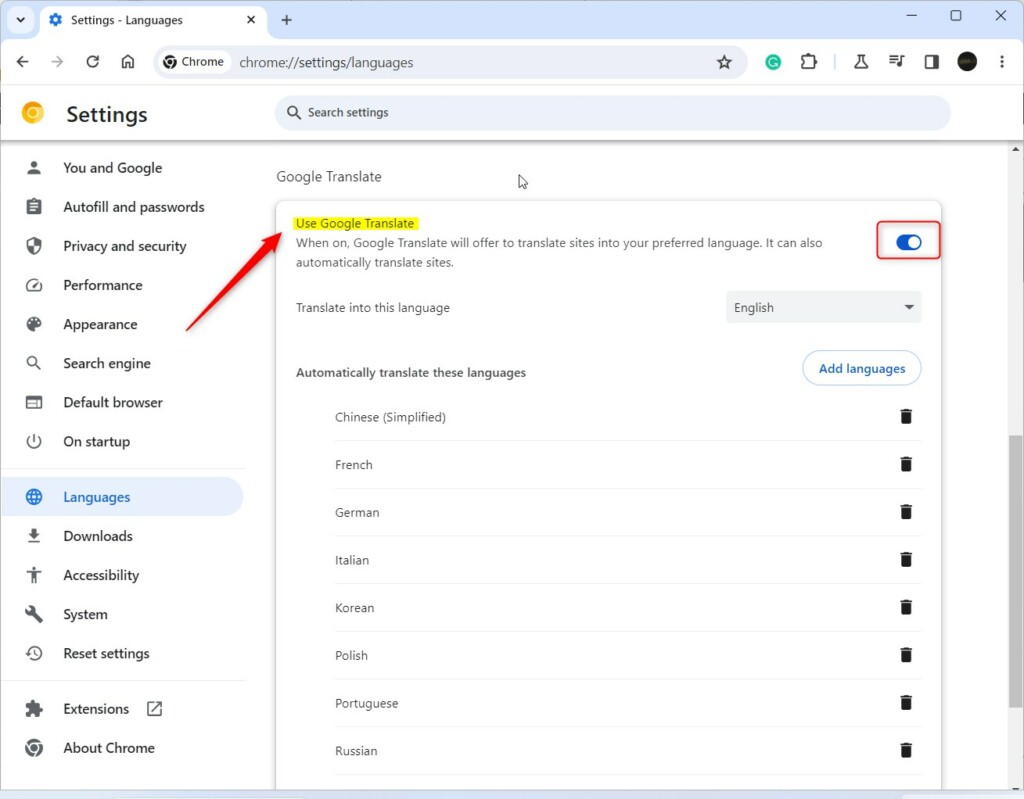
Open Chrome Settings, navigate to Languages, and toggle “Use Google Translate” on or off. You can also manage specific language translation preferences from this menu.
Enable or disable Google Translate in Chrome
To turn off Google Translate in Chrome, open the browser settings, click Languages on the left sidebar, and turn off the switch next to the option that offers to translate pages. After that, Chrome stops showing translation pop-ups when you visit a website written in a foreign language.
The steps below show where each setting sits. The wording of the switch differs a little between Chrome versions. Older builds say “Offer to translate pages that aren’t in a language you read”. Newer builds say Use Google Translate. Both do the same job. To turn the feature back on, follow the same steps and set the switch to On.
Open Google Chrome to begin. These steps are for the desktop version of Chrome on Windows 11. Make sure you are on a normal Chrome window, not an app or a pop-up window, because those have no menu bar.
Follow these steps to control how Google Chrome offers to translate pages, from opening the browser to flipping the switch.
- Open Chrome. Use a normal browser window, because app and pop-up windows have no menu.
- Click the three vertical dots in the top-right corner. The main menu opens.
- Select Settings. A Settings tab opens.
- Click Languages on the left sidebar. The language options appear on the right side of the screen.

- Confirm the Languages page is open. The right side should show your language list and the translation options. If you still see a different page, such as Appearance, click Languages on the left panel again.

On the right side, you'll see an option for Translate. In some versions it is labelled Google Translate. Click it to see the translation settings. You can also skip the menus. Type chrome://settings/languages into the address bar and press Enter, and Chrome opens this page directly.
- Find the Translate section. It sits on the right side of the Languages page.
- Find the Use Google Translate switch. On older Chrome builds, it is the "Offer to translate pages that aren't in a language you read" switch.
- Set the switch to On if you want Chrome to offer translations. The switch turns blue. Do this step or the next one, not both.
- Set the switch to Off if you want pages left in their original language. The switch turns grey, and the translation pop-ups stop.
There is no Save button. Chrome applies the change immediately, and you do not need to restart the browser. To undo it, come back to this page and flip the switch again.
If the switch is greyed out, or you see the message Managed by your organization, a policy set by your employer or school controls it. You cannot change it on that PC without help from your administrator.
Using the translation icon
When you visit a foreign-language page with translation turned on, a Google Translate icon appears in the Chrome address bar. Chrome may also show a small pop-up asking if you want to translate the page.
- Click the Google Translate icon in the address bar. This translates that specific page manually.
- Wait a moment. The page text changes to your preferred language, and the pop-up shows the language pair.
- Click the same icon again to go back. Choose to show the original page.
If you do not see the icon, translation may be turned off, or Chrome may think the page is already in a language you read. Check the switch from the previous section first.
Automatic settings
You can manage automatic translation in Chrome by choosing which languages should always translate and which should stay in their original text. This saves you from clicking the translate button on every page you visit. It helps most if you read the same few foreign sites every day.
Chrome also saves these choices when you use the translate pop-up. It lets you pick options such as always translating a language, or never translating a language or a site. Anything you choose there ends up in the same language settings.
- Click Add languages on the Languages page. A list opens with a search box, so you can choose specific languages for automatic conversion.
- Tick the language you want and confirm. It now appears in your language list.
- Remove a language with the delete button beside its entry. The entry disappears from the list.
- Put a language on the Never offer to translate list to stop unwanted prompts for it.
If you add a language by mistake, remove it the same way. Nothing else changes.
Chrome saves each change as you make it, so there is nothing to confirm. When you are done, close the Settings tab. Chrome itself stays open, and your choices are kept the next time you open it.
Conclusion
Managing your translation preferences keeps Chrome tailored to the way you read, without unnecessary pop-ups. Turn the feature on when you want foreign content opened without a language barrier, and off when you want pages left as written. Questions about these steps belong in the comment section below.
Have a question about this guide?
Answered by AI from this guide. Good questions may be added to this page — please don't include personal details.
Did this guide fix your problem?

About the Author
Richard
Tech Writer, IT Professional
Richard is a writer at Geek Rewind who turns complex IT tasks into clear, step-by-step guides. He draws on years of hands-on experience in system administration and enterprise IT operations, focusing on Windows, Linux and WordPress: the problems people actually run into, and the fixes that work. His server and WordPress guides come from systems he runs himself. Richard builds and maintains the platform behind Geek Rewind, from its Ubuntu servers and Nginx configuration to its custom WordPress plugins. Many new tutorials start with readers' questions, and he's always glad to answer them in the comments.
No comments yet — be the first to share your thoughts!