How to Master Google Chrome Features for Better Browsing

Google Chrome has a lot of built-in tools that most people never open. Some speed up browsing, some save laptop battery, and some keep tabs under control. This guide covers the ones I turn on first, where each setting lives, what you should see afterwards, and how to undo it.
Dark mode and the other controls here are all in Chrome’s settings, and each takes a minute or two. The steps are written for current Chrome on Windows 11. Chrome updates itself often, so a label can differ slightly on an older or newer build. I say so where that is likely. To open settings, click the three-dot menu at the top right of the window, then click Settings.
You can make Google Chrome black by enabling its dark theme, which you can find in the browser’s Appearance settings. This option helps match Chrome’s look to your system or phone settings and makes it easier on your eyes.
Make Chrome Look and Feel Right
Chrome’s look is easy to change to suit your eyes and your room. The guides in this part cover colour schemes and interface layout. Dark mode is the one most people want first, especially in a dim room or late in the day. Make these changes first, because you will see the result right away and can reverse it just as quickly.

Improve Your Browsing Experience
This section is about everyday speed and readability. It covers language translation, text clarity and page preloading. None of these needs extra downloads. Each one is a built-in setting you switch on or off, and you can undo any of them from the same screen.


Manage Resources and Security
Chrome can use a lot of memory and battery, especially with many tabs open. The settings in this part limit that drain, cap memory use and tighten up your privacy. They matter most on a laptop running on battery, or on an older PC with little RAM. Check whether your PC has a battery before you look for the power options, because some of them only appear on laptops.
Handle Your Personal Information
Chrome keeps personal details so it can fill in forms for you. That includes saved addresses, payment details and passwords. This section covers how to review and manage that stored information. It is worth a look if you share a PC, or if you simply do not want old addresses and logins sitting in the browser. The relevant settings are under Autofill and passwords in Settings.
Common questions
How do I make Chrome black like on my phone?
You can make Chrome match your desktop or phone by switching it to a dark theme. Chrome follows your system colour setting by default, so the quickest route is often to change it in Windows. Then you can check whether Chrome needs its own setting.
- Open Settings Personalization Colors in Windows 11.
- Set Choose your mode to Dark. Windows apps and the title bar go dark right away.
- Open Chrome and go to Settings Appearance. Chrome’s toolbar and menus should now be dark. If your build has a Mode or Theme option, you can set it here instead.
Dark mode changes Chrome’s own interface. Individual websites still decide how they look, so many pages stay light unless they offer their own dark version. To undo it, set Choose your mode back to Light in Windows, or reset the option in Chrome’s Appearance page.
Why does Chrome sometimes load pages really fast?
Predictive loading, called Preload pages, lets Chrome guess which link you will open next and load that page in the background. When the guess is right, the page opens almost at once. The trade-off is extra background data use, which matters on a metered or slow connection.
- Open Settings Performance. On some versions the option is under Settings Privacy and security > Cookies and other site data instead.
- Find Preload pages and switch it on. Turn it off if you want to cut background data use.
- If Chrome offers levels, pick Standard preloading for a balanced setup or No preloading to turn it off. The exact choices depend on your Chrome version.
You will see no pop-up after the change. The only sign is that pages you click often open faster. No restart is needed.
Can Chrome help me understand websites in other languages?
Chrome can translate foreign-language pages itself, using Google Translate. When you open a page in a language you do not read, it offers to convert the page into your preferred language.
- Open Settings Languages.
- Check that your language is listed under Preferred languages. Click Add languages if it is missing.
- Turn on Use Google Translate. On older builds this reads Offer to translate pages that aren’t in a language you read.
- Open a page in another language. A translate prompt appears near the address bar.
- Click Translate. The page text switches to your language.
If the prompt does not show up, right-click the page and click the translate option, or click the translate icon at the right end of the address bar. To go back to the original, use the same prompt and choose to show the original page. To stop the prompts, turn the setting off.
How can I stop Chrome from using so much battery?
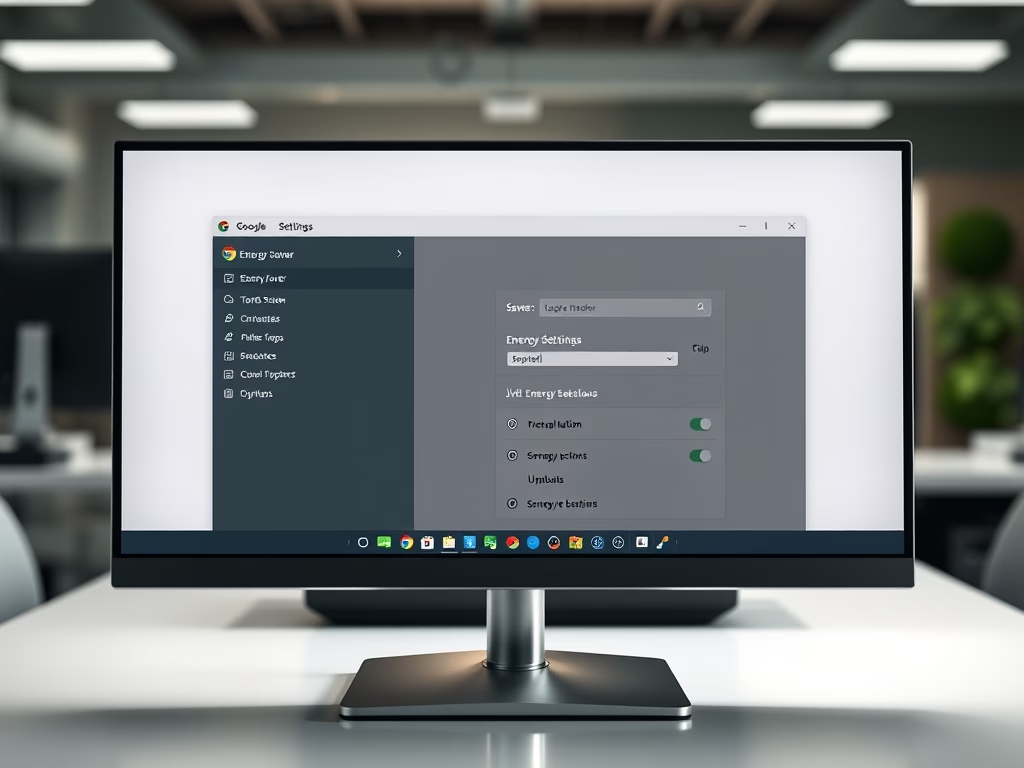
Energy Saver reduces background activity and visual effects, such as animations and smooth scrolling, so a laptop battery lasts longer. It works best when you are away from a charger. You will notice pages feel a little less fluid, and video frame rates may drop.
- Open Settings Performance.
- Find Energy Saver under the power section and switch it on.
- Choose when it should run: Turn on only when my battery is at 20% or lower, or Turn on when my computer is unplugged.
When Energy Saver is active, a small leaf icon appears in the toolbar. If you do not see the option at all, your PC may have no battery, or Chrome may be out of date. To undo it, switch Energy Saver off in the same place.
What is Memory Saver in Chrome?
Memory Saver frees RAM by putting tabs you have not used for a while to sleep. That leaves more memory for the tab you are working in and for other programs on your PC, so everything runs more steadily. A sleeping tab looks faded in the tab strip and reloads when you click it.
- Open Settings Performance.
- Switch on Memory Saver.
- If your build offers levels, choose Moderate, Balanced or Maximum. A higher level frees more memory but puts tabs to sleep sooner.
- Click Add next to the always-active list, if shown, to keep certain sites awake. This suits pages such as web email or a music player that must keep running.
Tabs you have not used for some time now go to sleep on their own. If a page loses its place when you return, add that site to the always-active list or turn Memory Saver off.
Have a question about this guide?
Answered by AI from this guide. Good questions may be added to this page — please don't include personal details.
Did this guide fix your problem?

About the Author
Richard
Tech Writer, IT Professional
Richard is a writer at Geek Rewind who turns complex IT tasks into clear, step-by-step guides. He draws on years of hands-on experience in system administration and enterprise IT operations, focusing on Windows, Linux and WordPress: the problems people actually run into, and the fixes that work. His server and WordPress guides come from systems he runs himself. Richard builds and maintains the platform behind Geek Rewind, from its Ubuntu servers and Nginx configuration to its custom WordPress plugins. Many new tutorials start with readers' questions, and he's always glad to answer them in the comments.
No comments yet — be the first to share your thoughts!