How to Enable Background Mode in Google Chrome

Background mode in Google Chrome keeps extensions and web apps running even after you close every browser window. This lets downloads finish and notifications arrive on time without the main browser sitting open on your screen.
Google Chrome hides this control under the system settings menu in version 120 and newer. Turning it on stops Chrome from shutting down completely, so tasks keep running in the background until you quit the app from the taskbar . Before you start, know that the setting works differently depending on your Chrome version, and that a work or school policy can override it.
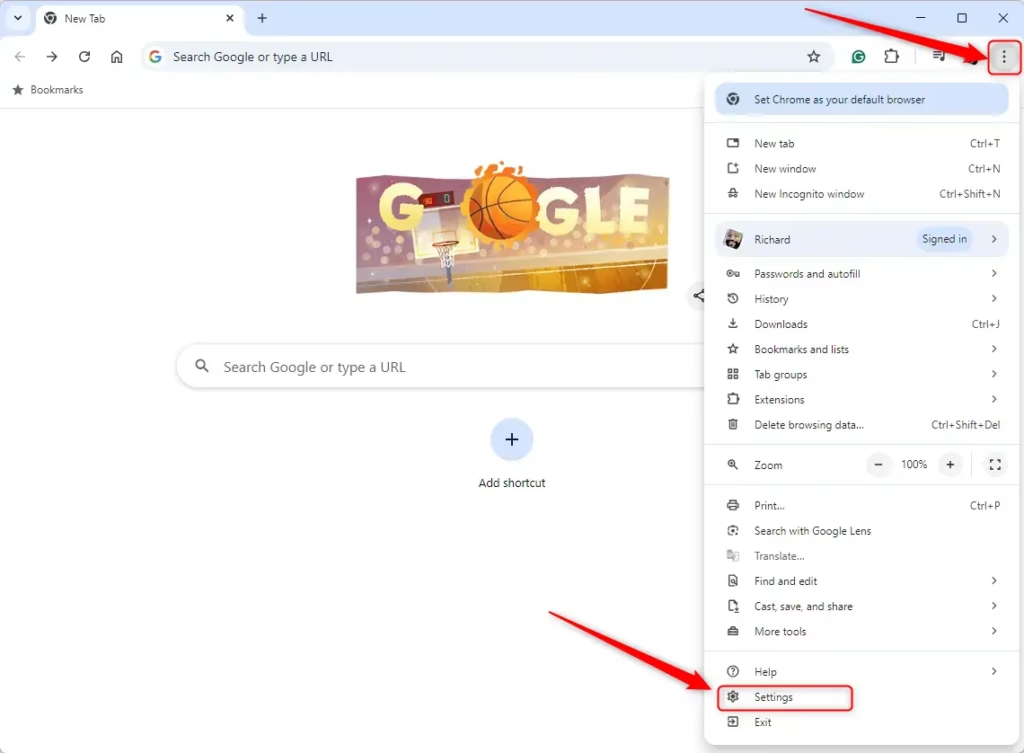
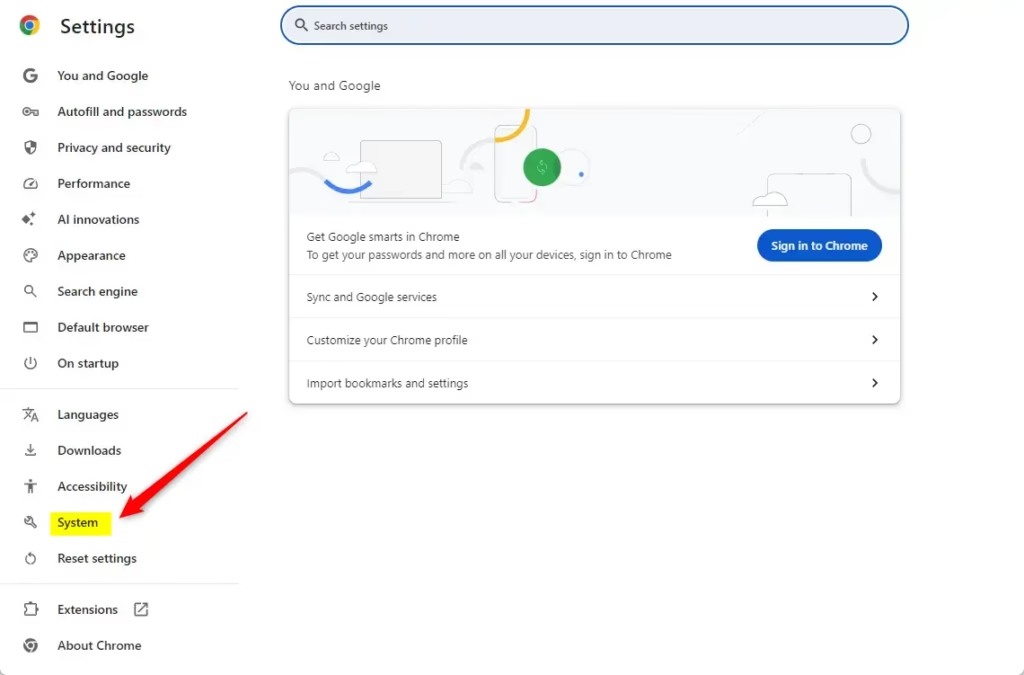
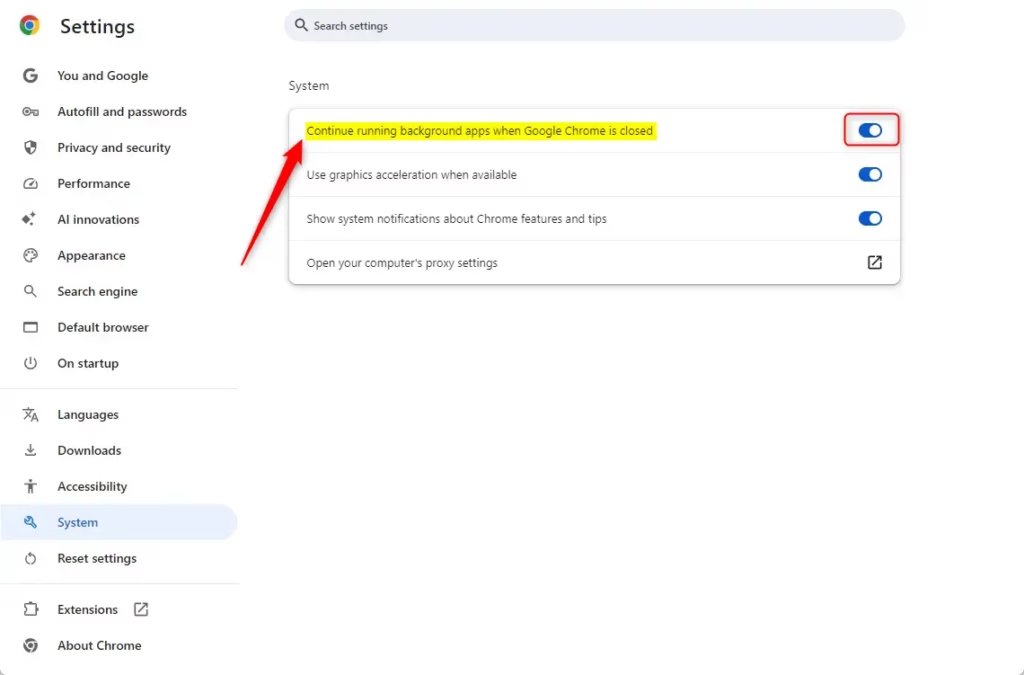
Open Chrome and go to Settings System, then toggle on Continue running background apps when Google Chrome is closed. If this toggle is missing, your Chrome version uses per-app permissions instead—open each installed web app and allow background permission individually.
Why use background mode?
Background mode lets certain web applications keep running after you’ve closed the main browser window. This is useful for apps that need to send you notifications or sync data in real time. Chat apps, email clients and calendar tools are typical examples.
What happens when done?
With background mode on, your favorite web apps keep running after you close Chrome, and Chrome often shows an icon in the system tray (the notification area at the right end of the taskbar ). With background mode off, those apps shut down as soon as you close Chrome. That can save battery power and memory, which matters on older laptops and low-RAM machines.
To check whether Chrome is still running in the background, look for the Chrome icon in the system tray . If it isn’t visible, click the Show hidden icons arrow (the small up arrow) next to the tray. If the icon is there, right-click it and choose Exit to shut Chrome down completely.
Enable/Disable Background Mode in Chrome
To enable background mode in Chrome, you now work with individual Progressive Web Apps (PWAs, which are websites installed to run like standalone desktop apps) rather than one global toggle. Google removed the single switch from many builds. When you install a website as a PWA, that app can ask for permission to run tasks in the background after you close the main browser window.
Follow these steps to check the setting:
- Open Chrome and go to Settings System
- Look for a toggle named Continue running background apps when Google Chrome is closed. If you see it, switch it on. Some versions still show it, and it controls all background apps at once.
- If the toggle is missing, the browser no longer has a single switch. Open the installed PWA instead and check its own settings and permissions, one app at a time.
- When an installed PWA asks for permission to run in the background, choose to allow it. You should then see the app stay active after you close Chrome.
In that case the setting is locked by policy, and you can't change it from the Chrome menu.
Keep in mind that company policies often control Chrome settings in work or school environments. On regular, unmanaged copies of Chrome, there isn't one universal option anymore to keep all background apps running, so the per-app approach above is the one to use.
To undo the change, switch the toggle off if you have it, or turn off the background permission for the individual app. Then quit Chrome from the system tray icon to be sure nothing is still running.
Enable / Disable Background Mode in Chrome using the Registry
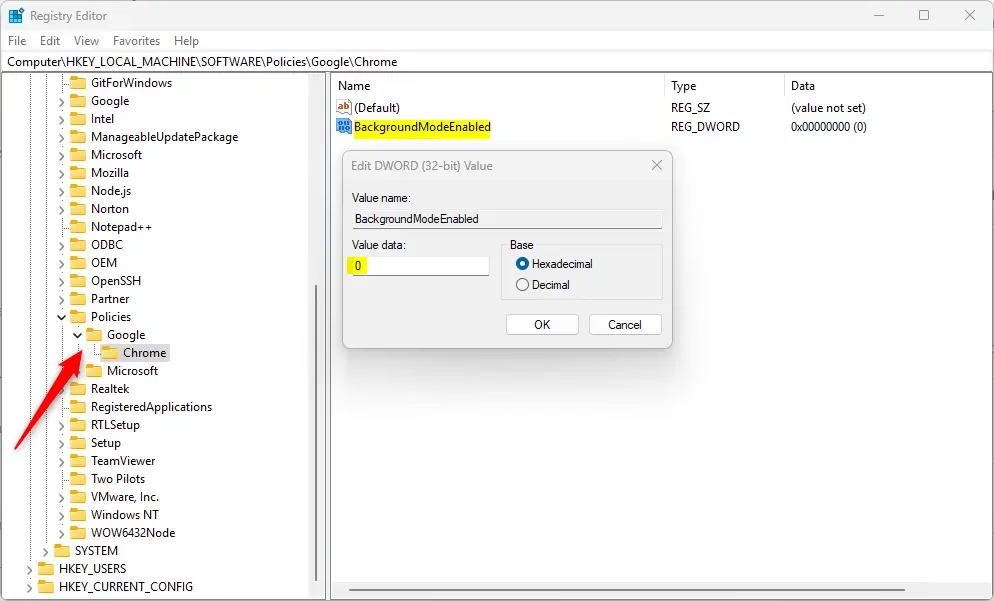
Open the app and go to Computer\HKEY_LOCAL_MACHINE\SOFTWARE\Policies\Google\Chrome. Be aware that editing this key often does nothing on modern versions of the browser. It also needs an administrator account, and a wrong change can cause problems, so back up your system first.
If you still want to try this, follow these steps:
- Back up your registry or create a System Restore point before making any changes.
- Open the Windows Registry Editor. Click Yes if Windows asks for permission.
- Navigate to this key:
Computer\HKEY_LOCAL_MACHINE\SOFTWARE\Policies\Google\Chrome
- If the Chrome key isn't there, create it. Right-click the Policies key and select New Key. Name the new key Google if it doesn't exist either, then create Chrome inside it.
- Inside the Chrome key, right-click an empty area and select New DWORD (32-bit) Value. Name it BackgroundModeEnabled.
- Double-click the new value and set Value data to 0 to turn off background mode, or 1 to turn it on. Click OK.
- Close the Registry Editor and restart Chrome. You might need to restart your computer afterward for the policy to apply.
To undo this, set the value back or delete BackgroundModeEnabled. Chrome then goes back to its normal behavior. If you restored a System Restore point instead, the key goes away with it.
Reference:
Conclusion
Chrome's background activity settings now differ for each web app. To make a specific web app keep running when Chrome closes, you need to find that app's individual background task settings, because Chrome version 91 removed a single main switch for this purpose. If you manage several PCs, check each app on each machine, or use a policy if your organization controls Chrome centrally.
Have a question about this guide?
Answered by AI from this guide. Good questions may be added to this page — please don't include personal details.
Did this guide fix your problem?

About the Author
Richard
Tech Writer, IT Professional
Richard is a writer at Geek Rewind who turns complex IT tasks into clear, step-by-step guides. He draws on years of hands-on experience in system administration and enterprise IT operations, focusing on Windows, Linux and WordPress: the problems people actually run into, and the fixes that work. His server and WordPress guides come from systems he runs himself. Richard builds and maintains the platform behind Geek Rewind, from its Ubuntu servers and Nginx configuration to its custom WordPress plugins. Many new tutorials start with readers' questions, and he's always glad to answer them in the comments.
No comments yet — be the first to share your thoughts!