
Gemini Nano is a built-in AI system in Google Chrome. It runs writing help and page summaries locally on your Windows 11 PC, so your data is not sent to the cloud. The trade-off is disk space: the model files take up about 4GB on your hard drive.
Turning this feature off deletes the AI files from your Chrome profile and frees up that space. Smart browser tools that depend on the model stop working until the files are downloaded again. Turning it back on brings those tools back.
The setting lives inside Chrome, so it works the same on Windows 11 Home and Pro. You do not need administrator rights or the Registry Editor.
Open Google Chrome, click the three dots menu in the top-right corner, select Settings, click System in the left menu, then toggle On-device AI on or off. Chrome saves the change immediately and removes the AI files if you turn it off.
How to Turn On-Device AI On or Off
- Open Google Chrome.
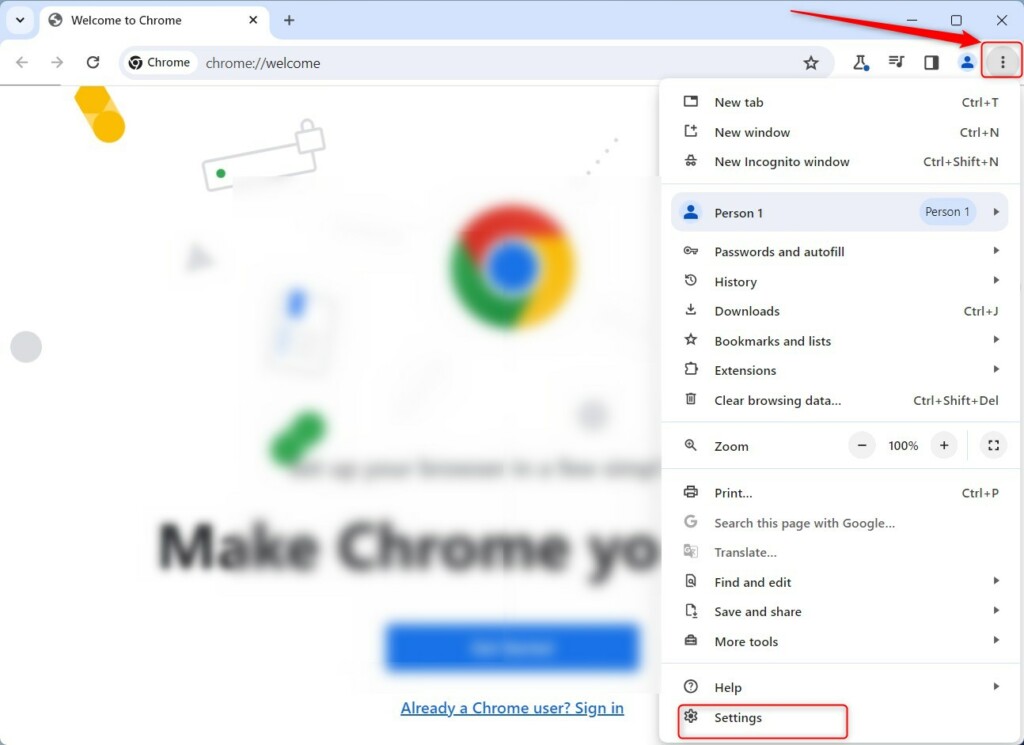
- Click the three dots button (
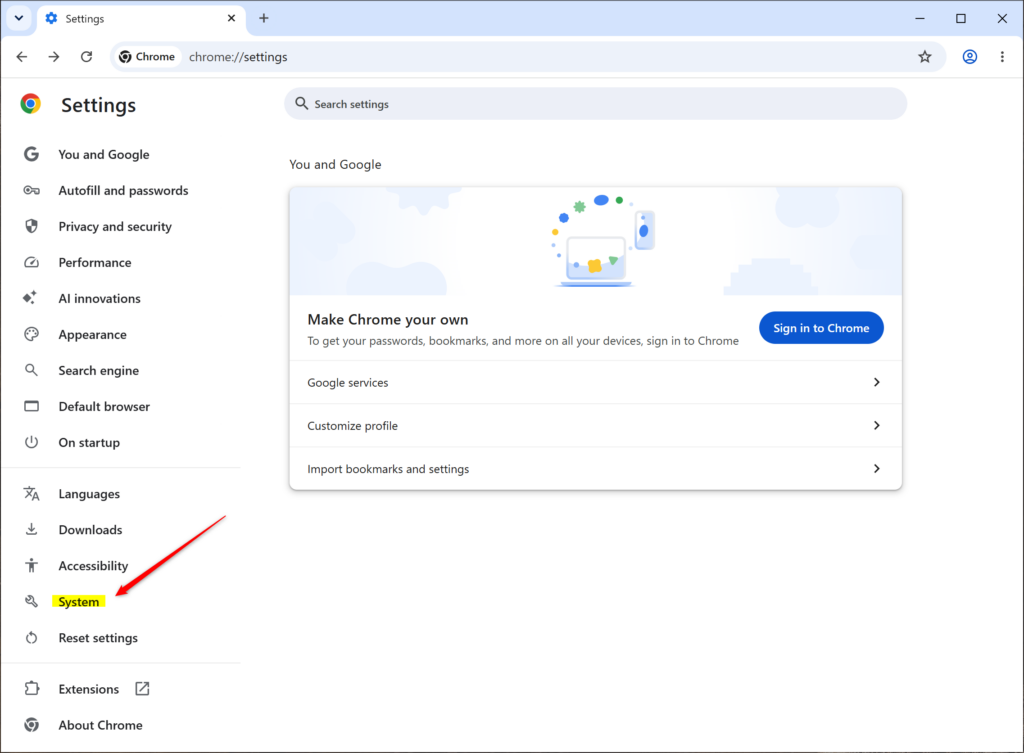
...) in the top-right corner. This is the “Settings and more” menu. Then click Settings. A new Settings tab opens. - In the left-hand menu, click System. If you don’t see a left menu, click the three lines button (
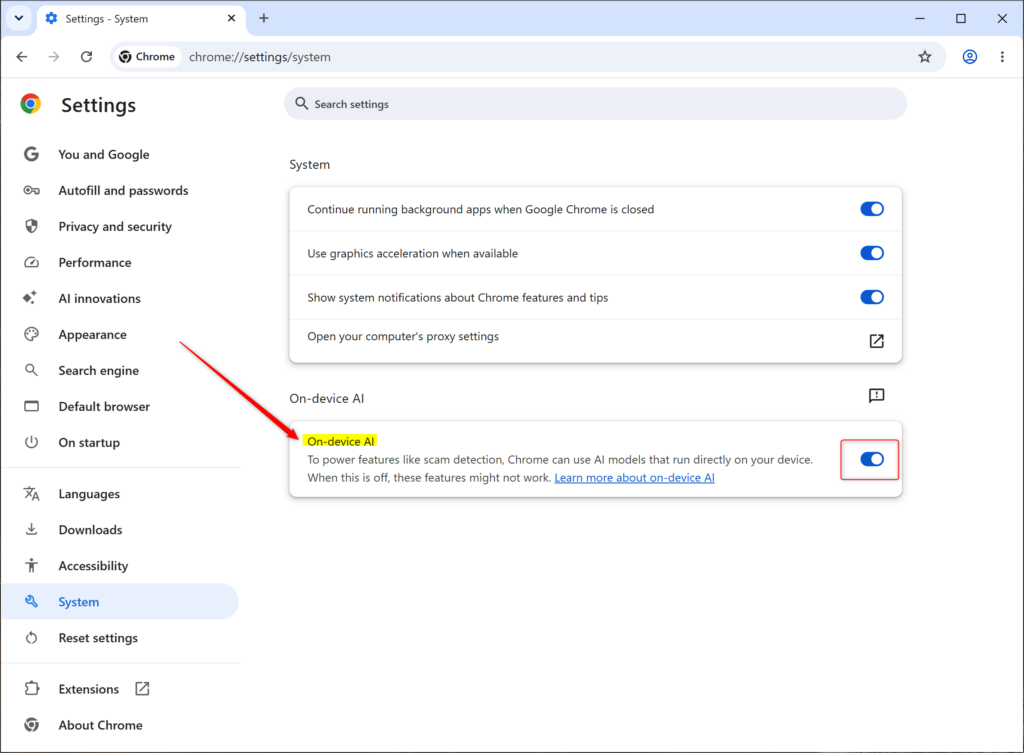
☰) in the top-left corner of the Settings page, or make your Chrome window wider. Chrome hides the menu when the window is narrow. - Find the On-device AI option and use its toggle switch. Choose On (the default) to let Chrome keep and use the local AI model. Choose Off to stop using it and remove the files. The toggle should now show your new choice.
- Close the Settings tab if you wish. Chrome saves the change as soon as you flip the switch, so there is no Save button to press.
If you don’t see On-device AI under System, there are three likely reasons:
- Your Chrome is out of date. Update it, then reopen Settings. Chrome usually updates itself when you close and reopen the browser.
- Your PC or Chrome profile is not eligible for the feature yet. Google rolls it out in stages and has hardware requirements.
- Your computer is managed by a work or school account. In that case an administrator may control the option, and you cannot change it yourself.
If you turn it back on, Chrome may need to download the model files again, which uses that ~4GB of space and some bandwidth. If the toggle does not seem to take effect, close Chrome completely and reopen it, then check the setting again.
Turning on-device AI in Google Chrome on or off takes just a few clicks in the browser settings. You can use it to control how your computer handles built-in AI tools. Open Chrome settings, go to the System section, and use the toggle switch next to the on-device AI option to enable or disable it whenever you want.
Summary
It directly affects your storage space and which browser features work. If you are short on disk space or prefer not to run local AI, turn it off. If you want the writing help and page summaries, leave it on.
Have a question about this guide?
Answered by AI from this guide. Good questions may be added to this page — please don't include personal details.
Did this guide fix your problem?

About the Author
Richard
Tech Writer, IT Professional
Richard is a writer at Geek Rewind who turns complex IT tasks into clear, step-by-step guides. He draws on years of hands-on experience in system administration and enterprise IT operations, focusing on Windows, Linux and WordPress: the problems people actually run into, and the fixes that work. His server and WordPress guides come from systems he runs himself. Richard builds and maintains the platform behind Geek Rewind, from its Ubuntu servers and Nginx configuration to its custom WordPress plugins. Many new tutorials start with readers' questions, and he's always glad to answer them in the comments.
No comments yet — be the first to share your thoughts!