Locate Music Downloads on My Computer in Windows 11

- 16 steps
- Needs administrator rights
Music downloads in Windows 11 usually land in one of two folders: Music or Downloads. Both folders sit under your user profile, at C:\Users\USERNAME. Searching “find all my music downloads” comes down to one File Explorer search: press Win+E, select This PC, type the search text kind:=music in the search box, and press Enter.
File Explorer (the folder window that opens with Win+E) lists every audio file it finds on your drives. That includes tracks saved by a browser, an app, or a USB transfer. The search below lists every track on your PC, and the post also shows where each folder sits and what to check when tracks you downloaded do not appear. None of the steps need administrator privileges.
Press Win+E, select This PC, and type kind:=music in the Search This PC box, then press Enter. File Explorer lists every audio file on your drives, including tracks saved by browsers and apps. Switch to View Details and add the Folder path column to see exactly where each track is stored.
Where 🪟 Windows 11 Saves Music Downloads by Default
Windows does not keep a separate “music downloads” folder. A downloaded track lands wherever the app that fetched it was told to save it. Knowing the three usual places narrows the search before you start.
The Music folder
The Music folder is the default home for audio you own. Its normal location is C:\Users\USERNAME\Music, where USERNAME is your Windows account name. Music players and media apps usually treat this folder as your music library (a collection of folders the app scans for songs).
To open it, press Win+E and select Music in the left pane. If you do not see it there, the post on how to find the Music folder in Windows 11 covers every route. You can also show your Music library on This PC so it sits beside your drives.
The Downloads folder
Microsoft Edge, Google Chrome, and most other browsers save files to C:\Users\USERNAME\Downloads unless you change the setting. A song you bought from a website or grabbed from a link is most likely there, mixed in with installers and documents. If you need help with that folder, see how to find your Downloads folder in Windows 11.
A folder you or an app chose
Some apps ask where to save music the first time, and some browsers ask for a location every time. Download managers and music store apps often use their own folder. For example, iTunes keeps tracks in a folder named iTunes Media inside the Music folder by default. The search method below finds these files wherever they are.
How to Find All My Music Downloads in File Explorer
This search lists every audio file on your PC in one window, so you can find all my music downloads without opening folder after folder. File Explorer filters by file type (the category Windows assigns, such as music, pictures, or documents), so you do not need to know a file name.
To search your whole PC for music:
- Press Win+E. File Explorer opens, showing Home or Quick access in the right pane.

File Explorer - Select This PC in the left pane. You now see your drives, such as Local Disk (C:). Starting here makes File Explorer search every drive, not one folder.
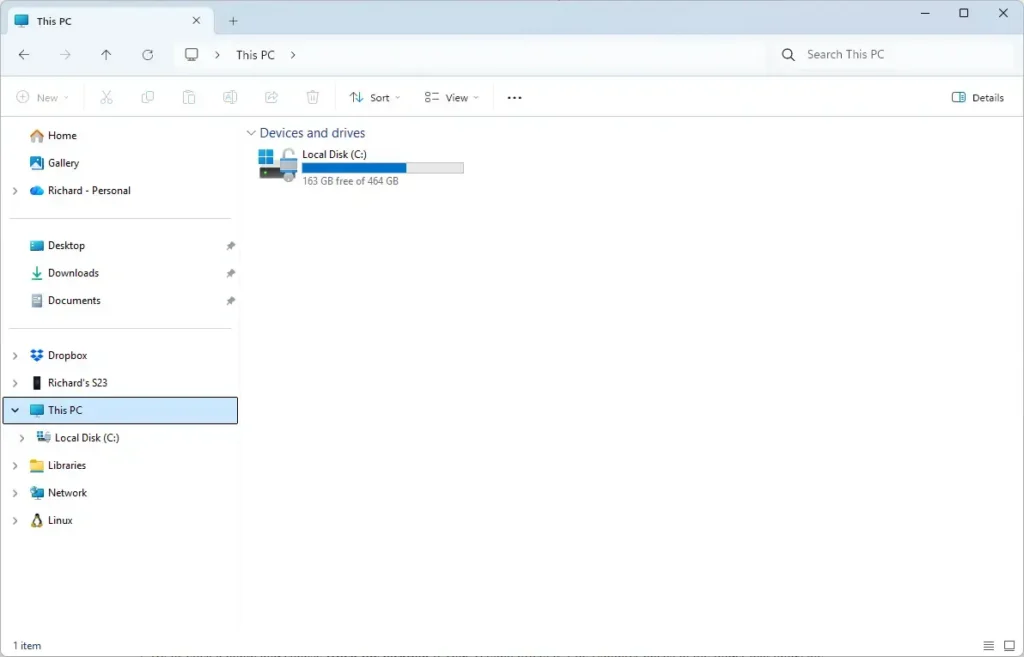
File Explorer - Click the search box in the top-right corner. It is labeled Search This PC.
- Type
kind:=musicand press Enter. Thekind:part tells Windows to match a file type. If you get no results, trykind:musicwithout the equals sign. - Wait for the search to finish. A green progress bar moves across the address bar while Windows searches. On a large drive this can take a minute or two, and new results keep appearing as it runs.
- Select View Details. The results change to a list with columns such as Name, Date modified, Type, and Size.
- Right-click a column heading and select Folder path. This column shows the exact folder holding each track. If it is not in the list, select More, tick Folder path, and select OK.
- Click the Date modified heading to sort the list. One click sorts oldest first and a second click sorts newest first, which puts your latest downloads at the top.
- Right-click a track and select Open file location. If you do not see that option, select Show more options first. The folder that holds the track opens with the file highlighted.
The Folder path column is the quickest way to see patterns. If most of your tracks list C:\Users\USERNAME\Downloads and a few list another drive, you know where to look next time.
Sort by the date you downloaded the file
Search for a Specific Music File Type
Searching by file type finds one format at a time and catches files that the kind:=music search misses. This is useful when you only want lossless tracks or when an app saved audio with an unusual setup. A file extension is the short code after the dot in a file name, such as .mp3.
In the same search box, type an asterisk followed by the file extension, such as *.mp3, and press Enter. The asterisk matches any file name. These are the common music formats:
*.mp3finds MP3 files, the most common format for downloaded songs.*.m4afinds files from iTunes and many music stores.*.flacfinds lossless files, which keep full audio quality and are larger.*.wavfinds uncompressed audio, often from recording or editing software.*.wmafinds Windows Media Audio (WMA) files, a format common in older downloads.*.aacand*.oggfind two other compressed formats.
To search for several at once, join the patterns with OR in capital letters, for example *.mp3 OR *.flac.
Find Music Through Your Browser’s Download History
Your browser keeps its own list of everything it downloaded, and each entry links to the saved file. This route works when you remember downloading a song but cannot find it, because it ignores folders entirely. It only covers files the browser fetched, not tracks copied from a USB drive or from a CD you converted to files.
To open the list in Microsoft Edge or Google Chrome:
- Open your browser and press Ctrl+J. A Downloads list or tab opens, with the newest file at the top.
- Scroll to the music file you want. Use the search box at the top of the list if it is long.
- Select Show in folder (Chrome) or the folder icon labeled Show in folder in Edge. File Explorer opens with the file highlighted.
If a file name appears crossed out or greyed, the file was moved or deleted after the download. Check the Recycle Bin, then run the File Explorer search above in case you moved it yourself.
Check where your browser saves files
Every browser has a default save location, and you can read it in the settings. In Edge, open Settings, select Downloads, and read the entry beside Location. In Chrome, open Settings, select Downloads, and read the same field. For a fuller walkthrough of locating and opening these files, see how to locate and open downloaded files on this computer in Windows 11.
Why You Cannot See Your Music Downloads
If the search comes back empty or misses tracks you know you have, one of the causes below is almost always responsible. Check them in this order.
Offline songs from streaming apps are not music files
You can play them only inside the app. To get music as real files, you need to buy or download tracks from a store or source that provides them.
The files are inside a ZIP archive
Many music stores and artist sites deliver an album as one ZIP file. File Explorer does not list the tracks inside a ZIP in a kind:=music search until you extract them.
Open your Downloads folder, right-click the ZIP file, and select Extract All. Choose a destination, select Extract, and the tracks appear in a normal folder. Delete the ZIP afterward if you no longer need it.
The files are on another drive or in OneDrive
The search through This PC covers connected drives, but it skips a USB drive or external disk that is unplugged. Plug the drive in and search again.
Also check where your Music folder points. If Microsoft’s OneDrive cloud storage backs up your folders, the path may be C:\Users\USERNAME\OneDrive\Music. To confirm, right-click Music in the left pane, select Properties, and open the Location tab. The path in the box is the real location.
The search is slow or incomplete
Windows searches faster in folders it has indexed (scanned ahead of time so results appear quickly). By default it indexes your user folders, so Music and Downloads are covered. Searches of other locations can take longer, and an interrupted search may miss files.
If results look incomplete, open the folder you suspect, click its search box, and run kind:=music there. You can review the setting under Settings Privacy & security Searching Windows.
The files were deleted or hidden
Open the Recycle Bin on your desktop and search it for kind:=music. A deleted track shows its original location, and you can right-click it and select Restore to put it back. Restoring returns the file to the folder it came from.
Keep Your Music in One Place Going Forward
Gathering tracks into the Music folder means the next search is short and your music player finds everything. Moving files is safe, because Windows only changes where they are stored. You can reverse it by moving them back.
To move music into the Music folder:
- Run the search from the steps above so every track appears in one list.
- Press Ctrl+A to select all the results. Review the selection first and press Ctrl and click to deselect anything that is not music you want to keep, such as a ringtone or a sound effect.
- Press Ctrl+X to cut the files.
- Open the Music folder and press Ctrl+V to paste. The tracks now sit in one place.
Cutting and pasting from a list that spans several drives copies across drives, which takes longer than a move on one drive. If you want to keep the originals while you check, press Ctrl+C instead of Ctrl+X. Delete the originals only after you confirm the new copies play.
To stop the scatter at the source, change where your browser saves files, or set a music app to save into the Music folder. For pictures, the same approach applies, as covered in locating your Pictures folder in Windows 11.
What to Do Next
If a track still does not appear after these checks, the download probably failed or came from an app that stores music privately, so check that app’s own settings. To see what else your browser has saved beyond music, read how to find downloads on my computer. A new Windows user account has its own Music and Downloads folders, so run the search while signed in to the account that saved the files.
Have a question about this guide?
Answered by AI from this guide. Good questions may be added to this page — please don't include personal details.
Did this guide fix your problem?

About the Author
Richard
Tech Writer, IT Professional
Richard is a writer at Geek Rewind who turns complex IT tasks into clear, step-by-step guides. He draws on years of hands-on experience in system administration and enterprise IT operations, focusing on Windows, Linux and WordPress: the problems people actually run into, and the fixes that work. His server and WordPress guides come from systems he runs himself. Richard builds and maintains the platform behind Geek Rewind, from its Ubuntu servers and Nginx configuration to its custom WordPress plugins. Many new tutorials start with readers' questions, and he's always glad to answer them in the comments.
No comments yet — be the first to share your thoughts!