Show Your Music Library on This PC in Windows 11

The Music library in File Explorer is hidden by default in Windows 11. Here is how to show it. Open File Explorer, select See more (the three dots), choose Options, and turn on Show libraries on the View tab. A Libraries entry then appears in the left pane with Music inside it.
A library is a virtual folder that gathers files from several real folders into one view. The Music library starts with your personal Music folder (C:\Users\USERNAME\Music) and the shared Public Music folder. This post also covers the Music folder in the Folders group on This PC, adding more folders to the library, and what to do when an entry is missing.
None of these steps need administrator rights, and none need a restart.
To show your Music library on this PC in Windows 11, open File Explorer , select See more (the three dots), choose Options, open the View tab, and tick Show libraries under Navigation pane. Then select Libraries in the left pane and double-click Music. The library lists files from your 📁C:\
Music Folder, Music Library and Media Player Library: What Is the Difference?
- The Music folder is a real folder in your user profile. It is the default place for downloaded music and music copied from CDs. It shows under Folders on This PC. The post on finding the Music folder in Windows 11 covers its location in more detail.
- The Music library is the virtual folder described above. It can include folders from other drives, so music stored outside your profile still appears in one place.
- The Media Player library is a separate list kept by the Media Player app. It has its own locations. Changing one does not change the other.
This post shows you the first two in File Explorer . The last section points you to the Media Player steps.
Show the Music Library in File Explorer
These steps show the Libraries entry in the File Explorer navigation pane (the left-hand list of locations), so you can open the Music library. The setting applies to your account only, and it covers every File Explorer window.
- Open File Explorer . Press Win+E, or select the folder icon on the taskbar .

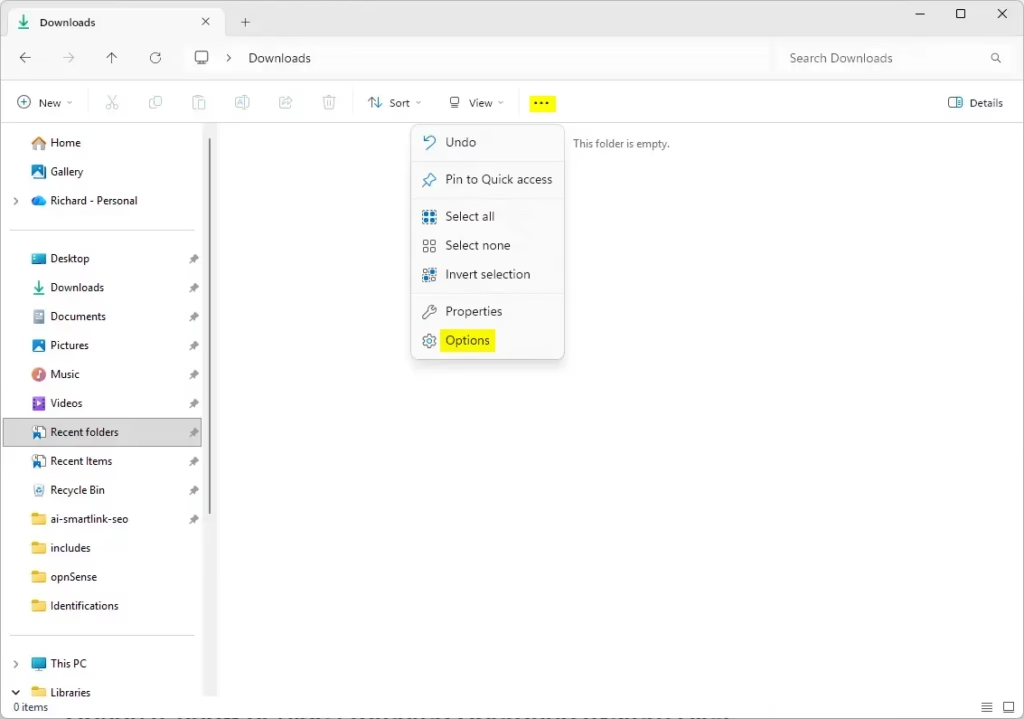
File Explorer - Select See more. It is the three dots at the right end of the command bar at the top of the window. A menu opens.
- Choose Options. The Folder Options dialog opens.
Windows 11 File Explorer Folder Options window showing Apply to Folders button. - Select the View tab. A list called Advanced settings appears.
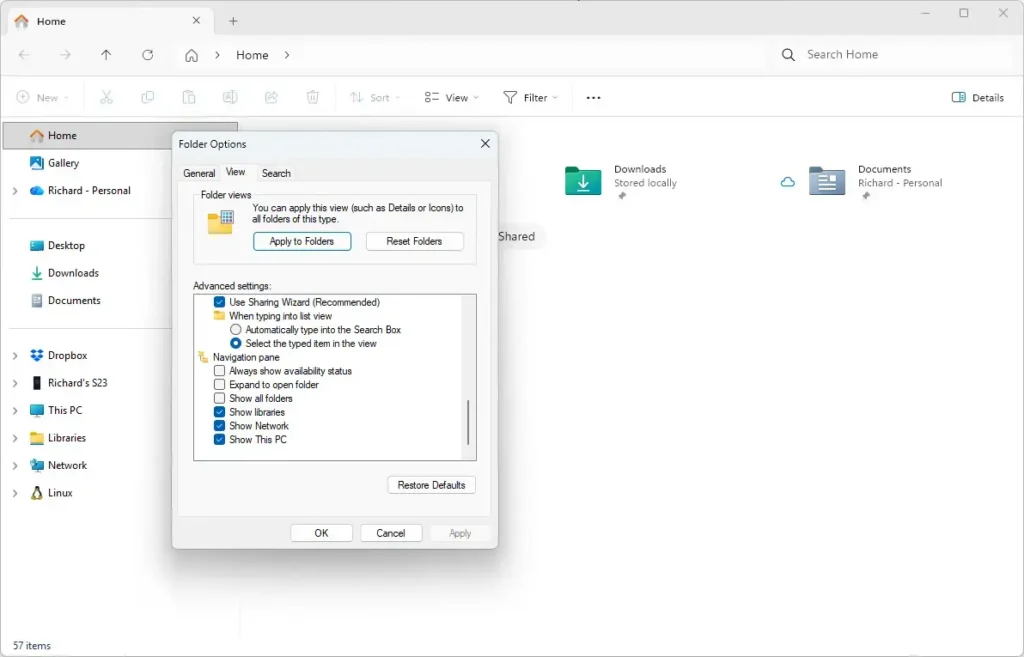
- Scroll to the Navigation pane group. It sits near the bottom of the list and contains several checkboxes.
- Tick Show libraries. The box shows a check mark when it is on.
- Select Apply, then select OK. The dialog closes. A Libraries entry now appears in the left pane of File Explorer .
- Select Libraries in the left pane. The right pane lists Camera Roll, Documents, Music, Pictures, Saved Pictures and Videos.
- Double-click Music. The Music library opens and lists the files from every folder it includes.
If the Libraries entry does not appear after you select OK, close File Explorer and open it again. If it still does not appear, go to the troubleshooting section below.
What You Should See
An empty Music library means it has no files to show yet, not that the setting failed. The library only displays what is in its folders. If your songs live in a folder such as D:\Songs, add that folder using the steps in the next section.
Check the Music Folder on This PC
The Music folder itself is separate from the library. On many builds of Windows 11, it appears on This PC in the Folders group, next to Desktop, Documents, Downloads, Pictures and Videos.
Open File Explorer and select This PC in the left pane. If you see a Folders heading, select the small arrow beside it to expand it, then double-click Music. Windows 11 has changed how This PC is laid out between releases, so the group may look different on your build. If the group is not there, use the Libraries route above or the Music folder entry in the left pane.
If the Music Folder Is Missing or Points to the Wrong Place
Restoring the default location puts it back at C:\Users\USERNAME\Music. Windows may ask whether to move your files, so read the prompt in step 5 before you answer.
- Open File Explorer .
- Right-click Music in the left pane or under Libraries, then choose Properties.
- Select the Location tab. This tab appears when you right-click the Music folder itself, not the library. If you do not see it, open your user folder and right-click the Music folder inside it.
- Select Restore Default. The path box changes to the standard Music location.
- Select Apply. Windows may ask whether to move all files from the old location to the new one. Choose Yes to bring your music with you, or No to leave the files where they are.
- Select OK.
To keep Music one click away, right-click the folder and choose Pin to Quick access. On newer builds, the same command reads Pin to Home.
Add More Folders to the Music Library
These steps add a folder from another drive so the Music library shows all your files in one place. Adding a folder does not copy or move any files. The library only points to them.
- Open File Explorer .
- Select Libraries in the left pane. The six library folders appear on the right.
- Right-click Music, then choose Properties. The Music Properties dialog opens with a box called Library locations.
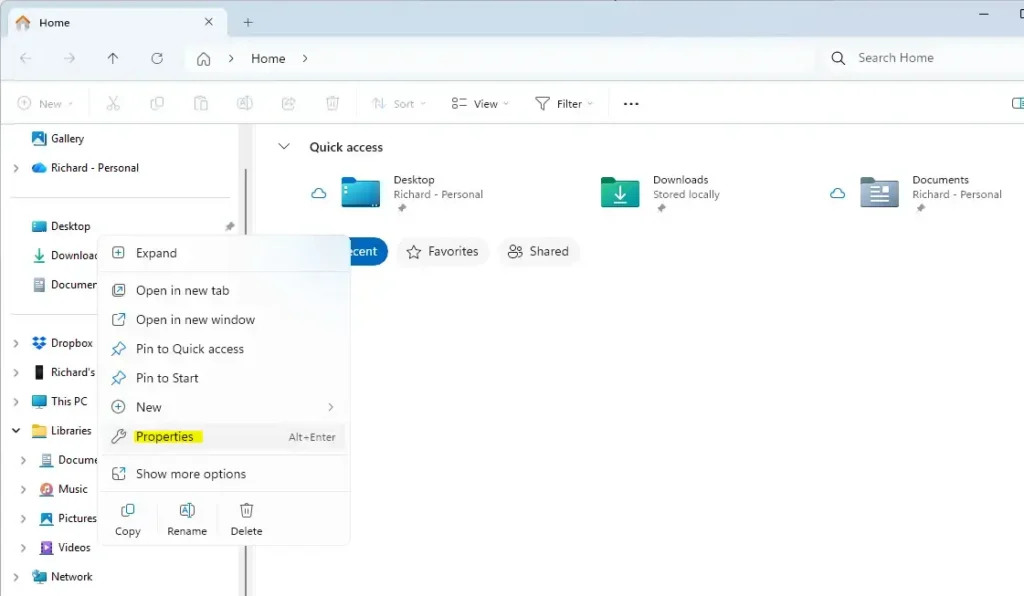
- Select Add. A folder picker opens, titled Include Folder in Music.
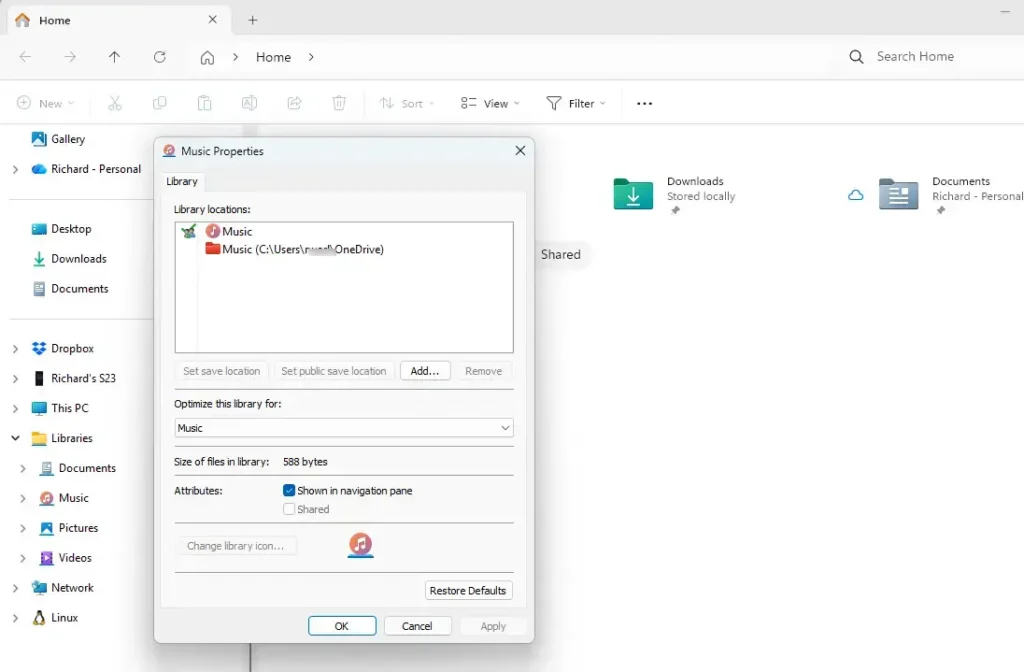
- Browse to the folder that holds your music, such as
D:\Songs, and select it. - Select Include folder. The folder now appears in the Library locations list.
- Select OK. The dialog closes.
- Open Music under Libraries. The files from the new folder now appear alongside your existing music.
The Properties dialog also has a Remove button. Removing a folder here stops the library from showing it. The files stay where they are.
If Windows Rejects a Folder
If Windows refuses the folder, it shows an error message instead of adding it. Try a folder on an internal drive instead. Network locations and some external drives are the usual causes.
If you must keep the music on a network share or an external drive, add that folder to the Media Player library instead. The post on adding music folders in Windows Media Player shows how.
If You Do Not See Show Libraries or Music
A few conditions explain most missing items. Check them in this order.
- Show libraries is greyed out or resets. A work or school computer may be managed by an administrator who controls File Explorer settings. Ask your IT team. No single policy explains every case, so this guide does not name one.
- Libraries appears, but Music does not. Open the Libraries folder. If Music is missing there, someone may have deleted that library. Right-click an empty area, choose New, then Library, and name it Music. The default settings are easier to restore with the steps in the guide on restoring default library settings in Windows 11.
- Music is in Libraries but not in the left pane. Right-click Music under Libraries, choose Properties, and check that Shown in navigation pane is ticked. Select Apply.
- The library lists the wrong files. Open Music Properties and look at the Library locations box. Remove any folder that should not be there.
Windows 11 Home and Pro behave the same way here. This is not an edition difference.
Hide the Music Library Again
To reverse the change, open File Explorer and select See more Options View. Clear the Show libraries checkbox in the Navigation pane group, then select Apply and OK. The Libraries entry disappears from the left pane. Turning it off does not change your files or library locations, so the library looks the same when you turn it on again.
Music Library and Media Player Library
If you open Windows Media Player and see no music, File Explorer is not the place to fix it. The Media Player app keeps its own list of locations, and a folder you add in File Explorer may not appear there. Use the post on refreshing library locations in Media Player if the list is out of date. To stop it scanning a folder, use the post on removing a library location in Media Player.
What to Do Next
Once the Music library shows in File Explorer, add the other drives where you keep songs so everything sits in one view. If you play music in the Media Player app, add the same folders there too, since the two libraries are separate. To play or pause music from your phone while it runs on the PC, see how to control your music and podcasts from your PC using Phone Link.
Have a question about this guide?
Answered by AI from this guide. Good questions may be added to this page — please don't include personal details.
Did this guide fix your problem?

About the Author
Richard
Tech Writer, IT Professional
Richard is a writer at Geek Rewind who turns complex IT tasks into clear, step-by-step guides. He draws on years of hands-on experience in system administration and enterprise IT operations, focusing on Windows, Linux and WordPress: the problems people actually run into, and the fixes that work. His server and WordPress guides come from systems he runs himself. Richard builds and maintains the platform behind Geek Rewind, from its Ubuntu servers and Nginx configuration to its custom WordPress plugins. Many new tutorials start with readers' questions, and he's always glad to answer them in the comments.
No comments yet — be the first to share your thoughts!