How to Share Files from Windows 11 to Android with Nearby Sharing

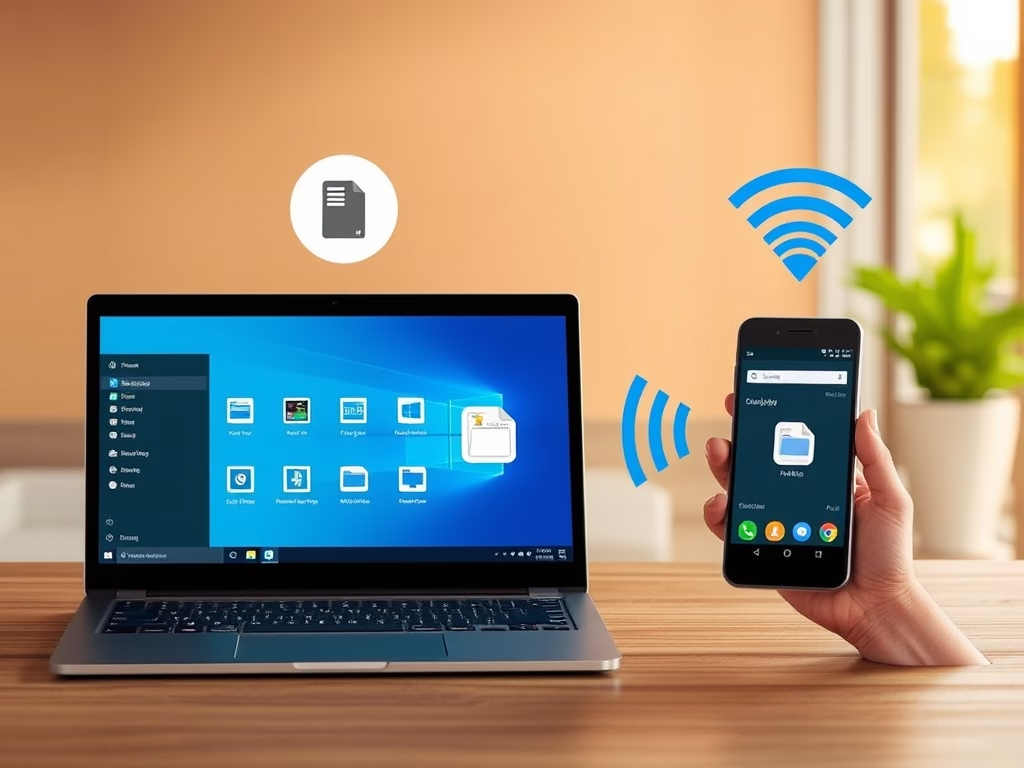
Nearby Sharing in Windows 11 lets you send photos, documents, and web links from your PC to an Android phone without cables. It uses Bluetooth and Wi-Fi to connect the two devices over the air, so you don’t need a USB cable or an email attachment.
Before you start, turn on Bluetooth on both your PC and your Android phone, and keep the two devices close together, ideally within a few feet. Turn on Wi-Fi on both as well. Larger files move faster over Wi-Fi than over Bluetooth alone.
Share files from Windows 11 to Android by right-clicking a file, selecting Share, and choosing Nearby Share. Then, select your Android device from the list to send the file. Accept the transfer on your phone when prompted.
What is Nearby Sharing?
Nearby Sharing is a Windows 11 feature that sends files and links to devices close to you. It picks Bluetooth or Wi-Fi depending on what is available and how big the file is. It works best for one-off transfers such as a handful of photos, a PDF, or a link you want to open on your phone.
If the feature isn’t switched on yet, turn it on first. Our guide on enabling Nearby Sharing in Windows 11 walks through it: How to Enable Nearby Sharing in Windows 11. This works on both Home and Pro editions. If the option is missing or greyed out, check that your PC has working Bluetooth and that Windows is fully up to date.
How to Connect Your Android Phone to Your Windows PC
Sending files to Android starts by linking your devices with the Phone Link app, which is built into Windows 11. You use Phone Link on the PC and the Link to Windows app on the phone. Sign in with the same Microsoft account on both devices, then follow the on-screen prompts to finish pairing. You only need to do this once. After that, the two devices stay linked.
- On your Windows PC, open the Phone Link app. You can find it by typing its name in the Start menu search box . You should see a welcome screen asking which type of phone you want to connect.
- On your Android phone, install and open Link to Windows. Some phones, such as many Samsung models, already have it installed. If you are asked, allow the permissions it requests, because pairing and file transfer won’t work without them.
- Follow the steps on both screens to connect the two devices using your Microsoft account. Use the same account on the PC and the phone. When pairing finishes, Phone Link on your PC should show your phone as connected.
If the devices won’t pair, check that both are online and signed in to the same Microsoft account. This article covers device pairing in more detail: Link Your Android Mobile Device to Your Microsoft Account.
Share Files from 🪟 Windows 11 to Your Android Phone
With the devices linked, you can send photos, documents, and videos straight from your computer to your phone. You right-click the file on your PC, choose the share option from the menu, and pick your phone from the list of available devices. The steps below show how.
- Find the file on your Windows PC that you want to send. File Explorer is the easiest place to do this. You can select several files at once if you want to send a batch.
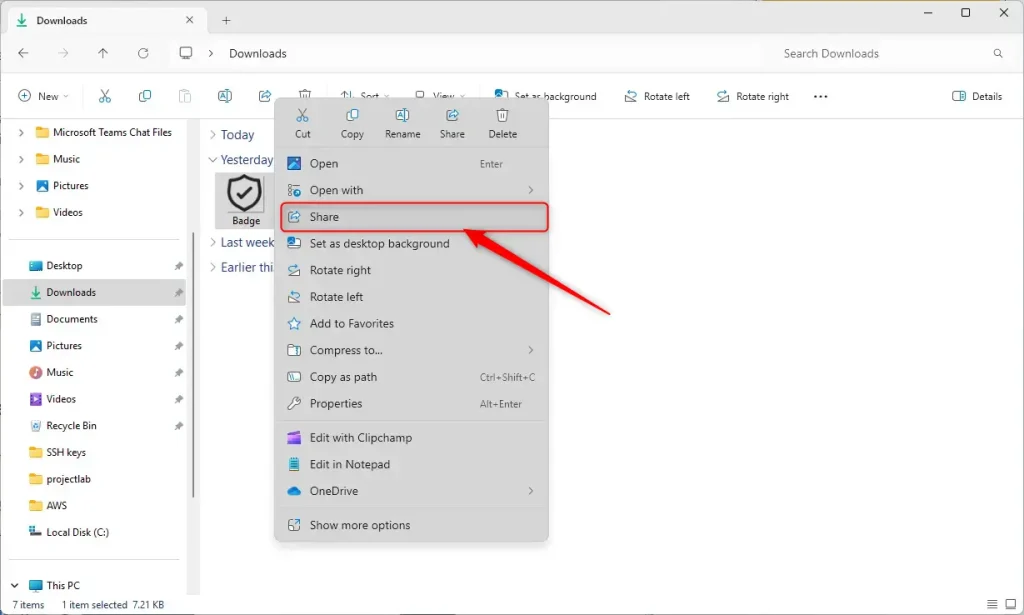
- Right-click the file to open the context menu . The menu should appear next to your pointer.
- Click the Share button. In Windows 11 it may appear as an icon in the new context menu rather than as a text entry. If you can’t see it, try Show more options at the bottom of the menu. A sharing window should open.
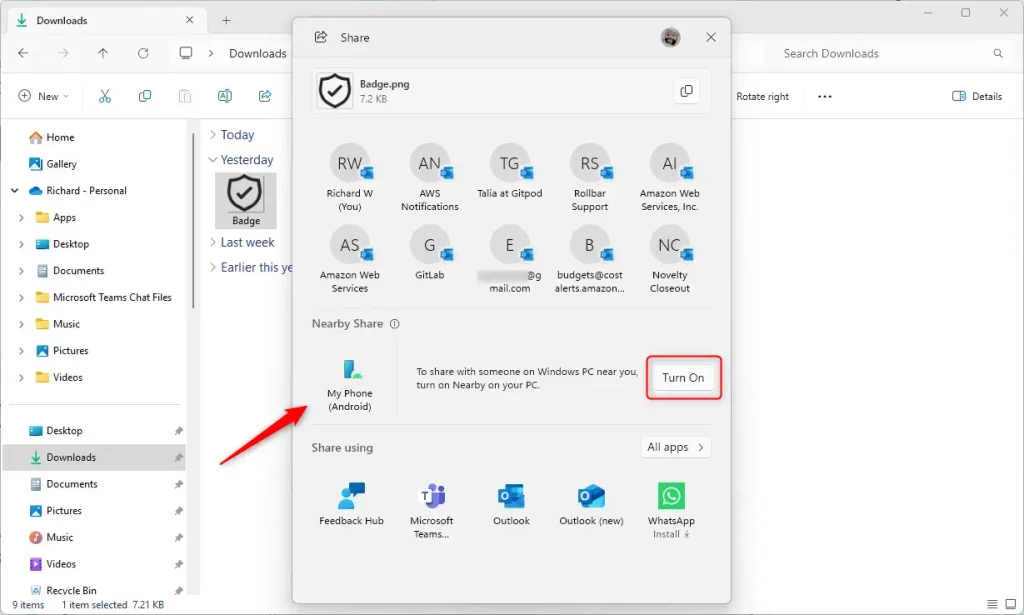
The sharing window lists the apps and nearby devices you can send the file to. Take a moment to check that the file name shown at the top is the one you meant to send.
- In the sharing window, find Nearby Share and click the Turn On button. Nearby Share is switched on from here the first time you use it. After that, you should see nearby devices listed in the window.
- Select your Android phone from the list of devices. Keep the phone unlocked and close to the PC while it appears. If it doesn't show up, check that Bluetooth and Wi-Fi are on for both devices. Google has also renamed Nearby Share to Quick Share on newer Android versions, so the name on your phone may differ.
After you pick your phone, Windows shows the transfer status and waits for the phone to accept the file. Leave the sharing window open until the transfer finishes.
- Your Android phone will get a notification asking to accept the file. Tap Accept to receive it. Once the transfer finishes, the PC reports that the file was sent. If you tap decline or ignore the notification, nothing is saved, so just send the file again.
Where Do Files Go on Your Android Phone?
Incoming files from your Windows PC land in the Downloads folder, inside a subfolder named 'Sent from your PC'. You can open them at any time from your phone's file manager or gallery app. To keep a file permanently, move it from that folder to wherever you store your files.
Summary
Windows 11 Android file sharing lets you move photos, videos, and documents between your computer and phone wirelessly over Bluetooth and Wi-Fi. Link your devices with the Phone Link app, right-click the file you want to send, and pick your phone from the Nearby Share menu. No cables are needed.
- Why use Nearby Sharing? It lets you send files from Windows 11 to Android devices easily using Bluetooth or Wi-Fi. No cables or email needed.
- What happens first? Make sure your Android phone is linked to your PC using the Phone Link and Link to Windows apps, signed in with the same Microsoft account on both.
- What happens next? Right-click the file on your PC, click Share, turn on Nearby Share, and select your phone.
- What happens on your phone? Accept the file on your Android device when you get the notification.
- Where do files go? Files are saved in Downloads Sent from your PC on your phone.
Have a question about this guide?
Answered by AI from this guide. Good questions may be added to this page — please don't include personal details.
Did this guide fix your problem?

About the Author
Richard
Tech Writer, IT Professional
Richard is a writer at Geek Rewind who turns complex IT tasks into clear, step-by-step guides. He draws on years of hands-on experience in system administration and enterprise IT operations, focusing on Windows, Linux and WordPress: the problems people actually run into, and the fixes that work. His server and WordPress guides come from systems he runs himself. Richard builds and maintains the platform behind Geek Rewind, from its Ubuntu servers and Nginx configuration to its custom WordPress plugins. Many new tutorials start with readers' questions, and he's always glad to answer them in the comments.
No comments yet — be the first to share your thoughts!