How to Change Default Apps in Ubuntu


Default apps in Ubuntu control which program opens when you double-click a specific file type, such as launching a media player for video files or a browser for web links.
Ubuntu 22.04 LTS and newer releases let you change these default choices quickly through the main Settings menu so your preferred programs open every time.
Open System Settings, click Default Applications, and use the dropdown menus to select your preferred programs for various file types. Alternatively, right-click a file, select Properties, go to the Open With tab, choose an application, and click Set as default.
How to change the default program for file types in Ubuntu Linux
You can change default apps in Ubuntu by opening the Settings app, going to the Default Applications section, and picking your preferred program for web browsing, email, and other file types from the drop-down menus.
Here is how to update these file associations in Ubuntu.
Most configuration options live inside the main Settings app . Access this panel through the system menu in the top-right corner of the desktop.

The system menu contains options for managing your system settings, including the ability to select preferred applications for opening specific file types.
On the System menu, select Settings, as highlighted below.

Click on the Default Applications tile in the Settings app to open that section.
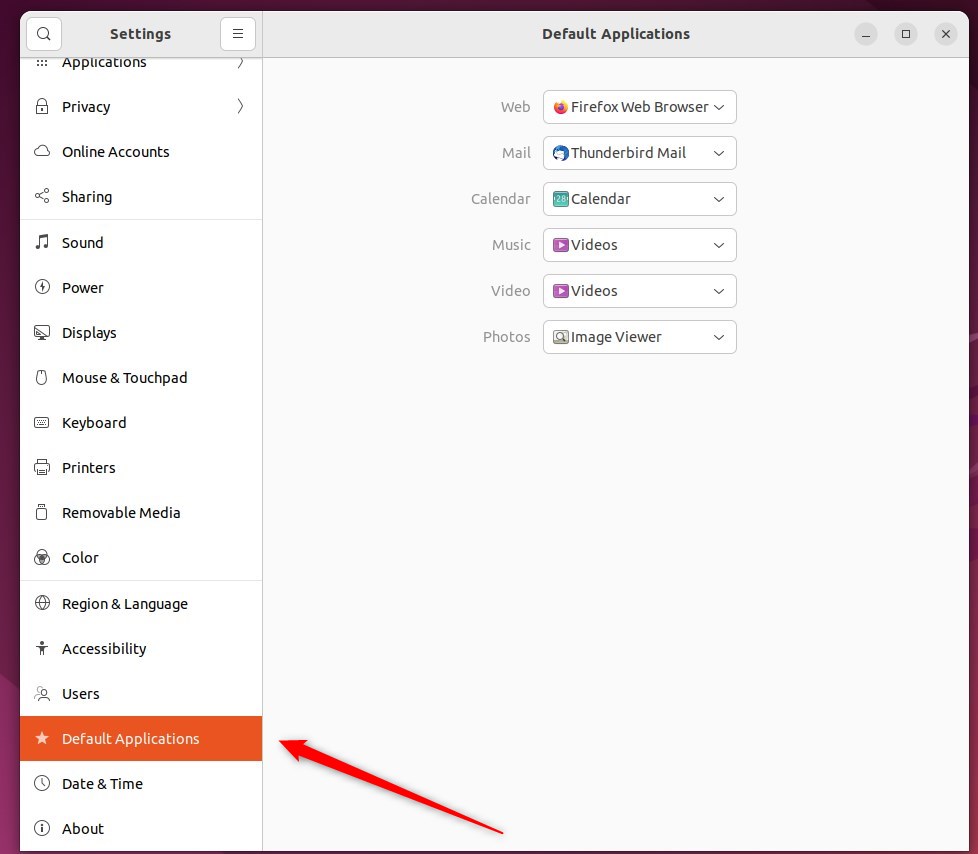
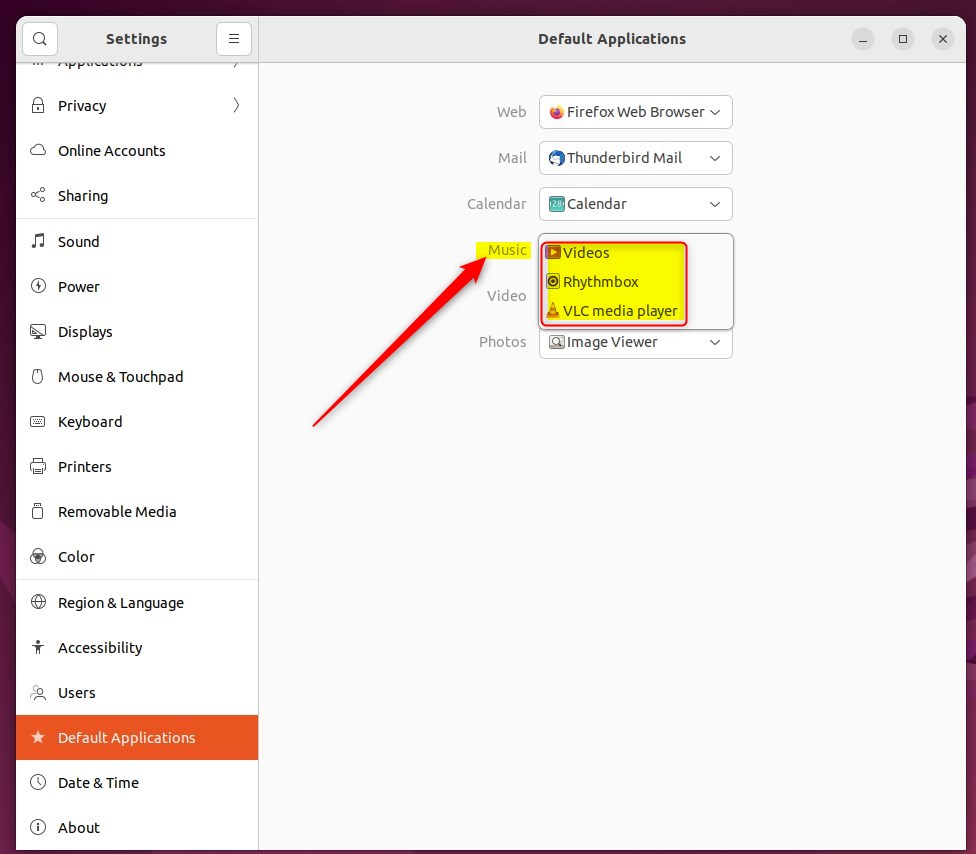
Open the Settings app, head to the Default Applications section, and use the dropdown menus to assign your preferred programs.
Choosing an application for a file type from the list below will make that program the default.
Alternatively, browsing to the target file provides another route for changing associations. Right-click on the file, then select Properties.

Select the Open With tab.
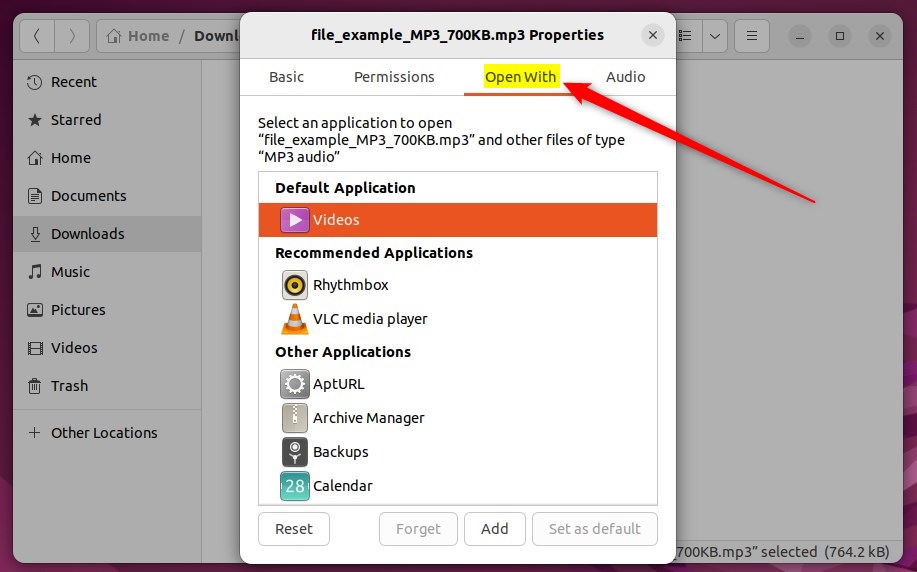
Pick the application you want and click Set as default.
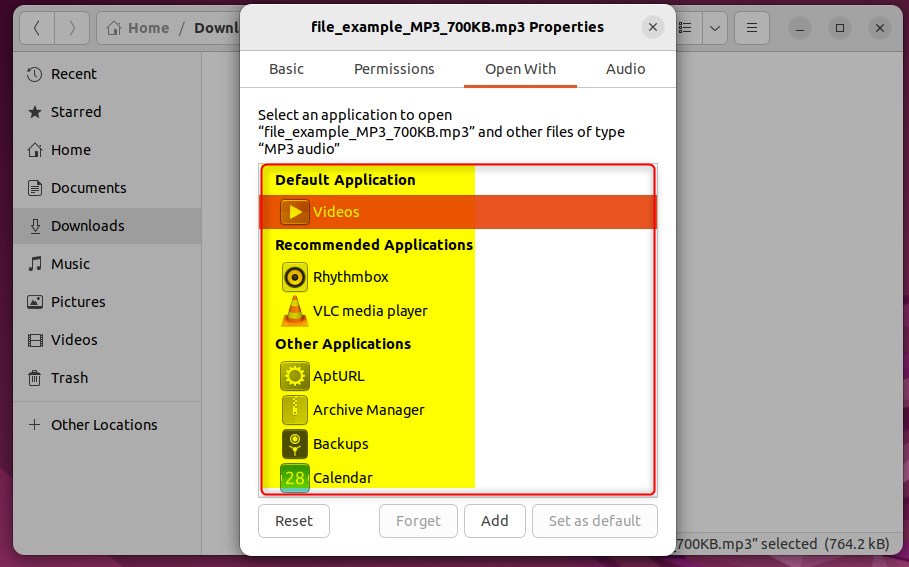
This will add it to Recommended Applications.
That completes the process.
Conclusion:
- Changing the default application for file types in Ubuntu Linux can help streamline your workflow and improve productivity.
- Whether you prefer a specific music player for MP3 files or a particular application for text documents, customizing default programs can enhance your user experience.
- Use the detailed steps in this post to effortlessly modify and manage default applications on your Ubuntu Linux system.
Was this guide helpful?

About the Author
Richard
Tech Writer, IT Professional
Richard is a writer at Geek Rewind who turns complex IT tasks into clear, step-by-step guides. He draws on years of hands-on experience in system administration and enterprise IT operations, focusing on Windows, Linux and WordPress: the problems people actually run into, and the fixes that work. His server and WordPress guides come from systems he runs himself. Richard builds and maintains the platform behind Geek Rewind, from its Ubuntu servers and Nginx configuration to its custom WordPress plugins. Many new tutorials start with readers' questions, and he's always glad to answer them in the comments.




No comments yet — be the first to share your thoughts!