How to Sign In/Out of Manage Mobile Devices in Windows 11


Manage Mobile Devices in Windows 11 lets you connect your phone to your PC so you can read texts, check alerts, and share files from your desktop. The connection relies on the Phone Link feature and uses the same Microsoft account on both devices. Phone Link on the PC pairs with the Link to Windows app on an Android phone, or with iPhone’s own link options, so have your phone nearby when you start.
Signing out of Manage Mobile Devices breaks this link and stops all data sharing between your phone and computer. You can sign out through your Windows settings whenever you want to stop syncing or switch to a new phone. Signing out does not delete anything on your phone or your PC. You can sign in again later with the same steps.
Open Settings Bluetooth & devices Mobile devices, then click Manage devices and Sign in with your Microsoft account to link your phone to this PC. To stop the link, return to that page and click Sign out under your account name. Signing out stops text, alert, and file sharing but deletes nothing on your phone or PC.
Sign in to Mobile Devices
Signing in to mobile devices in Windows 11 links your phone to your computer so you can see texts, photos, and apps on your desktop. The path is Settings Bluetooth & devices Mobile devices From there you sign in with your Microsoft account to pair the phone.
Both Home and Pro editions support this feature, and no restart is needed. The numbered steps below take you through it one screen at a time.
- Open the Windows Settings app. You can find this by clicking the Start menu and selecting Settings, or by pressing the Win+I on your keyboard to open Settings app . The Settings window opens with a list of categories on the left.
- Click Bluetooth & devices on the left side of the window. The right side now shows your connected devices, such as Bluetooth items, along with other device options.

- Click the Mobile devices tile on the right. You may need to scroll down a little to see it. The Mobile devices page opens.

- Click the Manage devices button under Allow this PC to access your mobile device. If you don’t see the button, check that the access toggle at the top of the page is switched on. The next screen lists the phones linked to your account, or shows a sign-in option if none are.

- Click the Sign in button. A Microsoft sign-in window appears.
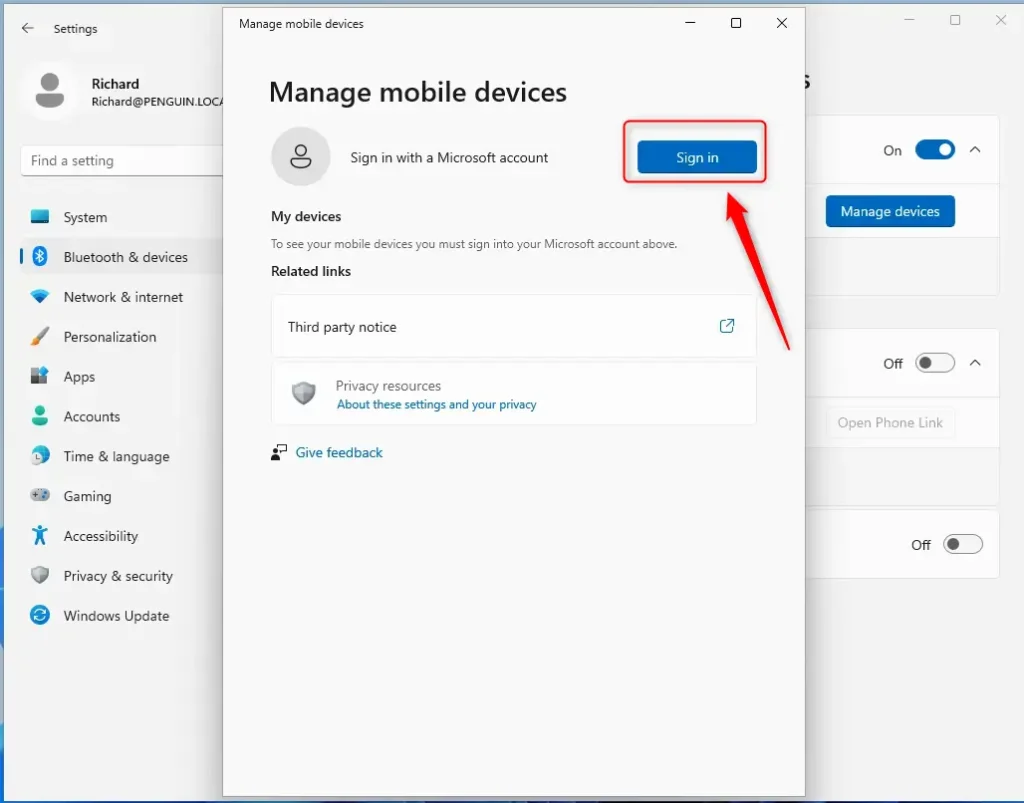
- Enter your Microsoft account email address and follow the prompts to finish. Use the same account that is signed in on your phone. If you use two-step verification, approve the request when it comes up. When sign-in completes, your account name shows on the page.
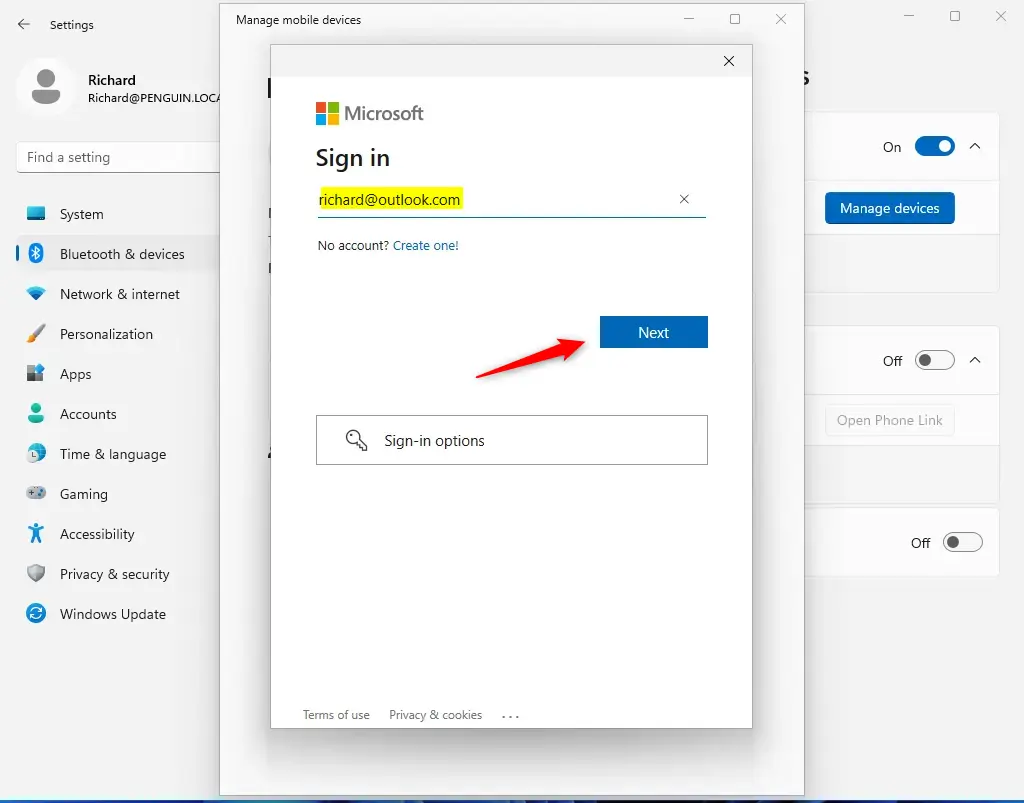
Once finished, you can close the window and start using your connected devices. If your phone does not show up, check that it is online and signed in to the same Microsoft account, then open the Phone Link setup on the PC again.
Sign out of Mobile Devices
If you no longer want your phone connected to your PC, you can sign out. This is also the right step before you hand the PC to someone else or move to a new phone. Your phone's data stays on the phone. Only the link to this PC is removed.
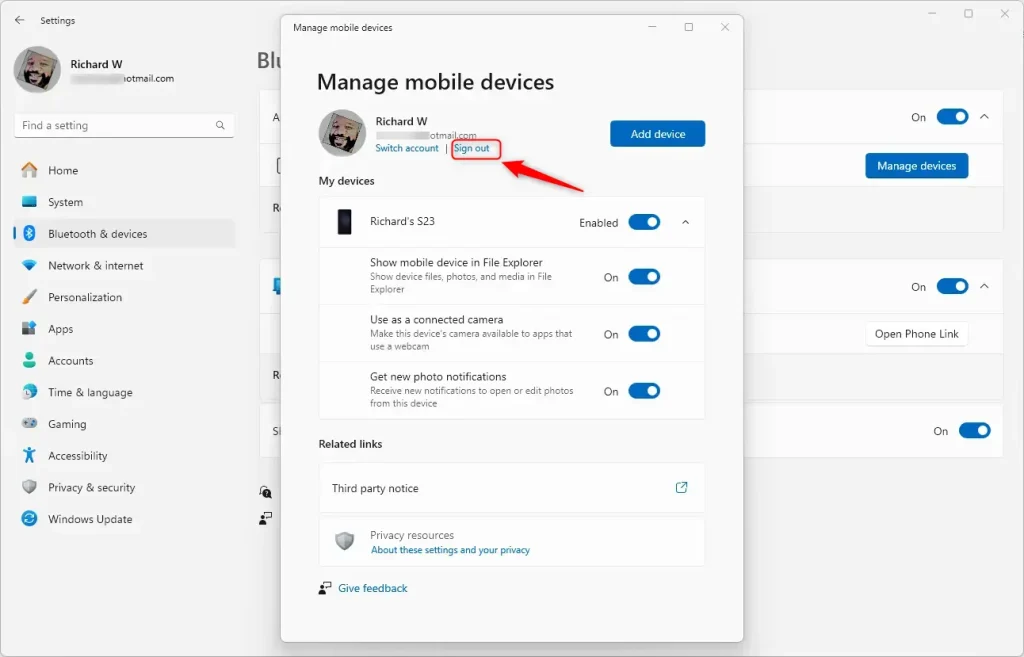
- Go back to the Mobile devices settings screen using the steps listed above (Settings Bluetooth & devices Mobile devices). Your account name should show on the page.
- Click the Sign out link located under your account name. The page returns to the signed-out state, and your phone stops sharing texts, alerts, and files with this PC. To undo this, repeat the sign-in steps above.
Summary
Connecting your phone to Windows 11 helps organize your digital life. Signing in lets you transfer files and see notifications right away. If you need to stop the connection, you can sign out at any time through Settings Bluetooth & devices Mobile devices. Signing back in takes only a minute with the same Microsoft account.
Have a question about this guide?
Answered by AI from this guide. Good questions may be added to this page — please don't include personal details.
Did this guide fix your problem?

About the Author
Richard
Tech Writer, IT Professional
Richard is a writer at Geek Rewind who turns complex IT tasks into clear, step-by-step guides. He draws on years of hands-on experience in system administration and enterprise IT operations, focusing on Windows, Linux and WordPress: the problems people actually run into, and the fixes that work. His server and WordPress guides come from systems he runs himself. Richard builds and maintains the platform behind Geek Rewind, from its Ubuntu servers and Nginx configuration to its custom WordPress plugins. Many new tutorials start with readers' questions, and he's always glad to answer them in the comments.
[…] How to sign in and out of mobile devices on Windows 11 […]