How to Choose BitLocker Encryption Type On Windows 11 Drives

BitLocker encryption types on Windows 11 determine how thoroughly your storage drive scrambles data to protect your personal files if your PC gets lost or stolen. Windows 11 gives you 2 choices when you set up drive encryption: “Used space only” or “Full drive encryption”.
“Used space only” locks down active files and finishes the setup process much faster, while “Full drive encryption” scrambles every single sector on the drive, including empty space, to stop anyone from recovering deleted files. The choice is made once, when you turn BitLocker on for a drive. This guide explains the difference, then shows how to make Windows pick one type for you every time.
You choose between “Used space only” and “Full drive encryption” when setting up BitLocker. “Full drive encryption” encrypts all sectors for maximum security, while “Used space only” encrypts only existing data for faster setup.
What is BitLocker?
BitLocker is a built-in Windows security feature that scrambles the data on your hard drives so nobody can read it without your password or recovery key. You can turn on BitLocker for your main system drive, extra internal drives, or portable USB sticks to keep your private files safe from snoops if your computer gets lost or stolen.
Keep your recovery key somewhere safe and away from the PC. If you lose both your password and the recovery key, the data on the drive cannot be recovered.
- External drives like USB sticks
- Fixed drives inside your computer
- Your main Windows system drive
Enabling BitLocker on your primary system drive allows it to unlock automatically when the computer boots up. This happens automatically thanks to the Trusted Platform Module (TPM), a dedicated security chip on your motherboard.
Data drives and USB sticks do not get this treatment. You will normally unlock them with a password, a smart card, or an automatic unlock setting tied to your Windows account.
Encryption Types for Fixed Drives
BitLocker gives you two encryption types for fixed internal drives when you set up security. You can choose to encrypt the whole drive including empty space for maximum protection, or you can choose to encrypt only the space currently used by your files to finish the setup process much faster.
The choice only matters at the moment you turn BitLocker on. Once a drive is encrypted, changing the setting later does not re-encrypt it. To switch types, you would have to turn BitLocker off for that drive and set it up again.
- Full Encryption: Encrypts the entire drive — even empty space. This takes longer but is the safest choice. It is the right pick for a drive that has already been in use, because old deleted files can still sit in the empty space and be recovered with the right tools. On a large drive, expect the process to take a good while.
- Used Space Only Encryption: Encrypts only the space where your files are stored. This is faster but less complete. It works well on a new, empty drive, since there is no old data hiding in the free space. Files you add later are encrypted as they are written.
How to Make Windows Always Use One Encryption Type
Windows 11 lets you set a default BitLocker encryption type so you do not have to pick your preferred security setting every time you plug in a new drive. Forcing a specific encryption method saves time and ensures every new storage device you connect uses full disk protection right away.
This is a policy setting, so it also stops other people who use the PC from choosing the weaker option by mistake.
You can configure Windows 11 to select full disk encryption for every drive automatically. This default behavior maintains consistent data protection right from the start. If you prefer speed on new drives, you can set the default to used space only instead.
Enforcing a single encryption choice requires creating a system rule using native Windows configuration utilities. Two distinct methods accomplish this goal: the Local Group Policy Editor and the Registry Editor. The Group Policy Editor is the easier and safer of the two, but it is only included in Windows 11 Pro, Enterprise and Education. On Windows 11 Home, use the Registry Editor method.
Method 1Using Local Group Policy Editor
- Press the Start button and type
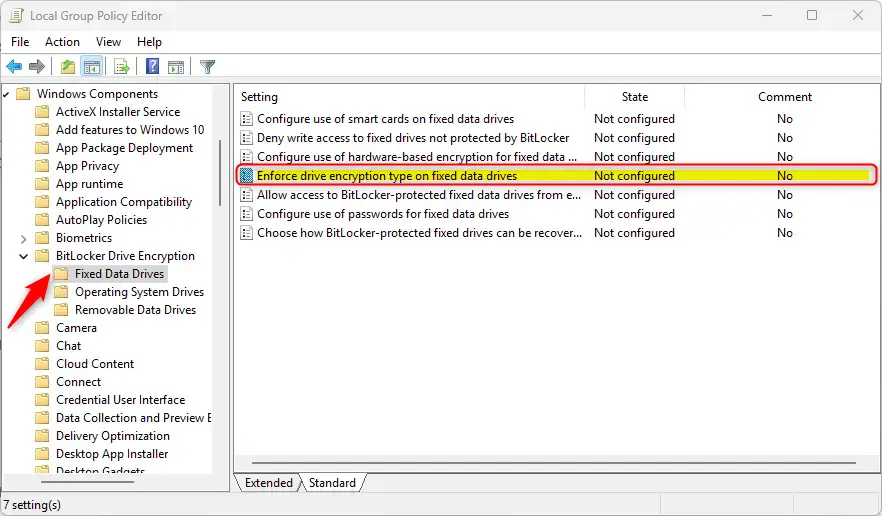
Edit group policy, then open the Local Group Policy Editor. If nothing matching appears, you are probably on Windows 11 Home, which does not include this tool. - In the window that opens, go to this folder in the left pane:
Computer Configuration > Administrative Templates > Windows Components > BitLocker Drive Encryption > Fixed Data Drives. The policy settings for that folder now appear on the right. - Find
Enforce drive encryption type on fixed data driveson the right and double-click it. A settings window opens with three options at the top left. - Choose one of these options:
Not Configured(default): Windows will ask you every time which encryption type to use.Enabled: You pick the encryption type below, and Windows will use it automatically without asking.Disabled: Same as Not Configured — Windows asks you each time.
- If you selected
Enabled, choose either of the following from the drop-down list in the Options box:- Full encryption
- Used space only encryption
- Click
OKto save, then close the Local Group Policy Editor. - Restart your computer to apply the changes.
Local Group Policy Editor is a built-in Windows tool you can use to force a specific BitLocker encryption type on all fixed data drives. You can change this setting in a few steps if you want Windows to automatically pick full disk encryption without asking you every time.
The policy only affects drives you encrypt after the change. Drives that are already encrypted stay as they are. To undo it, open the same setting again, choose Not Configured, click OK, and restart.
The image above shows the setting window open on the Enabled option, with the encryption type chosen in the Options box. Check that the type shown there is the one you want before you click the save button.
The following configuration options remain available for selection:
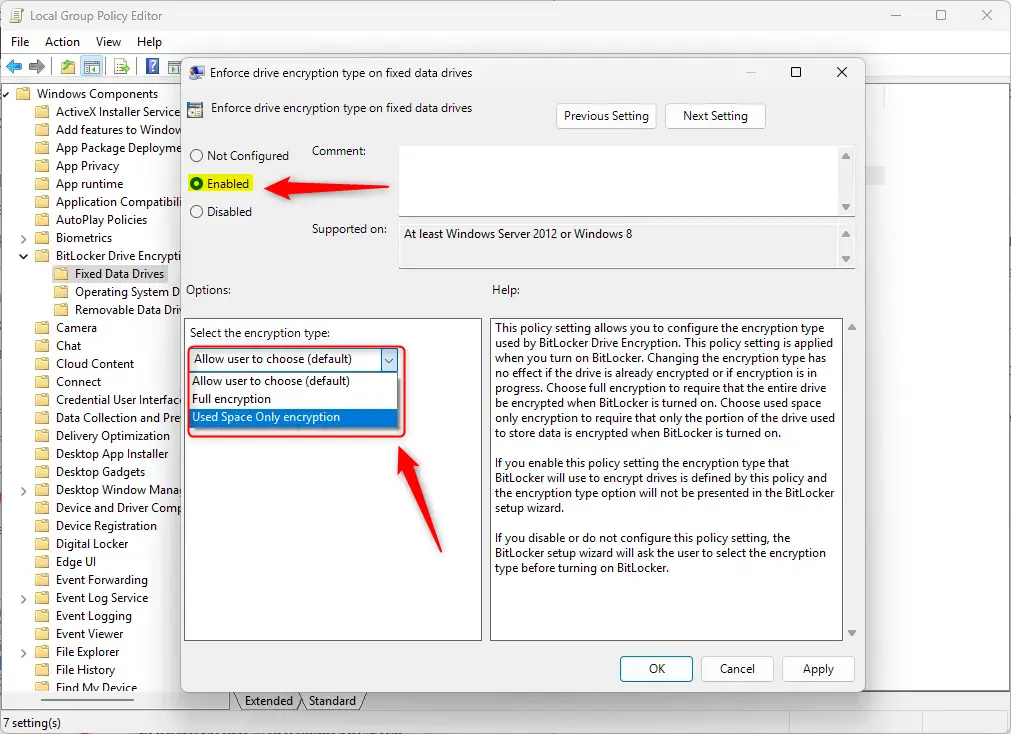
Pick Full encryption for older drives or any drive that has held sensitive data. Pick Used space only encryption for brand-new, empty drives where speed matters more.
Method 2Using Windows Registry Editor
Registry Editor is an advanced Windows tool that lets you set a default BitLocker encryption type by changing system registry keys. Exercise caution here, because making a mistake in the registry can cause serious operating system problems if you edit the wrong files. Before you start, consider creating a restore point or exporting the key you are about to change, so you can roll back if something goes wrong. This method works on both Home and Pro editions.
- Open the Windows Registry Editor as administrator. Search for
regeditin Start, then right-click and chooseRun as administrator. ⚠️ Requires admin privileges If Windows shows a User Account Control prompt, click Yes. - Go to this folder in the Registry Editor:
HKEY_LOCAL_MACHINE\SOFTWARE\Policies\Microsoft\FVE. You can paste the path into the address bar at the top of the window. If a folder along the way does not exist, the policy has never been set on this PC. - Look for a value named
FDVEncryptionTypein the right pane. - If it's not there, right-click on the right side, pick
New > DWORD (32-bit) Value, and name itFDVEncryptionType. The new value appears in the right pane with the name you typed. - Double-click
FDVEncryptionTypeand set its value to:1for Full encryption2for Used space only encryption
- Click
OKand close the Registry Editor. - Restart your computer to apply changes.
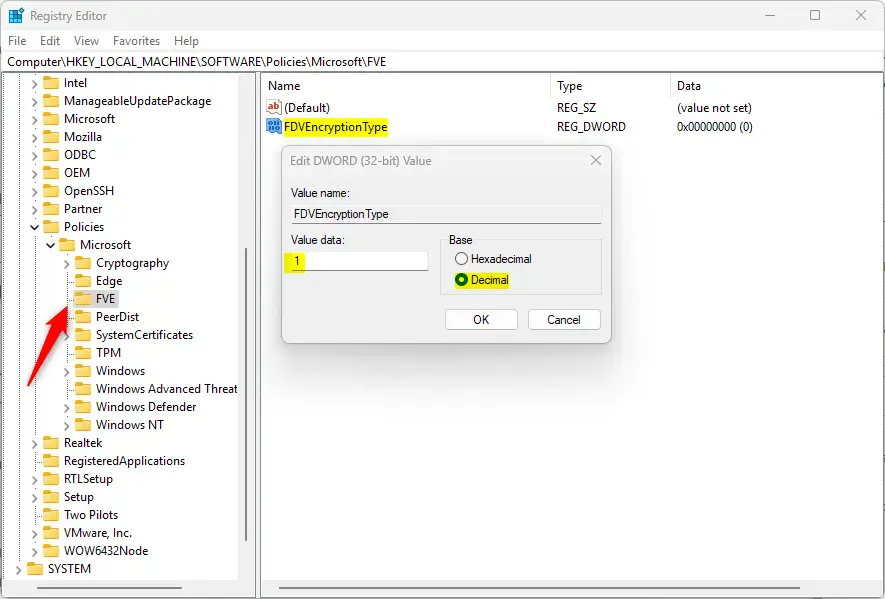
As with the Group Policy method, this only applies to drives you encrypt from now on. Drives that are already encrypted keep the type they were set up with.
Restoring the default behavior where Windows prompts for an encryption method requires deleting the FDVEncryptionType value from the registry.
- Open the Registry Editor as administrator and go back to the same key you edited earlier.
- Right-click the value in the right pane and choose Delete.
- Click Yes to confirm. The value disappears from the list.
- Restart your computer. Windows will ask you to choose an encryption type again the next time you turn on BitLocker.
Summary
- BitLocker protects your drives by encrypting them so only authorized users can access your data.
- You can choose how BitLocker encrypts fixed drives: full drive or used space only. Full drive is slower but safer for drives that have been used before.
- Using the Group Policy Editor (Pro and above) or Registry Editor (all editions), you can force Windows to always use one encryption type without asking.
- Remember to restart your computer after making these changes. They only affect drives you encrypt afterward.
BitLocker encryption type settings let you choose how Windows scrambles your data on internal and external drives to keep files secure. You can pick between full drive encryption or used space only, and you can use system tools to make Windows apply your preferred choice automatically.
Was this guide helpful?

About the Author
Richard
Tech Writer, IT Professional
Richard is a writer at Geek Rewind who turns complex IT tasks into clear, step-by-step guides. He draws on years of hands-on experience in system administration and enterprise IT operations, focusing on Windows, Linux and WordPress: the problems people actually run into, and the fixes that work. His server and WordPress guides come from systems he runs himself. Richard builds and maintains the platform behind Geek Rewind, from its Ubuntu servers and Nginx configuration to its custom WordPress plugins. Many new tutorials start with readers' questions, and he's always glad to answer them in the comments.




No comments yet — be the first to share your thoughts!