How to Change BitLocker Encryption in Windows 11


BitLocker encryption in Windows 11 locks your entire hard drive so snoopers cannot read your personal files if your PC goes missing. By default, Windows 11 uses a 128-bit cipher (XTS-AES 128-bit) on new encryptions. You can switch to a stronger 256-bit XTS-AES encryption for extra data protection on system drives, internal data drives and portable USB sticks.
The setting is not in the normal BitLocker screens, so you have to change it through policy. You can do that with the Local Group Policy Editor (a tool that controls system settings) or the Registry Editor. Either takes a few minutes. The Group Policy Editor is only included in Windows 11 Pro, Enterprise and Education. On Home, use the Registry method.
A longer key makes the encrypted volume much harder to attack by brute force. If your PC or USB drives hold client data, financial records, or anything else you would not want to leak, 256-bit protection is worth setting up. Change the setting before you encrypt a drive, because it does not apply retroactively (see the note below).
To change BitLocker to 256-bit encryption in Windows 11 Pro, Enterprise or Education, press Start , type “Edit group policy”, and open Computer Configuration Administrative Templates Windows Components BitLocker Drive Encryption. Double-click “Choose drive encryption method and cipher strength”, select Enabled, and set XTS-AES 256-bit for each drive type. Windows 11 Home has no Group Policy Editor, so use the Registry method instead.
What Happens When You Change These Settings?
The cipher setting is applied at the moment BitLocker encrypts a drive. Any drive you encrypt after making the change uses the new cipher right away. A drive that is already encrypted keeps its old cipher, and its files are not converted in the background.
The drive stays usable during both steps, but each can take a long time on a large disk, so plan for that.
Restart the PC after changing the policy so Windows picks it up cleanly. If you need to undo the change, set the policy back to Not Configured (or remove the registry values) and re-encrypt the drive.
Method 1Use Group Policy Editor
The Local Group Policy Editor is a built-in Windows tool that lets you set the BitLocker cipher strength through a normal settings window. It is the safer of the two methods, because you pick from a list instead of typing raw values.
It is available on Windows 11 Pro, Enterprise and Education. If you search for it on Home and nothing comes up, that is why. Use the Registry method further down instead. You need to be signed in as an administrator.
These steps change BitLocker encryption in Windows 11 to a different cipher strength, such as XTS-AES 256-bit, using the Local Group Policy Editor.
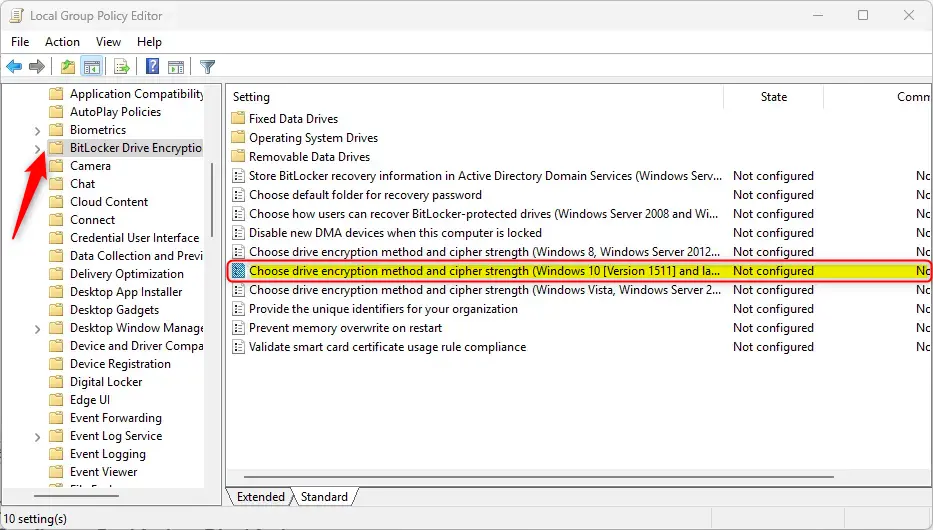
- Open the Local Group Policy Editor. Click Start, type “Edit group policy”, and select the result with that name. The Local Group Policy Editor window opens, with a folder tree on the left. If nothing comes up, you are probably on Windows 11 Home and need the Registry method below.
- Expand the folders in the left pane in this order. Click the small arrow beside each folder to open it. When you reach the last folder, the BitLocker settings are listed on the right:
- Computer Configuration
- Administrative Templates
- Windows Components
- BitLocker Drive Encryption
- Open the cipher strength policy on the right side. Find “Choose drive encryption method and cipher strength (Windows 10 (Version 1511) and later)” and double-click it. Do not pick the similarly named entries for Windows Vista or Windows 7, because those apply to older versions. The setting opens in its own window.
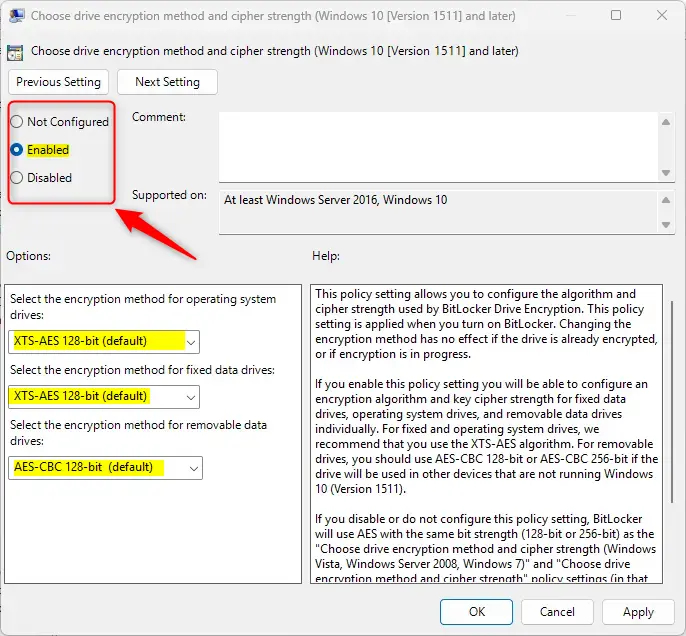
- Check the three options at the top left of the window. Do not change anything yet, because you set the policy in the next step. The options are:
- Not Configured (this is the default) – BitLocker uses its standard settings, which means XTS-AES 128-bit unless something else has set a method
- Enabled – you pick the encryption type yourself
- Disabled – BitLocker uses AES with 128-bit or 256-bit strength, following any older cipher policies that are set, or the default if none are
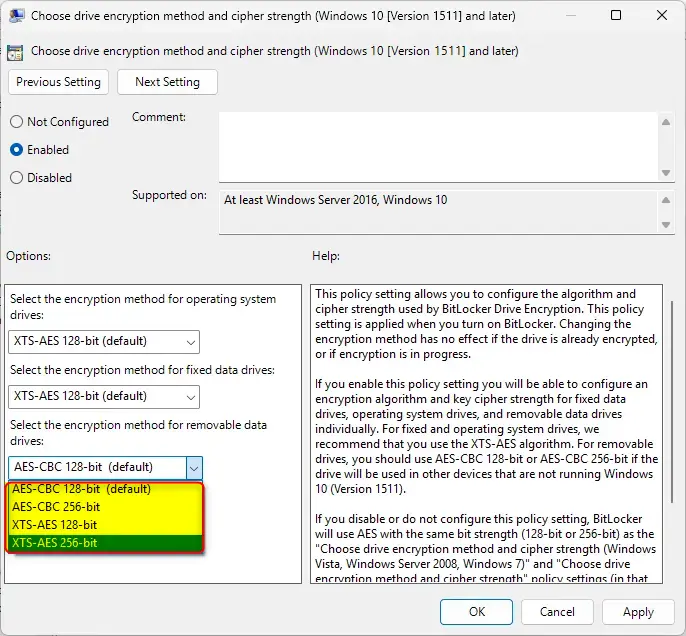
- Select Enabled. The dropdown menus under Options become active. In each one, choose the encryption method you want, such as XTS-AES 256-bit. Set one for each drive type:
- Operating system drives (your main drive)
- Fixed data drives (regular storage)
- Removable data drives (USB sticks). If you move the stick between PCs, remember that older versions of Windows (before Windows 10 version 1511) cannot read XTS-AES drives. For those PCs, choose an AES-CBC option instead.
- Click OK to save the policy. The window closes and the policy now shows as Enabled in the list. Restart your computer so the change is applied. To undo it later, open the same policy and select Not Configured.
Method 2Use Registry Editor
You can also set the BitLocker cipher directly in the Windows Registry Editor, a database of low-level system settings. This is the method to use on Windows 11 Home, where the Group Policy Editor is missing.
You need to be signed in as an administrator, locate the policy keys, and set three values. A wrong entry in the wrong place can cause problems, so work slowly and check each name.
Precision matters here. Before you start, consider exporting the key (right-click it, then choose Export) or creating a restore point, so you have a way back if something goes wrong.
These steps set the BitLocker cipher on Windows 11 Home, or any edition without Group Policy, using the Registry Editor.
- Open the Windows Registry Editor. Click Start, type “regedit”, and select the result. Click Yes if User Account Control asks for permission. The Registry Editor opens.
- Go to the policy key in the left panel. You can paste the path into the address bar at the top of the window, or expand the folders one at a time:
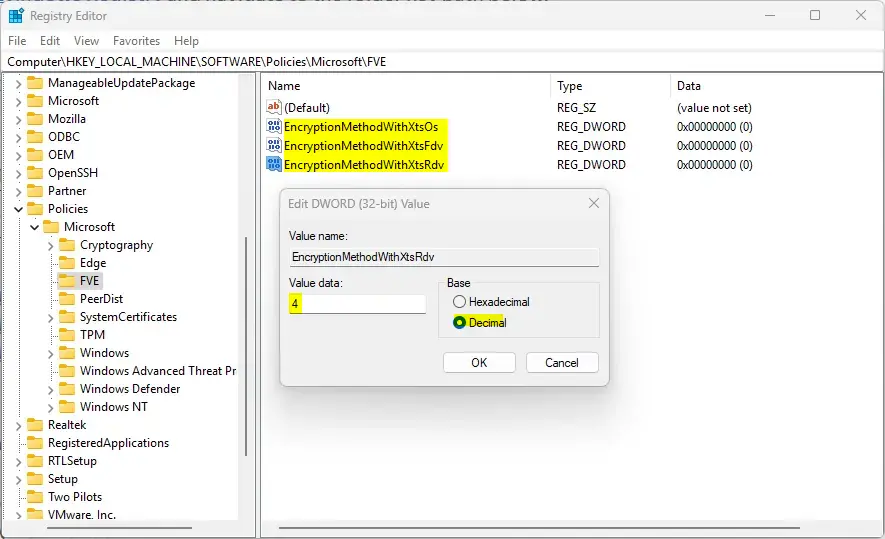
HKEY_LOCAL_MACHINE\SOFTWARE\Policies\Microsoft\FVE - Check the right side for three items. You should see these names:
EncryptionMethodWithXtsOsEncryptionMethodWithXtsFdvEncryptionMethodWithXtsRdv
- Double-click each item and change its value. Click OK after each change, and check that the name matches before you type:
- Enter
4to useAES-CBC 256-bitencryption - Enter
7to useXTS-AES 256-bitencryption
- Enter
- Create any missing items. Don’t see them in step 3? That is normal if no policy has ever been set. Right-click a blank area on the right side and pick New DWORD (32-bit) Value. Type the exact name of the item and press Enter. Create all three items, then double-click each one and enter the values from step 4.
- Close the Registry Editor. Changes are saved as soon as you click OK, so there is no separate save button. Restart your computer so Windows applies the new settings.
- Delete the three items only if you want to undo the change. Right-click each one, choose Delete, and confirm. This returns BitLocker to the default
XTS-AES 128-bitencryption. Restart again afterwards.
Summary
You can change the BitLocker cipher with either the Group Policy Editor or the Registry Editor, depending on your Windows edition and how comfortable you are with each tool. The Group Policy Editor is the safer and easier path for most people. The Registry Editor gives administrators direct control and works on editions that don’t include Group Policy.
Two primary configuration paths exist:
- Group Policy Editor – easier and safer for most people, but only on Windows 11 Pro, Enterprise and Education
- Registry Editor – more advanced, requires admin access, and works when Group Policy is not available
The setting covers system volumes, internal disks, and removable media, each with its own option. Restart the PC after any policy change so Windows applies it. Remember that the new cipher only applies to drives encrypted after the change. Drives that are already encrypted must be decrypted and encrypted again to use it.
A stronger cipher costs slightly more processor time in exchange for better data protection. On most modern PCs with hardware AES support, the difference is hard to notice. Very old or low-power machines may feel it a little during heavy disk activity.
Have a question about this guide?
Answered by AI from this guide. Good questions may be added to this page — please don't include personal details.
Did this guide fix your problem?

About the Author
Richard
Tech Writer, IT Professional
Richard is a writer at Geek Rewind who turns complex IT tasks into clear, step-by-step guides. He draws on years of hands-on experience in system administration and enterprise IT operations, focusing on Windows, Linux and WordPress: the problems people actually run into, and the fixes that work. His server and WordPress guides come from systems he runs himself. Richard builds and maintains the platform behind Geek Rewind, from its Ubuntu servers and Nginx configuration to its custom WordPress plugins. Many new tutorials start with readers' questions, and he's always glad to answer them in the comments.
No comments yet — be the first to share your thoughts!