How to Apply a Restore Point from Within Windows 11 PC

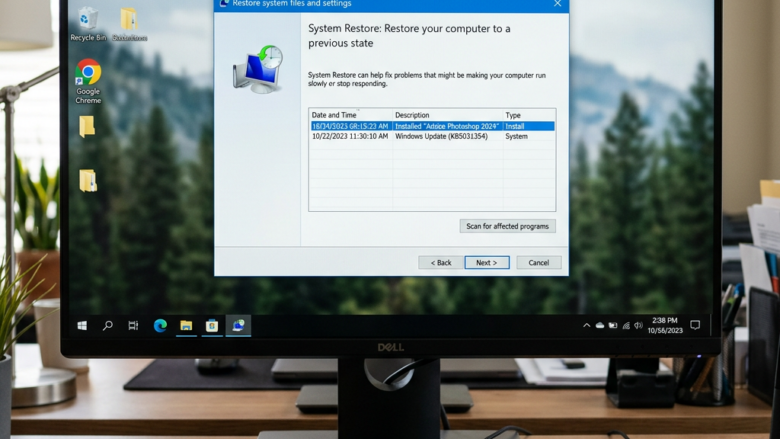
System Restore in Windows 11 lets you roll back your PC to a previous date to fix software errors, broken apps, and bad updates. This built-in tool takes a snapshot of your system files and settings so you can undo recent changes.
Running a restore point puts your computer back to a working state in about 10 to 15 minutes. Your personal photos, videos, and documents stay untouched during the process. The tool works the same way on Windows 11 Home and Pro.
It only works if System Protection was turned on before the problem started. If your restore point list is empty, protection was probably off, and there is nothing to roll back to.
Open the Run box with Win+R, type rstrui.exe, and press Enter to open System Restore. Select a restore point from before your problem started, click Scan for affected programs to see what will be removed, then click Next and Finish to roll back your system.
Applying a Restore Point from Within Windows
This is the usual way to use System Restore when your computer still starts and you can get into Windows. Think of it as an undo button for your system. If Windows will not start at all, you need a different method, such as the recovery environment, because the steps below require a working desktop.
Step 1Getting to System Restore
You can open System Restore in two ways. Use whichever is quicker for you.
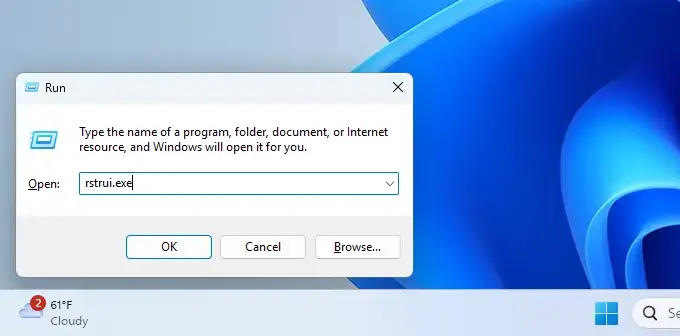
- Press the Win+R on your keyboard. The Run box opens.
- Type rstrui.exe and press Enter. The System Restore window opens right away.
If you prefer the Control Panel , do this instead:
- Click Start, type Control Panel, and open it.
- Go to Recovery. If you do not see it, switch View by to Large icons or Small icons.
- Click Open System Restore. The System Restore window appears.
- The Control Panel Way: Click the Start button (the Windows logo in the corner). Type "Control Panel" and select it when it appears. In the Control Panel, look for "Recovery" and click it. Then, you'll see an option to "Open System Restore." Click that.
- The Run Command Shortcut: This is a fast one! Press the Windows key and the R key on your keyboard together. This opens a small box called "Run." In the box, type
rstrui.exeand press Enter or click "OK."
Step 2Starting the Restore
When the System Restore window opens, a welcome page explains that the tool can restore your system files and settings. Follow these steps to move on:
- Read the description on the first page. It confirms that System Restore will restore your system files and settings.
- If you see a Recommended restore page, select Choose a different restore point if you want to pick the date yourself. Otherwise you can accept the recommendation.
- Click Next. You should now see a list of available restore points.
Step 3Picking Your Restore Point
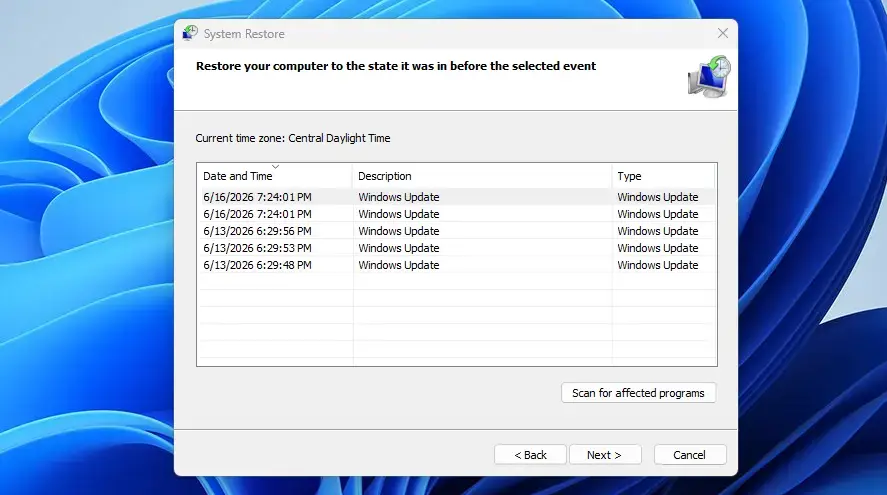
Pick a date and time from the list that is before your PC started having problems. The list shows the date, a description, and the type, such as a manual point or one made before an update or install. Choose the most recent point from when everything worked. A point that is too old removes more software than you need to lose.
- Look at the list of restore points. If you only see a few, tick Show more restore points to see older ones.
- Click the restore point you want to use so that it is highlighted.
- Click Scan for affected programs. A window opens listing the apps and drivers that will be removed and the ones that may be restored.
- Review both lists. Note any app you will need to reinstall afterward, then click Close.
If the scan lists something you cannot afford to lose, go back and pick a newer restore point, then scan again.
- Check for Affected Programs: Before you decide, there's a very helpful option called "Scan for affected programs." We really suggest clicking this! It will show you which programs and drivers will be removed and which ones might be put back because they were installed after the restore point you're thinking of using. This helps you avoid losing something important you installed recently.
- See More Options: If you don't see a restore point that looks right, check the box that says "Show more restore points." Sometimes Windows hides older ones, but they might be exactly what you need.
Your personal files like documents, music, or pictures remain untouched. Back up your important data before making major system changes. System Restore is also not a malware cleaner, so do not rely on it to remove a virus.
Step 4Confirming and Finishing
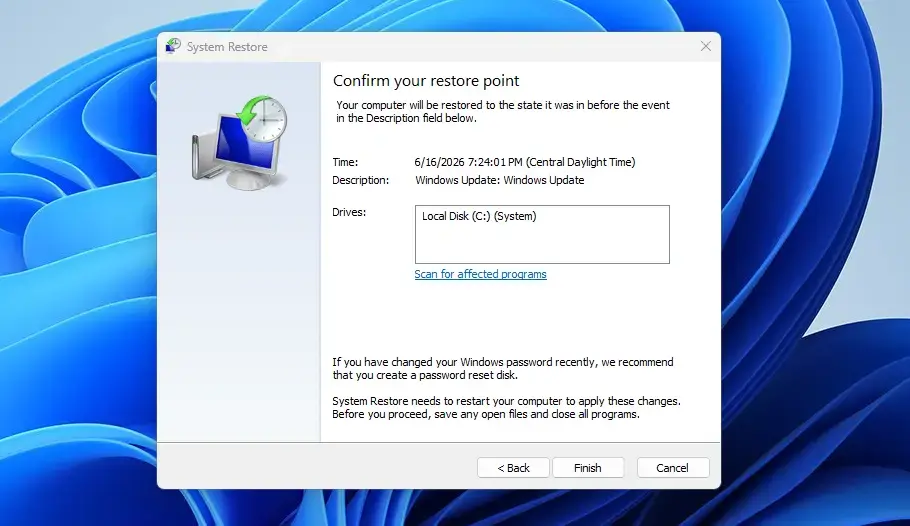
Once you have chosen a restore point and checked the affected programs, confirm your choice.
- Make sure the correct restore point is still selected.
- Click Next. A confirmation page appears showing the restore point, its date and time, and the drive that will be restored.
- Check that the details match what you picked.
- When you are ready, click Finish.
- If a warning says the restore cannot be interrupted once it starts, click Yes to continue.
Step 5The Restart
Keep your PC powered on and do not interrupt the process. If you are on a laptop, plug it in first. Turning the computer off partway through can corrupt your operating system files and stop Windows from booting properly. The screen may sit on "Please wait while your Windows files and settings are being restored" for several minutes. That is normal.
After the reboot, sign in. A message appears saying System Restore completed successfully if the process worked. The system is back to its state from the date you chose, which should clear the earlier error.
If the restore did not fix the problem, or it removed something you needed, open System Restore again. You can pick a different restore point, or choose Undo System Restore if it is offered, to reverse the last restore. If the restore fails, try again and choose a different restore point.
Reference:
https://support.microsoft.com/en-us/windows/system-restore-a5ae3ed9-07c4-fd56-45ee-096777ecd14e
Summary
System Restore in Windows 11 lets you go back to an earlier time to fix problems caused by new software or updates, without losing your personal files like photos or documents.
Have a question about this guide?
Answered by AI from this guide. Good questions may be added to this page — please don't include personal details.
Did this guide fix your problem?

About the Author
Richard
Tech Writer, IT Professional
Richard is a writer at Geek Rewind who turns complex IT tasks into clear, step-by-step guides. He draws on years of hands-on experience in system administration and enterprise IT operations, focusing on Windows, Linux and WordPress: the problems people actually run into, and the fixes that work. His server and WordPress guides come from systems he runs himself. Richard builds and maintains the platform behind Geek Rewind, from its Ubuntu servers and Nginx configuration to its custom WordPress plugins. Many new tutorials start with readers' questions, and he's always glad to answer them in the comments.
… liked this!