How to Show Encrypted NTFS Files in Color


- 5 steps
- Needs administrator rights
- Includes a restart or sign-out
Windows 11 and Windows 10 can show encrypted NTFS files in green inside File Explorer, so you can tell protected data apart from ordinary files at a glance. NTFS (New Technology File System) is the file system Windows uses to store and find files. The Encrypted File System (EFS) is the built-in NTFS feature that protects files from other user accounts, and it needs no extra apps.
Compressed NTFS files show in blue to mark that they take up less space. Encrypted files show in green to mark that they are locked to your account. The color setting sits in File Explorer’s folder options and takes a few clicks to turn on.
Open File Explorer, select the three-dot menu and choose Options, then go to the View tab and tick Show encrypted or compressed NTFS files in color under Advanced settings. Click OK, and encrypted files and folders turn green in the file list, compressed files turn blue. Press F5 if the colors do not appear straight away.
How to Show Encrypted NTFS Files in Color
The quickest way to show encrypted NTFS files in color is to switch on one option in File Explorer. Without it, you have to open the properties of each file to see whether it is encrypted. With it on, the name of every encrypted file or folder turns green in the file list.
The setting only changes how names look. It does not encrypt, decrypt or move anything. To turn it on, open File Explorer, open the folder options, and tick the box for encrypted and compressed NTFS files. The steps are below.
- Open File Explorer by clicking the folder icon on the taskbar or pressing Win+E. A File Explorer window opens.
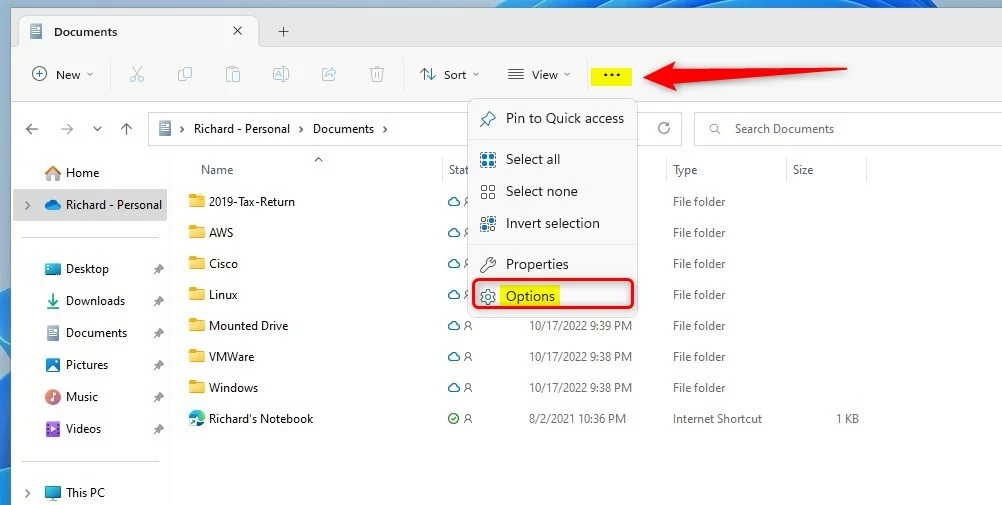
- Click the three-dot menu icon in the toolbar at the top of the window and select Options. The Folder Options window opens. On Windows 10 you will find the same window under the View tab of the ribbon, in Options.
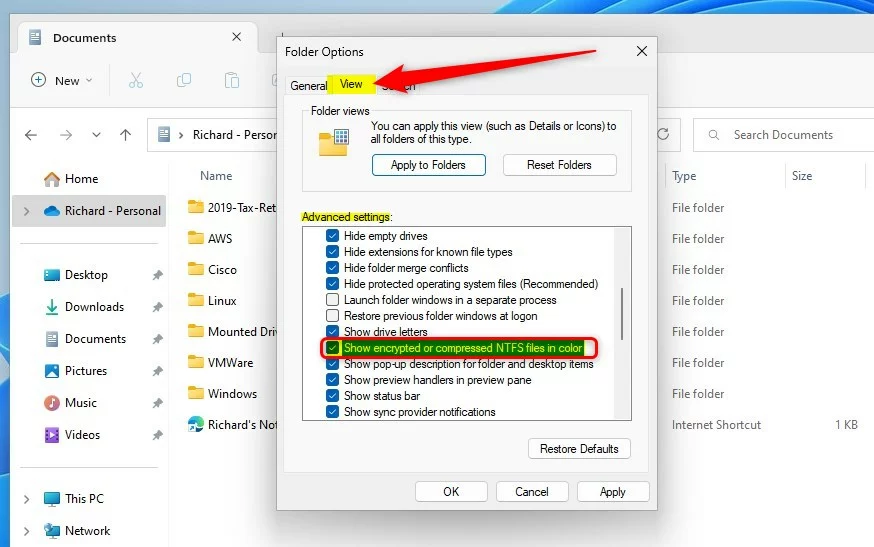
- Click the View tab. You will see a long list of checkboxes under Advanced settings.
- Scroll down the list until you find Show encrypted or compressed NTFS files in color. The list is not sorted alphabetically, so you may need to scroll a fair way.
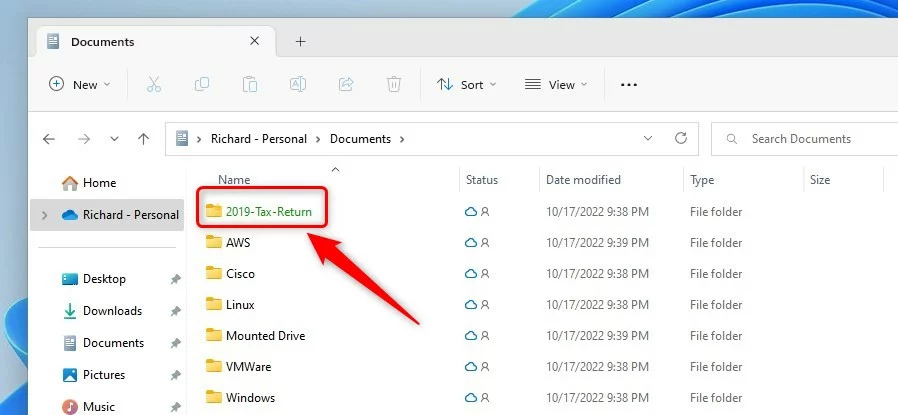
- Tick the box and click OK. The window closes. Encrypted files now show in green and compressed files in blue. If the colors do not appear right away, press F5 to refresh the folder.
To undo the change, repeat the steps and clear the checkbox. Names go back to the normal color. Colors only appear for files on NTFS volumes. Drives formatted as FAT32 or exFAT do not support EFS or NTFS compression, so nothing will ever be colored there.
Advanced Configuration: Registry Editor
The Registry Editor lets you set this option directly in the registry. It is useful when the checkbox is missing, gets reset, or you want to script the change. You locate the correct key, then set the value data so the colored text feature is on for your user account.
Before you change anything, export the key or create a restore point so you can go back if something goes wrong. The key and value are shown below.
You need administrator privileges to change system-level settings, including this one when you set it through the Registry Editor. If you are signed in with a standard account, Windows asks for administrator credentials or blocks the change.
The ShowEncryptCompressedColor value controls whether encrypted NTFS files show in color. Set it to 1 to turn the feature on, so encrypted files stand out. Set it to 0 to turn it off.
Changes to this value may not show in windows that are already open. Close and reopen File Explorer, or sign out and back in, and then check a folder that holds an encrypted file. This value is the same setting as the checkbox in the Folder Options window, so changing one also changes the other.
Enterprise Deployment via Group Policy
System administrators can roll this setting out across a network. Group Policy Preferences can write the registry value described above for every user in a domain. That gives the whole organization the same visual indicators, and you do not have to visit each PC.
Because it is a preference and not an enforced policy, users can still change the checkbox themselves. Group Policy reapplies your value at the next refresh, depending on how you set the preference up.
Summary
Showing encrypted NTFS files in color makes it easy to see which files are protected by encryption and which are compressed. Green means encrypted and blue means compressed.
It does not tell you who can open it. EFS ties a file to the user account that encrypted it, so back up your encryption certificate and key. If you lose them, you may not be able to open the file again.
Have a question about this guide?
Answered by AI from this guide. Good questions may be added to this page — please don't include personal details.
Did this guide fix your problem?

About the Author
Richard
Tech Writer, IT Professional
Richard is a writer at Geek Rewind who turns complex IT tasks into clear, step-by-step guides. He draws on years of hands-on experience in system administration and enterprise IT operations, focusing on Windows, Linux and WordPress: the problems people actually run into, and the fixes that work. His server and WordPress guides come from systems he runs himself. Richard builds and maintains the platform behind Geek Rewind, from its Ubuntu servers and Nginx configuration to its custom WordPress plugins. Many new tutorials start with readers' questions, and he's always glad to answer them in the comments.
No comments yet — be the first to share your thoughts!