How to Show or Hide the Ubuntu Folder in Windows 11 File Explorer

The Ubuntu folder in Windows 11 File Explorer is a sidebar shortcut that links your Windows desktop directly to your Linux files. When you install Windows Subsystem for Linux (WSL, a tool that runs Linux on Windows) with an Ubuntu distribution, the system automatically adds this folder to the left side of File Explorer . It bridges the gap between the two operating systems.
If you want a cleaner sidebar, you can remove the folder with a quick Registry Editor tweak. Registry Editor is a tool for changing advanced Windows settings . The same steps bring the folder back whenever you need it. The change only affects the shortcut, so your Linux files and your Ubuntu installation are not touched.
You can show or hide the Ubuntu folder in File Explorer by modifying the Windows Registry. Navigate to 🗝️HKEY_CURRENT_USERSoftwareClassesCLSID{B2B4A4D1-2754-4140-A2EB-9A76D9D7CDC6}, create a DWORD value named System.IsPinnedToNameSpaceTree, and set its data to 1 to show or 0 to hide.
What Does the Ubuntu Folder in File Explorer Look Like?
What Does the Ubuntu Folder in File Explorer Look Like?
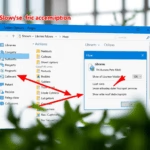
Once Ubuntu is installed on WSL, the Ubuntu folder appears in the File Explorer sidebar like this:
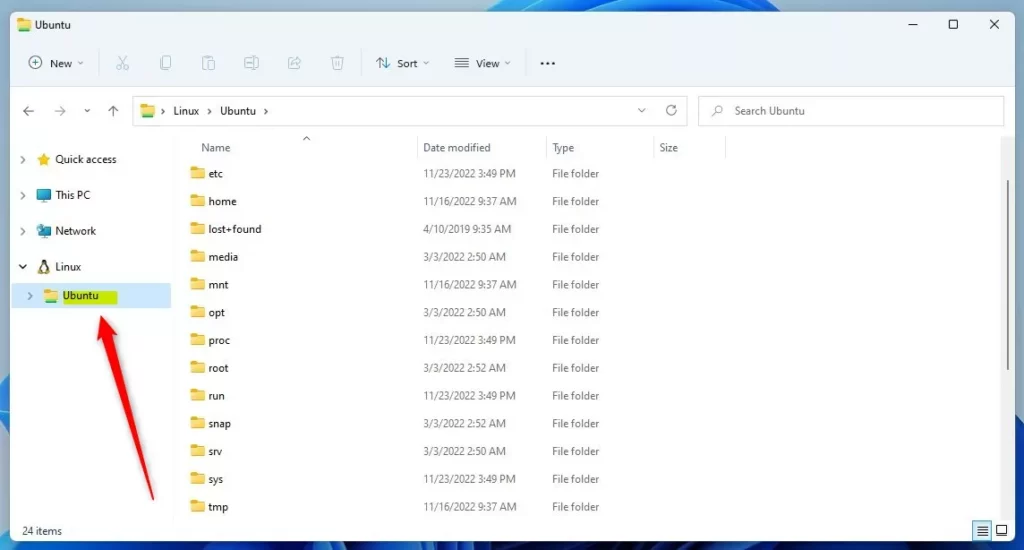
If you do not see it, check that a WSL distribution is actually installed. The shortcut only exists when WSL has registered one.
How to Show or Hide the Ubuntu Folder
How to Show or Hide the Ubuntu Folder
Changing this folder means changing a setting in the Windows Registry. The registry holds low-level configuration data for the whole operating system, so precision matters. A wrong value in the wrong place can cause odd behavior. Work through the steps below one at a time and read each name before you type it.
Before you start, you can back up the registry. In Registry Editor, choose File Export, pick All as the export range, and save the file somewhere safe. Registry Editor is available in both Windows 11 Home and Pro, and you need an administrator account to make this change.
Step 1Open the Windows Registry Editor
- Press Windows key + R on your keyboard. The Run dialog opens.
- Type
regeditand press Enter. - If a User Account Control box pops up, click Yes to allow it. If you are on a standard account, Windows will ask for an administrator password.
Registry Editor should now be open, with a tree of keys on the left and values on the right. For more help opening it, see this guide.
Step 2Find the Ubuntu Folder Setting
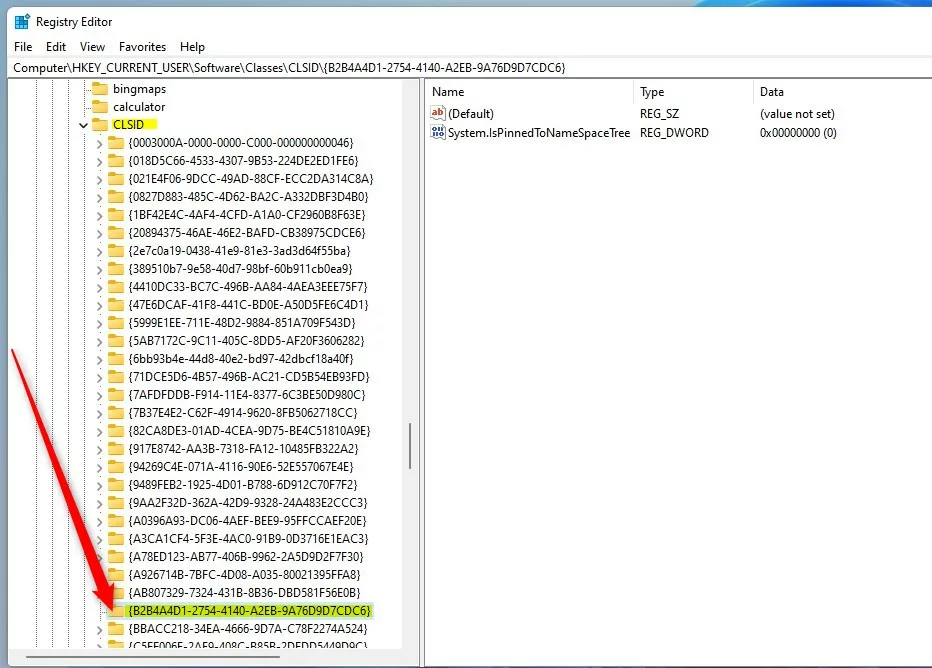
To change the Ubuntu folder setting, you need to browse to a specific key in Registry Editor. In the key tree you are looking for a long string of letters and numbers. If that folder is missing from your computer, create it manually before you go any further. It is not there on every system.
HKEY_CURRENT_USER\Software\Classes\CLSID\{B2B4A4D1-2754-4140-A2EB-9A76D9D7CDC6}If the {B2B4A4D1-2754-4140-A2EB-9A76D9D7CDC6} folder is missing, use this workaround:
- Right-click CLSID in the left pane and choose New Key
- Name the new key exactly
{B2B4A4D1-2754-4140-A2EB-9A76D9D7CDC6}. Type it carefully, including every character. A small typo creates a key Windows will ignore.
The new key should now appear under CLSID in the left pane.
Step 3Create or Edit the Value to Show or Hide Ubuntu Folder
Next, add the value that controls whether the folder is shown:
- Click the
{B2B4A4D1-2754-4140-A2EB-9A76D9D7CDC6}folder on the left. The right pane may be empty or show only a (Default) entry. - On the right side, right-click in the empty space and select New DWORD (32-bit) Value.
- Name this new value
System.IsPinnedToNameSpaceTree. This is the name of the value, not the data inside it. - Double-click
System.IsPinnedToNameSpaceTree. An Edit DWORD (32-bit) Value box opens. - In the Value data box, enter one of these:
- 1 = Show the Ubuntu folder
- 0 = Hide the Ubuntu folder
- Click OK to save. The value now appears in the right pane with your number next to it.
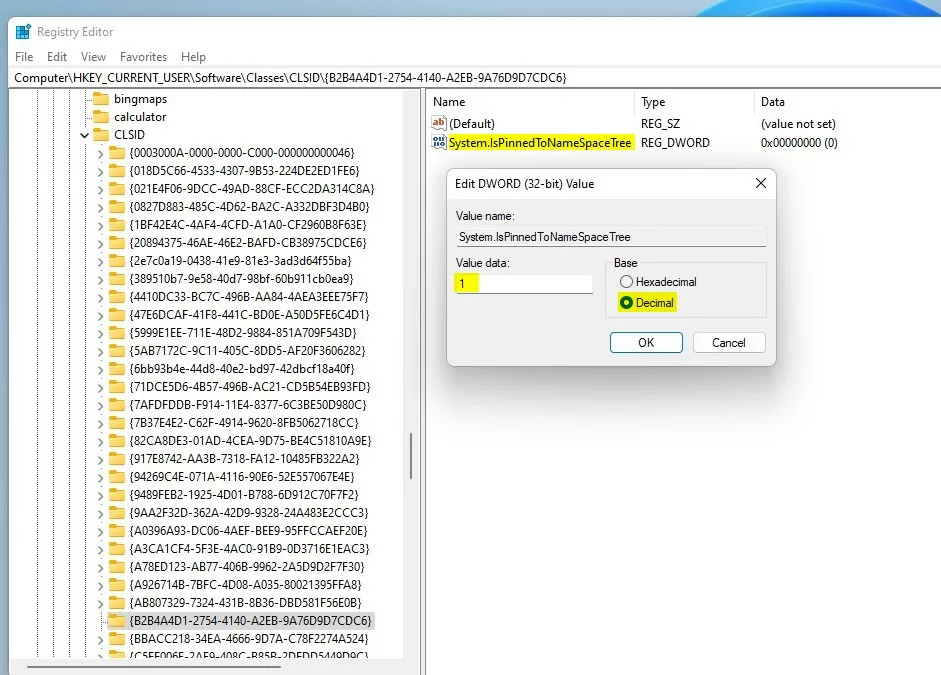
The Show/Hide switch is the DWORD value you just added to the registry key. Setting it to 1 makes the Linux shortcut appear in your sidebar. Setting it to 0 removes it without deleting any of your actual Linux files. To undo the change at any time, return to the same value and change it between 1 and 0.
Step 4Restart Your Computer
- Close Registry Editor.
- Restart your PC. A restart makes sure File Explorer reads the new setting.
- Open File Explorer and look at the left sidebar. The Ubuntu folder should now be there or gone, depending on the value you chose.
If nothing changed after the restart, reopen Registry Editor and check that the key name and the value name match exactly. Also check that the value is a DWORD (32-bit) value.
Summary
Summary
- The Ubuntu folder helps you access Linux files easily from Windows 11.
- You can show or hide this folder by changing a setting in the Windows Registry.
- Setting the
System.IsPinnedToNameSpaceTreevalue to 1 shows the folder; setting it to 0 hides it. - Restart your PC afterward so File Explorer picks up the change.
- Always be careful when using the Registry Editor, and back up your data or export the registry first if needed.
Managing the Ubuntu folder in Windows 11 File Explorer gives you quick access to your Linux subsystem files right from the sidebar. You can turn this shortcut on or off by changing a single number in Registry Editor, as long as you are careful with the key and value names.
Was this guide helpful?

About the Author
Richard
Tech Writer, IT Professional
Richard is a writer at Geek Rewind who turns complex IT tasks into clear, step-by-step guides. He draws on years of hands-on experience in system administration and enterprise IT operations, focusing on Windows, Linux and WordPress: the problems people actually run into, and the fixes that work. His server and WordPress guides come from systems he runs himself. Richard builds and maintains the platform behind Geek Rewind, from its Ubuntu servers and Nginx configuration to its custom WordPress plugins. Many new tutorials start with readers' questions, and he's always glad to answer them in the comments.


No comments yet — be the first to share your thoughts!