How to Show or Hide Libraries Folder in Windows 11

The Libraries folder in Windows 11 lets you group files from different places on your PC into one view without moving them. You can show or hide it in the File Explorer navigation pane (the sidebar on the left) to cut clutter or to get quick access to your grouped folders.
The default folder path is 📂%AppData%\
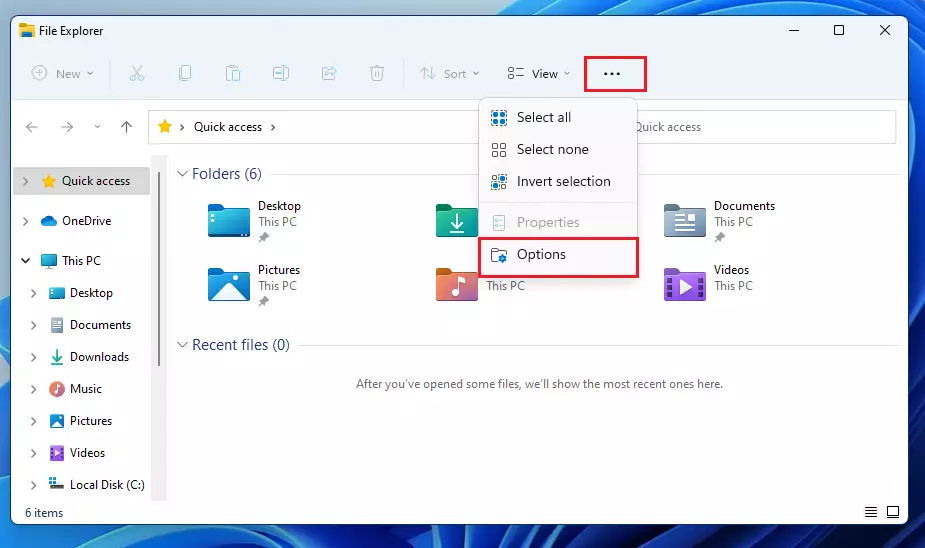
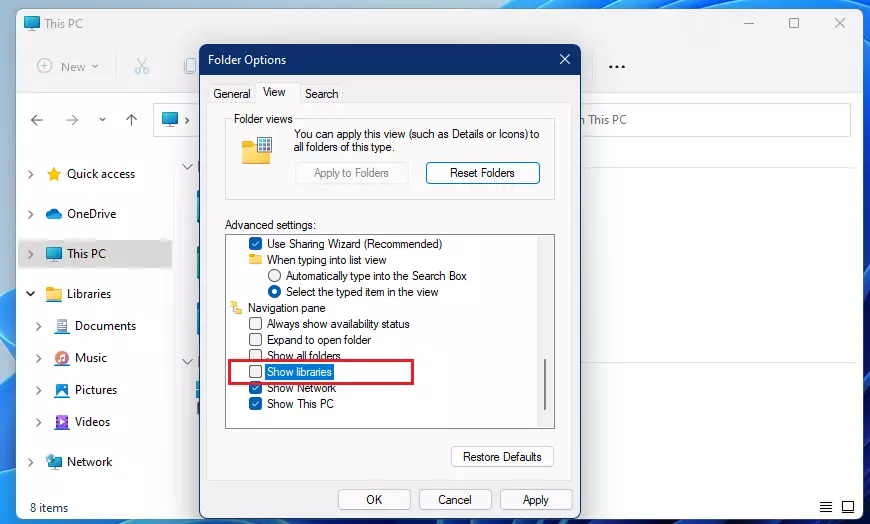
Show or hide the Libraries folder in Windows 11 via File Explorer Options. Open File Explorer , click the three dots, select Options, go to the View tab, and check or uncheck “Show libraries” under Advanced settings.
Before you begin: Back up your Registry
Before you try any of the advanced steps, create a restore point or export the registry key you plan to change. If something goes wrong, you can then roll back. The File Explorer method needs no backup, so try it first.
Show the Libraries folder via File Explorer
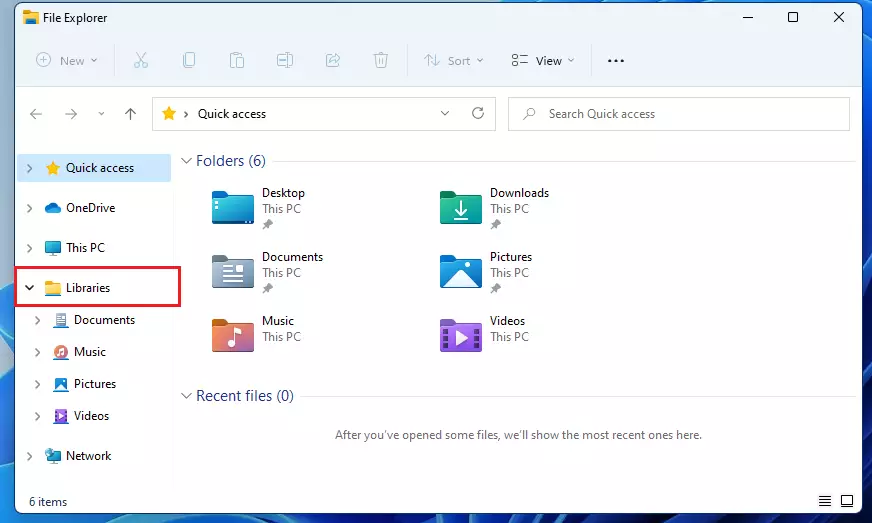
The simplest way to show the Libraries folder is through File Explorer ’s own settings. Open File Explorer, click the three dots at the top of the window, choose Options, and turn on the setting that shows libraries. The folder then appears in the sidebar, and you can reach all your grouped files from one place.
The Show libraries option is only in recent versions of Windows 11. If you can’t find it, run Windows Update and check again. The Registry method further down works as a fallback.
- Open File Explorer . You can also press Win+E. A File Explorer window opens.
- Click the three dots (ellipsis) in the top menu bar. A menu drops down.
- Select Options. The Folder Options window opens on the General tab.
- Click the View tab. A list of settings appears under Advanced settings.
- Under Advanced settings, scroll down and check the box that says Show libraries. The list is long, and this option is near the navigation pane settings.
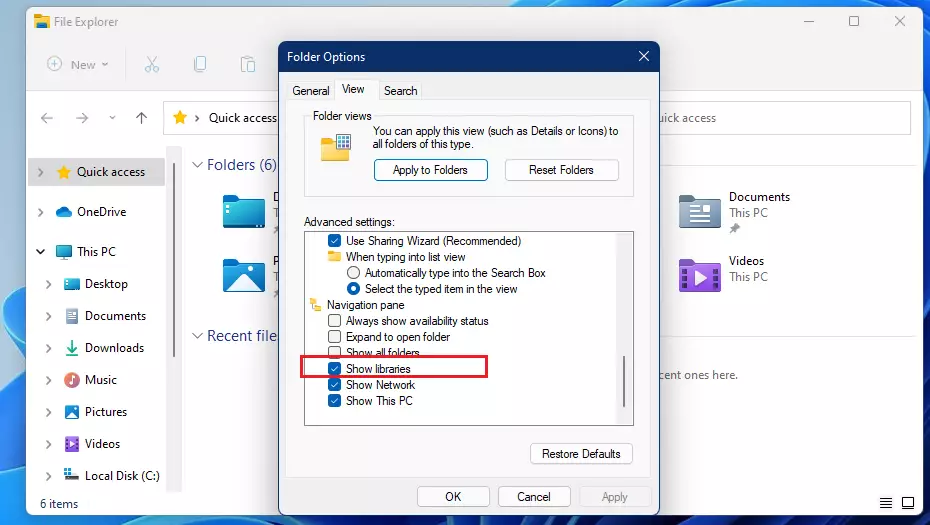
Click Apply, then OK. The Libraries folder now shows up in the navigation pane on the left. You don’t need to restart. If it doesn’t appear right away, close File Explorer and open it again.
Hide the Libraries folder
If you prefer a minimalist look, you can hide the folder. This uses the same window, and you can undo it at any time by checking the box again.
- Open File Explorer and click the three dots in the menu.
- Select Options. The Folder Options window opens.
- Click the View tab.
- Uncheck the box next to Show libraries, then click Apply and OK. The Libraries entry disappears from the sidebar.
Advanced: Registry Editor modification
If the normal File Explorer option is missing or has no effect, you can force the Libraries folder to show by editing the Windows Registry. Press the Win+R keys, type regedit, press Enter, and go to the key given in the steps below. That key holds the value that controls whether the folder appears in the navigation pane.
Create a restore point or export the key before you change anything. In Registry Editor, right-click the key, choose Export, and save the .reg file somewhere safe. Double-clicking that file later restores the old values.
- Press Win+R, type
regedit, and hit Enter. Click Yes if User Account Control asks for permission. Registry Editor opens. - Navigate to
HKEY_CURRENT_USER\Software\Classes\CLSID\{031E4825-7B94-4dc3-B131-E946B44C8DD5}. You can expand the folders in the left pane, or paste the path into the address bar at the top of the window. - Locate the System.IsPinnedToNameSpaceTree DWORD in the right pane and double-click it. If you can’t find it, you are probably in the wrong key, so recheck the path.
- Set the value to 1 to show or 0 to hide, then click OK. Close Registry Editor, then close and reopen File Explorer . If the sidebar doesn’t change, sign out and back in, or restart the PC.
Group Policy Editor settings
For enterprise environments, you can use the Group Policy Editor to enforce this setting across machines. The Local Group Policy Editor is only included in Windows 11 Pro, Enterprise and Education. Windows 11 Home doesn’t have it, so Home users should use the File Explorer or Registry method instead.
- Press Win + R, type
gpedit.msc, and hit Enter. The Local Group Policy Editor opens. - Go to User Configuration Administrative Templates Windows Components File Explorer The policy list appears in the right pane.
- Find Show libraries in the navigation pane, double-click it, and set it to Enabled or Disabled. Click OK. The change applies after Group Policy refreshes, which a sign-out or restart forces. To hand control back to the user, set the policy to Not Configured.
Add files or folders to Libraries
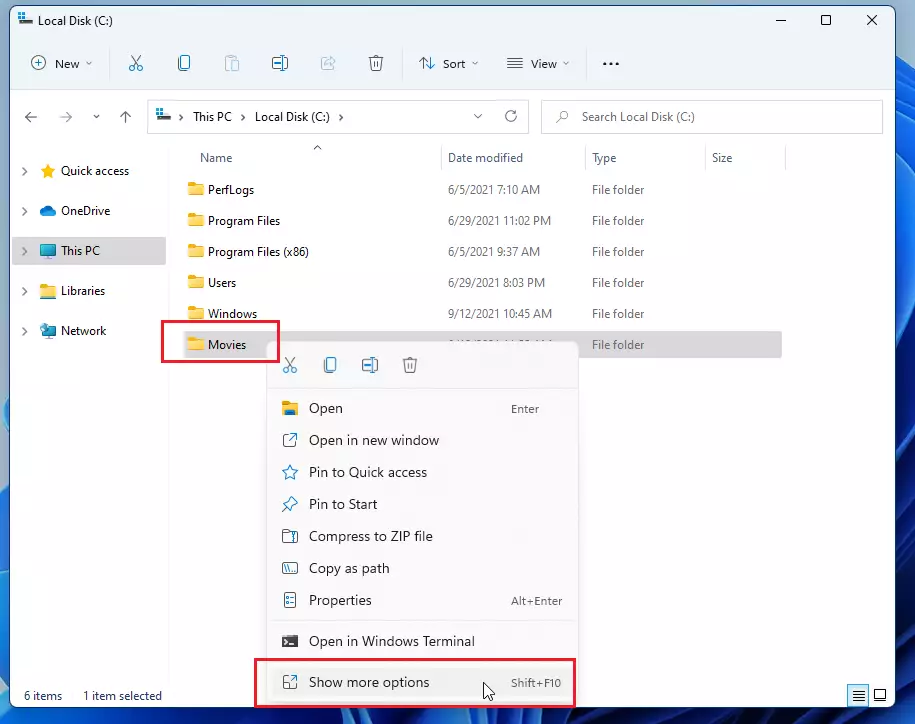
- Right-click the folder you want to add. The folder should be on a local drive, because some network and removable locations can't be added to a library.
- Select Show more options. Windows 11 puts this classic menu behind the shorter right-click menu. You can also press Shift + F10 to open it directly.
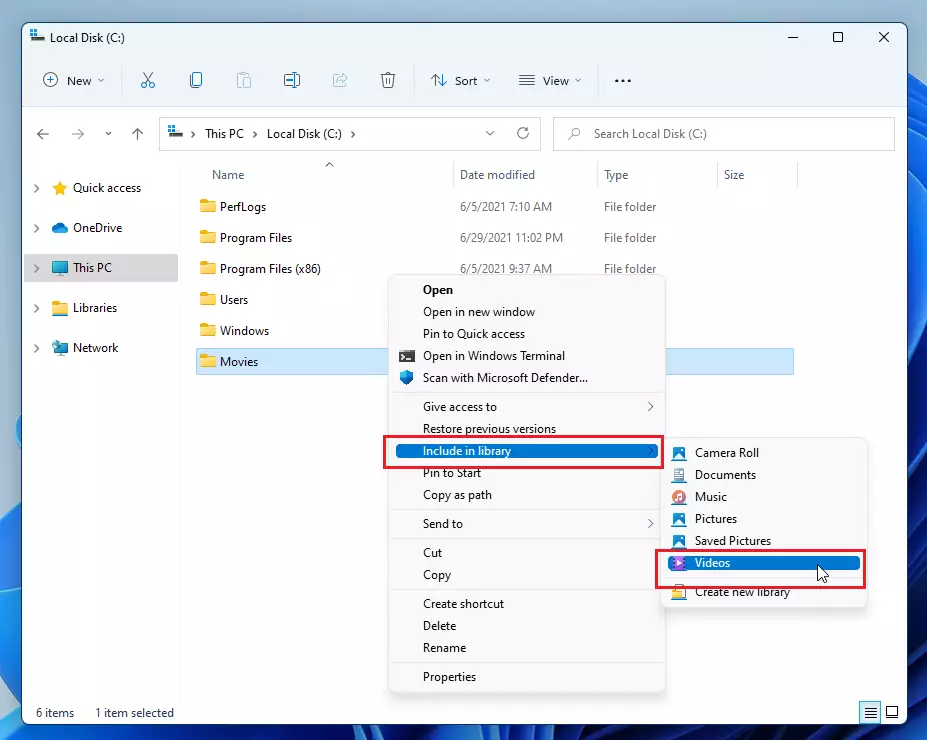
- Choose Include in library. A submenu lists your available libraries.
- Select the specific library where you want the folder to appear. The folder's files now show up in that library, while staying in their original location. To remove the folder later, open the library and use its management options. Removing it from the library doesn't delete any files.
Summary
Managing the Libraries folder in Windows 11 helps you keep File Explorer organized. Use the Folder Options menu first, since it's quick and safe to undo. If that option isn't available, use the Registry, or Group Policy on Pro and Enterprise editions. Always back up your registry before making deeper system changes.
Have a question about this guide?
Answered by AI from this guide. Good questions may be added to this page — please don't include personal details.
Did this guide fix your problem?

About the Author
Richard
Tech Writer, IT Professional
Richard is a writer at Geek Rewind who turns complex IT tasks into clear, step-by-step guides. He draws on years of hands-on experience in system administration and enterprise IT operations, focusing on Windows, Linux and WordPress: the problems people actually run into, and the fixes that work. His server and WordPress guides come from systems he runs himself. Richard builds and maintains the platform behind Geek Rewind, from its Ubuntu servers and Nginx configuration to its custom WordPress plugins. Many new tutorials start with readers' questions, and he's always glad to answer them in the comments.
I can see how that should work but on my Windows 11 installation Explorer takes no notice of this configuration setting do you have any more idea
Thank you so much. Why on earth would this be hidden to start with? Sometimes I wonder if Microsoft has a dedicated team just to make things frustrating for us end-users!
Okay, thanks, gentlemen. I thought it was just me. Pretty sure the teams make ‘improvements’ based on how MS works for them, in their industry and takes no care or thought to the thousands of other industries using the product.
On windows 10 I had all my folders identified with a front photo of various scenes to identify different stages of my entries into photo competitions. In windows 11 the photos on the front of the folders have disappeared. HELP
[…] or change application settings to choose a different folder to save files and new content. Your Music folder is also in your Libraries, which can be enabled using a few […]
[…] or change application settings to choose a different folder to save files and new content. Your Videos folder is also in your Libraries, which can be enabled using a few […]
[…] or change application settings to choose a different folder to save files and new content. Your Pictures folder is also in your Libraries, which can be enabled using a few […]
[…] controlled folder access can be helpful for cases when you don’t store files in the default Windows libraries or have changed the default location of your […]