How to Configure App Execution Aliases in Windows 11 Advanced App Settings


App execution aliases are built-in shortcuts that let you launch programs like python from the command prompt or PowerShell without typing the full file path. Windows 11 manages these nicknames automatically for modern apps and Microsoft Store downloads, so you don’t have to edit system path variables by hand.
Clashes happen when two programs try to use the same shortcut name. This often breaks scripts and command-line tools. A common case is the Microsoft Store placeholder for python answering a command when you actually installed Python from the web. The advanced app settings let you turn off the conflicting shortcut and take back control of your command prompt.
Open Settings , go to Apps Advanced app settings, then click App execution aliases. Find the app you want to control in the list and toggle its switch On or Off. The change takes effect immediately without restarting.
How to Access Advanced App Settings in 🪟 Windows 11
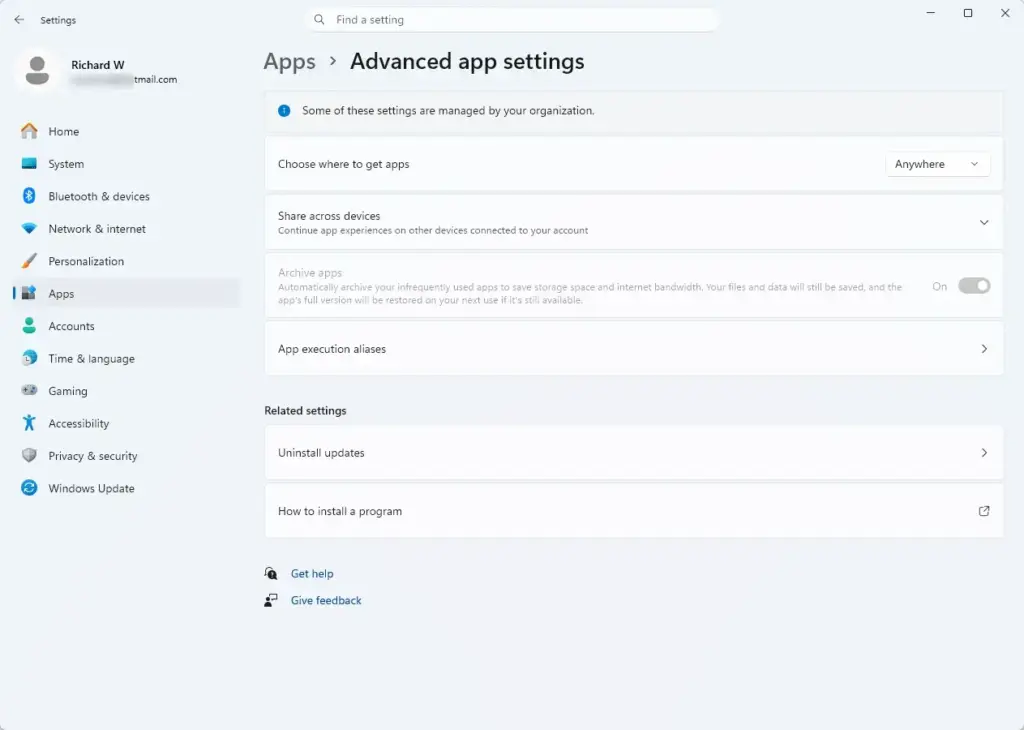
Advanced app settings live inside the main Settings app . They hold options such as where you can get apps from, sharing across devices, archiving apps, and the app execution aliases list covered in this tutorial. The App execution aliases page is part of Windows 11 and is available in both Home and Pro. You do not need a restart to use it.
Follow these steps to reach it:
- Click the Start button at the bottom of the screen.
- Select the Settings app, which looks like a small gear. You can also press the Win+I to open it directly. The Settings window should now be open.

Settings - Click Apps in the left sidebar.
- On the right side, click Advanced app settings.
- Click App execution aliases.
You should now see a list of installed programs that support app execution aliases. Each entry has a toggle switch next to it, showing On or Off. If a program you expect is missing, it probably does not register an alias. Traditional desktop programs usually don’t. See the section on alternative methods below.
How to Enable or Disable App Execution Aliases in 🪟 Windows 11
From the App execution aliases list, you can turn any program’s shortcut on or off. The change takes effect immediately. This lets you decide which apps open when you type their command in the command prompt or PowerShell.
To turn a shortcut on or off, use these steps:
- Press the Windows key + I to open Settings.
- Go to Settings Apps Advanced app settings
- Click App execution aliases. The list of programs appears.
- Scroll down until you find the app you want to change, such as Python or another tool.
- Click the toggle switch next to the app name to turn it On or Off. The switch should change position and its label should update right away.
Nothing is deleted. The alias is only switched off, so you can turn it on again at any time.
When you turn a shortcut off, Windows stops using that friendly nickname. If you type that command into the command prompt afterward, Windows will tell you it cannot find the program. This is useful when a background app is hijacking a command you want to use for a different program.
Turning off an alias does not uninstall the app. You can still open it from the Start menu as usual. Only the command-line shortcut is affected. The alias settings apply to your own user account, so other people who sign in to the same PC keep their own settings.
Managing App Aliases Using Alternative Methods
Sometimes the App execution aliases page does not show the program you want. In that case, you can use system environment variables instead. These are system-level values that tell Windows where to find programs and files. They let your computer find and open your downloaded programs without relying on the alias list or on registry edits.
Traditional desktop apps downloaded from the web often rely on environment variables rather than Microsoft Store aliases. If an app like Python is not responding to your commands, check your environment variables:
- Open the Start menu and search for environment variables.
- Open the result that offers to edit the environment variables. A System Properties window should appear.
- Click Environment Variables.
- Select the Path variable and click Edit.
- Add the folder that contains your program, then confirm each window with OK.
Open a new command prompt window afterward, because windows that were already open keep the old values.
Before you edit or remove an entry, make sure you know which program it belongs to. Write down the original value so you can put it back if something stops working.
Troubleshooting Common App Alias Conflicts
Most alias problems come from two programs trying to use the same shortcut name. The fix is usually to open the App execution aliases page and turn off the toggle for the program you do not want to use. That stops the wrong app from opening when you type the command. Here are the common cases:
- The command opens the wrong app: This happens when two apps share the same nickname. Go back to your App execution aliases settings and turn off the alias for the app you do not want to use.
- Windows says the command is not recognized: This usually means the app execution alias is turned off, or the app itself was uninstalled. Turn the switch back to On in your settings. If the app is installed and the switch is already on, check whether the app registers an alias at all, or whether it needs a Path entry instead.
- Settings changes do not work immediately: A command window that was already open may not notice the update. Close the command prompt window completely and open a fresh one to test your changes.
Summary
App execution aliases are shortcuts that let you open programs using short names instead of long file paths. You can view them, and turn them on or off, in Settings Apps Advanced app settings App execution aliases This keeps your system organized, settles command conflicts between apps, and helps you run your tools faster from the command line.
ADMIN PRIVILEGES REQUIRED: Yes, changing system-wide environment variables or altering settings for all users requires administrator privileges. Standard user accounts can modify personal app execution aliases through the standard Settings app interface.
Have a question about this guide?
Answered by AI from this guide. Good questions may be added to this page — please don't include personal details.
Did this guide fix your problem?

About the Author
Richard
Tech Writer, IT Professional
Richard is a writer at Geek Rewind who turns complex IT tasks into clear, step-by-step guides. He draws on years of hands-on experience in system administration and enterprise IT operations, focusing on Windows, Linux and WordPress: the problems people actually run into, and the fixes that work. His server and WordPress guides come from systems he runs himself. Richard builds and maintains the platform behind Geek Rewind, from its Ubuntu servers and Nginx configuration to its custom WordPress plugins. Many new tutorials start with readers' questions, and he's always glad to answer them in the comments.
No comments yet — be the first to share your thoughts!