How to Change App Execution Aliases in Windows 11

App execution aliases in Windows 11 control which program opens when you type a short command. Each alias is a simple name, like `notepad`, that starts a program from Command Prompt or the Run box without the full file location. Windows uses the alias to decide which app to open for that command.
For example, say you type `curl` and more than one program uses that name. Windows 11 lets you switch aliases on or off, so you decide which `curl` runs. The same applies to commands like `python` or `git`. This tutorial shows where the setting lives and how to change it.
Open Windows Settings , go to Apps Advanced app settings App execution aliases, find the app you want to change, and click its toggle switch to turn the alias on or off. The change takes effect immediately without restarting.
What Are App Execution Aliases?
An app execution alias is a shortcut that lets you launch a program from the command line by typing a short name instead of a full file path. Windows maps the quick command to a specific installed app, so you can open it without knowing where it lives on your drive.
These aliases mostly belong to apps installed through the Microsoft Store or packaged installers, which is why they get their own page in Settings. Each alias is listed by the app that owns it, so you can see which app is claiming which command.
For example, if an app has the alias testapp, typing testapp in Command Prompt will open it.
The alias is only a pointer. If two apps claim the same name, the one whose alias is switched on is the one that answers when you type the command.
Managing aliases saves time and avoids confusion. You do not need to remember long file paths such as "C:\Program Files\MyApp\MyApp.exe," because a short name does the job.
You type a command like `python` expecting your installed tool, and Windows opens a Microsoft Store page or a different app instead. Turning off the alias that is getting in the way usually solves that.
What happens when done? You can launch apps from the command line using short, easy-to-remember names, and each name opens the app you intended.
How to Turn App Execution Aliases On or Off
Turn one off to stop an app from competing for a shortcut name. Turn one on to get a quick text command for a tool you use often.
The setting is the same on Windows 11 Home and Pro, and you do not need administrator rights to change it for your own account.
- Open Windows Settings: Click the Start button and then select Settings, or press
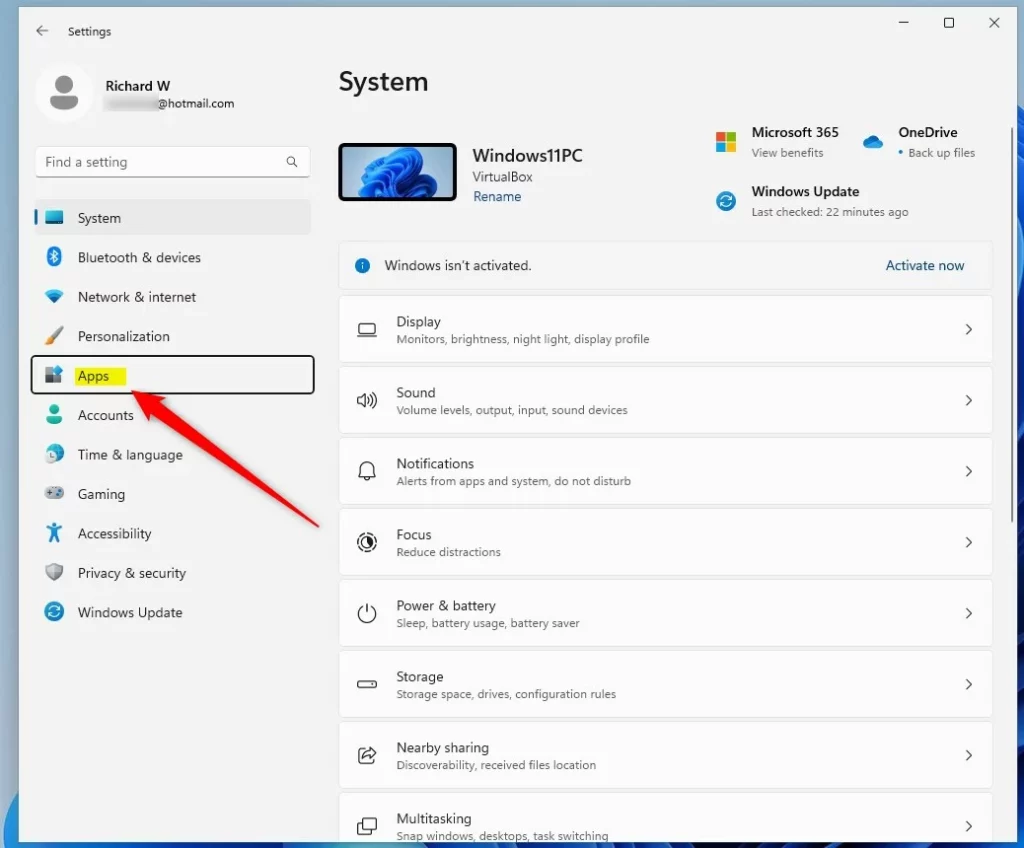
Windows key + Ion your keyboard. The Settings window opens. Learn more about Windows Settings - Go to Apps: In the Settings window, click Apps in the left-hand menu. The right side now shows app-related options such as installed apps and default apps.
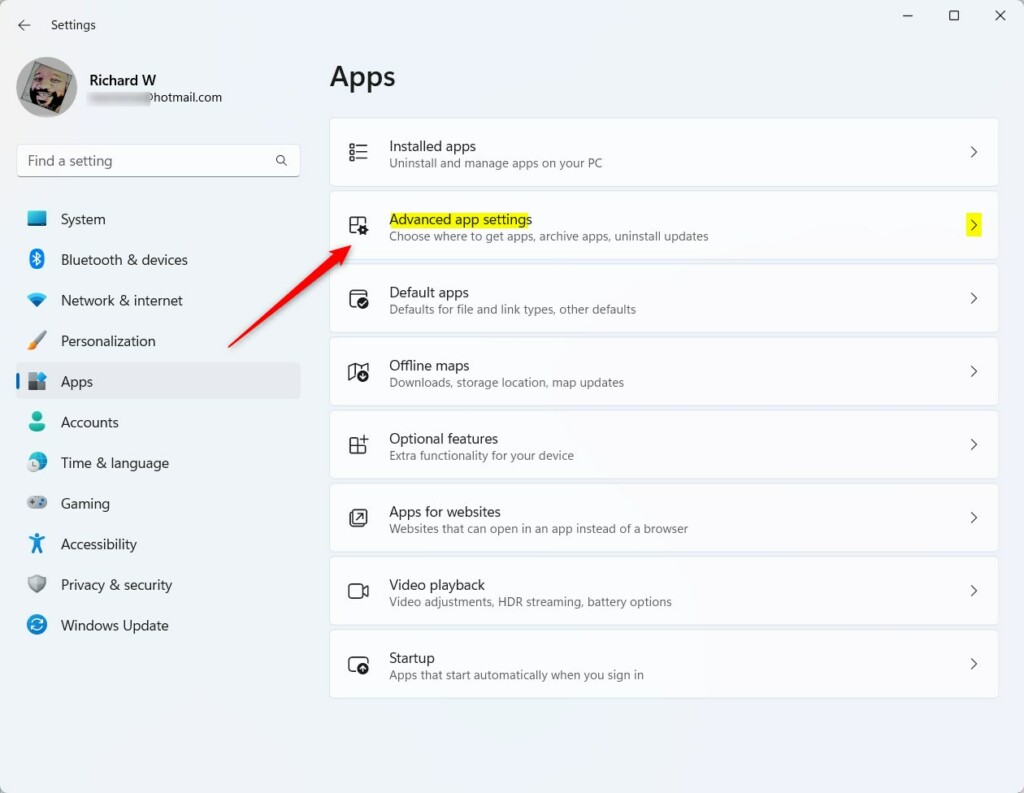
windows 11 settings apps on menu - Open Advanced App Settings: On the right side, click Advanced app settings. A short list of extra options opens.
Windows 11 Advanced App Settings - Manage App Execution Aliases: Click App execution aliases. You should see a list of apps, each with a toggle switch next to its alias name.
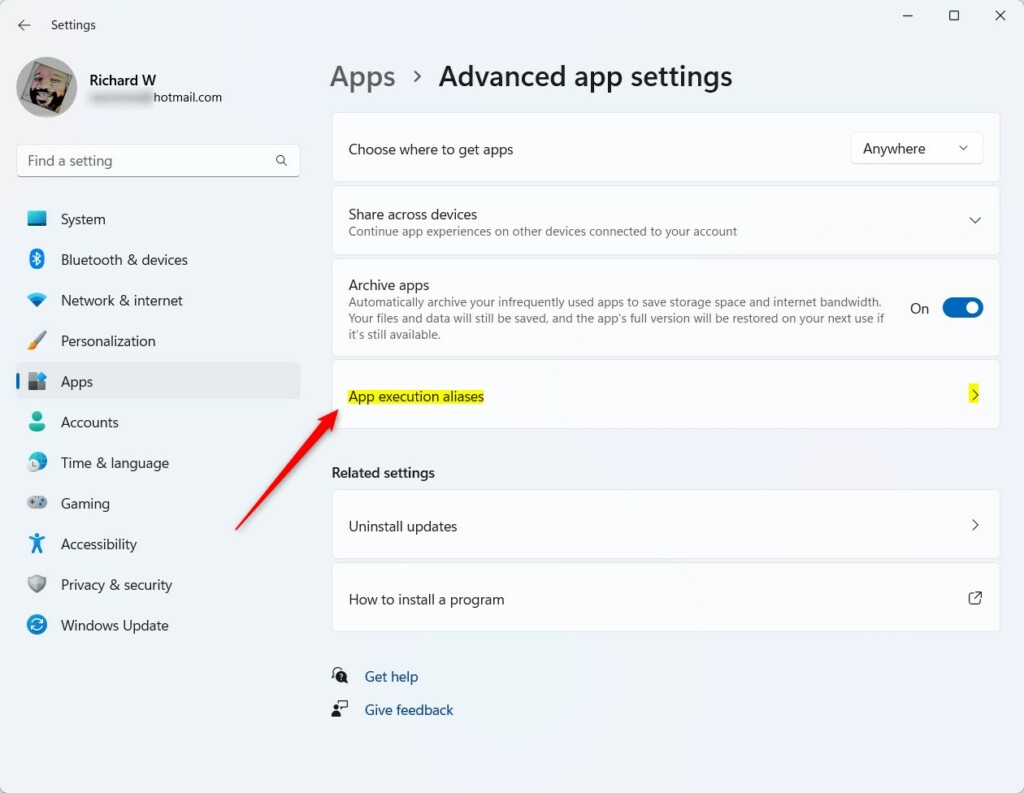
Windows 11 App Execution Aliases - Turn Aliases On or Off: Find the app alias you want to change, then click its toggle switch to set it to Off or On. The switch changes right away, and there is no Save or Apply button.
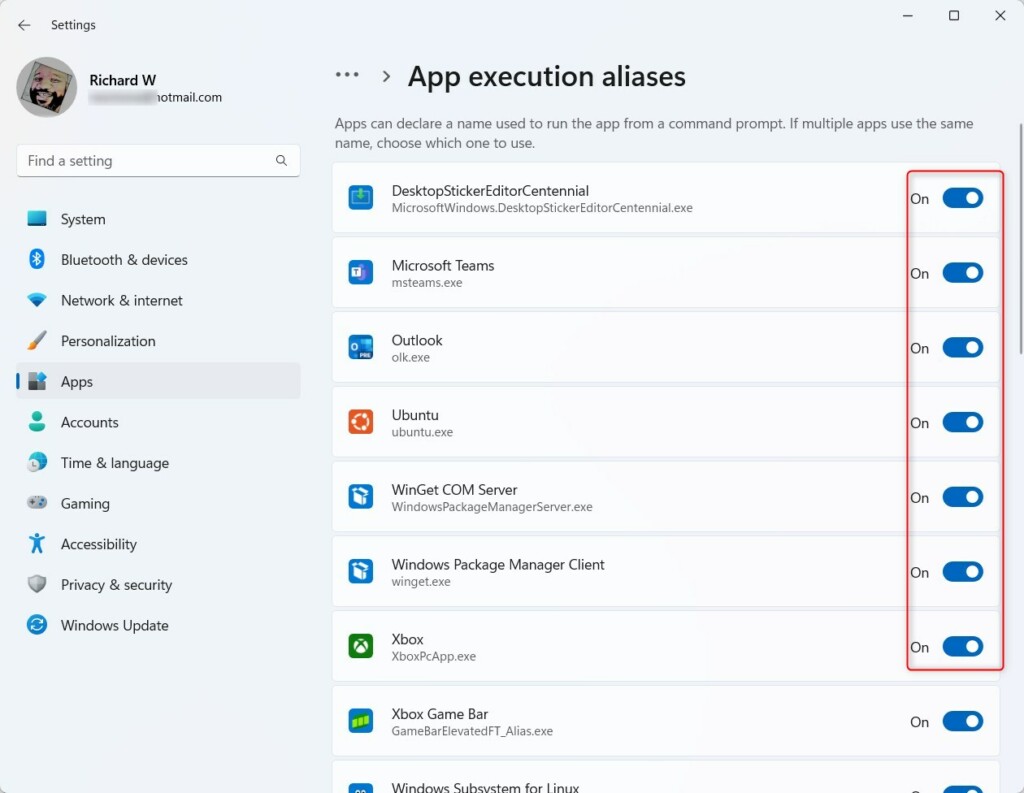
Windows 11 settings interface showing toggle buttons for app execution aliases.
That's it! Now you've chosen which app will open when you type the alias.
A few things worth knowing:
- No restart is needed. If a Command Prompt window was already open, close it and open a new one before you test the command.
- If two entries look alike, for example two for the same command name, turn off the one you do not want and leave the other on.
- To undo a change, return to the same page and flip the toggle back.
- If an alias is missing from the list, the app that owns it is probably not installed. Only apps that register an alias appear here.
Summary
App execution aliases are handy shortcuts for launching programs with simple commands from Command Prompt or the Run box. You can manage them in Windows Settings to make sure the correct app opens each time.
Was this guide helpful?

About the Author
Richard
Tech Writer, IT Professional
Richard is a writer at Geek Rewind who turns complex IT tasks into clear, step-by-step guides. He draws on years of hands-on experience in system administration and enterprise IT operations, focusing on Windows, Linux and WordPress: the problems people actually run into, and the fixes that work. His server and WordPress guides come from systems he runs himself. Richard builds and maintains the platform behind Geek Rewind, from its Ubuntu servers and Nginx configuration to its custom WordPress plugins. Many new tutorials start with readers' questions, and he's always glad to answer them in the comments.



No comments yet — be the first to share your thoughts!