How to Manage App Execution Aliases in Windows 11 Apps for Websites Settings

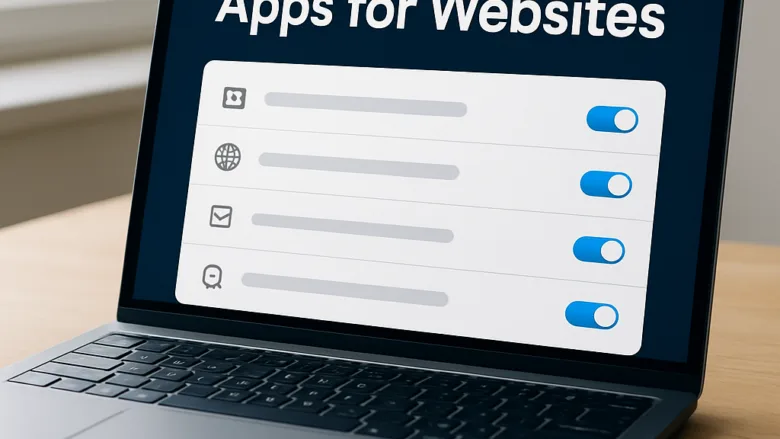
Apps for websites in Windows 11 uses web-to-app links, where an installed app registers a web address (a domain) so that clicking a matching link opens the app instead of a browser tab. For example, a music app might claim its own web address, so a link to it opens the desktop app.
Trouble starts when several apps claim the same links, or when a broken app leaves dead links behind. Links then launch the wrong program, or nothing useful, and it interrupts your work. The Windows 11 Settings app lets you control which apps may open specific web links. This guide covers turning those links off, fixing links that still open the wrong app, and stopping new software from taking them over.
Open Settings Apps Apps for websites, then switch off the toggle next to any app you don’t want opening web links. The change takes effect straight away, and the app stays installed. If a link still opens in the wrong program, restart your PC.
Navigating to the Apps for Websites Settings Page
The Apps for websites page lets you control which installed apps may open web links instead of your browser. Each listed app has a toggle, and you can switch it off without uninstalling the app.
Before you start, check two things.
- The page lists only apps that have registered to handle web links. Many apps never do, so your favorite program may not appear. On a fresh install, or one with few apps, the list can be completely empty. That is normal and does not mean something is broken.
- Microsoft has renamed and moved this page in recent Windows 11 builds. These steps are written for Windows 11 version 22H2 and later, where it is called Apps for websites and sits under Apps. To check your version, go to Settings System About and look under Windows specifications. If you cannot find the page by that name on your build, use the search box at the top of Settings and look for a similarly named entry under Apps.
To open the page:
- Click the Start button and then the Settings icon (the gear), or press the Win+I. The Settings window opens.
- Click Apps in the left-hand navigation menu. The Apps options appear on the right.
- Select Apps for websites from the list of options on the right.
The page now shows the installed apps that support opening web links, with a toggle switch beside each one. Under each app’s name you may see which domains it controls. If the list is blank, no installed app has registered for web links.
Managing App Permissions for Specific Domains
Turning off an app’s toggle stops it from automatically grabbing links that should open in your browser. The app stays installed and still works when you launch it yourself. Only the automatic link handling changes.
- Open the Settings app and go to Apps Apps for websites.
- Find the app you want to change in the list.
- Click the toggle switch next to the app name to change it from On to Off. The change applies straight away, with no Save button.
Each app entry has only a single On/Off toggle for opening supported websites in that app. You cannot pick individual links or domains. To undo the change, return to the same page and switch the toggle back to On.
Troubleshooting Common App Redirection Issues
Sometimes web links still open in the wrong program after you change these settings. Work through the steps below in order. Stop as soon as the links behave.
- Open the Settings app and go to Apps Default apps to check that your main web browser is set correctly. In current Windows 11, choose the browser from the list and select Set default.
- Go back to Apps Apps for websites and switch the misbehaving app off and then on again. This forces Windows to rewrite the link association for that app.
- Restart your computer so the changed association takes effect.
- If an app keeps taking over links it should not control, open Settings Apps Installed apps. Select the three-dot menu next to the app, choose Advanced options, and click Repair. This button is not available for every app. If you do not see it, the app does not support repair, so leave this step.
Repair keeps the app’s data. If the app still misbehaves after that, switch its toggle to Off and leave it off.
Advanced Management Using Registry Settings
System administrators and advanced users who manage several PCs, or who want to script these changes, can work with the underlying configuration in the Windows Registry. Be careful here. A wrong change in the registry can make the system unstable. You need administrator rights to change these keys.
Back up first. Do both of the following before you edit anything. The first gives you a way back for the whole system. The second saves only the key you are about to change.
To create a restore point:
- Click Start, type Create a restore point, and open the result. The System Properties window opens on the System Protection tab.
- Under Protection Settings, check that your system drive shows On. If it shows Off, select the drive, click Configure, choose Turn on system protection, and click OK.
- Click Create, type a name such as “Before registry edit”, and click Create again.
- Wait for the message that the restore point was created successfully, then click Close.
To export the key you plan to edit:
- Open the Registry Editor and browse to the key you intend to change.
- Right-click the key and choose Export, or select it and use File Export
- Make sure Selected branch is chosen under Export range, pick a folder, name the file, and click Save.
If a change causes problems, double-click the saved .reg file and confirm the prompt to put the old values back. Restart the PC afterward. If the whole system misbehaves, use System Restore and select your restore point. Keep in mind that these steps protect only what you change in the registry. They do not make the edit itself any safer.
Preventing Third-Party Apps from Hijacking Web Links
New software often takes over web links without telling you, usually through a pre-ticked box in its setup wizard. Watching for those boxes at install time saves you from fixing the problem afterward.
- Read each page of a new program's installation wizard. Look for checkboxes such as "Set as default handler," "Open supported web links," or "Register URI schemes."
- Uncheck these options before you continue with the installation.
- If the installer gives no option to opt out, open Apps Apps for websites as soon as the installation finishes. If the new app appears in the list, switch its toggle to Off.
If the new app does not appear in the list, it did not register for web links. In that case look at Apps Default apps instead.
What to do next
Your web links should now open in the right place, with no unexpected app launches. A good next step is to set up your default file associations, so that documents and media files also open in the desktop software you prefer.
Frequently asked questions
What are settings for websites?
Apps for websites settings in Windows 11 control which desktop applications can open web links instead of your browser. When you click a link, Windows checks if an app has claimed it and launches that app or your browser accordingly. This prevents conflicts when multiple apps want to handle the same web addresses.
How do I get my website to open?
Open Settings, go to Apps Apps for websites, and find the app you want. Click it to expand options, then choose which web links it should handle or toggle it off entirely. Your choice takes effect immediately, and matching web links open in the app or in your browser depending on the toggle.
What are apps for websites?
Apps for websites are desktop applications that intercept specific web links and open themselves instead of your browser. For example, a music app might claim its own web address so clicking a link launches the desktop app. You manage these in Windows 11 Settings to control which app handles each type of link.
How do I access the Settings app on my computer?
Press Windows Key + I on your keyboard, or open the Start menu and click the gear icon labeled Settings. The Settings app opens immediately. From there, navigate using the left sidebar to find any setting you need to adjust.
Still have a question?
Answered by AI from this guide. Good questions may be added to this page — please don't include personal details.
Did this guide fix your problem?

About the Author
Richard
Tech Writer, IT Professional
Richard is a writer at Geek Rewind who turns complex IT tasks into clear, step-by-step guides. He draws on years of hands-on experience in system administration and enterprise IT operations, focusing on Windows, Linux and WordPress: the problems people actually run into, and the fixes that work. His server and WordPress guides come from systems he runs himself. Richard builds and maintains the platform behind Geek Rewind, from its Ubuntu servers and Nginx configuration to its custom WordPress plugins. Many new tutorials start with readers' questions, and he's always glad to answer them in the comments.
No comments yet — be the first to share your thoughts!