What Windows 11 App Execution Alias Settings Actually Control

App execution aliases are short command names that Windows maps to an app. They let you type a name like python or notepad in Command Prompt, PowerShell or Windows Terminal instead of the full path, such as 📁C:\
Each alias has its own on/off switch. Turn one off when a program has taken a command name you want to use for something else. A common case is the Store’s python stub getting in the way of a Python install you set up yourself. Turning an alias off does not uninstall the app. You can still open the app from Start, and you can turn the alias back on at any time.
App execution aliases in Windows 11 are short command names that let you run apps by typing a simple name like python or notepad in Command Prompt, PowerShell, or Windows Terminal instead of the full file path. You manage them in Settings Apps Advanced app settings App execution aliases, where each app has an on/off switch that enables or disables its command shortcut.
How to Find and Manage App Execution Aliases in 🪟 Windows 11
In Windows 11 the aliases are managed in the Settings app, under Apps, then Advanced app settings. You do not need administrator rights to change them, and the page is the same on Home and Pro. Don’t confuse this page with Smart App Control, which is a separate security feature with its own settings.
These steps take you to the app execution alias switches and let you turn one on or off, which is the closest thing to smart app control settings for command names.
- Click the Start button on your taskbar . The Start menu opens.
- Open Settings from the Start menu . Select the gear icon, or press the Win plus I to jump straight there. The Settings window should now be on screen.

- Click Apps in the left-hand menu. The list of app-related pages appears on the right.
- Click Advanced app settings. This page may be called something slightly different on older Windows 11 builds, so scan the list if you do not see it right away.
- Click App execution aliases. The full path is Settings Apps Advanced app settings App execution aliases You should now see a list of apps, usually more than 10, each with an on/off switch next to it.
- Find the alias you want to change. Many entries are labelled with the app name and the command, for example App Installer python.exe. Read the label to match the switch to the command you are trying to use.
- Flip the switch next to that alias. With the switch on, the app can be started by its short name in the command prompt. With it off, that shortcut is disabled. The change applies immediately.
- Open a new Command Prompt or Terminal window and try the command. A window that was already open may not notice the change, which is why a new one is needed.
To undo a change, come back to the same page and flip the switch back. No restart is needed.
How to Manage App Execution Aliases in 🪟 Windows 10
In Windows 10 the same switches exist, but the route to them is slightly different. They sit under Apps & features rather than Advanced app settings.
- Right-click the Start button in the bottom left corner of your screen. A menu pops up.
- Click Settings. The Settings window opens.
- Click Apps. The Apps pages open.
- Make sure you are on the Apps & features tab on the left.
- Click App execution aliases. Look for a link that says Manage optional features, or look further down the page for App execution aliases. The list of aliases opens.
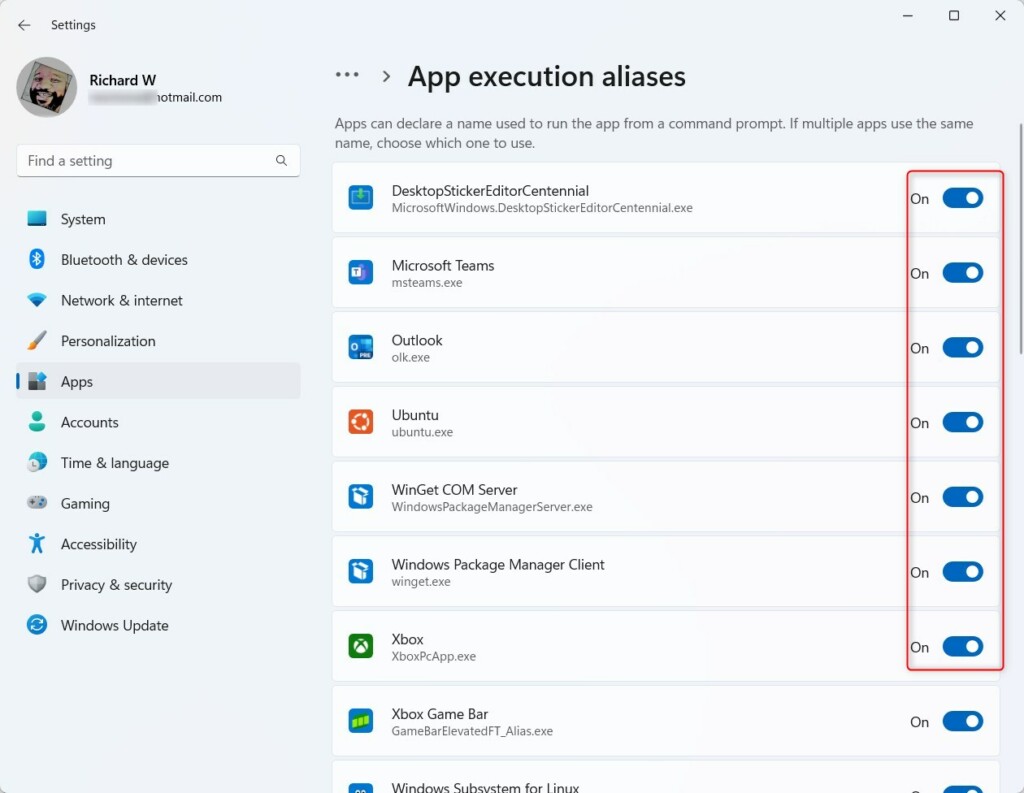
Just like in Windows 11, you will see a list of programs with switches. Turn each one on or off based on what you prefer. As in Windows 11, open a new terminal window afterwards so it picks up the change. To undo, flip the switch back.
Why Can I Not Turn Off Certain App Execution Aliases?
If a switch will not turn off, or turns itself back on, one of three things is usually going on. Windows can lock these settings while a program is running, or when it decides the app needs its shortcut to work properly.
- Active background processes: The app might be running in the background right now. Windows will not let you change settings for an app that is busy working. Check the system tray and Task Manager (Ctrl+Shift+Esc) for the app.
- Microsoft Store auto-repair: Many modern apps update automatically through the Microsoft Store. When an app updates, it often resets its execution aliases back to the default on position.
- System protection: Core Windows tools need their aliases to stay active so your computer can run properly. Windows stops you from turning off critical system shortcuts to protect your computer from crashing.
If an alias keeps turning itself back on, an app update or a background service is probably restoring the default. Try this:
- Close the app completely, including any copy in the system tray. If it still shows up in Task Manager, end it there.
- Restart your computer if the switch is still stuck.
- Go back to the App execution aliases page and try the switch again.
If an update turns the alias back on later, you will need to switch it off again after that update. It is worth checking the page after big app updates.
Managing App Paths Using the Windows Registry
Advanced users can control where Windows looks for programs through the Registry. You can add folder paths to the registry so Windows can launch an application by name without using a standard alias. This is a separate mechanism from the switches in Settings, and it is not the way to turn aliases on or off.
Always be careful when making changes here. Before you change anything, back up the key you are about to edit (in Registry Editor, right-click the key and choose Export). If something goes wrong, double-click the exported file to restore it. You also need an administrator account for the steps below.
Instead of using raw registry files, you can view application paths using the graphical Registry Editor tool built into Windows:
- Press the Windows key plus R on your keyboard. The Run dialog box opens.
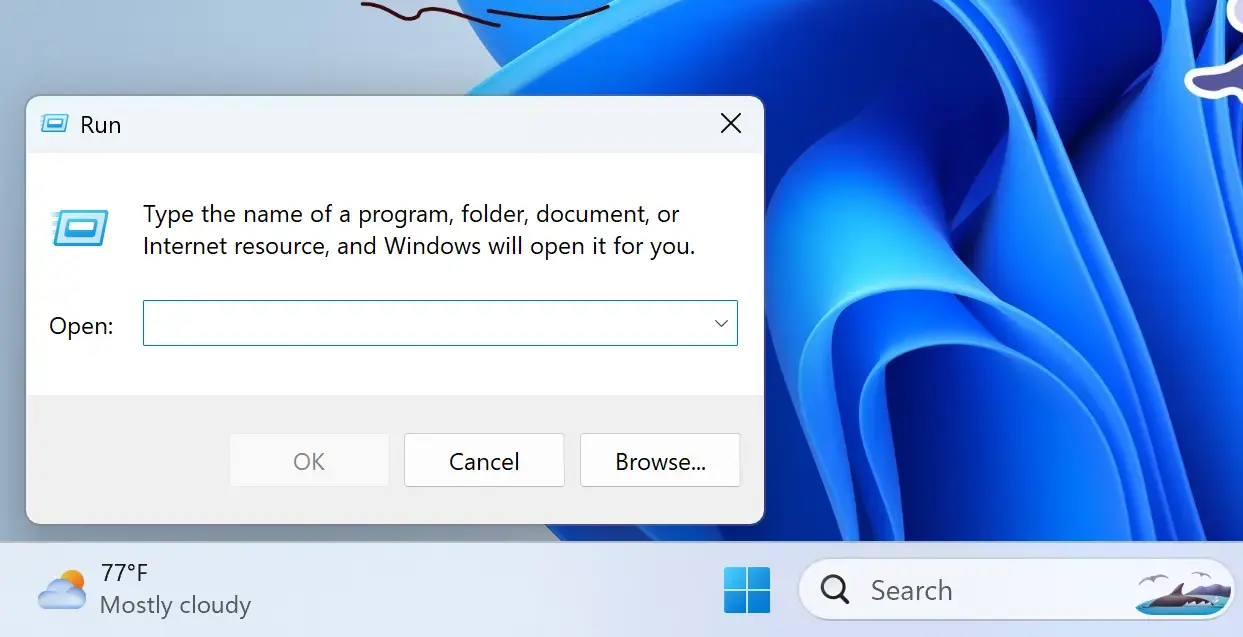
- Type regedit into the box and press Enter. Windows then asks for permission to continue.
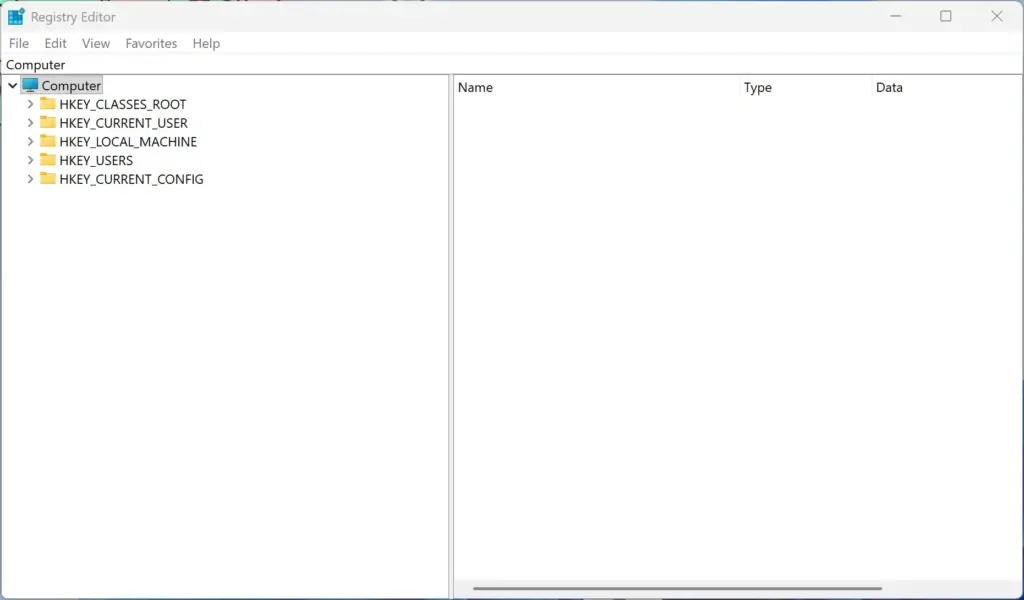
- Click Yes when asked to allow changes to your device. Registry Editor opens. If you are not on an administrator account, you will be asked for administrator credentials instead.
- Use the left-hand sidebar to move through the folders. Click the small arrow next to a folder to expand it.
- Go to HKEY_LOCAL_MACHINE, then open SOFTWARE, then Microsoft, then Windows, then CurrentVersion. Look for path-related settings here. Software paths are often stored under App Paths keys.
App execution aliases themselves are primarily managed through the modern Settings app rather than direct manual registry editing. For everyday users, sticking to the Settings app is much safer and easier than editing the registry by hand.
Managing App Execution Aliases Across Multiple Devices
Across many computers, manual setup does not scale. Centralized IT tools such as group policies and deployment scripts are the better route. System administrators use these methods to push uniform settings to computers across a school, an office, or a large family network all at once.
Enterprise management software lets you push the same App Execution Alias settings to every computer on a network. With centralized management tools, group policies and script deployments, administrators can make sure command-line shortcuts work the same way on every machine. Standardizing these settings prevents user confusion and software conflicts. Keep in mind that Windows Home does not include the Group Policy Editor, so policy-based control means Pro, Enterprise or Education. Test any change on one machine first, and keep a way to roll it back, before you send it to everyone.
Unique Expert Tips: Preventing Command Conflicts and Shadow Aliases
Most basic guides stop at telling you where the switches are. Understanding how aliases work together can save you from strange behavior later. Here are two concepts that everyday users rarely hear about:
1The Danger of Duplicate Aliases
This confuses Windows and breaks your shortcuts. When competing apps use the same nickname, typing that command in your terminal might open the wrong program or show an error message.
To sort it out, open the App execution aliases page and look for two entries with the same command name. Turn off the one you do not want, then open a new terminal window and try the command again. If the right program still does not start, check which app the other entry belongs to, since the label shows the app that owns the alias.
2Shadow Aliases and Store Apps
Shadow aliases act as bridges that connect protected Microsoft Store apps to the rest of your Windows system. Store apps run inside isolated containers, so these hidden aliases give them a safe way to respond to command prompt instructions, much like traditional desktop programs do. It helps to know they exist, because turning off an alias can stop a Store app from being launched by name in the terminal even though the app itself still works from Start.
Summary
App execution aliases are simple nicknames that let you launch programs quickly from your command prompt in both Windows 10 and Windows 11. This guide covered how to find the settings, why switches get stuck or turn themselves back on, how app paths work in the registry, and how to deal with command conflicts caused by duplicate aliases. If you only remember one thing, remember this: when a command opens the wrong program, check the App execution aliases page first.
Have a question about this guide?
Answered by AI from this guide. Good questions may be added to this page — please don't include personal details.
Did this guide fix your problem?

About the Author
Richard
Tech Writer, IT Professional
Richard is a writer at Geek Rewind who turns complex IT tasks into clear, step-by-step guides. He draws on years of hands-on experience in system administration and enterprise IT operations, focusing on Windows, Linux and WordPress: the problems people actually run into, and the fixes that work. His server and WordPress guides come from systems he runs himself. Richard builds and maintains the platform behind Geek Rewind, from its Ubuntu servers and Nginx configuration to its custom WordPress plugins. Many new tutorials start with readers' questions, and he's always glad to answer them in the comments.
No comments yet — be the first to share your thoughts!