How to Inspect Installed Apps on Your Device in Windows 11 Settings

The Installed apps page in Windows 11 Settings lists every program on your PC and shows how much storage each one uses and when it was installed. It helps you find large programs, spot apps you forgot about, and decide what to remove to free up disk space.
The page works the same on Home and Pro. Looking at the list needs no administrator rights, so a standard user account is enough. Removing some desktop programs may ask for administrator approval.
Open Settings Apps Installed apps, then use the sort dropdown near the top right to choose Size (large to small) or a date option. Each app’s size and install date appear in small text under its name. Standard user accounts can view this list; uninstalling some desktop programs may ask for administrator approval.
How to Access Installed Apps and Features
Settings is the main place to view your software inventory. You can open it from the keyboard or from the Start menu .
- Press Win+I at the same time.
- Check that the Settings window opens. If the shortcut does nothing, open the Start menu and click Settings instead.
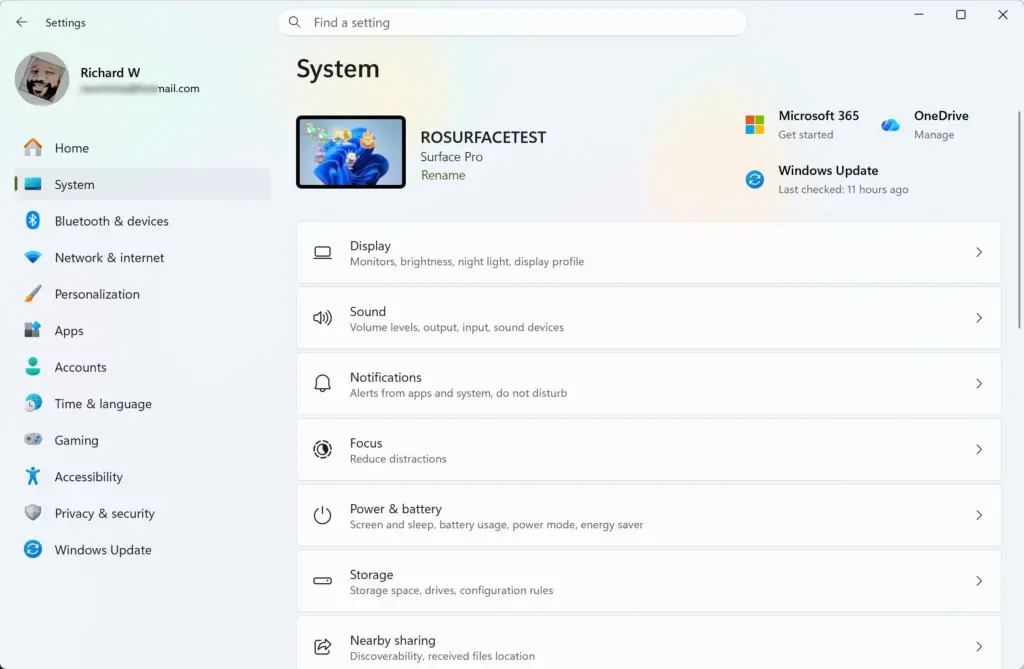
Next, go to the list of installed programs. The path is Settings Apps Installed apps
- Select Apps from the left-hand navigation menu. The right-hand pane now shows the app-related pages.
- Click Installed apps. The full list of programs and packages on your PC opens. It includes Microsoft Store apps and traditional desktop programs.
Give the list a moment to load. On a PC with many apps, sizes and dates can take a few seconds to appear.
Checking App Sizes and Install Dates
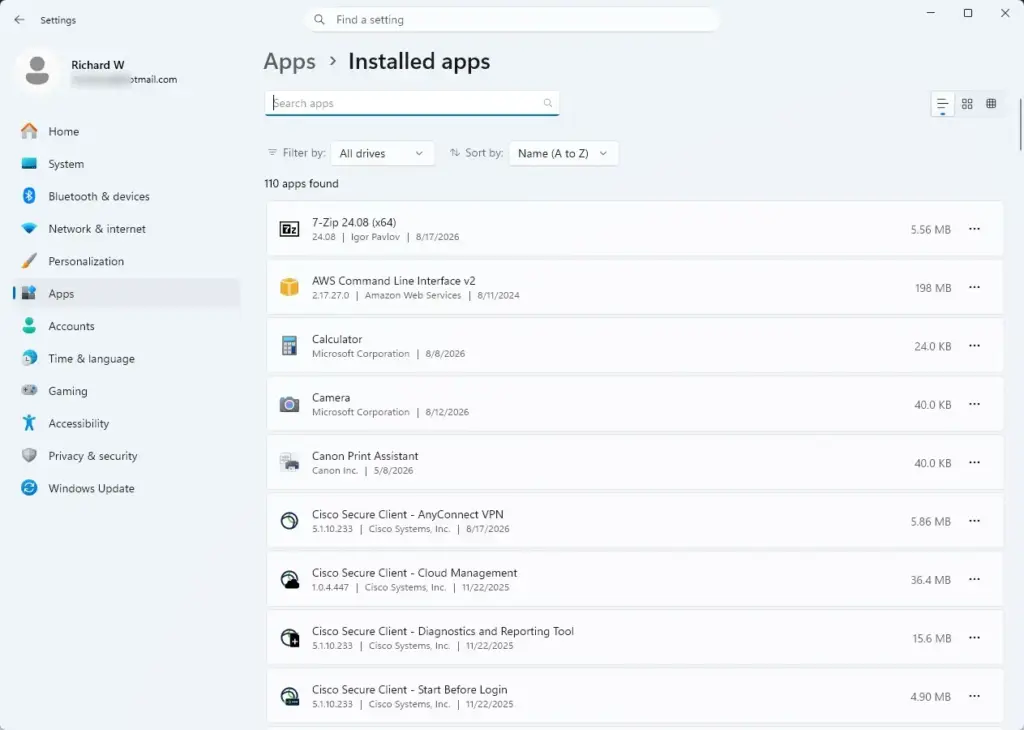
The sort menu on the Installed apps page lets you check app sizes and install dates. It helps you find the largest programs and see when each one was added, so you know where to start when you need disk space.
- Find the sort dropdown near the top right of the app list. It shows Sort by: Name by default.
- Click the menu and select Size (large to small). The biggest apps now sit at the top of the list. Pick Size (small to large) to reverse the order.
- To sort by date instead, open the same menu and choose one of the install date options. Newest or oldest first both work, depending on whether you are hunting for something recent or something you installed long ago.
- To find one specific program, type its name into the search bar above the list. The list narrows to matching titles as you type.
- Look at the small text under any app name. It shows the app’s size and its install date.
This happens when the app or its installer doesn’t report that information to Windows, so don’t read a blank as zero. The exact layout can also differ slightly between Windows 11 builds, but the sort menu and the sub-text are in the same place.
If you decide to remove something, use the three-dot menu at the right end of that app’s row.
- Click the three-dot menu next to the app. A short menu opens.
- Select Uninstall. Windows asks you to confirm.
- Click Uninstall again and follow any prompts from the app’s own uninstaller. Windows may ask for administrator approval for some desktop programs.
Some apps built into Windows won’t offer the Uninstall option, and it may be greyed out for them.
Many Microsoft Store apps offer Advanced options. That page holds repair and reset buttons and the app’s permissions. Try Repair first when an app misbehaves, because Reset clears the app’s data. Some desktop apps show Modify, which opens the program’s own installer so you can change or repair its components. If you don’t see these entries, that app doesn’t support them.
Storage settings give you another way to find large items. Open Settings System Storage and wait for the usage breakdown to load. Select Apps & features in that breakdown to see how much space apps take compared with other categories. Then open Cleanup recommendations to see suggestions such as temporary files and unused apps. Review each suggestion before you remove anything.
Using Alternative Commands to Open App Settings
The Installed apps page also opens directly from the Run dialog. This skips the clicks through Settings and helps if you check the list often. It works through a Settings URI command, which is a short address that points Windows to a specific Settings page.
- Press Win+R at the same time. The Run dialog box opens in the bottom-left corner of the screen.
- Type
ms-settings:appsfeaturesinto the text field. - Press Enter or click OK. Settings opens straight on the applications page.
If nothing happens, check the command for typing mistakes, or use the Settings route from the first part of this guide.
What to do next
You now know how to audit your storage use. From here you can remove programs you no longer need to free up disk space, or move on to managing startup apps to speed up your boot times.
Frequently asked questions
How can I find the Windows installation date using PowerShell?
Open PowerShell as an administrator and run: `Get-ComputerInfo | Select-Object OsInstallDate`. The output shows when Windows was first installed on your device. You can also check System Information in Settings System About for the same date.
How many GB is 🪟 Windows 11 to install?
Windows 11 requires at least 64 GB of storage available on the device to install. The exact amount varies depending on your system configuration and which edition you're installing. After installation, Windows typically uses 25–30 GB, leaving room for your files and apps.
How do I check for app updates in 🪟 Windows 11?
Open Settings and go to Apps Installed apps. Scroll through your list or use the search bar to find an app. Installed apps has no Update option. Open the Microsoft Store, go to Library, and select Get updates; other desktop apps update through their own updater. You can also check Microsoft Store for updates to Store apps.
What happens if I don't upgrade to 🪟 Windows 11 by October?
Windows 10 support ended on October 14, 2025. Free security updates no longer arrive unless you enroll in Extended Security Updates (ESU), so upgrading to Windows 11 is the safest option. Your device continues working, but it becomes increasingly vulnerable to viruses and security threats.
Still have a question?
Answered by AI from this guide. Good questions may be added to this page — please don't include personal details.
Did this guide fix your problem?

About the Author
Richard
Tech Writer, IT Professional
Richard is a writer at Geek Rewind who turns complex IT tasks into clear, step-by-step guides. He draws on years of hands-on experience in system administration and enterprise IT operations, focusing on Windows, Linux and WordPress: the problems people actually run into, and the fixes that work. His server and WordPress guides come from systems he runs himself. Richard builds and maintains the platform behind Geek Rewind, from its Ubuntu servers and Nginx configuration to its custom WordPress plugins. Many new tutorials start with readers' questions, and he's always glad to answer them in the comments.
No comments yet — be the first to share your thoughts!