Turn On Noise Suppression for Your Microphone in Windows 11

- 28 steps
- Needs administrator rights
Noise suppression in Windows 11 filters steady background sounds, such as fan hum, air conditioning, and keyboard clatter, out of your microphone signal before apps receive it. You turn it on in Settings System Sound by opening your microphone’s properties and choosing an option under Audio enhancements.
The setting applies to the whole PC, so Teams, Zoom, Discord, and the Voice Recorder app all get the cleaner audio. It needs no extra software, works on Windows 11 Home and Pro, and does not need a restart.
The option you see depends on your microphone, your audio driver, and your Windows 11 version. This guide covers the main route, a fallback for drivers that use the older sound dialog, and the fixes for when the option is missing.
To turn on noise suppression for your microphone in Windows 11, open Settings, go to System Sound, click your microphone under Input, and choose an option under Audio enhancements, such as Voice Clarity or Default Device Effects. The change applies to Teams, Zoom, Discord, and other apps, and no restart is needed.
What Noise Suppression Does (and Does Not Do)
Noise suppression is a filter that analyses the incoming audio and reduces sounds that are not speech. It works best on steady, repeating noise: a PC fan, a window air conditioner, or a distant road.
It works less well on sudden or speech-like noise. A barking dog, a second person talking, or a TV in the next room can still come through, and aggressive filtering can make your own voice sound thin or clipped.
Windows applies the filter to the signal before it reaches apps. The filter is separate from the volume level, which you set on the same page. If your voice is too quiet, fix that first, because suppression cannot rebuild a weak signal. The guide to setting up a microphone in Windows 11 Sound settings from scratch covers input volume and basic testing.
Before You Start
Check three things first, so the steps below match what you see on screen.
- Your microphone is connected and detected. It must appear under Input in Settings System Sound. If it does not, check the cable or Bluetooth connection first.
- Windows is up to date. Newer Windows 11 builds have more audio enhancement options, including Voice Clarity (a Microsoft feature that cleans up speech). Check under Settings Windows Update.
- Apps are allowed to use your microphone. If an app cannot hear you at all, the problem is permissions, not noise. See how to enable or disable microphone access for apps in Windows 11.
Administrator rights are not needed for the Settings steps. They are needed only if you update the audio driver later in this guide, and that step says so.
Turn On Noise Suppression in 🪟 Windows 11 Settings
Follow these steps to turn on noise suppression from the Sound page in Settings. Open the properties of your microphone, then choose an option under Audio enhancements. Each microphone has its own settings, so make the change on the microphone you actually use.
- Open Settings . Press Win+I, or right-click the Start button and choose Settings. The Settings window opens.
- Click System. It is in the left menu, near the top.

Start Menu - Click Sound. The Sound page lists your output devices first, then your input devices.
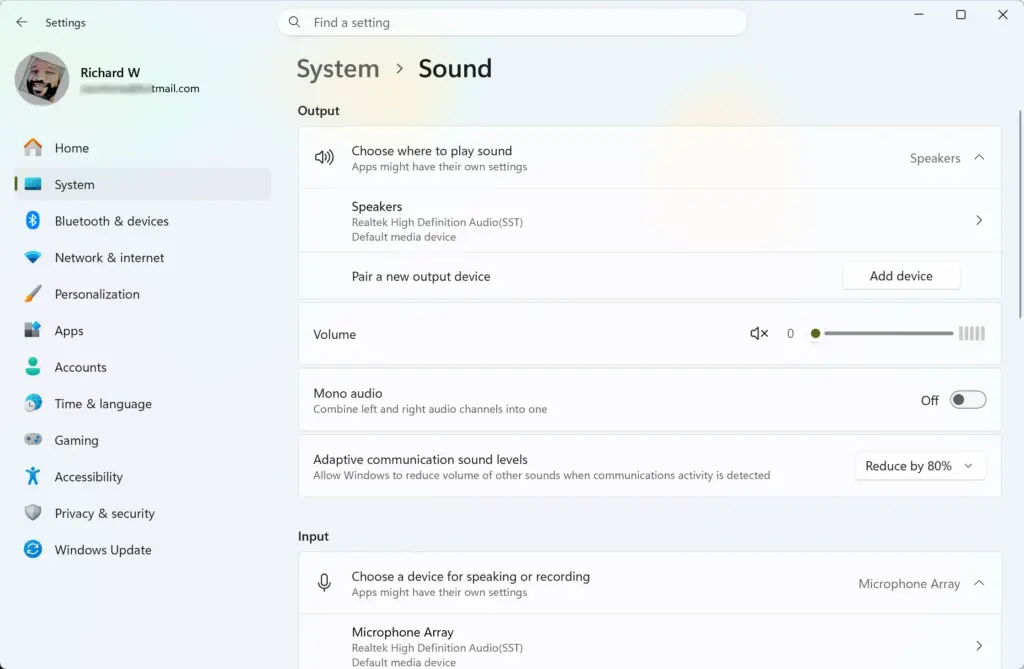
Settings › System › Sound - Scroll down to the Input section. Under Choose a device for speaking or recording, you see every microphone Windows detects. A selected microphone has a filled circle next to it.
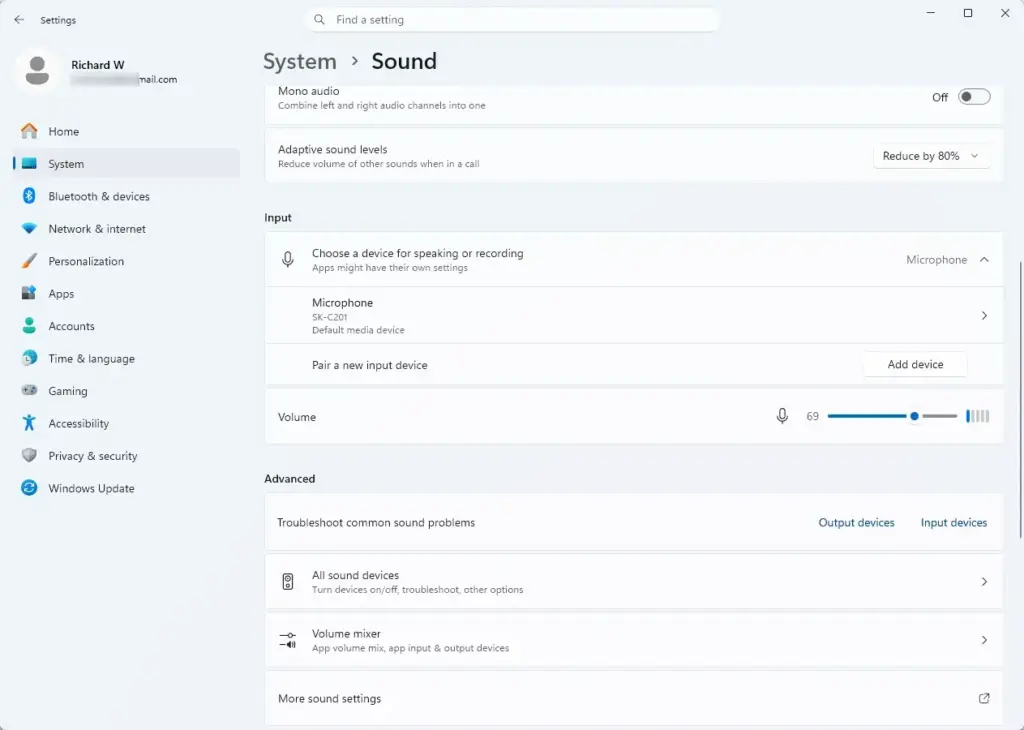
Settings › Sound › Input - Click the name of your microphone. Pick the one you speak into. If the wrong one is selected, set the right one as your default first with this guide to changing the default microphone in Windows 11. The microphone’s properties page opens.
- Find Audio enhancements. It sits in the Input settings area, below the volume slider. If you do not see it, go to the section on missing options below.
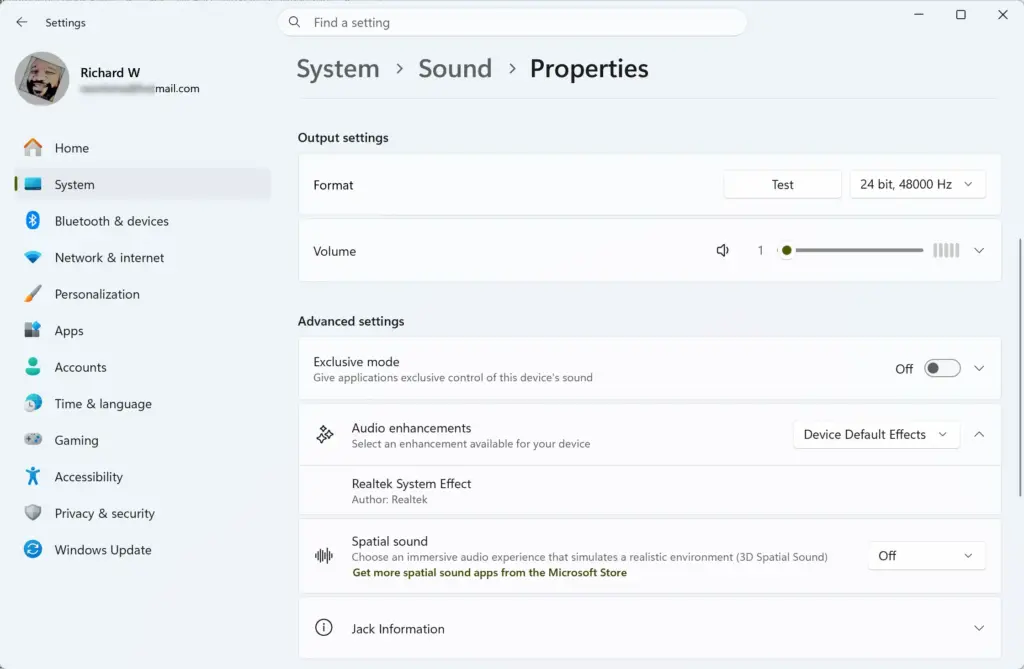
Settings > System > Sound - Open the Audio enhancements list. Click the box next to Audio enhancements. A short list of choices drops down. The wording depends on your device and driver.
- Select a noise suppression option. Choose Voice Clarity if your device lists it. Otherwise choose Default Device Effects, which applies whatever effects your driver provides. Choosing Off turns all enhancements off.
- Scroll to Test your microphone. This section is lower on the same page, and it lets you check the result before you open a call.
- Click Start test. Windows begins listening to your microphone, and a level bar moves as you talk.
- Speak for five to ten seconds. Use your normal voice and normal distance from the microphone, with your usual background noise running.
- Click Stop test. Windows shows your result as an input volume percentage. A good result is a clear bar that rises when you speak and falls back when you stop.
On some Windows 11 builds, the same control appears as a toggle labelled Enhance audio instead of a list. If you see a toggle, switch it to On and continue with the test.
Settings save the moment you change them. There is no Apply button and no restart.
Check That It Is Working
The built-in test shows volume, not noise level, so it cannot prove the filter works. A better check is to compare two recordings.
Open the Voice Recorder app and record ten seconds with your usual background noise and Audio enhancements set to Off. Switch the setting on, record the same ten seconds, and play both back with headphones. The second recording should have less steady hiss or hum. If both sound identical, the enhancement may not apply to your microphone, so move on to the sections below.
If the microphone seems silent in the test, it may be muted at the system or hardware level. Check with this guide to muting and unmuting your microphone in Windows 11.
Use the Classic Sound Dialog if You Prefer It or Settings Has No Option
Some audio drivers, such as Realtek drivers, add their effects to the older Sound dialog instead of the Settings page. That dialog is the small Control Panel window with Playback, Recording, and other tabs. Open the classic dialog and look for a noise suppression effect on the Enhancements tab.
- Open Settings . Press Win+I.
- Click System, then Sound. The Sound page opens.
- Scroll to the bottom and click More sound settings. It is under the Advanced heading. The Sound dialog opens.
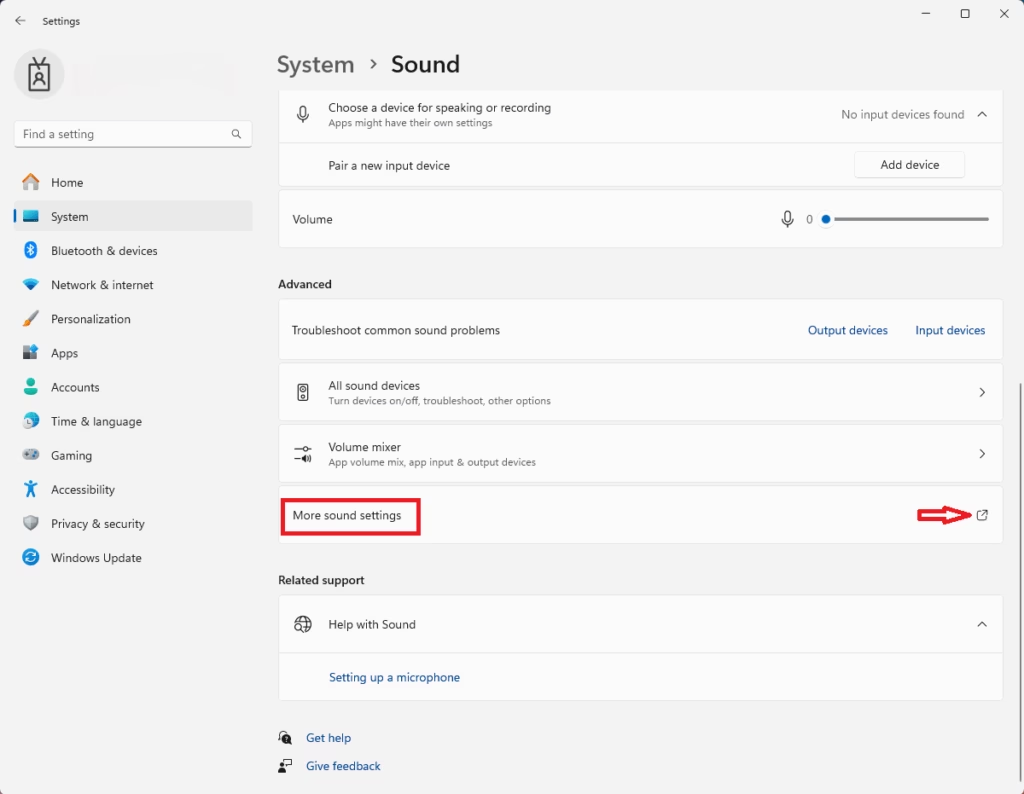
Settings > System > Sound - Click the Recording tab. It lists your microphones, and a green check mark marks the default.
- Double-click your microphone. The Microphone Properties window opens.
- Click the Enhancements tab. If there is no Enhancements tab, your driver does not expose effects here, and you can close the window.
- Tick the Noise Suppression box. The exact name depends on the driver. Some drivers also list effects such as Acoustic Echo Cancellation.
- Click Apply, then OK. Test with the Voice Recorder app as described above.
Do not tick that box if you want effects on, because it turns them all off.
If Noise Suppression Is Missing or Greyed Out
A missing or greyed-out Audio enhancements option is common, and it almost always comes down to the device or driver. Windows can only offer an effect that the microphone’s driver supports.
Your Microphone or Driver Does Not Support It
Many USB and Bluetooth microphones, headsets, and webcams handle audio in their own hardware and give Windows no effects to apply. Their drivers show no Audio enhancements list, or show only Off.
Check whether the device has its own app or setting for noise reduction. Many gaming headsets and USB microphones include one from the manufacturer. The built-in microphone in a laptop is the most likely to offer Windows-level suppression.
Update the Audio Driver
An outdated driver (the software that lets Windows control your sound hardware) can hide options that a newer version provides. This step needs administrator privileges, and Windows asks for approval or an administrator password.
- Open Device Manager. Right-click the Start button and choose Device Manager.
- Expand Audio inputs and outputs. Click the arrow next to it. Your microphones appear in the list.
- Right-click your microphone. Choose Update driver from the menu.
- Click Search automatically for drivers. Windows looks for a newer driver and installs it if it finds one.
- Return to Settings System Sound. Open your microphone again and check for Audio enhancements.
If Windows reports that the best driver is already installed, check the website of your PC or sound card maker for a newer audio driver. Laptop makers often publish drivers that Windows Update does not carry. If the microphone’s own name is unclear in the list, renaming your microphone in Windows 11 makes it easier to pick the right one.
The Wrong Microphone Is Selected
Windows keeps a separate set of properties for every microphone. If you changed the setting on the laptop's built-in microphone but your calls use a headset, nothing changes for the headset. Open the properties page of the microphone your app actually uses. Most apps also have their own microphone choice in their audio settings, which may differ from the Windows default.
Microphone Access Is Blocked
Look under Settings Privacy & security Microphone. Read what breaks when you turn off microphone access in Windows 11 privacy settings before you change anything there, since the switch affects many apps at once.
Your 🪟 Windows 11 Version Is Older
The layout of the Sound page has changed between Windows 11 releases. An older build may show only the classic dialog route above and no Audio enhancements list on the properties page. Run Windows Update and install any pending feature update.
Voice Clarity and Other Device-Specific Options
Voice Clarity is Microsoft's own speech enhancement, which includes noise suppression and echo reduction. It appears only on supported devices, so it may not show on your PC even if everything else is current. The separate guide on configuring Voice Clarity for microphone input in Windows 11 explains what it changes.
Some newer PCs have a chip built for AI tasks, called an NPU (neural processing unit). These PCs may also offer Windows Studio Effects with a voice option. It appears only on supported hardware. The supported models are not confirmed here, so check your PC maker's product page for Windows Studio Effects. If your PC supports it, the controls usually sit in Quick Settings. If you do not see them, your hardware likely does not support them.
Noise Suppression Inside Apps
Many communication apps, including Teams, Zoom, and Discord, have their own noise suppression in their audio settings. The names and locations differ by app and version, so check the app's audio or microphone settings.
Avoid running two noise filters at once, one in Windows and one in the app. If Windows suppresses noise and the app does too, the double processing can make your voice sound choppy, with words cut at the start or end. Pick one layer, test it, and leave the other off. If you are unsure, start with the app's own setting for that app, and use the Windows setting for everything else.
A quick check of which programs touch your microphone also helps. The guide on seeing which apps have accessed your microphone in Windows 11 shows recent use, which can reveal a second app competing for the same input.
Turn Noise Suppression Off Again
Turning the setting off is safe and fully reversible, and your microphone returns to its raw signal at once.
- Open Settings System Sound. Press Windows + I, click System, then Sound.
- Click your microphone under Input. The properties page opens.
- Set Audio enhancements to Off. If your device shows an Enhance audio toggle instead, switch it to Off.
For the classic dialog route, open the microphone's Enhancements tab again and clear the Noise Suppression box.
What to Do Next
If the filter changed nothing on your hardware, try the app's own noise suppression next, or use a headset that handles noise reduction itself. After a Windows feature update or an audio driver reinstall, return to Settings System Sound and confirm Audio enhancements is still on, since either can reset it. If you use more than one microphone, repeat the steps for each one.
Have a question about this guide?
Answered by AI from this guide. Good questions may be added to this page — please don't include personal details.
Did this guide fix your problem?

About the Author
Richard
Tech Writer, IT Professional
Richard is a writer at Geek Rewind who turns complex IT tasks into clear, step-by-step guides. He draws on years of hands-on experience in system administration and enterprise IT operations, focusing on Windows, Linux and WordPress: the problems people actually run into, and the fixes that work. His server and WordPress guides come from systems he runs himself. Richard builds and maintains the platform behind Geek Rewind, from its Ubuntu servers and Nginx configuration to its custom WordPress plugins. Many new tutorials start with readers' questions, and he's always glad to answer them in the comments.
No comments yet — be the first to share your thoughts!