How to Turn On or off Audio Enhancements in Windows 11

Audio enhancements in Windows 11 are built-in sound filters that change the audio going to your speakers or headphones, and sometimes the audio coming from your microphone. You can turn them on or off in the Settings app. Doing so often fixes crackling sound, odd audio delays, or output and input that stops working.
Open Settings , go to System Sound, scroll to Advanced and click All sound devices, select your audio device, then choose Off or Device Default Effects under Audio Enhancements. The change applies immediately with no restart needed.
What Are Audio Enhancements?
Audio enhancements are processing tools that adjust sound for your speakers, headphones, or microphone. They aim to make speech clearer and music louder or fuller. On many machines they work well and you will never notice them.
On some hardware, though, they cause trouble. Typical symptoms are distortion, crackling, a delay in the sound, a quiet or silent microphone, or audio that cuts out. If your sound is acting strangely, turning enhancements off is one of the quickest tests to run. It takes under a minute and you can reverse it at any time.
The steps below apply to current Windows 11 (22H2 and later), and the layout is the same on Home and Pro. The Audio Enhancements option is also supplied by your sound driver, so it may look slightly different or be missing for some devices.
How to Turn Audio Enhancements On or Off
- Open Settings . Use either method:
- Press Windows key + I on your keyboard, or
- Click the Start button, then select Settings.
The Settings window should now be open.
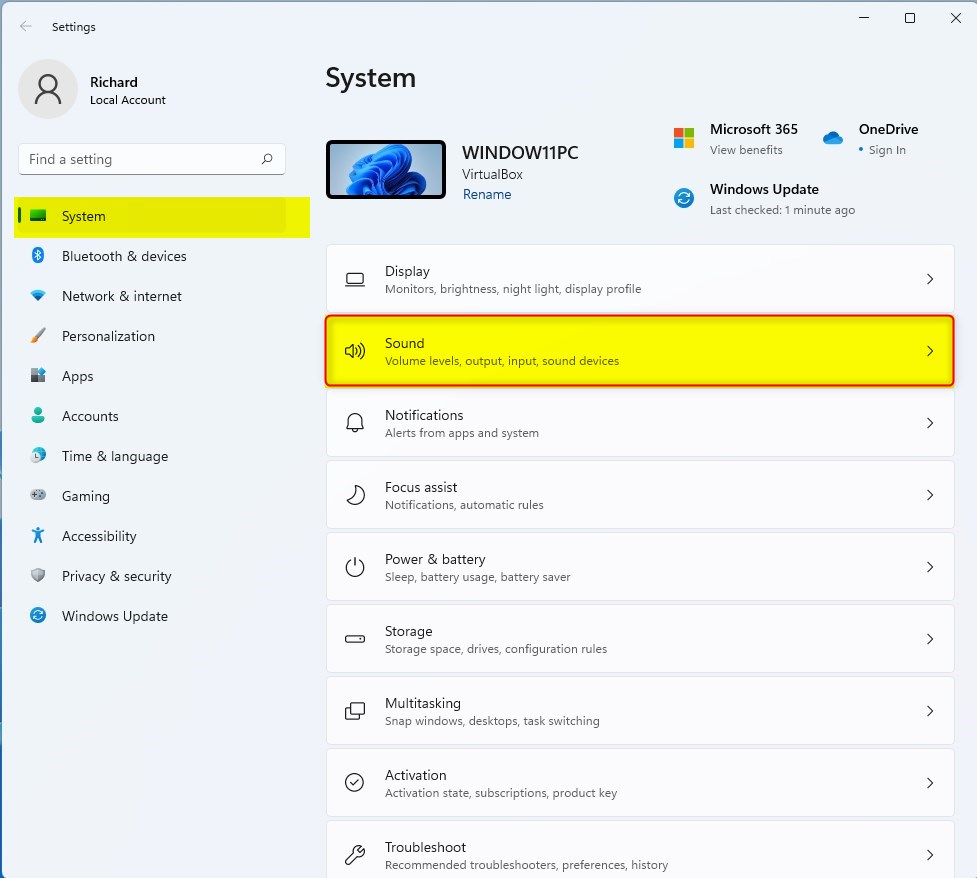
- Go to the Sound settings. Select System in the left pane, then click Sound. This page controls every speaker, headphone and microphone connected to your PC, so you can switch enhancements on or off for whichever device is giving you trouble.
windows 11 sound tile - Find your audio device. Scroll down to the Advanced section and click All sound devices. You will see a list of output devices (speakers, headphones) and input devices (microphones).
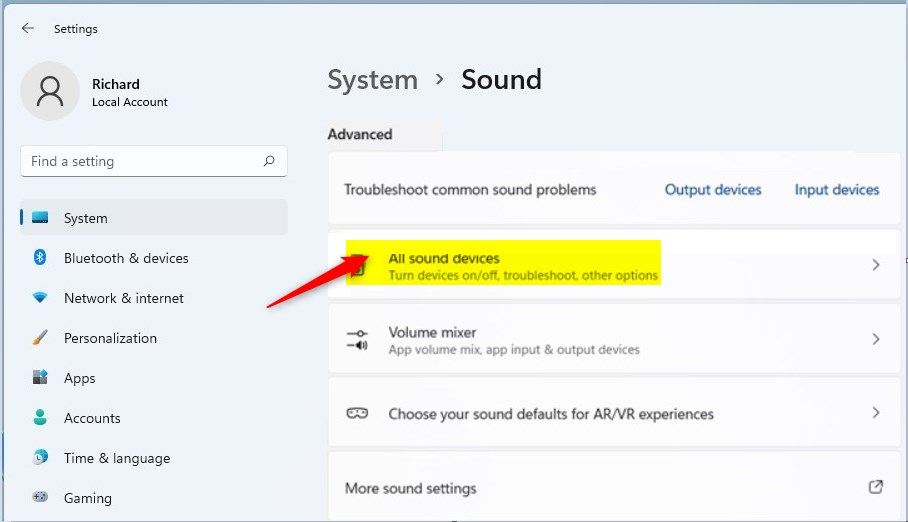
windows 11 all sound devices tile Click the device you want to change, such as your speakers or microphone. Its properties page opens.
- Turn audio enhancements on or off. On the device's properties page, find Audio Enhancements. You will see a choice between Device Default Effects (usually the setting on a fresh install) and Off.
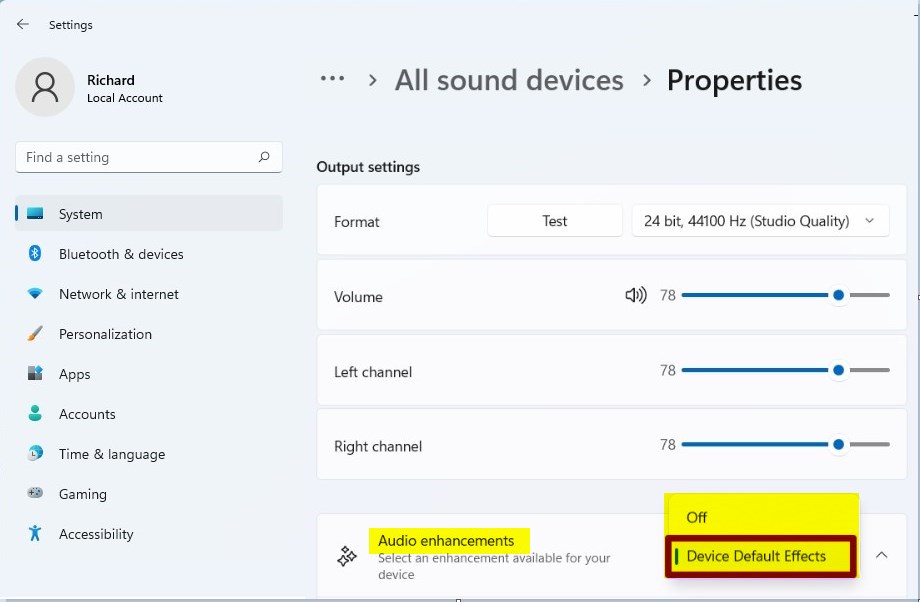
windows 11 audio enhancements selection tile - Choose Off to disable audio enhancements.
- Leave it on Device Default Effects to keep the enhancements active.
💡TipPlay some audio, or speak into the microphone, to check whether the problem is gone.If a single app was already playing sound, close and reopen it so it picks up the change.
- Close Settings. Close the Settings window. Your choice is saved automatically, and you do not need to restart the PC.
If you do not see Audio Enhancements for a device, the driver probably does not offer it. This is common with some USB headsets, Bluetooth devices and monitors with built-in speakers. Check that the correct device is selected and that you have installed the latest audio driver from Windows Update or your PC maker. Some manufacturers also supply their own sound control panel, such as Realtek or Dolby, with separate effects settings.
To undo the change, go back to the same page and set the option to Device Default Effects.
Quick Summary
- Audio enhancements can improve sound, but they can cause problems on some devices.
- You can switch them on or off for each device at any time in Windows 11 Settings, under System and then Sound.
- Turning them off is a good first test if your microphone or speakers are not working as expected.
- If the problem remains with enhancements off, update your audio driver next.
Toggling audio enhancements is a fast, low-risk way to troubleshoot distorted sound, crackling speakers, or a microphone that picks up nothing. Because the setting is per device and easy to reverse, you can try it whenever an audio device starts misbehaving and put it back if it makes no difference.
Have a question about this guide?
Answered by AI from this guide. Good questions may be added to this page — please don't include personal details.
Did this guide fix your problem?

About the Author
Richard
Tech Writer, IT Professional
Richard is a writer at Geek Rewind who turns complex IT tasks into clear, step-by-step guides. He draws on years of hands-on experience in system administration and enterprise IT operations, focusing on Windows, Linux and WordPress: the problems people actually run into, and the fixes that work. His server and WordPress guides come from systems he runs himself. Richard builds and maintains the platform behind Geek Rewind, from its Ubuntu servers and Nginx configuration to its custom WordPress plugins. Many new tutorials start with readers' questions, and he's always glad to answer them in the comments.
No comments yet — be the first to share your thoughts!