How to Clear Typing Insights History in Windows 11 Language Settings

- 4 ways to do it
- Needs administrator rights
- Group Policy needs Windows 11 Pro, Enterprise or Education
- Includes a restart or sign-out
Typing Insights in Windows 11 is a built-in feature that tracks your keyboard habits to improve word suggestions and auto-correct. It learns your typing patterns and catches common mistakes in the background as you write.
Clearing your Typing Insights history deletes the saved data about what you type and resets the learning tool. You can do this in the Windows 11 Language & region and Time & language settings whenever you want. This guide covers the Settings app, the Registry Editor, Group Policy and the related privacy pages, so you can pick the method that fits your edition of Windows.
Open Settings, go to Time & language Typing, and turn off the switches for typing insights, text suggestions, and auto-correct. Then find Advanced typing settings or Personal dictionary and select the option to clear or reset your dictionary. This removes stored typing patterns and stops future tracking.
What Is Typing Insights and Why Does 🪟 Windows 11 Track Your Typing?
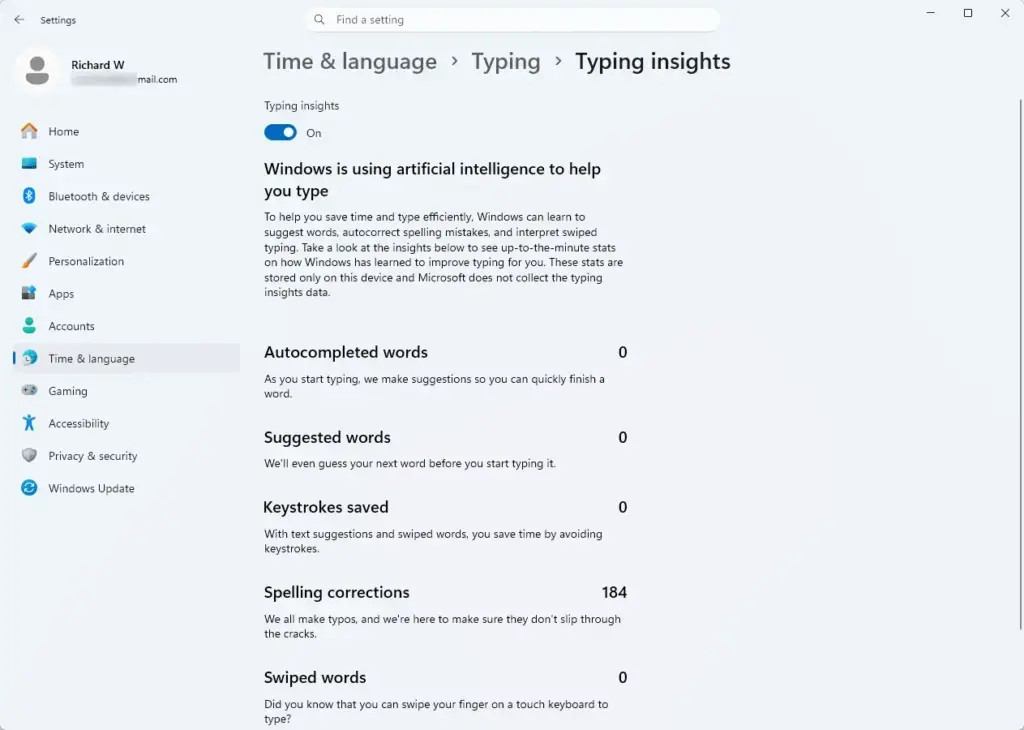
Typing insights tracks details such as typing speed and frequent words, and it uses them to learn your writing style. Microsoft says it does not record private passwords or bank details. Even so, it is worth knowing what is stored on your PC before you decide to keep it.
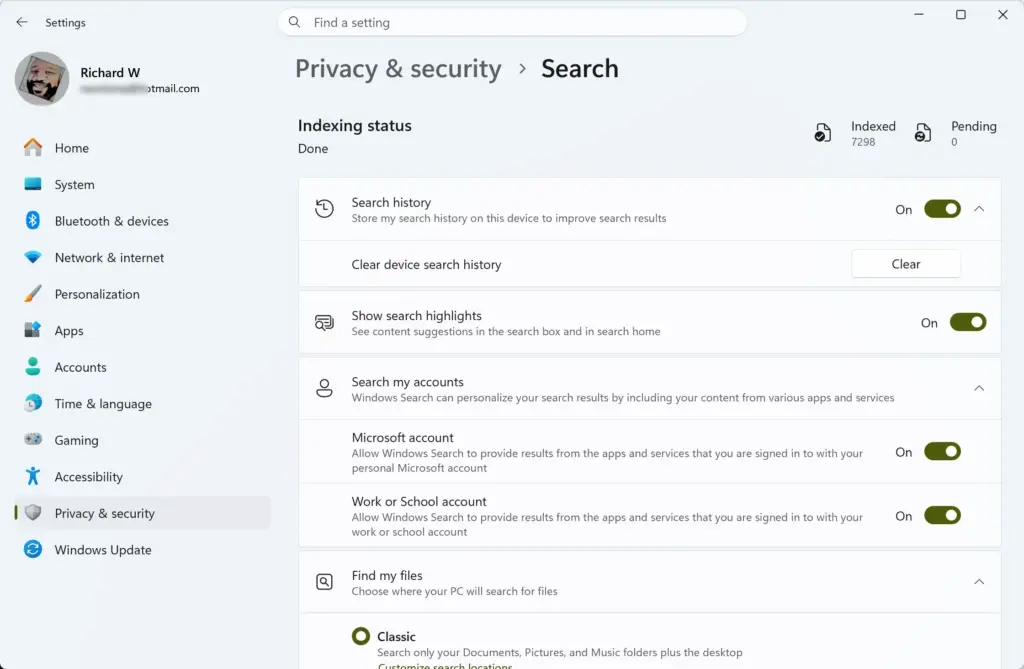
Windows uses this information to build a profile of your typing habits. The goal is a better built-in dictionary and an auto-correct feature that fixes your common typos before you notice them. Over time, the system adapts to your personal vocabulary.
Storing this history raises privacy questions. If several people share a computer, or you simply don’t want Windows logging your daily writing habits, there is little reason to keep it. Clearing it gives you a clean slate and keeps your typing habits private.
Can You Clear Typing Insights History in 🪟 Windows 11?
You clear typing insights history by turning off the data collection switches and resetting your personal dictionary. Windows saves typing patterns automatically, but you can wipe the past history and stop future tracking.
Depending on how your PC is set up, you can turn the feature off in Settings, clear your personal dictionary, or enforce the change with the Registry Editor or Group Policy. Start with the Settings app. It is the safest option and works on every edition of Windows 11.
Method 1Managing Typing Settings Through the Windows Settings Menu
The Settings app is the quickest way to stop Windows from tracking your typing. A few clicks in your language and typing options turn off text suggestions and data collection. No restart is needed, and you can switch everything back on the same way.
Here is how to find and adjust your typing options:
- Press Win+I to open Settings. You can also click the Start button and select the gear-shaped Settings icon. The Settings window opens.
- Click Time & language in the left-hand menu. The language and region options appear on the right.

Settings › Time & language - On the right side, click Typing. The page lists your typing options, such as text suggestions, auto-correct and typing insights.
- Find the settings for typing insights, text suggestions and auto-correction. Set the switches you want to stop to Off. Windows stops tracking your typing from this point on.
Labels and the number of options on the Typing page differ a little between Windows 11 versions. If you don’t see a typing insights switch, check that Windows is fully updated (Settings Windows Update). Turning these switches off stops new data from being gathered, so Windows has no new record of your writing habits to use in your apps and documents. To undo the change, set the switches back to On.
Method 2Clearing Your Personal Dictionary and Autocorrect History
Turning off tracking only stops future collection. To remove what Windows has already learned, you also need to clear your personal dictionary. That deletes custom words, autocorrect history and saved typing patterns stored on the PC.
Follow these steps to reset your text suggestions:
- Open Settings by pressing Win+I.

Settings - Select Time & language from the menu.
- Click Typing.
- Look for the link or option labeled Advanced typing settings or Personal dictionary. If neither appears on this page, use the Inking & typing personalization steps in the privacy section further down. Microsoft has moved these options between builds.
- Click the button to clear or reset your personal dictionary data. Windows removes the custom words and suggestions it has learned from you.
Method 3Managing Settings Using the Windows Registry
⚠️ Warning: Changing registry settings incorrectly can cause system problems. Always follow instructions carefully.
Before you change anything, back up the key you are about to edit. In Registry Editor, right-click the key, choose Export, and save the .reg file somewhere safe. Double-clicking that file later restores the old values. If you would rather not download external files, you can make the change by hand in the graphical interface:
- Click the Start button, type Registry Editor in the search bar, and select the matching app from the results. Note: This may require administrator privileges if you are using a shared or work computer. Click Yes if User Account Control asks for permission. The Registry Editor window opens.
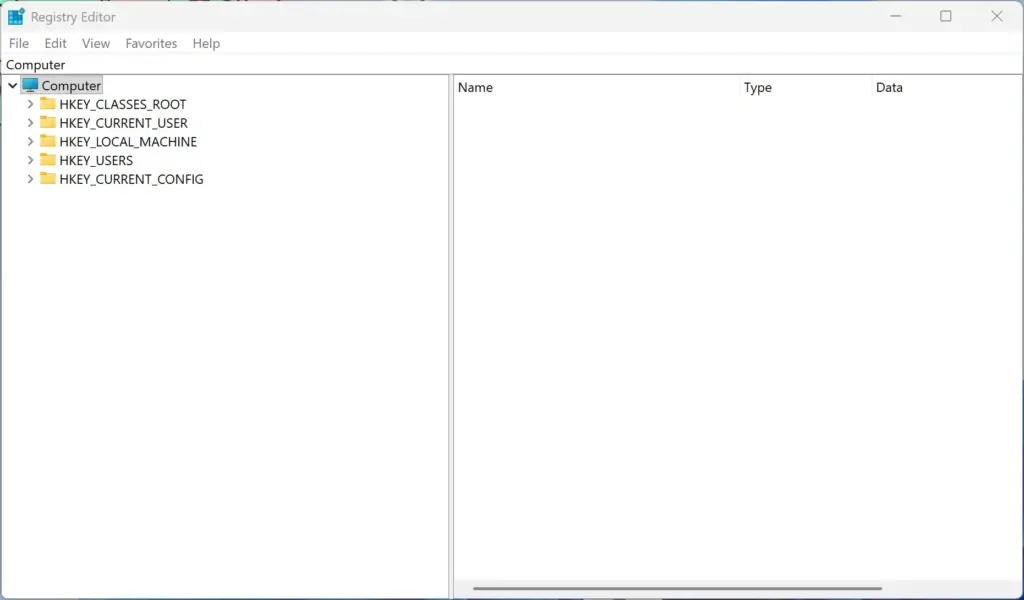
Registry Editor - Use the left-hand sidebar to expand the folders (keys).
- Go to the registry path given for this method in this guide. The right-hand pane then shows the values stored in that key.
- Find the value related to insights and double-click it to change its data. Setting a value to 0 typically disables the feature, while 1 enables it. Click OK to save it.
- Close the Registry Editor window when you finish. Sign out and back in, or restart the PC, so Windows picks up the change.
Method 4Configuring Typing Insights via Local Group Policy
The Local Group Policy Editor turns off typing data collection for all user accounts on a Windows 11 Pro or Enterprise computer. It is not included in Windows 11 Home, so gpedit.msc will fail to open there. Home users should use Settings or the Registry Editor instead.
- Press Win+R to open the Run dialog box.

Run dialog - Type gpedit.msc into the box and press Enter. ⚠️ Note: This step requires administrator privileges. The Local Group Policy Editor opens.
- Use the left sidebar to expand the policy folders and find the typing and input settings.
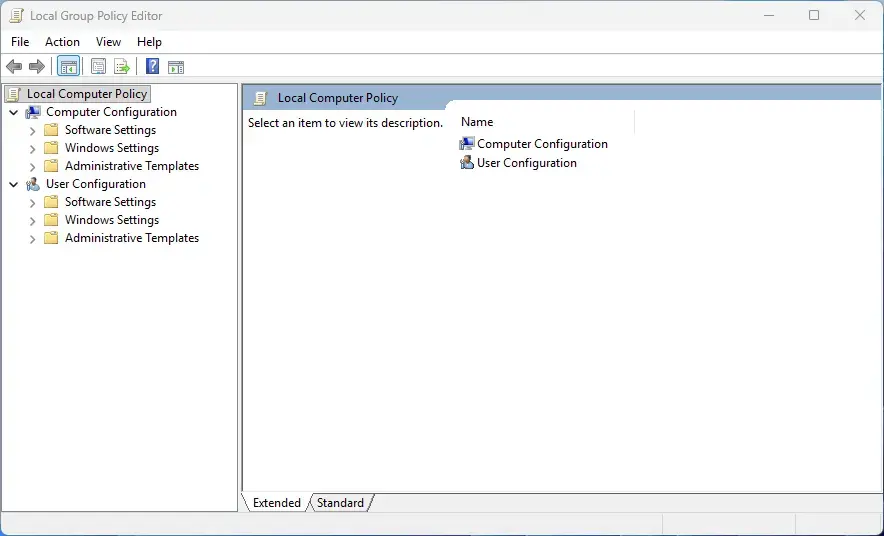
Group Policy Editor - Double-click the policy setting related to typing insights or data collection. Its settings window opens.
- Select Disabled, then click Apply and OK. To undo this later, open the same policy and set it to Not Configured.
Unique Expert Tips for Ultimate Typing Privacy in 🪟 Windows 11
Typing data is not stored in just one place. For fuller privacy, also clear your general diagnostic data and the Inking and typing personalization dictionary. Many guides stop at the Typing page and leave these active.
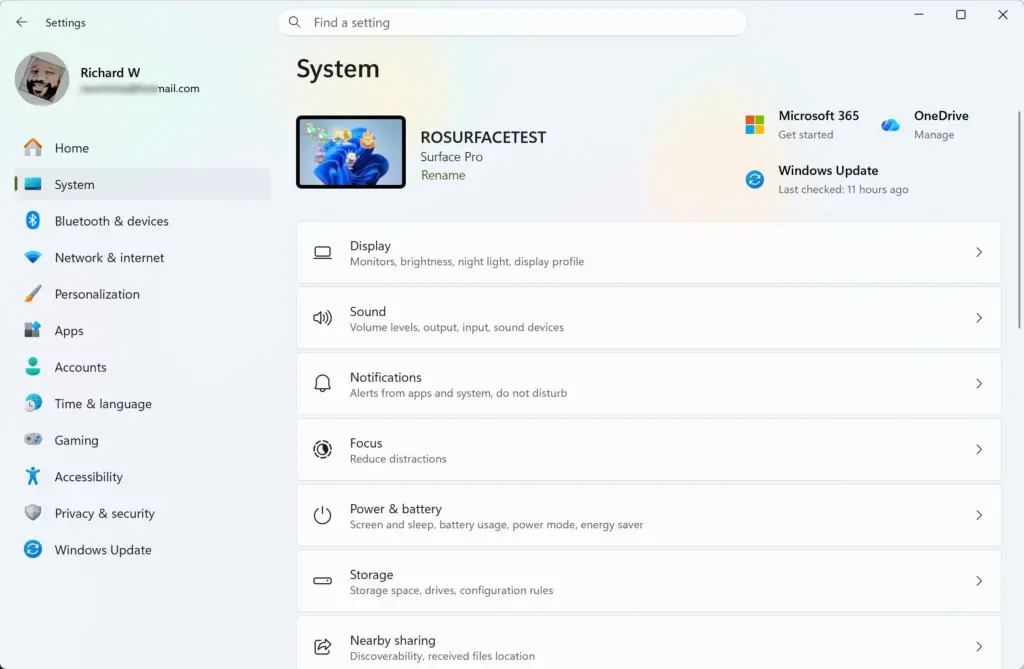
To clear diagnostic data, open Settings Privacy & security Diagnostics & feedback. Windows collects diagnostic information to improve its products, and some of it relates to how you use your keyboard and mouse. On that page you can see what your PC sends to Microsoft. You can also delete the diagnostic data history from the same screen.
To stop Windows learning your typing habits, manage the Inking and typing personalization dictionary. Windows 11 keeps a separate dictionary for handwriting and typing data. Follow these steps:
- Open Settings Privacy & security Inking & typing personalization.
- Turn off the switch for “Get to know you.”
- Click the button to clear your personal dictionary data. Windows stops saving your everyday keystrokes and deletes what it stored.
Not every Windows 11 build shows this page in the same form. If it is missing or has fewer options, use the Typing page in Time & language instead.

Best Practices for Maintaining Privacy on 🪟 Windows 11
Major Windows updates can switch on new features or reset privacy options. Check your settings after each one. Reviewing your privacy options and clearing local dictionaries on a regular schedule keeps your information protected.
- Review your privacy settings after every major Windows update, as Microsoft sometimes introduces new features that are enabled by default.
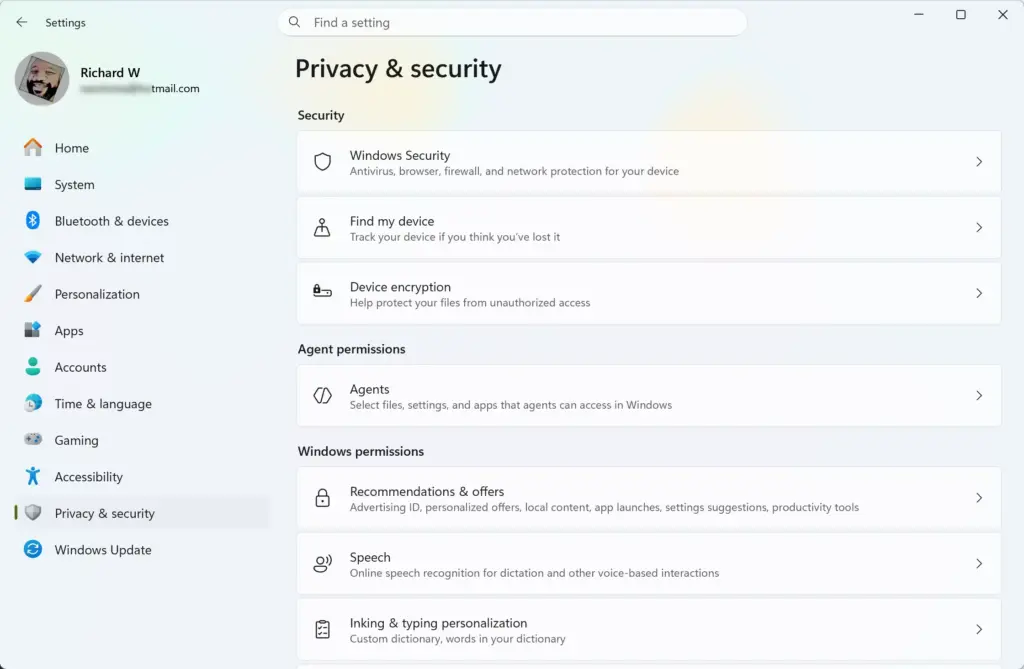
Settings › Privacy & security - Regularly clear your browser data and local dictionaries if you share your computer with family members or coworkers.
- Avoid customized auto-complete features on public or shared computers, where other users might see your personal information pop up in text suggestions.
Summary
Windows 11 includes typing insights to study your keyboard habits, but you can clear your history and turn off tracking for better privacy. Start in Settings Time & language Typing, then clear your personal dictionary. Check the Privacy & security pages as well, since typing data and diagnostic data are stored separately.
Have a question about this guide?
Answered by AI from this guide. Good questions may be added to this page — please don't include personal details.
Did this guide fix your problem?

About the Author
Richard
Tech Writer, IT Professional
Richard is a writer at Geek Rewind who turns complex IT tasks into clear, step-by-step guides. He draws on years of hands-on experience in system administration and enterprise IT operations, focusing on Windows, Linux and WordPress: the problems people actually run into, and the fixes that work. His server and WordPress guides come from systems he runs himself. Richard builds and maintains the platform behind Geek Rewind, from its Ubuntu servers and Nginx configuration to its custom WordPress plugins. Many new tutorials start with readers' questions, and he's always glad to answer them in the comments.
No comments yet — be the first to share your thoughts!