Windows 11 Language and Region Settings, Explained

Language and region settings in Windows 11 control your keyboard layouts, the display language, date and number formats, and your country or region. They sit under Settings Time & language, but the same choices are spread across several pages, which is why a change can seem to vanish. This page groups the 52 guides by the task you are trying to finish. Start with the section that matches your goal, and use the last section if a setting keeps reverting.
Set your region, country and regional formats
Your region controls default date, number and currency formats, and some location-based services. Country or region is a separate setting from the display language, so check both before you decide a change did not work. Use these guides when numbers, dates or currency do not match where you live.
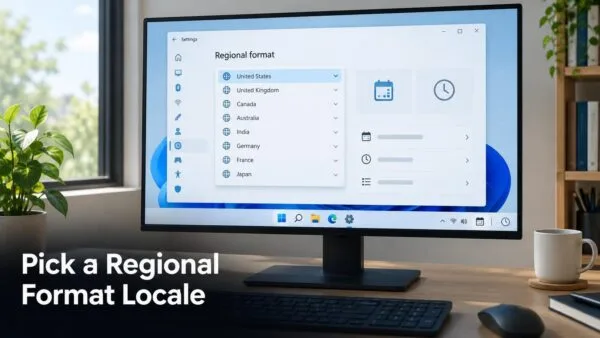 Pick a Regional Format Locale in Windows 11 Change locale settings in Windows 11 at Settings > Time & language > Language & region. Set dates, times, decimals and currency with no restart.
 Change Your Device Region in Windows 11 Change the device setup region in Windows 11 at Settings > Time & language > Language & region. No reset or reinstall. Covers system locale too.
 How to Configure Custom Regional Date Formats in Windows 11 How to configure custom regional date formats in Windows 11 using the Language & region settings to change slashes, dots, and layout.
 How to Change the Primary Language Display Order in Settings Time and Language Language and Region Menus stuck in a foreign language? Move your preferred language to the top spot under Settings, Time & language, Language & region.
 Configure Regional Format Overrides in Windows 11 Language and Region Settings Dates and currency keep resetting on Windows 11? Stop cloud syncing and lock in your regional format overrides inside Language and Region settings.
 How to Change the Regional Format in Windows 11 Change your Windows 11 regional format to display dates, times, and numbers your way. Follow our step-by-step guide using Settings or Control Panel.
 How to Change Your Country or Region in Windows 11 Change Windows 11 region in Settings or via Command Prompt to access local content. Follow our step-by-step guide for quick setup.
 How to Change Number Format in Windows 11 Change Windows 11 number format in Settings. Customize decimal and thousands separators to match your country's standards and improve number readability.
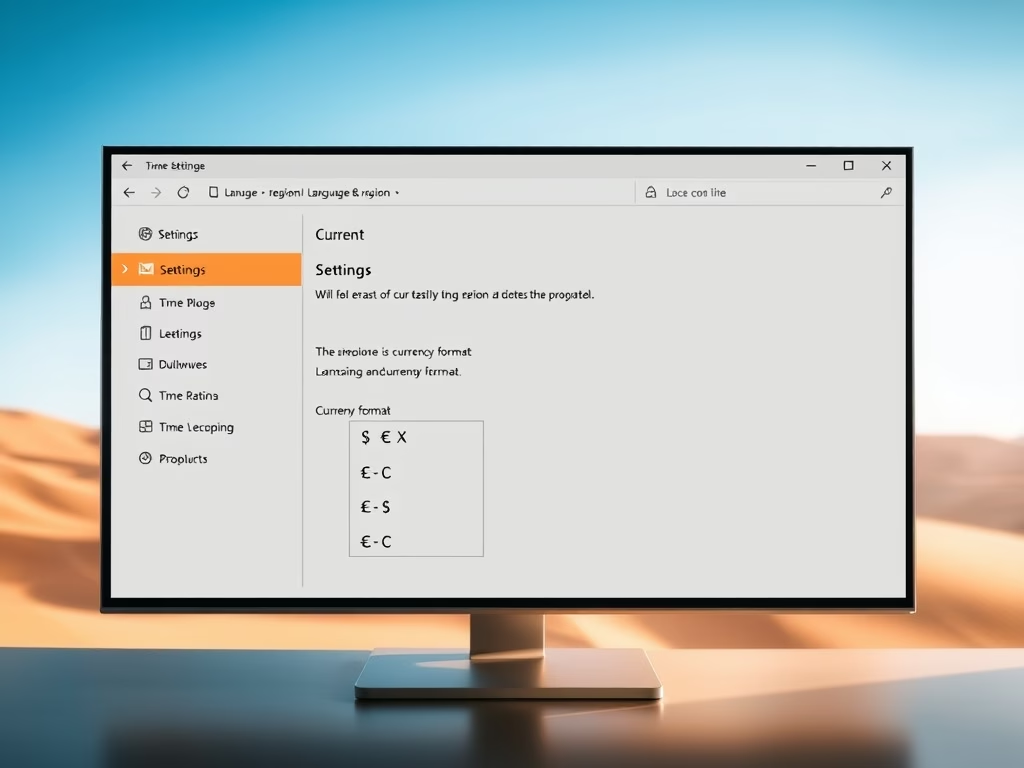 How to Change Currency Format in Windows 11 Change currency format in Windows 11. Follow simple steps to switch between $, €, £ and other currency symbols in your regional settings.
Add, switch and change keyboard layouts
A keyboard layout decides which characters your keys produce, and Windows can hold several at once. Most typing problems come from the wrong layout being active in the app you are using. Start with the default layout, then add a second one and set how Windows switches between them.
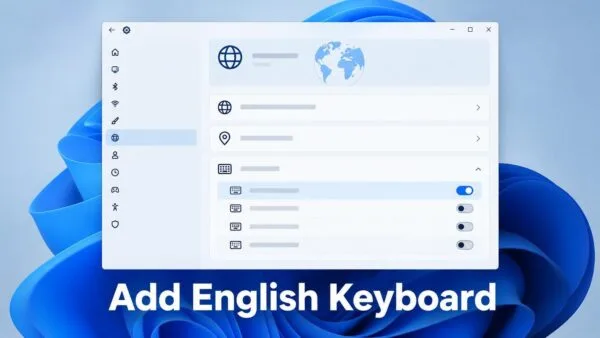 How to Change Your Keyboard Language to English in Windows 11 Add an English keyboard in Windows 11 from Settings > Time & language > Language & region in two minutes. No restart needed. Switch with Windows key +…
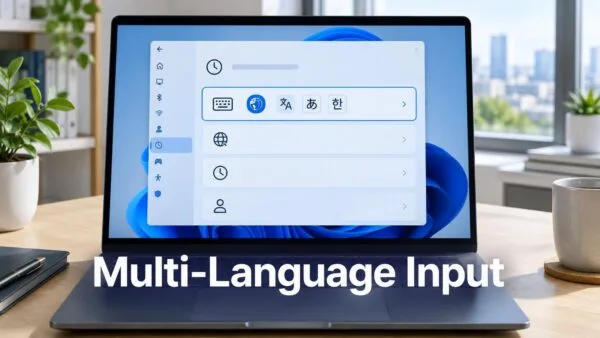 How to Configure Advanced Keyboard Settings for Multi-Language Input in Windows 11 Add languages and keyboards in Settings > Time & Language > Language & Region, then control switching behavior and shortcuts in Typing > Advanced keyboard…
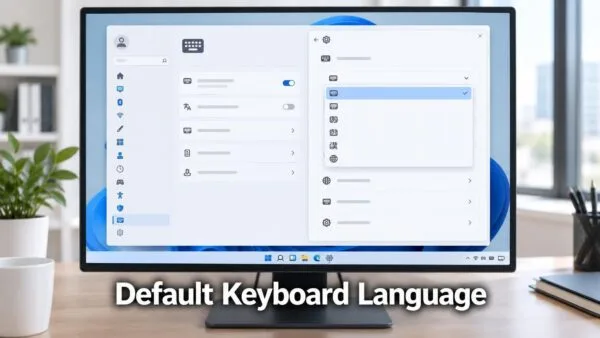 How to Select Your Default Keyboard Language in Windows 11 Set your default keyboard in Windows 11 via Settings > Time & language > Typing > Advanced keyboard settings. Choose from the Override for default input…
 How to Change Your Keyboard Layout to UK or International in Windows 11 You can switch to a UK keyboard layout in Windows 11 by adding it under Settings > Time & language > Language & region, then switching to it
 How to Add and Switch Between Multiple Keyboard Layouts in Windows 11 Add a second keyboard layout in Settings under Time & language > Language & region, then switch with Windows key + Space. Works for international keyboards…
 How to Configure Advanced Keyboard Layout Switching Rules in Windows 11 Stop accidental language switches by setting specific hotkeys in Advanced keyboard settings under Time & language in Windows 11.
 How to Change Active Input Language Shortcuts in Windows 11 Language and Region Switch keyboard layouts faster by changing active input language shortcuts in Windows 11 Language and Region settings. Step-by-step guide.
 How to Add a Secondary Language Keyboard Layout in Windows 11 Language and Region Settings How to add a secondary language keyboard layout in Windows 11 language and region settings without changing your main display language.
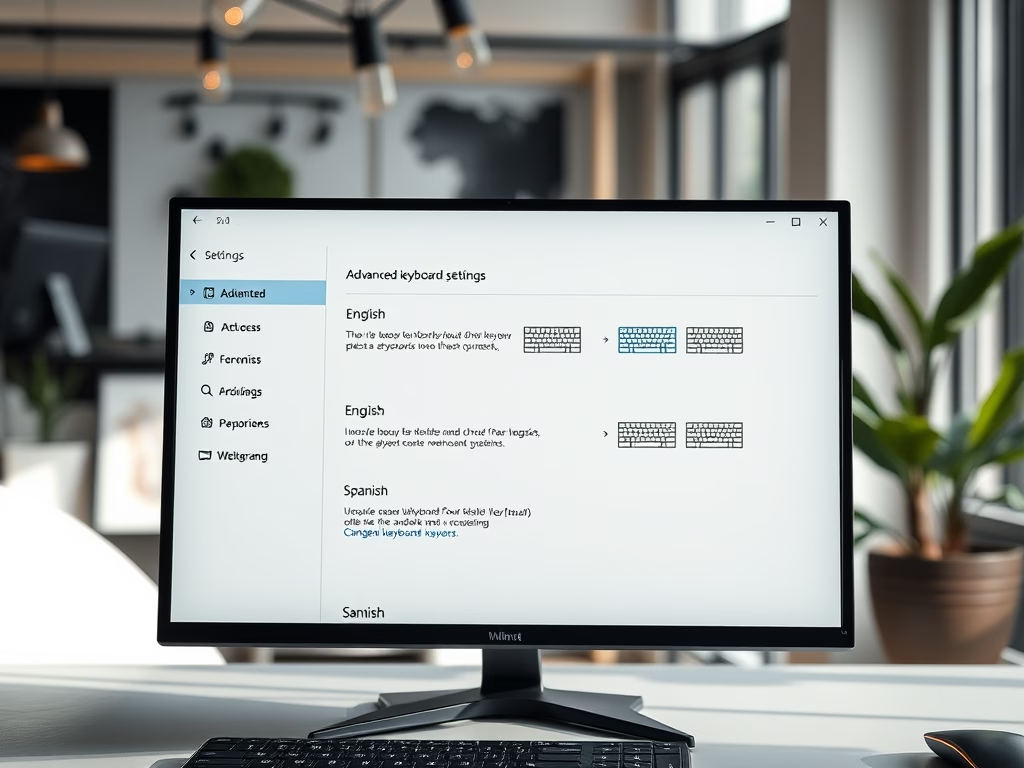 How to Turn On or off Different Keyboard Layouts for Each App in Windows 11 Set up keyboard layout per app in Windows 11 to type in multiple languages. Enable this feature via Settings or PowerShell commands.
 How to Show the Language Bar on Your Desktop or Taskbar in Windows 11 Enable the Windows 11 language bar on your desktop or taskbar to switch keyboard layouts. Follow simple Settings or PowerShell steps.
 How to Install Input Language Keyboard in Windows 11 Install a language keyboard in Windows 11 to enhance your multilingual experience. Follow our simple steps to switch between keyboard layouts effortle...
Install, manage and remove languages and speech support
A language pack adds Windows menus and text in another language. Speech packs let voice recognition understand that language. Installs can stall on some PCs, so pick the guide that matches what you need. Remove a language only when you are sure you no longer need its keyboard or pack.
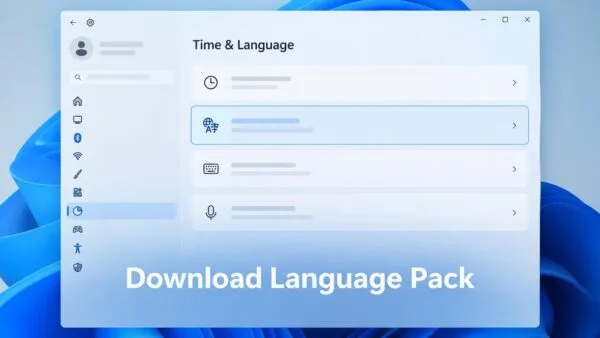 How to Download a Language Pack for Offline Use in Windows 11 Download a language pack in Windows 11 for offline use. Settings > Time & language > Language & region lets you install once and use without internet.…
 How to Install a Language Pack for Speech Recognition in Windows 11 Add speech recognition to Windows 11 from Settings > Time & language. Check your microphone and internet first—most installs fail due to metered…
 How to Download Language Packs for Speech Recognition in Windows 11 Download language pack for speech in Windows 11 to fix voice typing and offline dictation errors. Add speech recognition via Time & language settings.
 How to Manage Advanced Speech Recognition Voice Models in Windows 11 Fix garbled voice typing and calibration errors by opening Time & language Speech settings to adjust your microphone and download missing packs.
 How to Download and Install Language Packs in Windows 11 Download and install language packs in Windows 11 through Time & language settings. Add optional text-to-speech and change your display language.
 How to Manage Display Language Packs in Windows 11 Language and Region Settings Change menus, buttons, and settings to a new language in Windows 11 Language and Region settings. Step-by-step guide to download and remove language packs.
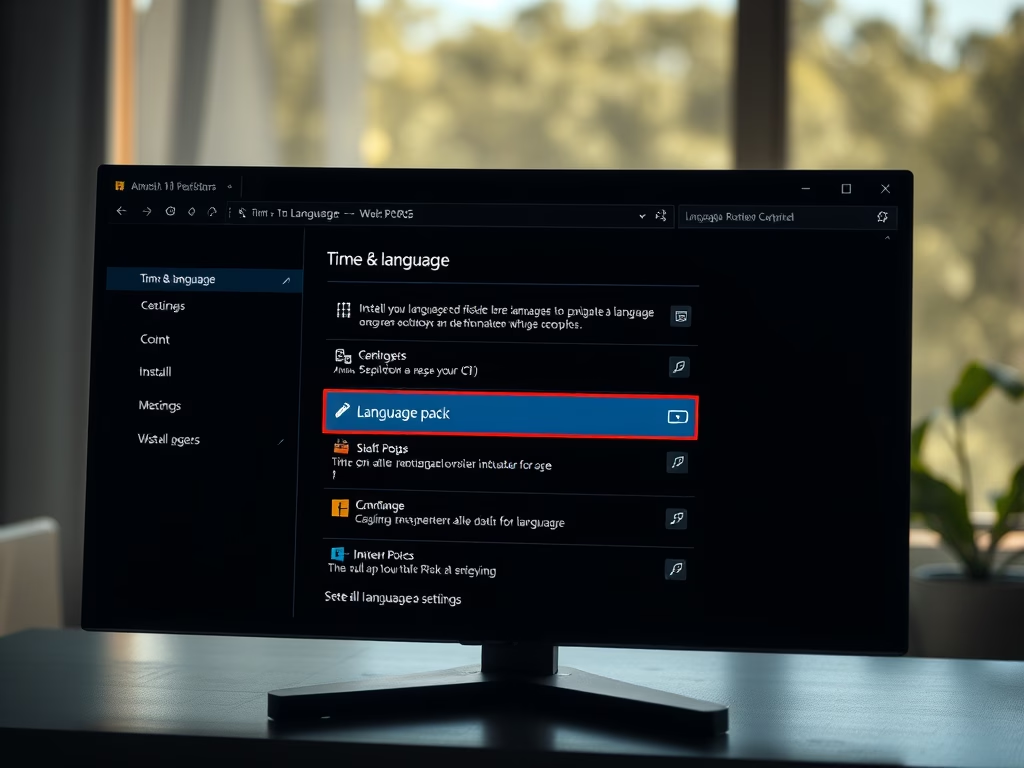 How to Install a Language Pack in Windows 11 Install language pack Windows 11 in minutes with our step-by-step guide. Change system menus, settings, and more to your preferred language.
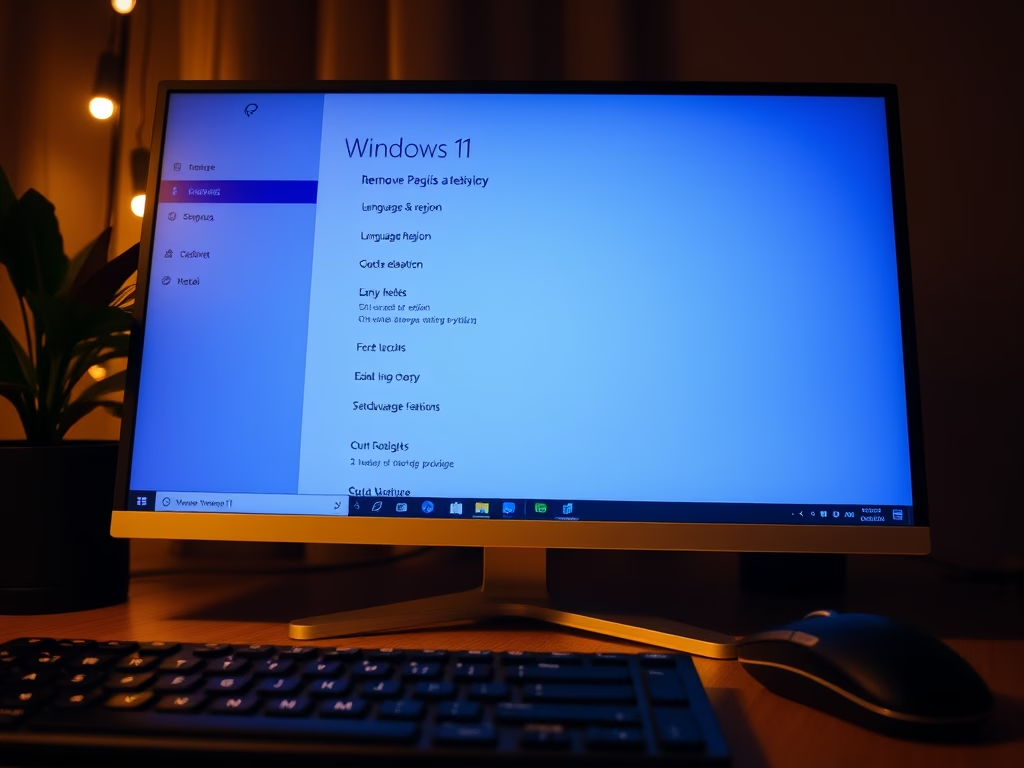 How to Remove a Language in Windows 11 Remove language Windows 11 in seconds using Settings or PowerShell. Delete unused languages and free up space with our step-by-step guide.
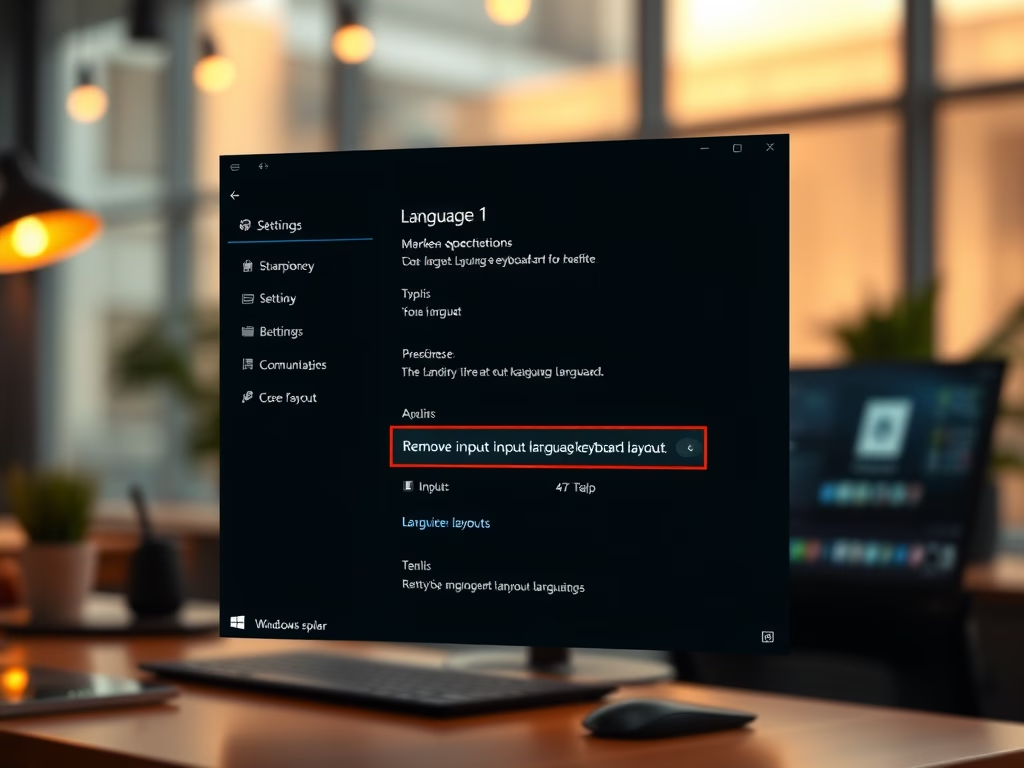 Remove Input Language Keyboard in Windows 11: Step-by-Step Guide Remove keyboard layout in Windows 11 with simple steps. Manage your input languages and enhance your typing experience today!
Set the clock, date and time
Date and time settings control the taskbar clock, the first day of the week in calendars, and the time server your PC uses. They are separate from region formats, so changing one does not change the other. Use these guides to match the clock to your preferences and keep the time accurate.
 How to Change the Clock Display Format to AM/PM or 24-Hour in Windows 11 Switch your taskbar clock between AM/PM and 24-hour format in Windows 11 Settings under Time & language > Language & region > Regional format. The change…
 How to Change Your First Day of the Week Setting In Windows 11 Time & Language Change your first day of week in Windows 11 Settings > Time & Language > Language & Region. Expand Regional format, pick a day from the First day of week…
 How to Display Time in 12-Hour or 24-Hour Format in Windows 11 Switch Windows 11's taskbar clock between 12-hour and 24-hour format from Time & language > Language & region > Regional format in Settings. Change both…
 How to Change Date and Time Formats in Windows 11 Clock and Region Settings Switch between 12-hour and 24-hour clocks in Windows 11. Change time format in Windows through Language & region settings or the classic Control Panel.
 How to Change Date Format in Windows 11 Language Settings Switch from DD/MM to MM/DD or a custom layout. Use the Regional format settings in Windows 11 or the legacy Control Panel.
 How to Configure Manual Date and Time Synchronization Servers in Windows 11 Date and Time Settings Fix wrong clock issues by updating manual date and time synchronization servers in Windows 11 Date and Time settings to keep your system accurate.
 Should You Enable Automatic Time Zone Updates in Windows 11 Date and Time Settings? Tired of wrong computer clocks? Learn how automatic time zone updates in Windows 11 Date and Time settings fix wrong times and missed meetings.
 How to Change System Date and Time Synchronization Servers in Windows 11 Fix a drifting clock on Windows 11. Switch to a reliable time server in Control Panel so your PC stays synced with the exact right time.
 Change Default Automatic Daylight Saving Time Adjustment Rules in Windows 11 Date and Time Settings Computer clock wrong after the season shift? Change default automatic daylight saving time adjustment rules in Windows 11 Date and Time Settings.
Turn typing aids on, off or clear what they learned
Typing suggestions, autocorrect, text prediction and the touch keyboard all learn from what you type. Their switches are in Time & language and in the typing personalization options. Clearing learned data removes words Windows has picked up, so do it only when you want a fresh start.
 How to Enable Typing Suggestions for Multiple Languages in Windows 11 Time & Language Enable typing suggestions for multiple languages in Windows 11. Turn on Show text suggestions and Multilingual text suggestions in Settings > Time &…
 How to Configure Typing Insights and Autocorrect in Windows 11 Time & Language Settings Windows 11's Typing settings page controls two separate things: Typing insights, which tracks stats about how much and how fast you type, and Autocorrect
 How to Disable Double Tap Space Bar Period Insertion in Windows 11 Typing Stop Windows 11 from adding a period when you press the space bar twice. Turn off the double tap space bar period windows 11 setting in Time & Language.
 How to Customize the Windows 11 Touch Keyboard Layout in Time and Language Settings Change the Windows 11 touch keyboard layout through Time and Language settings to make typing on your tablet or touchscreen easier.
 How to Clear Typing Insights History in Windows 11 Language Settings Wipe your saved typing habits from Windows 11. Clear your typing insights history in the Settings app under Time & language > Typing.
 How to Clear User Dictionary Data in Windows 11 Text Input Settings Stop Windows 11 suggesting typos and junk words. Clear user dictionary data in Text Input settings under Privacy & security in four steps.
 How to Configure Text Prediction in Windows 11 Inking and Typing Personalization Speed up typing by turning on text suggestions and managing your writing data in Windows 11 under Time & language settings.
Fix settings that keep changing, and rarer cases
Language, region, location and calendar settings sometimes revert after a restart or update, or show the wrong city. A setting that resets often has another setting overriding it, so look for the cause before you change it again. The last guide here covers UTF-8, which helps older apps that show garbled characters.
 How to Configure Your Location in Windows 11 When Auto-Detection Fails or Shows Wrong City You fix a wrong location in Windows 11 by checking Location services, setting the correct default location, and making sure nothing — a VPN, a stale app pe
 What to Do When Automatic Region Detection Fails in Windows 11 Language and Region Windows 11 picked the wrong location? Fix automatic region detection failures by updating your country manually in Time & Language settings.
 Why Does Windows 11 Language and Region Keep Resetting Your Display Language Windows 11 keeps resetting your display language because hidden system profiles conflict with your user account. Fix it by syncing administrative settings.
 Why Does Settings Time and Language Keep Resetting Your Preferred Calendar Format Why does Settings Time and Language keep resetting your preferred calendar format? Stop Windows overwriting your regional settings using the classic…
 Why Does Windows 11 Switch Your Input Method Automatically Why does Windows 11 switch your input method automatically? Stop unwanted keyboard and language changes by turning off app-specific settings.
 Why Does Windows 11 Automatically Change My Default Language Region Settings Why does Windows 11 automatically change my default language region settings? Stop cloud syncing in Windows backup settings to fix it for good.
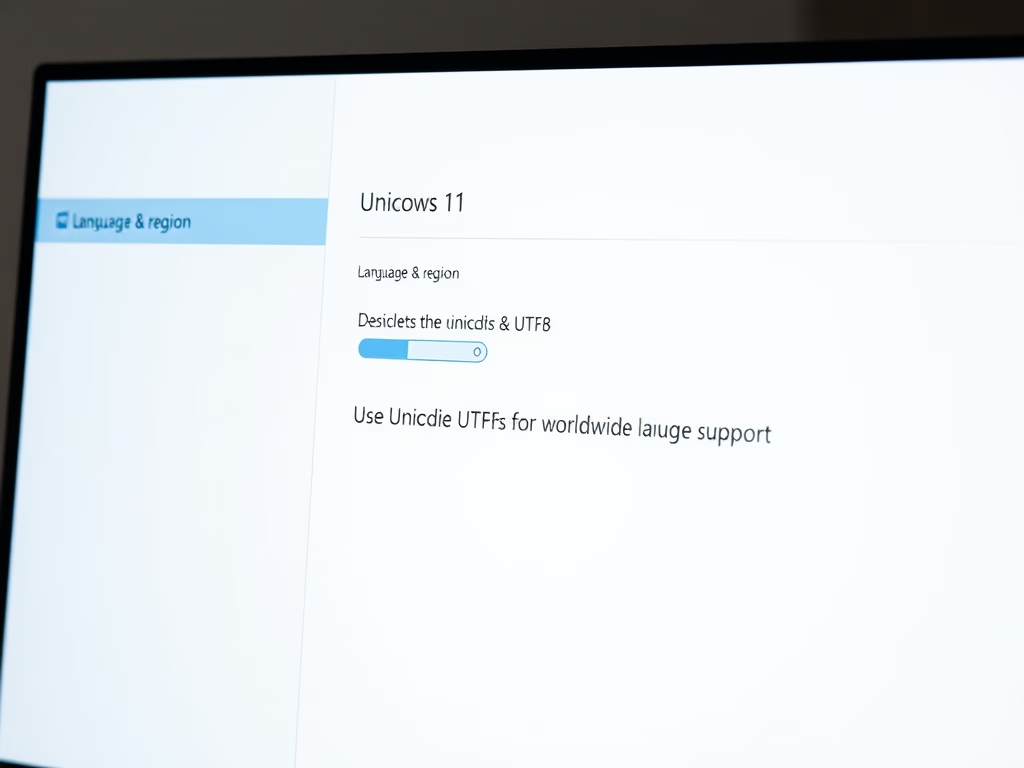 How to Turn On Unicode UTF-8 Support in Windows 11 Enable Unicode UTF-8 support in Windows 11 to display languages correctly. Follow our simple Settings guide or advanced Registry method to fix language…
Have a question about this guide?
Answered by AI from this guide. Good questions may be added to this page — please don't include personal details.

About the Author
Richard
Tech Writer, IT Professional
Richard is a writer at Geek Rewind who turns complex IT tasks into clear, step-by-step guides. He draws on years of hands-on experience in system administration and enterprise IT operations, focusing on Windows, Linux and WordPress: the problems people actually run into, and the fixes that work. His server and WordPress guides come from systems he runs himself. Richard builds and maintains the platform behind Geek Rewind, from its Ubuntu servers and Nginx configuration to its custom WordPress plugins. Many new tutorials start with readers' questions, and he's always glad to answer them in the comments.
No comments yet — be the first to share your thoughts!