Speech recognitionlanguage packs in Windows 11 add local dictionaries and audio models, so your PC can process voice typing, text-to-speech, and offline dictation accurately. Without the right pack installed, Windows may misread regional accents, and voice commands can stop working. This tutorial shows how to add a pack through the Settings ⚙️ app and how to fix the common download problems.
Advertisement
The steps below work on both Windows 11 Home and Pro. You need an internet connection and an account with administrator rights, because language packs are system-wide downloads. Menu wording can differ slightly between Windows 11 builds, so the text says so where it matters.
⚡ Quick Answer
Open Settings ⚙️, go to Time & language›Language & region, click Add a language, select your language, check the Speech recognition box in optional features, and click Install. Windows downloads the speech pack in the background.
Advertisement
Check Current Language and Speech Capabilities
Checking your installed language packs shows which speech features are already on your computer before you download anything new. The Time & language section in Settings lists every language and its speech capabilities. A quick look here saves you from downloading ⬇️ duplicates.
Press Win+I to open Settings.
Windows 11 Start menu with Settings gear icon highlighted.
Select Time & language.
Settings › Time & language
Click Language & region.
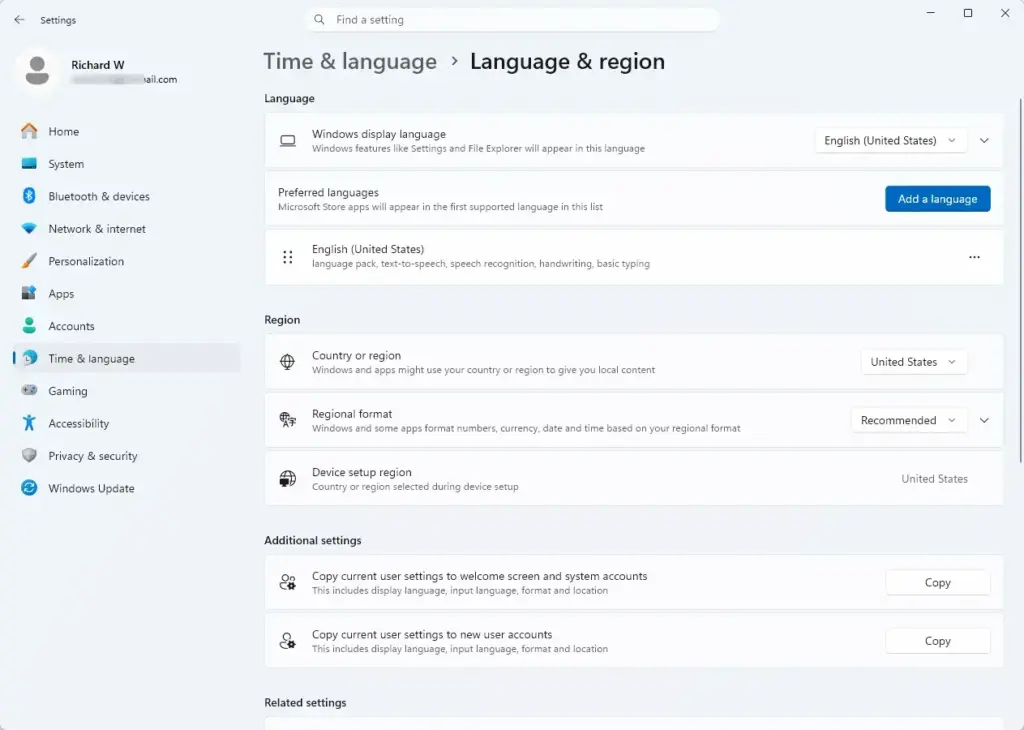
Settings › Time & language › Language & region
The page now shows your display language and the Preferred languages list.
Look under the Preferred languages list to see your active system languages.
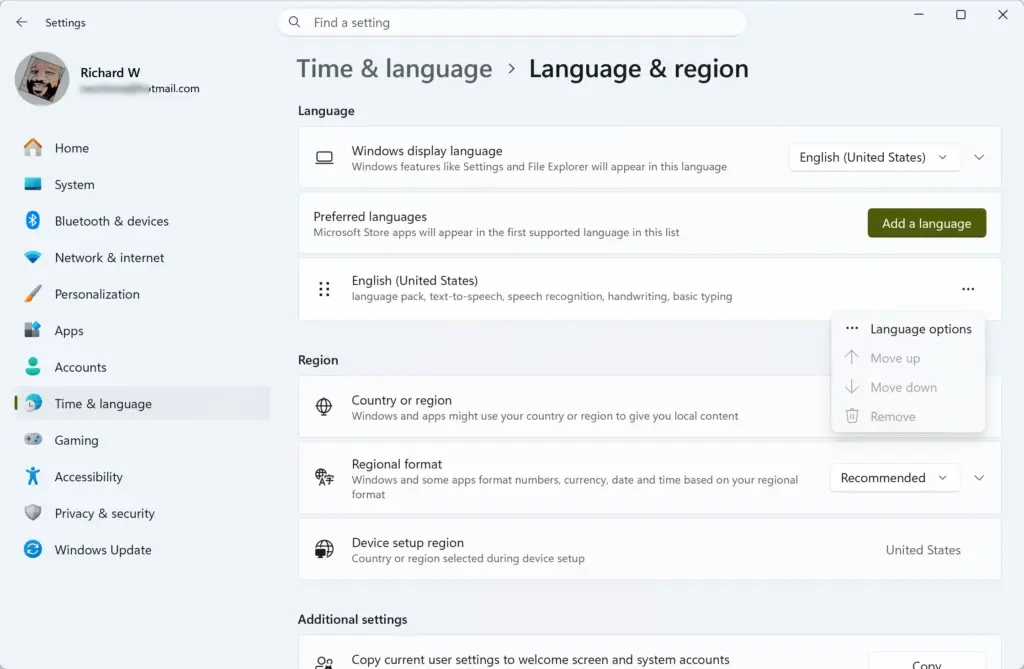
Click the three dots next to a language in the list and select Language options. A page opens showing the features for that language, such as Speech, Handwriting, and Basic typing.
Check each feature. If it shows as installed, you do not need to download it ⬇️ again. If it offers a download button, the feature is missing.
If the language you need is not in the list at all, move on to the next section. If it is listed but the speech feature is missing, skip ahead to the section on optional features.
Advertisement
Download Language Packs via Windows Settings
Downloading ⬇️ a full language pack adds complete speech recognition data to your system, so voice commands and dictation work in that language. The Language & region page handles both the new language and its speech tools. Sign in with an administrator account and stay connected to the internet until the download finishes.
Press Win+I to open Settings.
Select Time & language.
Click Language & region.
Click the Add a language button under the Preferred languages section. A window opens with a list of languages.
Type the name of the language into the search 🔍 box, or scroll through the list.
Click the target language to select it, then click Next. The window now shows the optional features for that language.
Check the box labeled Speech recognition if it is listed under the optional features. Not every language offers it. If the box is missing, that language has no speech pack in Windows 11.
Click Install to start downloading ⬇️ the language pack and its speech features. Windows shows download progress next to the language in the Preferred languages list.
If you want speech only and do not want Windows to change its display language, make sure the option to set it as your display language is not ticked on the features screen. Large packs can take several minutes.
To undo this, click the three dots next to the language in the list and select Remove.
Advertisement
Install Optional Speech Features Separately
Installing 💿 optional speech features separately adds voice recognition to a language you already use, without changing how Windows looks on screen. The language options page next to your preferred language holds the speech component. Use this route when the language is already installed but its speech feature is missing.
Press Win+I to open Settings.
Select Time & language.
Click Language & region.
Locate your preferred language in the list, click the three dots next to it, and select Language options.
Scroll down to the Optional features section and click Add a feature. A list of available features opens.
Search for Speech recognition in the list.
Check the box next to Speech recognition and click Next.
Click Install. The feature then appears with a progress indicator on the language options page.
On some Windows 11 builds the speech item appears directly on the language options page with its own download button instead of under Add a feature. Use whichever your version shows.
If the feature is greyed out or missing, the language may not support speech, or Windows may still be finishing another download. Wait for it to finish and check again. You normally do not need to restart, but if recognition does not work right away, sign out and back in.
Advertisement
Configure Offline Speech Recognition
Configuring offline speech recognition lets voice typing and dictation work without an active internet connection, because Windows keeps the speech models on your PC. The Privacy & security settings hold the offline speech files in Windows 11. The steps below show where to find them.
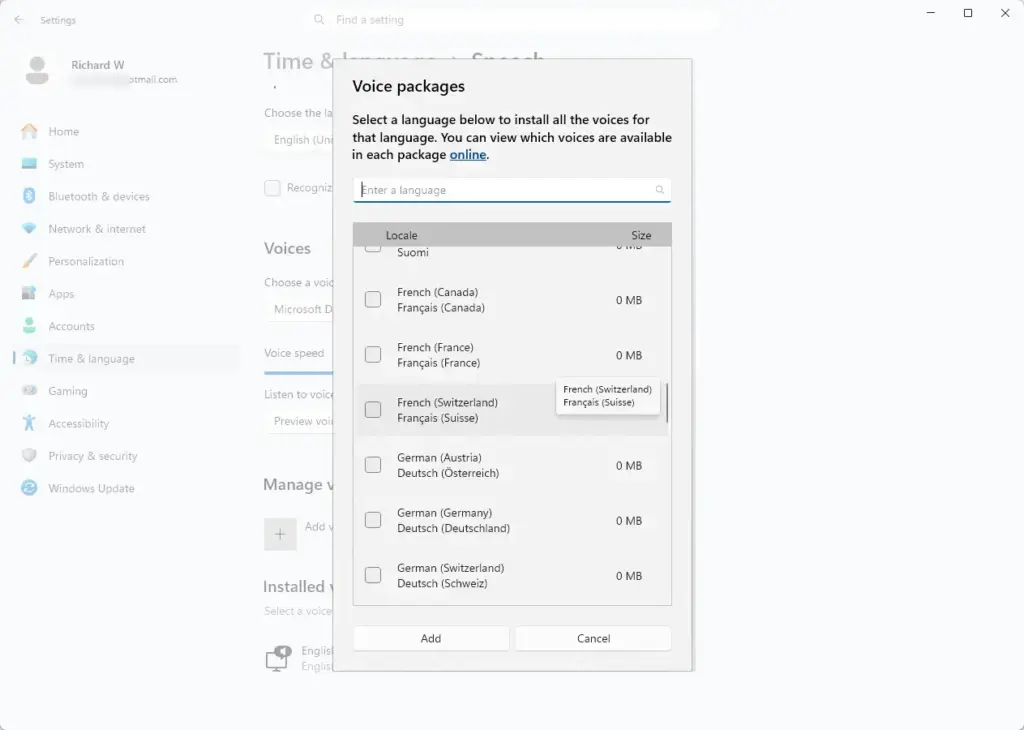
Click the Install button next to any language you want to use offline.
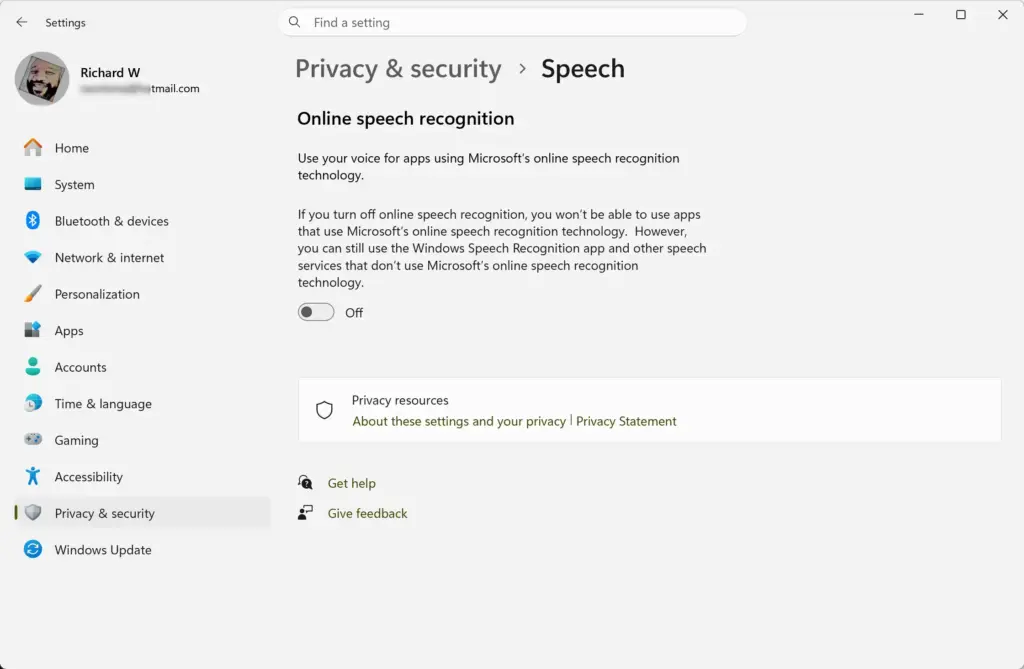
Settings pages for speech change between Windows 11 versions. On some builds the Speech page under Privacy & security shows only the Online speech recognition toggle and no offline section. If that is what you see, install the 💿 speech feature through Language options as described earlier. Also note that Windows voice typing may still need an internet connection on some builds, even with local speech data installed.
Windows 11 also includes Voice access, a feature that lets you control the PC by voice. Its settings live in Settings›Accessibility›Speech, and its language options use the same installed speech packs. Voice access downloads its own offline model the first time you turn it on, so keep the PC online for that first run.
Advertisement
Troubleshooting Speech Pack Download Failures
Troubleshooting speech pack download failures fixes stuck downloads and error codes. Pending system updates and network restrictions cause most of them. Checking for updates and changing your network connection resolves the majority of cases.
Press Win+I to open Settings.
Select Windows Update 🔃.
Click Check for updates 🔃 and install any pending updates. Missing updates often block optional feature downloads.
Disconnect from any metered network connection or virtual private network (VPN) that might restrict large optional downloads.
Restart your 🔄 computer, then try the language pack download again through Settings.
📝Good to KnowIf the download still hangs, switch to a different network, such as a wired connection or another Wi-Fi network, and try again.
Work or school devices may block optional downloads by policy. In that case, ask your IT administrator.
Manage Delivery Optimization for Language Downloads
Delivery Optimization controls how Windows downloads updates and optional features, such as language packs, and whether it uses other PCs on the network as a source. Changing it can clear interrupted downloads. The setting sits in the advanced Windows Update 🔃 options.
Advertisement
Press Windows + I to open Settings.
Select Windows Update.
Click Advanced options.
Select Delivery Optimization under the Additional options list.
Set the Allow downloads from other PCs toggle to suit your network. Turn it on if local peer downloads are blocked.
Once the toggle is changed, go back to Language & region and retry the download. You can switch the setting back at any time. No restart is needed for this change.
What to do next
Voice typing and speech-to-text should now work in your preferred language. To test the new speech pack, open a text document and press Windows + H. Then speak into your microphone.
A small voice typing bar should appear. If it does not listen, check that your microphone is selected and not muted. Also check that the language shown matches the pack you installed.
Voice typing uses your active keyboard or input language. To switch, press Windows + Space and pick the language you want, or choose it from the language indicator in the taskbar. Settings›Time & language›Typing has further voice typing options. If recognition is poor, speak a few sentences at a normal pace and confirm the input language matches your speech language.
Frequently asked questions
Where can I download a language pack?
Open Settings with Windows + I, go to Time & language, then Language & region. Find your language in the Preferred languages list, click the three dots next to it, select Language options, and choose which components to download—Speech, Handwriting, or Typing.
Where can I download a Microsoft language pack?
Microsoft language packs download through Windows Settings. Press Windows + I, select Time & language, click Language & region, then click the three dots next to your language and choose Language options to download Speech, Handwriting, or other features.
I can't download a language pack for 🪟 Windows 11. How do I fix it?
Check your internet connection first. Make sure you have enough storage space available. If downloads still fail, restart Windows. Try a different language temporarily to test if the issue is specific to one language, then retry the original one.
How do I install a language pack on 🪟 Windows 11?
Language packs install automatically through Settings. Press Windows + I, go to Time & language›Language & region, click the three dots next to your language, select Language options, then click Download next to Speech or other features you need.
Still have a question?
Answered by AI from this guide. Good questions may be added to this page — please don't include personal details.
📬 Get new Windows tips in your inbox
One email when we publish something worth your time. No spam, unsubscribe anytime.
Richard is a writer at Geek Rewind who turns complex IT tasks into clear, step-by-step guides. He draws on years of hands-on experience in system administration and enterprise IT operations, focusing on Windows, Linux and WordPress: the problems people actually run into, and the fixes that work.
His server and WordPress guides come from systems he runs himself. Richard builds and maintains the platform behind Geek Rewind, from its Ubuntu servers and Nginx configuration to its custom WordPress plugins.
Many new tutorials start with readers' questions, and he's always glad to answer them in the comments.
One email when we publish a guide worth your time — new Windows features, the fixes that actually
work, and a heads-up when Microsoft breaks something. Unsubscribe in one click.
📬 Get new Windows tips in your inbox
One email when we publish something worth your time. No spam, unsubscribe anytime.




No comments yet — be the first to share your thoughts!