How to Disable Double Tap Space Bar Period Insertion in Windows 11 Typing

- 14 steps
- Needs administrator rights
- Includes a restart or sign-out
Double tap space bar period insertion in Windows 11 is a typing shortcut. When you press the space bar twice quickly, Windows replaces the two spaces with a full stop and a space. It helps on touch screens, but it breaks code, file names and formatting when you type on a physical keyboard.
To turn it off, open Settings, go to Time & language Typing, and switch off the option that adds a period after you press the spacebar twice. The steps below cover each screen, how to test the change, and what to try if it doesn’t work. The change applies to your user account only. You don’t need admin rights.
To turn off double-tap space bar period insertion in Windows 11, open Settings, go to Time & language Typing, and switch off the option that adds a period after you press the spacebar twice. The change applies to your user account only, needs no admin rights, and takes effect as soon as you close Settings, with no restart.
Open Windows Settings
Settings is where Windows 11 keeps typing preferences, device options and account controls. You don’t need the old Control Panel for this change.
- Press Win+I on your keyboard. The Settings window opens with a list of categories in the left sidebar.

Windows 11 Start menu with Settings gear icon highlighted. - If the shortcut doesn’t work, click the Start button and select the gear-shaped Settings icon pinned to the menu.
Press Win+R to open the Run dialog, type ms-settings:typing and press Enter. Settings opens directly on the Typing page. If you do this, you can skip ahead to the section where you switch the option off, because you will already be on the right page.
Otherwise, look at the left sidebar for the category you need next.
Navigate to Time & Language Settings
The Time & language category holds your keyboard layouts, regional formats, speech settings and typing correction rules. The Typing page lives inside it.
- Click Time & language in the left sidebar of the Settings window. If your window is narrow or short, scroll down the list to find it.

Settings › Time & language
The main pane now shows options such as Date & time, Language & region and Typing. You want Typing.
Access Typing Settings
The Typing page controls text suggestions, autocorrect and touch keyboard behavior.
- Click Typing in the main Time & language pane.
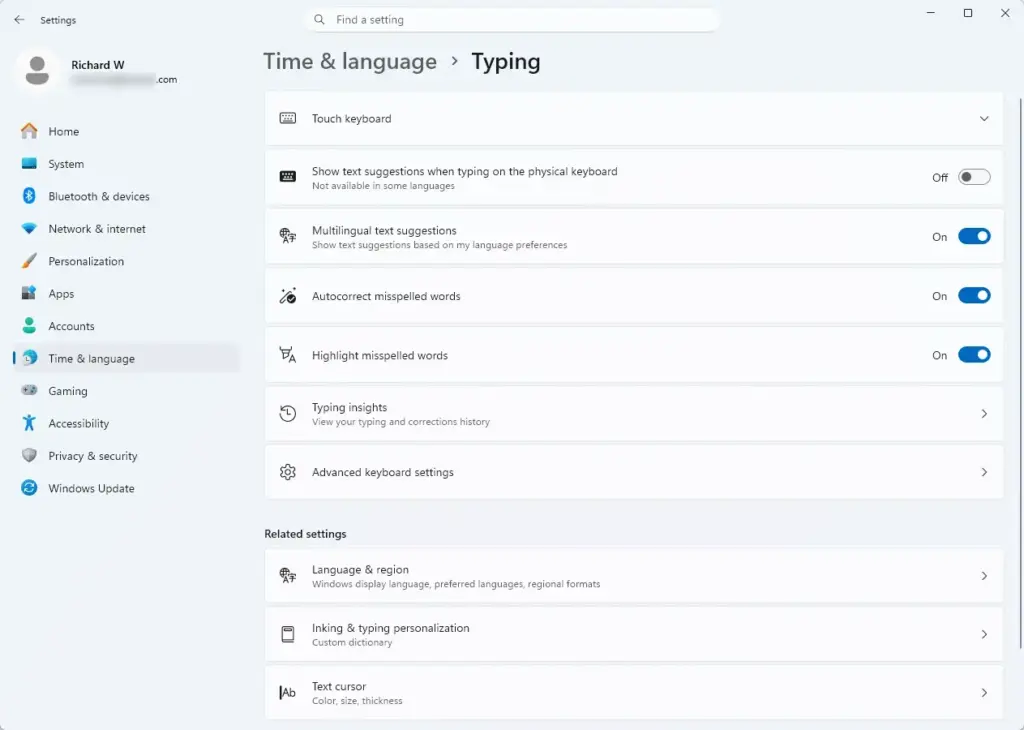
Settings › Time & language › Typing
You should now see a list of toggle switches covering text suggestions, autocorrect and touch keyboard options. Scroll through it to find the spacebar setting.
Disable the Double-Tap Period Shortcut
This is the setting that stops Windows inserting a dot when you hit the space bar twice quickly while writing emails, documents or web searches.
- Find the option for adding a period after double-tapping the space bar. It sits under the Touch keyboard section of the Typing page. The exact wording can differ slightly between Windows 11 builds, for example “Add a period after pressing the spacebar twice”.
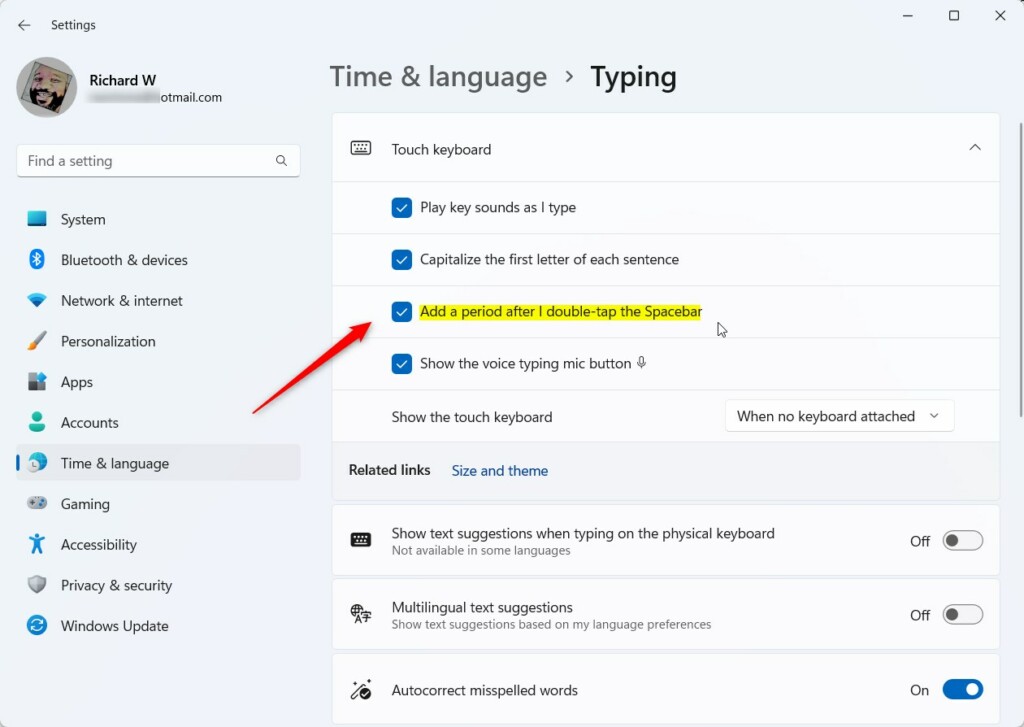
- Click the toggle switch next to it. The status changes from On to Off.
- Close the Settings app. Windows saves the change automatically, and you don’t need to restart.
To undo it later, come back to the same page and switch the toggle back to On. If you can’t find the option, scroll the whole page, including any collapsed sections. Some builds or devices show fewer touch keyboard options, especially when no touch screen is present.
Test Your Changes in Notepad
Test the change in Notepad to confirm that fast typing no longer adds a period.
- Press the Win, type
Notepad, and press Enter. A blank Notepad window opens. - Type a short sentence, press the space bar twice quickly, and type another word.
- Check the result. You should see two plain spaces between the words, with no period inserted.
If a period still appears, go on to the next sections.
Adjusting Hardware Keyboard vs Touch Keyboard Settings
Windows treats physical keyboards (USB, Bluetooth, or the one built into a laptop) differently from the on-screen touch keyboard. The setting you just changed mainly affects the touch keyboard, which is the virtual keyboard used on tablets and touch screens.
If a physical keyboard still inserts periods, go back to the Typing page and look for any other text suggestion or autocorrect options that might apply. Also check whether a third-party utility is responsible. Text expanders, clipboard tools and some keyboard drivers can add punctuation on their own.
Using Registry Editor to Force Typing Settings
Treat it as a last resort. A wrong edit in the registry can cause instability or crashes, so back up the registry or create a restore point before you start. Registry Editor also needs admin approval, and you may see a User Account Control prompt.
- Press Windows key + R to open the Run dialog box.
- Type
regeditand press Enter. Approve the prompt if one appears, and Registry Editor opens. - Use the left sidebar tree to go to
HKEY_CURRENT_USER\Software\Microsoft\Windows\CurrentVersion\Explorer\Advanced. - Right-click an empty space in the right pane, select New, and choose DWORD (32-bit) Value. Do this only if a policy override is required in your enterprise environment.
Name and set the new value exactly as your organization's documentation or IT team specifies. I can't confirm a standard value name for this setting, so don't guess one. To undo the change, right-click the value you created and select Delete.
If this didn't work
If unwanted punctuation still appears, restart your computer. This clears cached keyboard input and restarts the background text services.
If it still happens after the restart, check any manufacturer utilities installed on the machine, such as laptop companion apps. Some of these apply their own typing corrections, independent of the Windows setting. Also check whether a work or school policy manages the PC, because a policy can override the toggle on the Typing page.
Have a question about this guide?
Answered by AI from this guide. Good questions may be added to this page — please don't include personal details.
Did this guide fix your problem?

About the Author
Richard
Tech Writer, IT Professional
Richard is a writer at Geek Rewind who turns complex IT tasks into clear, step-by-step guides. He draws on years of hands-on experience in system administration and enterprise IT operations, focusing on Windows, Linux and WordPress: the problems people actually run into, and the fixes that work. His server and WordPress guides come from systems he runs himself. Richard builds and maintains the platform behind Geek Rewind, from its Ubuntu servers and Nginx configuration to its custom WordPress plugins. Many new tutorials start with readers' questions, and he's always glad to answer them in the comments.
No comments yet — be the first to share your thoughts!