How to Change the Clock Display Format to AM/PM or 24-Hour in Windows 11

The easiest way to switch the clock between AM/PM and 24-hour time in Windows 11 is the Time format drop-down in Settings Time & language Date & time. Current Windows 11 builds include it. If your build does not, or you want to control the Short time and Long time formats separately, use Settings Time & language Language & region instead. The change takes effect immediately with no restart, and the taskbar clock updates within a few seconds.
Earlier versions of Windows 11 had no 12-hour/24-hour option on the Date & time page, which is why older guides send you to the regional format settings. Both routes work on current builds. This article covers the Time format drop-down, the Short time and Long time lists, the older Region dialog for custom time patterns, applying the format to your sign-in screen, and troubleshooting if the clock does not update.
Open Settings Time & language Date & time and select a style from the Time format drop-down to switch the clock between AM/PM and 24-hour time in Windows 11. The taskbar clock updates within a few seconds with no restart. If your build has no Time format drop-down, use Language & region Change formats instead.
How the 12-hour and 24-hour formats differ
The AM/PM format counts hours from 1 to 12 twice a day and adds AM or PM to tell the halves apart. The 24-hour format counts from 00 to 23 and shows no AM or PM. The same moment looks different in each:
- 9:40 AM in 12-hour time is 09:40 in 24-hour time.
- 9:40 PM in 12-hour time is 21:40 in 24-hour time.
- Midnight is 12:00 AM in 12-hour time and 00:00 in 24-hour time.
Windows keeps two time formats. Here’s how they work:
- Short time is the format on the taskbar clock. It shows hours and minutes.
- Long time includes seconds. You see it when you select the taskbar clock and the calendar flyout opens.
Set both to the same style, or the taskbar and the flyout will disagree. Changing only one is the most common reason people think the setting did not work.
Windows describes each format with a pattern of letters. You only see these if you use the Region dialog method later in this article:
his the hour on a 12-hour clock, with no leading zero (9).hhis the hour on a 12-hour clock, with a leading zero (09).His the hour on a 24-hour clock, with no leading zero (9).HHis the hour on a 24-hour clock, with a leading zero (09).mmis the minutes.ssis the seconds.ttis the AM or PM marker.
Case matters. A lowercase h gives a 12-hour clock. An uppercase H gives a 24-hour clock. So h:mm tt shows 9:40 AM, and HH:mm shows 09:40.
Change the clock format in Settings
These methods work the same on Windows 11 Home and Pro. Administrator rights aren’t required, because the change applies only to your account. Start with the Time format drop-down, which is the easiest method on current Windows 11 builds.
- Press Win+I to open Settings.
- Select Time & language in the left pane.
- Select Date & time.
- Find the Time format drop-down and open it. It offers a 12-hour and a 24-hour choice.
- Select the style you want. The taskbar clock changes to match within a few seconds.
If you do not see a Time format drop-down, your build is older than the one that added it. Check Settings Windows Update for updates, or use the steps below, which work on every Windows 11 build. Also use the steps below if you want different Short time and Long time styles, or if the clock does not look right after using the drop-down. After using the drop-down, select the taskbar clock and check that the calendar flyout shows the same style.
Here is the method through the regional format settings:
- Press Win+I to open Settings.

Windows 11 Start menu with Settings gear icon highlighted. - Select Time & language in the left pane.

Settings › Time & language - Select Language & region. The page shows a Language section and a Region section.
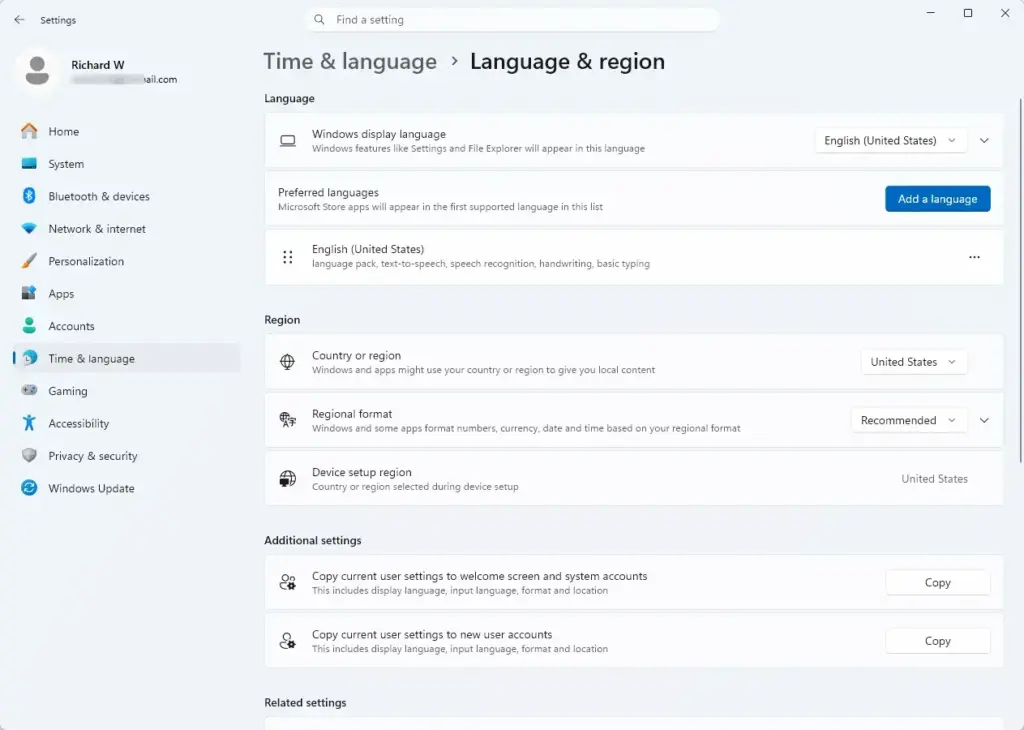
Settings › Time & language › Language & region - Under Region, select the Regional format row. The row expands to show more options.
- Select Change formats. A page opens with drop-down lists for calendar, first day of the week, and date and time formats. On some builds of Windows 11, these lists appear directly inside the expanded Regional format row instead. If you do not see a Change formats button, look for the lists there.
- Open the Short time list. Each entry shows the current time as an example, so you can see what you are choosing. Entries that end in AM or PM are 12-hour. Entries with no AM or PM, such as 09:40 or 21:40, are 24-hour.
- Select the style you want. The taskbar clock changes to match.
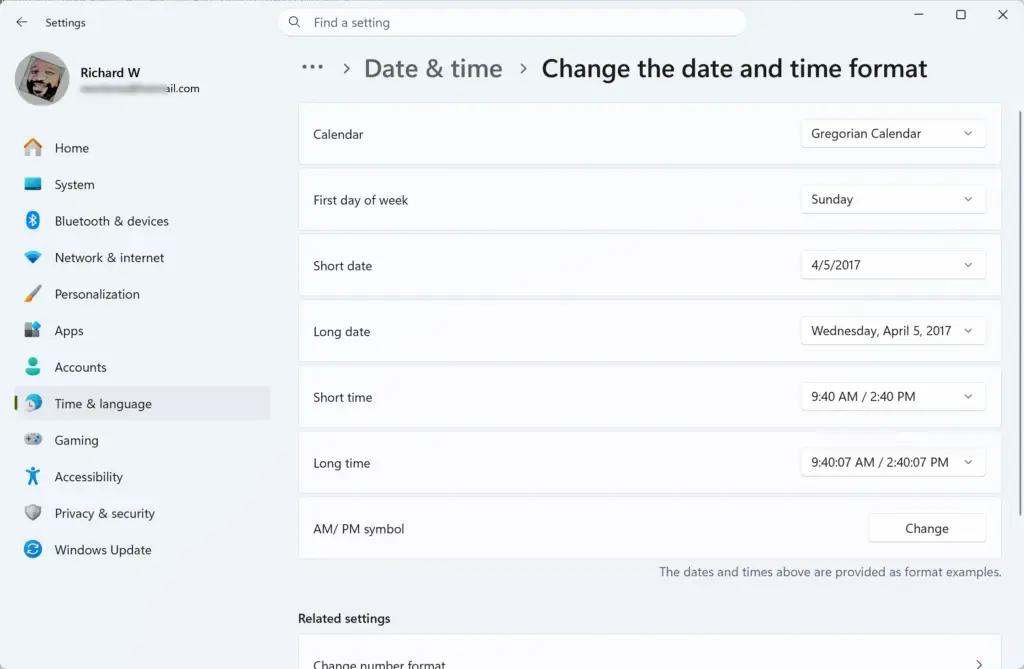
- Open the Long time list and select the same style. Pick the entry with seconds in the matching 12-hour or 24-hour style.
- Look at the bottom-right corner of the taskbar to check the result. Select the clock to open the calendar flyout and confirm that the Long time format also looks right.
If the taskbar still shows the old format after a minute, see the troubleshooting section below.
What changing the Regional format does
Some regional formats use 24-hour time by default, others use AM/PM. Switching the regional format can overwrite the time choices you made earlier. If you change the regional format, check the Time format setting, or Short time and Long time, again afterward.
Do not change the regional format only to get a 24-hour clock. It also changes the date order and number formatting, which you probably want to keep. Use the Time format drop-down, or the Short time and Long time lists, instead.
Change the clock format in the Region dialog
Use this method if the Settings options do not offer the exact pattern you want. It lets you type your own pattern and change the AM and PM symbols. This is the older Control Panel dialog, and it still works in current Windows 11.
- Press Win+R to open the Run box.
- Type
intl.cpland press Enter. The Region dialog opens on the Formats tab.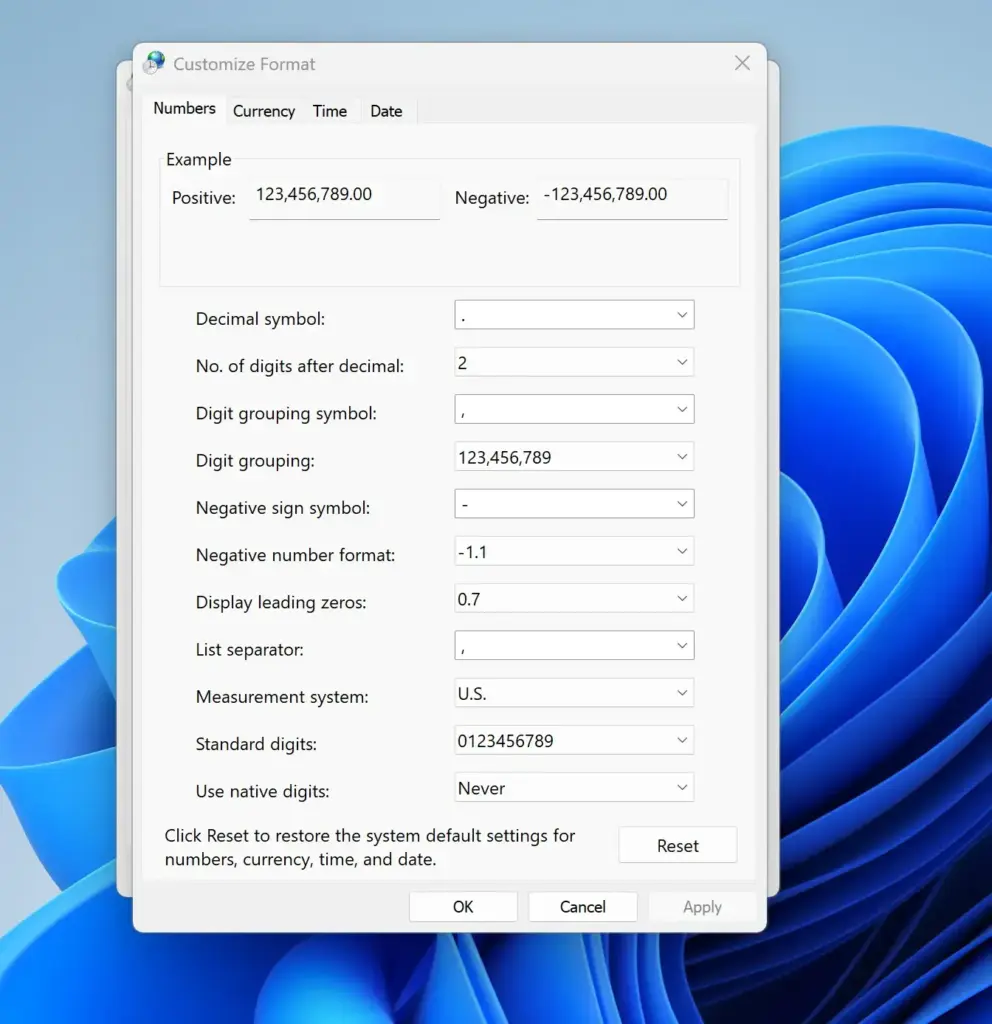
- Under Date and time formats, open the Short time list and select a format. For AM/PM format, choose an entry containing
tt, for exampleh:mm tt. For 24-hour time, choose an entry with an uppercaseH, for exampleHH:mm. - Open the Long time list and select the matching style, for example
h:mm:ss ttorHH:mm:ss. - Select Apply. The Region dialog stays open. The taskbar clock updates behind it.
The Formats tab also has a preview area that shows how your choices look. You can check it before selecting Apply. If you want to leave without keeping your changes, select Cancel before you select Apply or OK.
Set a custom time pattern or AM/PM symbols
The Additional settings button opens a second dialog with more control. You can use it to make the clock show hours without a leading zero, or to change the text that appears in place of AM and PM.
- In the Region dialog, on the Formats tab, select Additional settings. The Customize Format dialog opens.
- Select the Time tab. It shows Short time, Long time, AM symbol and PM symbol.
- Choose or type a pattern in the Short time field, using the letters listed earlier. For example,
H:mmshows 9:40 and 21:40, with no leading zero in the morning. - Choose or type the matching pattern in the Long time field.
- Open the AM symbol and PM symbol lists to change what appears in AM/PM format. These only matter if your pattern contains
tt. - Check the Example area at the top of the dialog. It shows how the current time will look.
- Select OK to close Customize Format, then select OK again to close Region.
If you type an invalid pattern, Windows shows an error message and does not save it. Close the message and correct the pattern.
Apply the format to the sign-in screen and new accounts
The sign-in screen and any new user accounts keep their own format until you copy yours to them. Copying these settings affects more than just the clock. It also copies your regional formats (like date order and number style) and language settings. It requires administrator rights, and Windows asks you to confirm in a User Account Control prompt.
- Press Win+R, type
intl.cpland press Enter. The Region dialog opens. - Select the Administrative tab.
- Under Welcome screen and new user accounts, select Copy settings. Administrator privileges required. Select Yes if the User Account Control prompt appears. If you are not signed in as an administrator, Windows asks for an administrator password.
- Look at the Current user column on the dialog that opens. Confirm the format shown is the one you want to copy.
- Select the Welcome screen and system accounts checkbox, the New user accounts checkbox, or both.
- Select OK. The new format shows on the sign-in screen the next time you lock the PC or restart it.
Accounts that already exist on the PC are not changed by this. Each person must change their own clock format.
If the clock does not change
Work through these in order. Each one is a cause you can see on screen.
The taskbar still shows the old format
Some changes take a moment to appear. If a minute passes and nothing changes, restart Windows Explorer , the process that draws the taskbar . This closes and reopens your taskbar and File Explorer windows but does not close your other apps.
- Press Ctrl + Shift + Esc to open Task Manager.
- On the Processes tab, find Windows Explorer and select it.
- Select Restart (on older builds, right-click it and select Restart). The taskbar disappears for a second and returns with the new format.
If that does not work, sign out and sign back in.
The format is right in Windows but wrong in one app
Most apps follow the Windows regional format, but some keep their own time settings. If a single app shows the wrong style, check that app's own settings first. Some apps need a restart to read the new format. Close the app completely and reopen it.
The format switched back after I changed the Regional format
Changing the Regional format can reset Short time and Long time to that region's defaults. Open Settings Time & language Date & time and check the Time format drop-down if your build has it. Then open Settings Time & language Language & region again and reselect your time formats.
The lists are greyed out or the setting keeps reverting
On a work or school PC, an administrator can manage regional settings, so your choice may be locked or may revert after a restart. Ask your IT administrator. This article cannot confirm from here which control is in use on your PC.
The time format is right but the time itself is wrong
That is a separate problem. Open Settings Time & language Date & time and check that Set time automatically and your time zone are correct. The clock format controls only how the time looks, not what it is.
Switch back to the original format
Every method above reverses the same way you made the change. If you used the Time format drop-down, go back to Settings Time & language Date & time and pick your earlier choice. If you used the regional format lists, go back to Settings Time & language Language & region Regional format Change formats and pick your earlier Short time and Long time entries.
If you customized patterns or symbols in the Region dialog, open Additional settings and select Reset in the Customize Format dialog. This returns all formats on every tab to the defaults for your current regional format, including date and number settings you changed. Select OK to confirm. If you copied settings to the sign-in screen, repeat the copy steps after resetting.
If this didn't work
If the taskbar clock is still wrong after you restart Windows Explorer and sign out and back in, recheck both Short time and Long time, since the taskbar uses the first and the calendar flyout uses the second. A new user account starts with the default format for its region, so repeat the steps on each account that needs the change. To undo everything, use Reset in Customize Format as described above.
Frequently asked questions
What does the word "change" mean?
To change means to make something different from how it was before. In the context of your clock, changing the format means switching between two ways of displaying time: AM/PM (12-hour) or 24-hour. The actual time stays the same—only how it appears on your screen changes.
How can I contact Change.org customer service?
Change.org is a petition website, not related to Windows clock settings. If you need help with Change.org, visit their website and look for their support or contact page. If you're trying to change your Windows clock format instead, that's done in Settings under Time & language Language & region
Still have a question?
Answered by AI from this guide. Good questions may be added to this page — please don't include personal details.
Did this guide fix your problem?

About the Author
Richard
Tech Writer, IT Professional
Richard is a writer at Geek Rewind who turns complex IT tasks into clear, step-by-step guides. He draws on years of hands-on experience in system administration and enterprise IT operations, focusing on Windows, Linux and WordPress: the problems people actually run into, and the fixes that work. His server and WordPress guides come from systems he runs himself. Richard builds and maintains the platform behind Geek Rewind, from its Ubuntu servers and Nginx configuration to its custom WordPress plugins. Many new tutorials start with readers' questions, and he's always glad to answer them in the comments.
No comments yet — be the first to share your thoughts!