Taskbar Calendar Flyout Not Opening or Showing Events in Windows 11

- 43 steps
- Needs administrator rights
- Includes a restart or sign-out
The Windows 11 taskbar calendar flyout opens when you click the date and time in the bottom-right corner of your screen. It shows a month calendar and your notifications. When clicking the clock does nothing, or your upcoming events fail to load, the cause is usually a stuck background process or a glitch in the notification service.
Windows Explorer manages your desktop and taskbar, and it tells the system to draw the calendar overlay the moment you click the time. Restarting that process or repairing damaged data usually fixes the problem. The steps below go from the quickest and safest fixes to the deeper repairs, so work through them in order and test the flyout after each one.
Basic Troubleshooting: Quick Fixes to Try First
Start with the easiest and safest fixes. Many temporary glitches in Windows 11 clear up with a simple refresh, and none of these steps put your files at risk.
1Restart Your Computer
Restarting your computer clears temporary memory and background glitches that stop the calendar flyout from opening. A full restart gives the whole system a fresh start. It often brings a frozen clock menu back without any other troubleshooting.
If you normally use Shut down and Fast Startup is on, your PC may not fully reload the system. Use Restart rather than shutting down and turning it back on.
To restart your computer:
- Click the Start button in the middle of your taskbar.
- Click the Power icon in the bottom-right corner of the Start menu.
- Click Restart.
Wait until the computer has turned off and fully started again, and sign in. Then click the date and time and check whether the flyout opens.

2Check for Windows Updates
Windows updates install the latest bug patches from Microsoft, and some of them fix a broken calendar flyout. If the problem started after a recent update, a newer update may already contain the fix.
To check for updates:
- Open the Settings app. Click the Start button and then the gear icon, or press the Win+I.

Settings - Click Windows Update in the left-hand menu. You should see the update status page.

Settings › Windows Update - Click the Check for updates button near the top right. Windows will search and list anything that is available.
If Windows finds updates, let them download and install completely. You may see a Restart now button when they finish. Click it, because the update is not fully applied until the restart. Then test the flyout again.
Intermediate Solutions: Restarting System Processes and Checking Accounts
If a restart and an update did not solve the problem, the cause is likely a frozen system process or an account sync error. These intermediate steps target both.
1Restart Windows Explorer
Windows Explorer is the process that manages your taskbar and desktop. If it hangs, the calendar flyout often stops responding with it. Restarting just this process in Task Manager clears the freeze without turning off the whole computer, and you do not lose any open work.
- Press Ctrl+Shift+Esc to open Task Manager.
- If Task Manager opens in a small view with few details, click More details at the bottom of the window to expand it.

Task Manager - Click the Processes tab. On current Windows 11 builds it is in the menu on the left. On older builds it is across the top.
- Scroll down the list of running processes until you find Windows Explorer. It has a yellow folder icon.
- Click Windows Explorer once to highlight it.
- Click the Restart task button in the top-right corner of the Task Manager window. Your taskbar and desktop icons will disappear for a second or two while the process restarts. This is normal.
Once the taskbar reappears, click the date and time again to see whether the flyout opens. If Restart task is missing, right-click Windows Explorer in the list and choose Restart instead.
2Check Your Microsoft Account Sync Settings
Use this check when the flyout opens but your scheduled events do not appear. The calendar can only show appointments if your account is signed in and syncing. A sign-in warning on your Microsoft account is a common reason for an empty calendar.
Be aware that what the flyout shows depends on your Windows 11 version and which calendar app your account feeds. On some builds it shows only the month view and no event list. If the month view opens but never lists events, check this step, but do not treat the missing list alone as a fault.
- Open the Settings app by pressing the Win+I.
- Click Accounts in the left-hand menu.
- Click Email & accounts. You should see the accounts that Windows and your apps use.
- Look for your primary Microsoft account in the list. If you see an error or warning next to the account name, click the account and choose Fix, or sign in again with your password.
- Open your calendar app by searching for Calendar in the Start menu. If you use Outlook, open that instead. Check the app’s account or settings page to confirm your email and calendar data are syncing.
After the account shows no errors, give it a minute to sync and then test the flyout again.
Advanced Troubleshooting: System File Checkers and User Accounts
If the flyout still refuses to open or show events, you may have corrupted system files or a damaged user profile. The next methods repair damaged system files and test your profile.
1Run the System File Checker (SFC) Tool
The System File Checker scans Windows 11 for broken system files and repairs them automatically. It is a good first tool for deeper errors that stop normal features, such as the clock flyout, from working. You need an administrator account to run it.
- Click the Start button and type cmd into the search box.
- In the results, right-click Command Prompt and select Run as administrator. If a User Account Control prompt appears, click Yes.
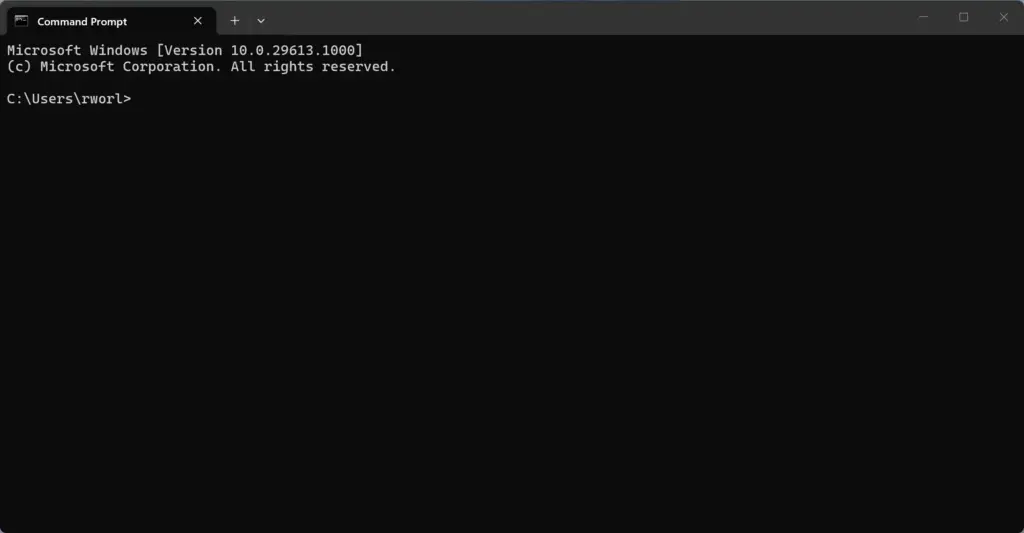
Command Prompt - A window with a black background opens. Type
sfc /scannowand press Enter. The scan starts and shows a percentage.
The scan takes about 10 to 15 minutes. Do not close the Command Prompt window before it reaches 100 percent, or the repair may not finish correctly. When it ends, it reports whether it found and fixed problems, found nothing, or could not fix some files.
Restart your computer and test the calendar flyout. If the scan said it could not repair some files, run the DISM repair in the next section and then run the System File Checker a second time.
2Run the DISM Tool
DISM repairs the Windows system image itself. Use it when the System File Checker cannot fix the problem, because the checker relies on that image as its source of good files. DISM needs an internet connection, since it can download clean files from Windows Update.
- Click the Start button and type cmd into the search box.
- Right-click Command Prompt and select Run as administrator. Click Yes if User Account Control asks.
- Type
DISM /Online /Cleanup-Image /RestoreHealthand press Enter. A progress bar appears.
Let DISM run from start to finish without interrupting it. It can take anywhere from 5 to 15 minutes, depending on your computer’s speed. The progress bar may seem to pause for a while near 20 percent, which is normal. Wait for the message saying the operation completed successfully.
Restart your computer after DISM finishes, then test the flyout.
3Test a New User Account
A new test user account shows whether a corrupted profile is the real cause. A fresh account has none of your saved settings or data. If the calendar works there, the problem is in your own profile and not in Windows itself.
- Open the Settings app by pressing the Win+I.
- Click Accounts in the left menu.
- Click Other users.
- Click the Add account button.
- Create a local account without a Microsoft email address. Choose I don’t have this person’s sign-in information, and then Add a user without a Microsoft account. The wording can differ slightly on newer builds. Give the account a simple name such as TEST-USER and a temporary password.
- Sign out of your current account. Click the Start button, click your profile picture at the bottom left, and select Sign out.
- Sign in with the new TEST-USER account.
- Click the date and time and check whether the calendar flyout opens correctly.
If it works normally in the new account, your original profile is damaged. In that case, plan to move your personal files over to a fresh profile. If it fails in the new account too, the problem is system-wide, so continue with the steps below. When you finish testing, you can remove the test account in Settings Accounts Other users by selecting it and clicking Remove.
Unique Angles: Hidden Culprits and Expert Workarounds
Some causes are easy to overlook. Obscure Windows settings, third-party software conflicts, and time zone errors can all break the taskbar calendar even when your system files are healthy. Here are two more angles to check.
1Checking Date, Time, and Regional Settings Mismatches
A system clock that is out of sync, or a wrong time zone or region, can make the calendar fail to load events. The calendar builds its view from your date, time and regional format, so errors in any of them can break it.
- Open the Settings app by pressing the Win+I.
- Click Time & language in the left-hand menu.
- Click Date & time.
- Turn on the Set time automatically toggle.
- Turn on the Set time zone automatically toggle if your device supports location services. Otherwise, choose your correct time zone manually from the drop-down menu.
- If the time was wrong, click the Sync now button under Additional settings. This forces your computer to match an internet time server.
- Go back to the main Time & language page and click Language & region.
- Check that Country or region and Regional format match your real location. A wrong regional format can cause calendar components to fail without showing any error.
Restart your computer and check whether the calendar flyout works.
2Resolving Third-Party Taskbar Customization Software Conflicts
Taskbar customization apps such as ExplorerPatcher or StartAllBack change how the taskbar behaves, and they can break default features like the clock and calendar flyout. They hook directly into the Windows Explorer process. A routine security update or patch can then conflict with them, and the calendar flyout, Start menu or notification panel may stop working.
If you use one of these tools, turn it off temporarily to test whether it is the cause. If the native flyout works again, you have found the culprit.
- Open your customization app, for example ExplorerPatcher or StartAllBack, from the Start menu or system tray.
- Look in the app’s settings for an option to disable the software or restore the default Windows 11 taskbar behavior, and use it.
- If the app has no disable option, uninstall it temporarily to see whether the native taskbar calendar starts working. You can reinstall it afterward if it was not the cause.
- Check the official website or support forum for the tool and look for a newer version. Developers often release patches within days of a major Windows update to fix broken taskbar flyouts.
If you prefer stability over customization, keeping the taskbar in its native, unmodified state is the best way to avoid future calendar glitches.
Summary
A taskbar calendar that will not open or show events is usually fixable with a few checks. In most cases, restarting the computer, installing Windows updates, restarting Windows Explorer or fixing your account sync settings gets it working again. If those do not help, run the system file repairs, test with a new user account, and check your time settings and any taskbar customization tools.
Have a question about this guide?
Answered by AI from this guide. Good questions may be added to this page — please don't include personal details.
Did this guide fix your problem?

About the Author
Richard
Tech Writer, IT Professional
Richard is a writer at Geek Rewind who turns complex IT tasks into clear, step-by-step guides. He draws on years of hands-on experience in system administration and enterprise IT operations, focusing on Windows, Linux and WordPress: the problems people actually run into, and the fixes that work. His server and WordPress guides come from systems he runs himself. Richard builds and maintains the platform behind Geek Rewind, from its Ubuntu servers and Nginx configuration to its custom WordPress plugins. Many new tutorials start with readers' questions, and he's always glad to answer them in the comments.
No comments yet — be the first to share your thoughts!