What to Do When Windows 11 Taskbar Freezes Completely

- 5 ways to do it
- Needs administrator rights
- Includes a restart or sign-out
A frozen taskbar in Windows 11 stops responding to clicks, hides your open apps, or leaves the Start menu stuck on the screen. It usually means Windows Explorer has stopped working correctly. Explorer is the background program that runs your desktop and taskbar.
You can usually fix this in about 10 seconds without restarting the computer. Your open apps keep running and your work stays put. The fastest fix is to restart Windows Explorer from Task Manager, which forces the taskbar to reload. Any File Explorer folder windows you have open will close, but other programs are not affected.
When your Windows 11 taskbar freezes completely, restart the Windows Explorer process by pressing the Ctrl+Shift+Esc keys on your keyboard to open the Task Manager, selecting the Processes tab, finding Windows Explorer in the list, and clicking the Restart task button in the corner.
Understanding the 🪟 Windows 11 Taskbar Freeze
Windows Explorer is a core system process that draws the taskbar, the Start button, the desktop and your icons. When it gets overwhelmed or stops responding, the taskbar locks up and your desktop icons can disappear until the process restarts.
Explorer can stall because it runs out of memory, hits a bug in an update, or conflicts with a background app. The computer itself is still running. Only the part of the screen that handles your shortcuts and taskbar stops updating.
Typical signs include:
- Your open programs still respond to keyboard shortcuts, but you cannot click anything on the bottom bar.
- Taskbar icons turn invisible.
- The clock stops moving.
- On a multi-monitor setup, the taskbar vanishes from one of the screens.

Method 1Restart Windows Explorer Using Task Manager
Restarting Windows Explorer from Task Manager is the fastest fix. Task Manager is the tool that lists running apps and processes. It does not depend on the taskbar, so it still opens when the taskbar is frozen.
- Press Ctrl+Shift+Esc at the same time to open Task Manager. If that shortcut does nothing, press Ctrl+Alt+Del and choose Task Manager from the blue screen.
- If Task Manager opens as a small window with few details, click More details at the bottom to see the full view.

Task Manager - Click the Processes tab if it is not already selected. In the newer Task Manager design, Processes is the first item in the left-hand menu.
- Scroll down the list and find Windows Explorer. You can also press the W key to jump down the list quickly.
- Click once on Windows Explorer to highlight it.
- Click Restart task. On older Windows 11 builds this button is in the bottom right corner of the window. On current builds with the redesigned Task Manager it sits in the toolbar at the top. You can also right-click Windows Explorer and choose Restart.
Your screen will flash blank for a second or two. The taskbar and desktop icons disappear briefly and then come back. That means the process restarted. Click around the taskbar to confirm it responds again.
If the freeze comes back later the same day, this is only a temporary fix. Work through the sections below to find the cause.
Method 2Use Windows PowerShell to Restart the Taskbar
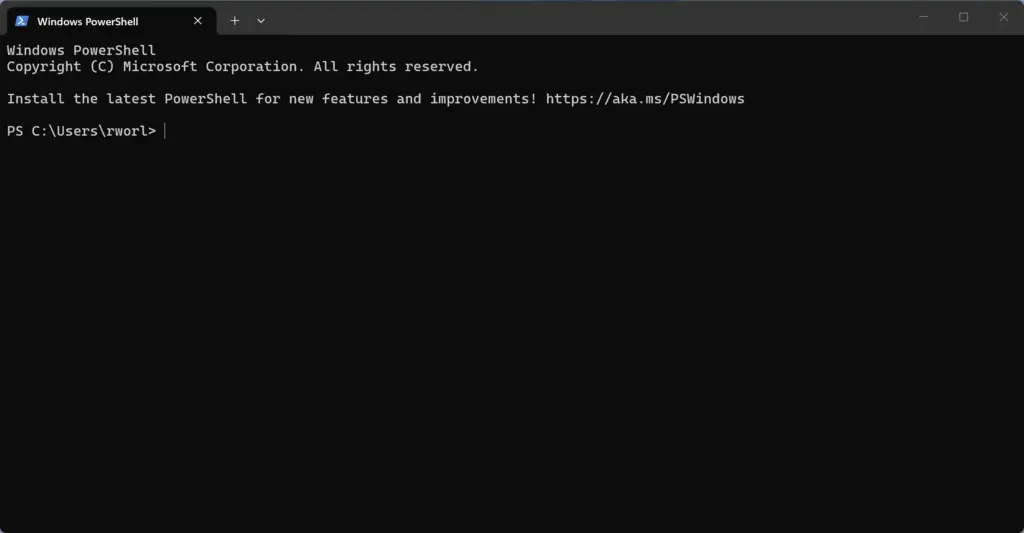
Windows PowerShell is a command-line tool for running system tasks. You can launch it from Task Manager to stop and restart Explorer when the Restart task button does not work or Task Manager is slow to respond.
- Press Ctrl+Shift+Esc to open Task Manager again.
- Click Run new task at the top of the window. Or click File and then Run new task. A small box opens.
- Type the word powershell into the open field.
- Check the box Create this task with administrative privileges. This step requires an administrator account. If the box is missing or greyed out, you are signed in with a standard account.
- Click OK. A blue or black PowerShell window opens.
- Type or paste this command into the window and press Enter: Stop-Process -Name explorer -Force
The taskbar and desktop flash and restart within a moment, because Windows starts Explorer again automatically. When they are back, close the PowerShell window by clicking the X in its top right corner.
Method 3Check for Windows Updates
Microsoft often patches taskbar bugs in later updates, so a freeze that keeps coming back may already be fixed in a newer release. Updating is worth doing before anything more involved.
- Press Win+I to open the Settings app. You can also click the Start button if it still works.
- In the left-hand menu, click Windows Update.
- Click Check for updates near the top right. You should see Windows search and then list any updates that are waiting.
- Let any updates download and install completely.
- Restart your computer when prompted. The update is not finished until the restart is done.
If Windows says you are up to date, move on to the next section.
Method 4Run System File Checker (SFC)
System File Checker is a built-in tool that scans Windows system files and replaces damaged ones with healthy copies. Damaged files are a common reason for repeated taskbar freezes. You run it from an elevated Command Prompt.
- Click the Start button or press Win+S to open search.
- Type cmd into the search box.
- In the results, right-click Command Prompt and choose Run as administrator. This step requires administrator privileges. If a User Account Control prompt appears, click Yes.
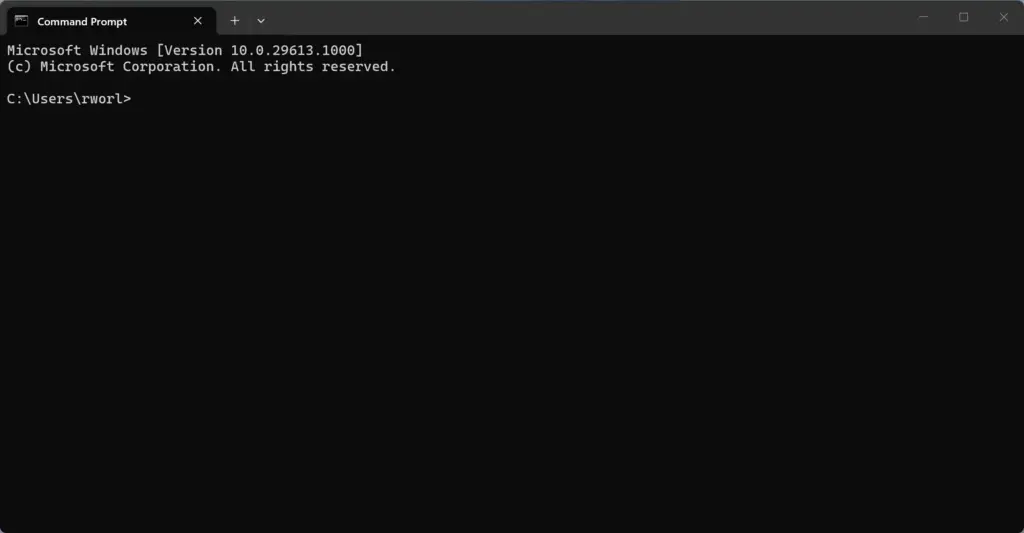
Command Prompt - A window with a black background opens. Type this command carefully and press Enter: sfc /scannow
- Wait while the scan runs. It can take ten to fifteen minutes. Do not close the window until the verification reaches 100 percent.
When the scan finishes, read the message on the screen. If it says it found and repaired files, restart the computer and see whether the taskbar still freezes. If it says it found no problems, damaged system files are not your cause.
Method 5Restart the Start Menu Process Separately
Sometimes only the Start button stops working while the rest of the taskbar responds normally. In that case you can restart the Start menu process by itself, which is quicker than restarting Explorer or rebooting.

- Press Ctrl+Shift+Esc to open Task Manager.
- Click the Processes tab.
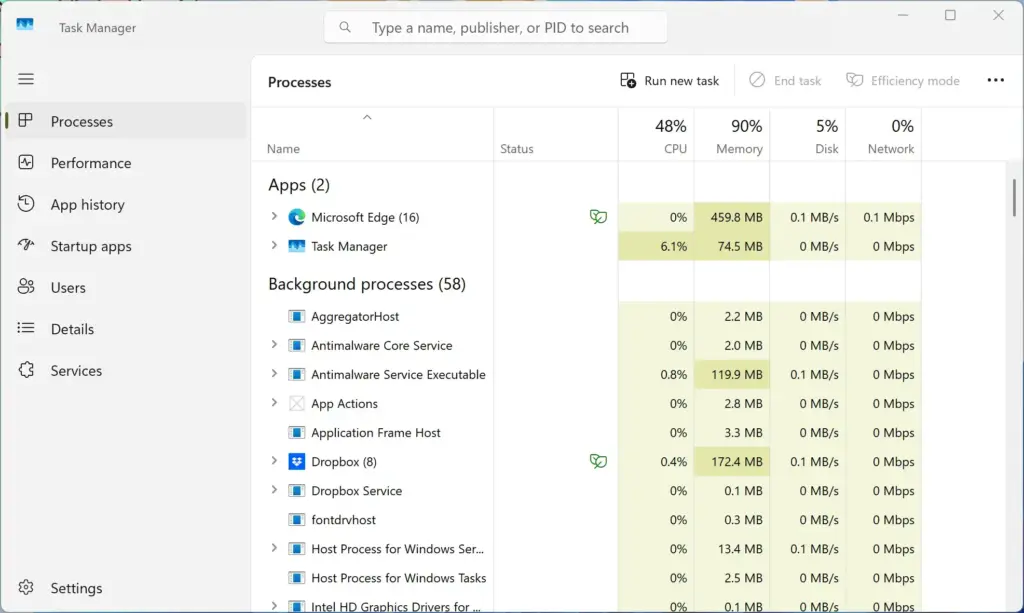
- Scroll down to a process named Start or StartMenuExperienceHost. The name depends on your Windows 11 build.
- Click once on it to select it.
- Click End task in the top right area of the Task Manager window.
Task Manager › Processes
The process may disappear from the list for a moment. Windows starts it again automatically within a few seconds, and the next time you press Start the menu should open normally. You do not need to restart the computer. If the Start button still does nothing, restart Windows Explorer as described earlier.
Unique Expert Tips: Fixing Hidden Background Conflicts
If the taskbar freezes again and again, restarting Explorer only treats the symptom. In that case the cause is usually a background app or a damaged user profile. These two checks are the ones to try next.
Check for Third-Party Shell Customization Apps
Tools that change the look or behavior of the Windows 11 taskbar and Start menu hook into Explorer, and they often break when Windows updates. Examples include StartAllBack, ExplorerPatcher and Start11. If you use any tool like this, disable it or uninstall it and see whether the taskbar stays stable.
To remove one, open Settings Apps Installed apps, find the tool, click the three dots next to it and choose Uninstall. Restart the computer afterward. If the freezes stop, check the tool’s website for a version that supports your current Windows build before you install it again.
Test a New Local User Account
A damaged user profile can make the taskbar freeze even when Windows itself is healthy. To test this, create a new local user and see whether the taskbar behaves on that account.
- Press Win+I to open the Settings app.

Settings - Click Accounts in the left menu, then click Other users.
- Click Add account. This step requires administrator privileges.
- Follow the on-screen prompts to add a local user without an email address. In the Microsoft account window, choose I don’t have this person’s sign-in information, then Add a user without a Microsoft account. Windows 11 Home pushes you toward a Microsoft account, so this option can be easy to miss.
- Sign out of your current account and sign in to the new one.
If the taskbar works perfectly on the new account, your old profile is damaged. You will probably need to copy your personal files over to the new account and use that one going forward. If the new account freezes too, the problem is system-wide and not tied to your profile.
Conclusion
A frozen taskbar on Windows 11 is usually quick to fix. Restart Windows Explorer from Task Manager first, since that takes seconds and keeps your open apps running. If the freezes keep coming back, install the pending Windows updates, run System File Checker, remove any taskbar customization tools, and test a new user account to rule out a damaged profile.
Have a question about this guide?
Answered by AI from this guide. Good questions may be added to this page — please don't include personal details.
Did this guide fix your problem?

About the Author
Richard
Tech Writer, IT Professional
Richard is a writer at Geek Rewind who turns complex IT tasks into clear, step-by-step guides. He draws on years of hands-on experience in system administration and enterprise IT operations, focusing on Windows, Linux and WordPress: the problems people actually run into, and the fixes that work. His server and WordPress guides come from systems he runs himself. Richard builds and maintains the platform behind Geek Rewind, from its Ubuntu servers and Nginx configuration to its custom WordPress plugins. Many new tutorials start with readers' questions, and he's always glad to answer them in the comments.
No comments yet — be the first to share your thoughts!