How to Enable Typing Suggestions for Multiple Languages in Windows 11 Time & Language

Typing suggestions for multiple languages in Windows 11 lets you get text suggestions as you type on a physical keyboard, and Windows can offer suggestions in more than one language at the same time. This feature works across the languages you have installed, so you can switch between them without changing your keyboard settings.
To turn this on, open Settings , go to Time & language Typing, and switch on both Show text suggestions when typing on the physical keyboard and Multilingual text suggestions. Before you start, make sure each language you want suggestions in is already installed with its own keyboard layout — if a language isn’t set up yet, you won’t see suggestions for it.
The wording on the Typing page can shift slightly between Windows builds, so the exact text under each toggle may look a bit different from what you see here. The toggle names stay close enough that you’ll recognize them when you’re in Settings.
Open Settings , go to Time & language Typing, and switch on Show text suggestions when typing on the physical keyboard and Multilingual text suggestions. Each language needs its own keyboard layout and a Basic typing feature installed first, which you can check under Language & region Language options The toggles take effect straight away, with no restart needed.
What you need before you start
Multilingual text suggestions only work for languages Windows already knows about. Before you touch the toggle, confirm three things:
- Each language is added under Language & region. A language you only type in occasionally still has to be on the list.
- Each language has a keyboard. Windows ties suggestions to the keyboard layouts you have installed.
- Each language has its typing features installed. The Basic typing optional feature (the part of a language that supports spell checking and text prediction) must be present for that language.
If a language has no prediction support, Windows shows no suggestions for it, even with every setting on. Major languages such as English, Spanish, French and German are generally supported. For less common languages, test before you assume something is broken.
There is no difference between Windows 11 Home and Pro for this setting. The steps are the same on both editions.
Add the languages you want to type in
Skip this section if all your languages already appear in Settings Time & language Language & region. If a language is missing, add it here.
Add a language
Administrator privileges may be required. Downloading a language pack can prompt for an administrator password on a standard account—that’s normal if you’re not logged in as an administrator.
- Press Win+I to open Settings.

Windows 11 Start menu with Settings gear icon highlighted. - Select Time & language in the left pane.

Settings › Time & language - Select Language & region. You now see your Preferred languages list.
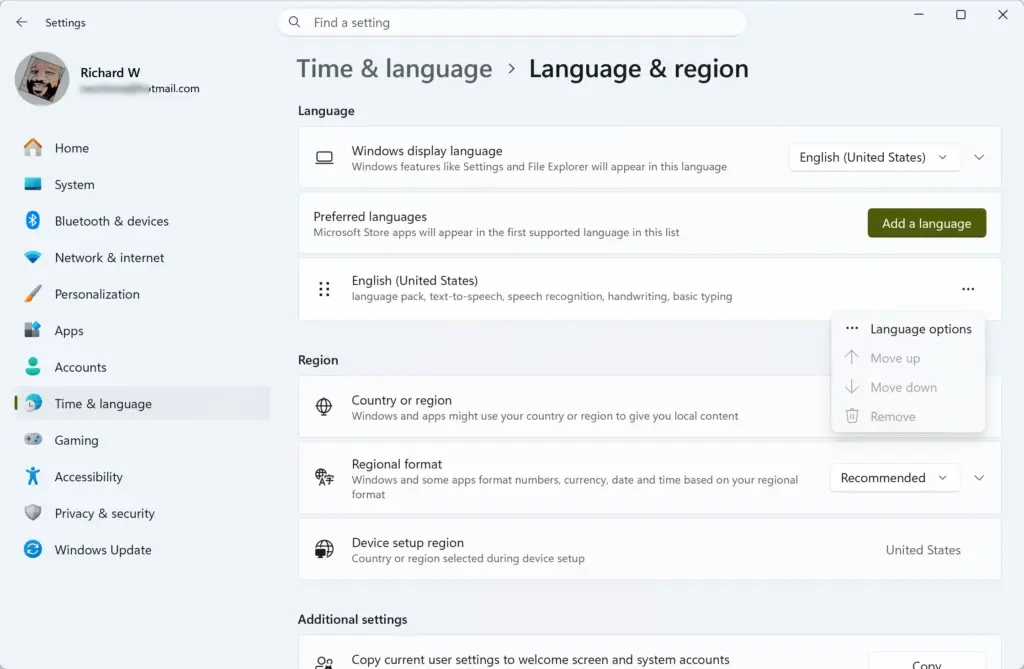
- Select Add a language. A Choose a language to install window opens.
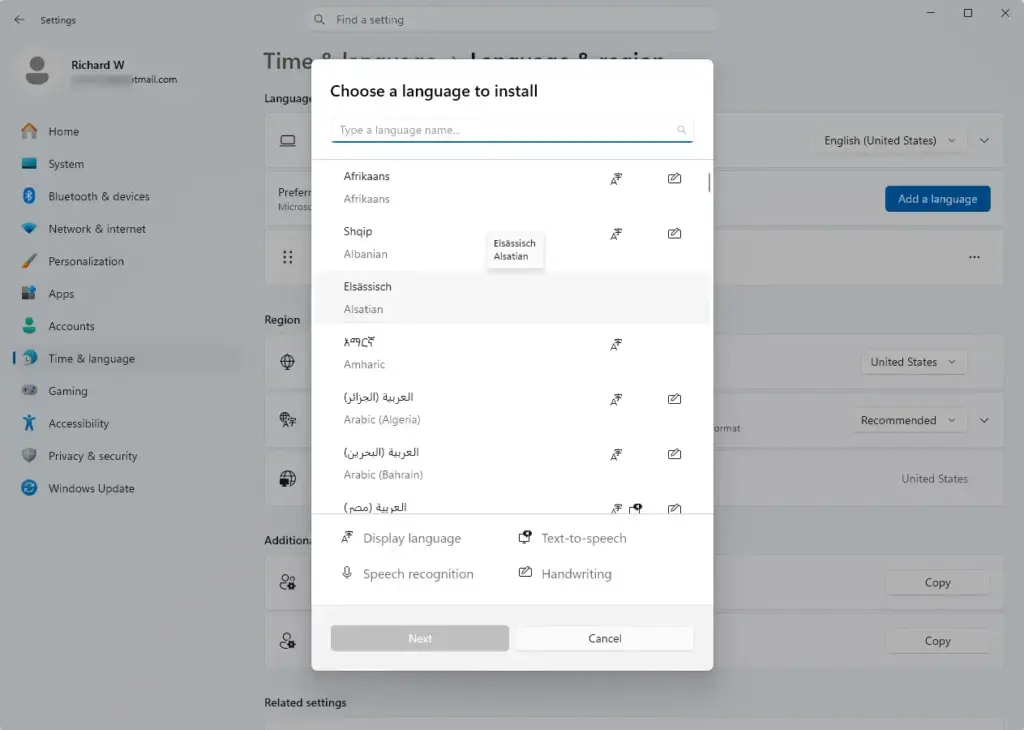
- Type the language name in the search box, then select it in the results.
- Select Next. The window now shows optional language features.
- Leave Language pack and Basic typing ticked. Tick anything else you want, such as Handwriting or Speech recognition.
- Clear Set as my Windows display language if you want to keep your current interface language. This box only controls menus and dialog text, not typing.
- Select Install. The language appears in Preferred languages with a progress indicator while it downloads.
If the download stalls or fails, check that you are online and that Windows Update is not paused. Language features download through Windows Update. On a metered connection, downloads can wait until you allow them. Select Install again after fixing the connection.
Check that Basic typing is installed
You can add a language, skip the optional features, and end up with a keyboard but no suggestions. Check each language once.
- In Language & region, find the language under Preferred languages.
- Select the three-dot menu (…) at the right of that language.
- Select Language options. A page for that language opens.
- Look under Language features (the label may read Optional features on some builds).
- Find Basic typing. If it shows as installed, move on. If it has a Download or Install button, select it and wait for the status to change.
Repeat for every language you want suggestions in.
Add a keyboard for each language
Most languages install with a default keyboard, but check, especially if you want a specific layout (for example, a different layout from the language’s default).
- On the same Language options page, scroll to Keyboards.
- Read the list. If the layout you type on is there, move on.
- If it is missing, select Add a keyboard and pick the layout from the menu.
The keyboard now appears in the list. When you have more than one language or layout, an input indicator appears in the taskbar , usually showing an abbreviation such as ENG. Select it, or press Windows key + Spacebar, to switch between languages.
Turn on text suggestions for multiple languages
This is the step that actually enables the feature. The first toggle turns suggestions on for the physical keyboard. The second extends suggestions to every language you’ve set up, so Windows won’t limit suggestions to just your active language.
- Press Win+I to open Settings.
- Select Time & language.
Settings › Time & language - Select Typing. The page lists the typing options, including text suggestion and autocorrect toggles.
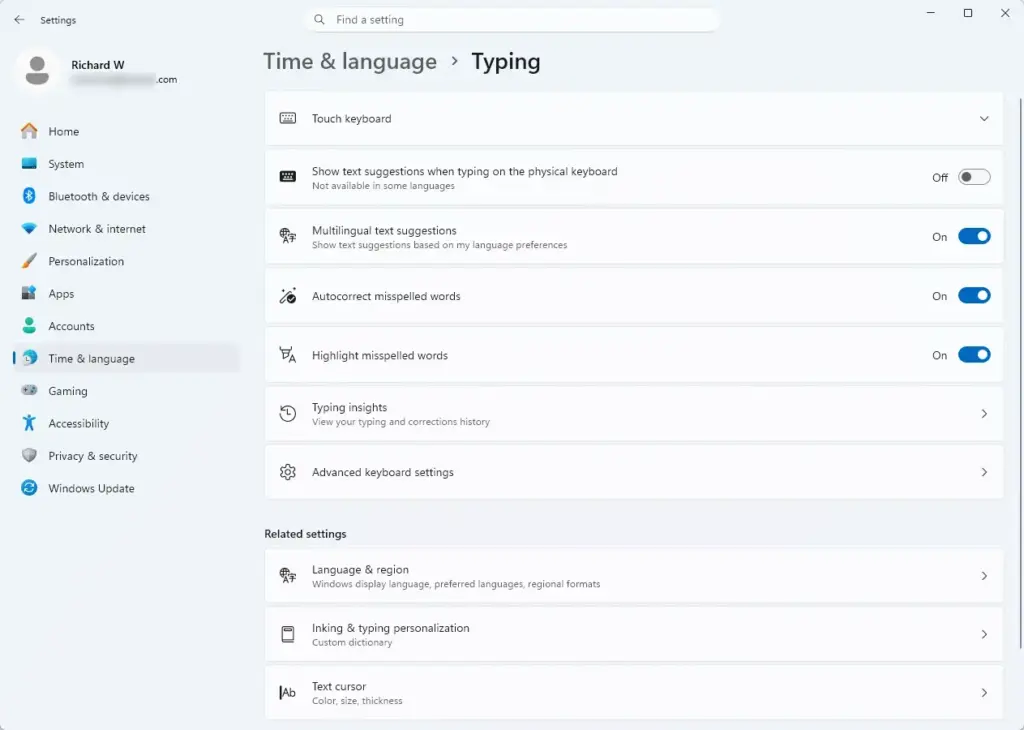
Settings › Time & language › Typing - Turn on Show text suggestions when typing on the physical keyboard. The toggle changes to On.
- Turn on Multilingual text suggestions. The toggle changes to On. Its description refers to showing suggestions based on the languages you have selected.
- Optionally, turn on Autocorrect misspelled words and Highlight misspelled words. These are separate features. They fix or mark spelling mistakes and do not control suggestions.
The changes apply immediately. You do not need to restart Windows or sign out.
If Multilingual text suggestions does not appear, you probably have only one language installed. See the troubleshooting section below.
Test the suggestions in each language
Test in an app that uses a standard text box, such as Notepad, so the app doesn’t become a variable in your test.
- Open Notepad and click inside the document.
- Switch to your first language with Windows key + Spacebar, or by selecting the input indicator in the taskbar .
- Type the first few letters of a common word. A small suggestion bar appears above or near the text cursor with word options.
- Click a suggestion to insert it.
- Switch to your second language and repeat with a word in that language.
If you type in several languages in the same sentence, suggestions can mix words from each language. Mixing is the point of the multilingual toggle. Windows does not reliably detect the language you are using on its own, so the active keyboard and the order of languages affect what appears first.
Suggestions improve a little as you use them, but do not expect them to behave like a phone keyboard. They are word completions, not full-sentence prediction.
Why the option is missing, greyed out or not working
If the toggles are missing, grey, or do nothing, work through these causes in order.
Multilingual text suggestions is not listed
The multilingual toggle appears when Windows has more than one language or keyboard to work with. Open Language & region and check that at least two languages are under Preferred languages. If you have one language with two keyboard layouts, add the second language itself. Check the Typing page again afterward. If it still does not appear, your Windows 11 build may place the option differently, and the best step is to install pending updates.
The toggles are greyed out
On a work or school PC, an administrator can manage typing settings, which locks them. A greyed-out toggle with a message such as Some settings are managed by your organization points to that. You cannot override it from Settings, so ask your IT team. On a personal PC, a greyed-out toggle is unusual. Restart Windows once, then check again.
Suggestions appear in one language but not the other
Open Language options for the silent language and check that Basic typing is installed. If it is, the language may not support text suggestions at all. Windows does not list which languages lack support in Settings, so a successful test in Notepad is the only reliable check.
Suggestions work in Notepad but not in another app
Not every app uses Windows text suggestions. Some apps have their own text boxes and skip Windows suggestions entirely—games and remote desktop sessions often do this. If Notepad shows suggestions and the other app does not, the setting is working and the app is the limit. Check whether the app has its own prediction or autocomplete option.
The wrong language is suggested
Windows bases suggestions on the active keyboard and your language list. Check the input indicator in the taskbar before you type. The order of Preferred languages also matters. If you want one language to take priority, select the three-dot menu (…) next to it in Language & region and select Move up.
Suggestions stopped after a Windows update
Feature updates can reset typing options or leave a language's optional features half-installed. Return to Time & language Typing to confirm the toggles are still on. Then check Basic typing under Language options for each language.
Turn typing suggestions off again
To undo the change, return to Settings Time & language Typing and set Multilingual text suggestions to Off. To stop suggestions entirely, also set Show text suggestions when typing on the physical keyboard to Off. Both take effect immediately.
Removing a language also removes its keyboards. Re-adding it later means downloading its features again.
What to do next
If suggestions still do not appear in a second language after you confirm Basic typing and a keyboard are installed, install any pending updates in Settings Windows Update and test again in Notepad. Updates sometimes add prediction support or fix language components. If you share the PC, remember that typing settings belong to each user account, so a new account needs the toggles turned on again. Once suggestions work, the next useful thing to adjust is your keyboard shortcut for switching languages, which you can find under the advanced keyboard settings on the Typing page.
Frequently asked questions
How do I add keyboard language on 🪟 Windows 11?
Open Settings, go to Time & language Language & region. Select Add a language, find the language you want, then choose it. Windows installs the keyboard layout automatically. You can then switch between languages using the keyboard switcher in your taskbar.
How do I make my keyboard show words while typing?
Open Settings, go to Time & language Typing. Turn on Show text suggestions when typing on the physical keyboard. Windows then displays word suggestions as you type on a hardware keyboard. You can also enable Multilingual text suggestions to get suggestions in multiple languages at once.
How do I change my keyboard back to English?
Open Settings, go to Time & language Language & region. Find the language currently active (shown at the top), then select the three-dot menu next to English and choose Move up, or set English as the Windows display language under Windows display language, then switch the keyboard with Windows key + Spacebar.
How do I turn off suggestions while typing in 🪟 Windows 11?
Open Settings, go to Time & language Typing. Turn off Show text suggestions when typing on the physical keyboard. This disables all typing suggestions. You can also disable Multilingual text suggestions if you only want single-language suggestions.
Still have a question?
Answered by AI from this guide. Good questions may be added to this page — please don't include personal details.
Did this guide fix your problem?

About the Author
Richard
Tech Writer, IT Professional
Richard is a writer at Geek Rewind who turns complex IT tasks into clear, step-by-step guides. He draws on years of hands-on experience in system administration and enterprise IT operations, focusing on Windows, Linux and WordPress: the problems people actually run into, and the fixes that work. His server and WordPress guides come from systems he runs himself. Richard builds and maintains the platform behind Geek Rewind, from its Ubuntu servers and Nginx configuration to its custom WordPress plugins. Many new tutorials start with readers' questions, and he's always glad to answer them in the comments.
No comments yet — be the first to share your thoughts!