Keep Windows PCs Awake with PowerToys

- 13 steps
- Needs administrator rights
- Includes a restart or sign-out
PowerToys Awake stops your Windows 10 or 11 PC from going to sleep or turning off the screen, and it does this without touching your main power plan settings. It is part of Microsoft’s free PowerToys utility package. It runs in the background and keeps the computer awake until you close it, switch it off, or your timer runs out.
Turn it on from the system tray when you run large downloads, long video renders, or presentations that need an active screen. You can keep the PC awake indefinitely or for a set number of minutes. When Awake is off or the timer ends, your normal Windows power settings apply again, so there is nothing to undo in Control Panel.
Use the Awake utility in Microsoft PowerToys to keep your PC awake. Install PowerToys, run it as administrator, enable Awake, and select your desired mode like “Keep awake indefinitely” or “Keep awake temporarily.” You can then manage Awake settings from the Taskbar.
How to stop Windows from turning the screen or display off
To keep Windows awake with PowerToys, download the free utility from GitHub and install it. Once installed, PowerToys runs in the background and Awake sits in the system tray. You can switch it on and off from there, or change its options in the PowerToys settings window.
Start by opening the link below and downloading PowerToys. The download page is on GitHub, which is Microsoft’s official home for the project.
Releases · microsoft/PowerToys · GitHub
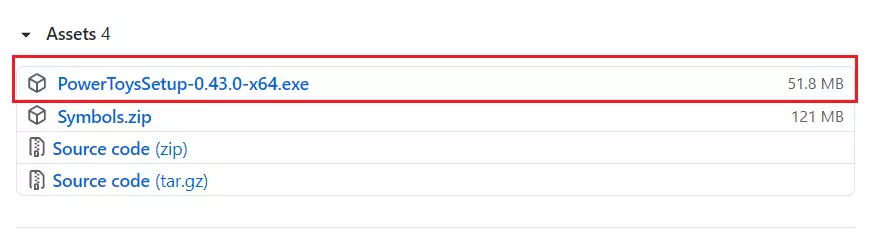
On the releases page, scroll to the list of files under Assets and click PowerToysSetup-0.43.0-x64.exe. Your browser should start downloading the installer. If your PC has an ARM processor, pick the ARM64 installer from the same list instead.
Keep in mind that future versions might show a different version number than the one in the image. Pick the file that ends in x64.exe (or ARM64 on an ARM PC), whatever the number is.
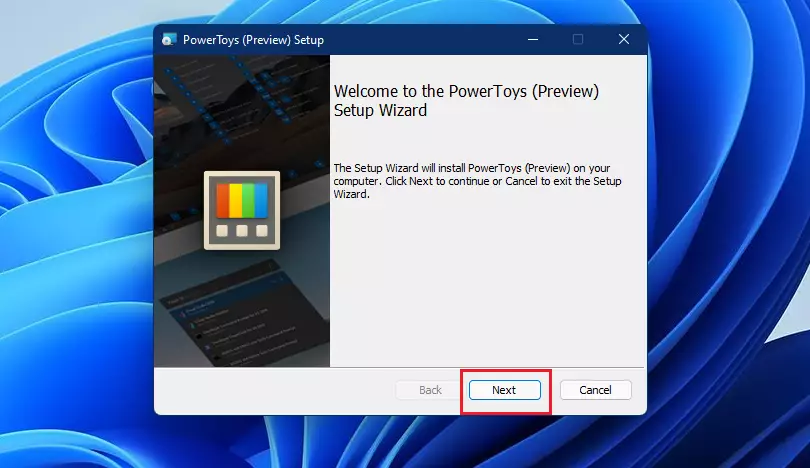
- Open your Downloads folder.
- Double-click the PowerToys installer.
- Select Next to launch the setup wizard.
If Windows asks whether you want to allow the app to make changes, choose Yes. The setup wizard window should now be open.
If the wizard shows a license agreement, tick the box to accept the terms and continue. You can leave the install location at its default unless you have a reason to change it.
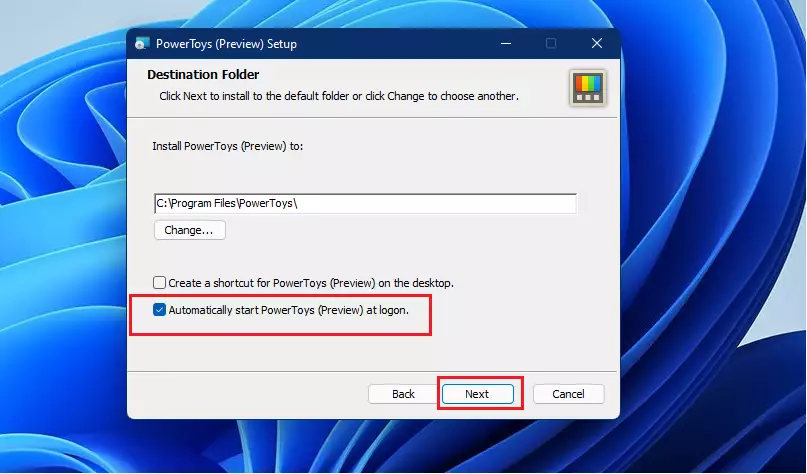
On the next screen, select Automatically start PowerToys (Preview) at logon. This makes PowerToys, and so Awake, available in the tray every time you sign in. You can turn this off later in the PowerToys settings if you change your mind.
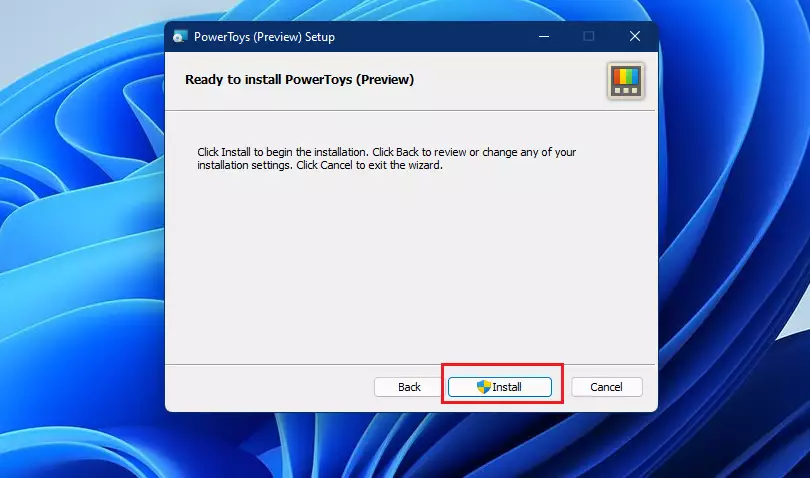
Finally, click Install to add PowerToys to your Windows 11 PC. The install takes a minute or so. When it finishes, PowerToys starts and a Welcome window appears.
- Close the PowerToys Welcome screen that opens on first launch.
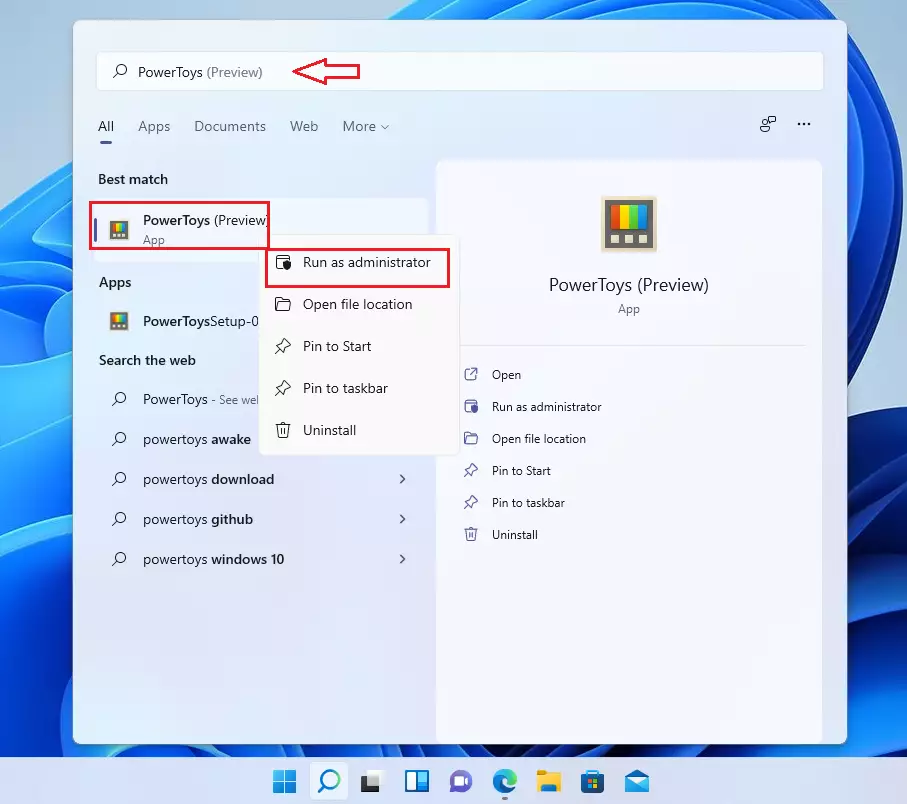
- Open the Start menu and search for “PowerToys“, as highlighted below.
PowerToys should appear as the top result.
Right-click the PowerToys result and select Run as administrator. Windows may ask you to confirm. Choose Yes, and sign in with an administrator account if prompted. Running PowerToys with admin rights lets it work with elevated windows too.
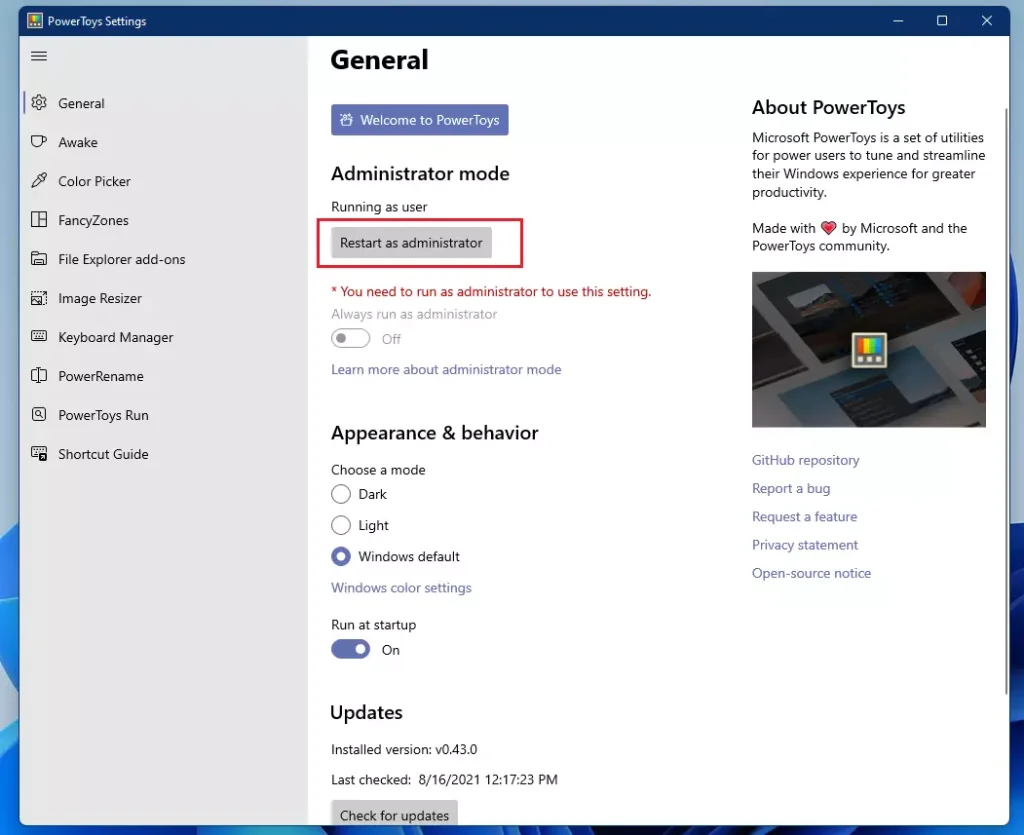
In the PowerToys window, open the General tab and click the Restart as Administrator button, as highlighted below. If the button is missing, PowerToys is already running as administrator.
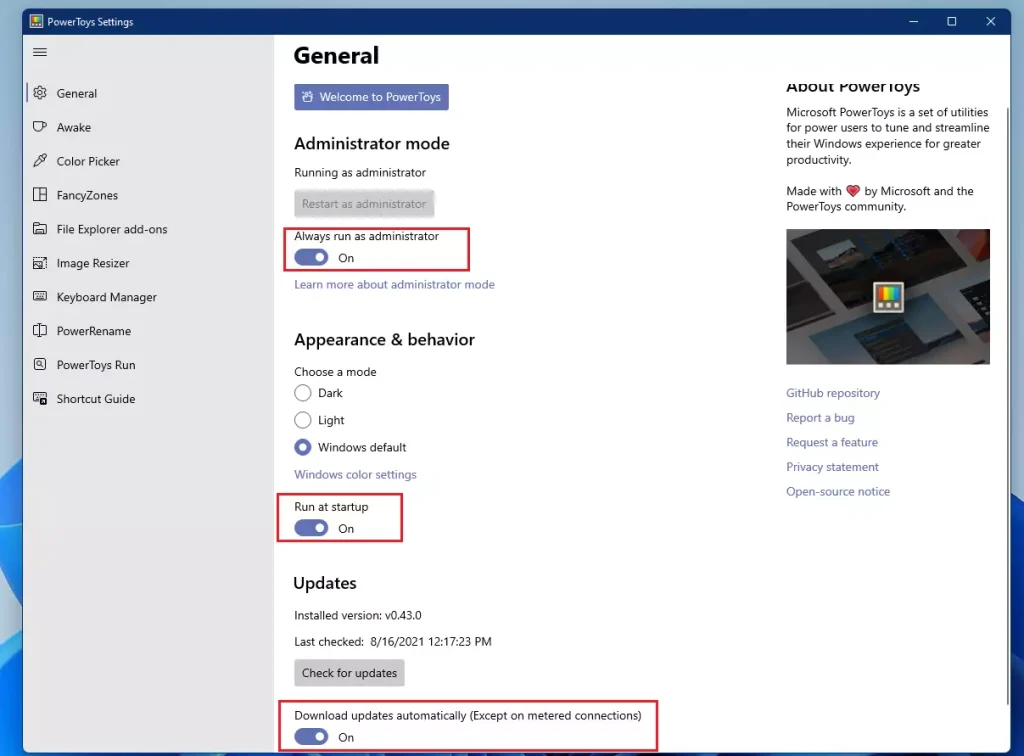
When the app re-opens, set these toggles to On, as highlighted in the image below:
- Always run as administrator
- Run at startup
- Download updates automatically
With these on, PowerToys starts with Windows, keeps itself updated, and always has the permissions it needs. Each toggle should now read On.
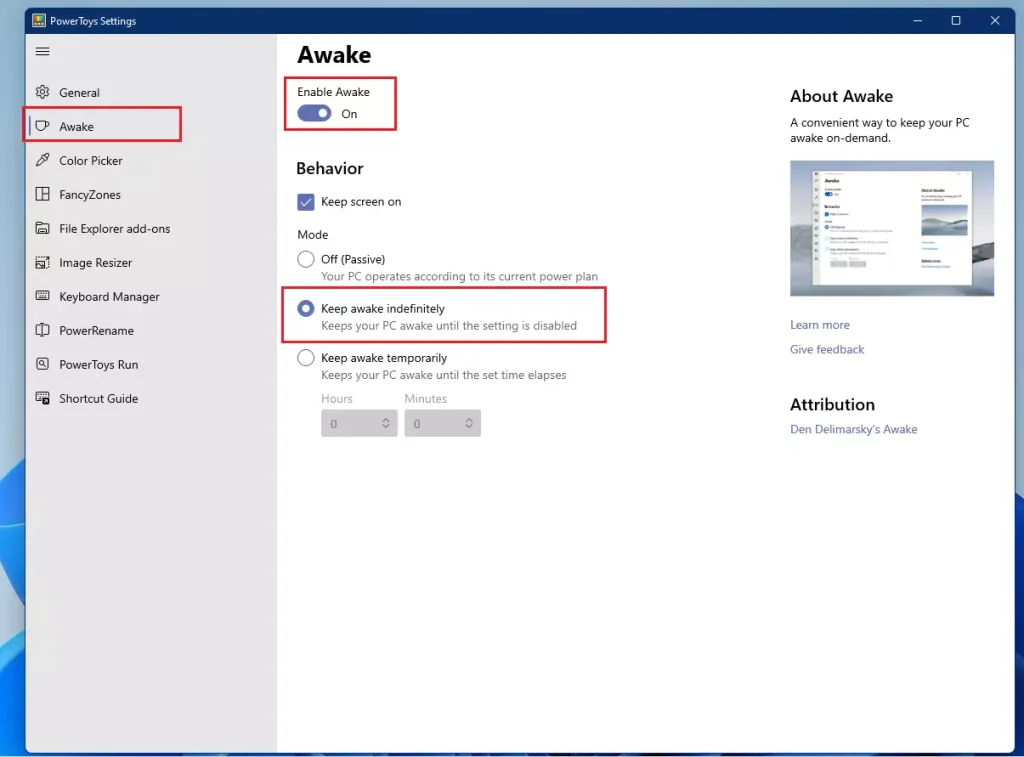
PowerToys Awake uses a setting called “Keep awake” to prevent your Windows PC from sleeping. To turn it on:
- Open the PowerToys app.
- Click Awake in the left menu.
- Toggle the Awake switch to On.
- Check the box to keep your screen on. If you leave it unchecked, the PC stays awake but the display can still turn off.
- Select the mode you want from the options provided.
Awake is now active, and its teacup icon should appear in the system tray.
You can choose from the following Awake states:
- Off (Passive) – The computer’s awakeness state is unaffected. The application is waiting for user input, and your normal Windows power and sleep settings apply.
- Keep awake indefinitely – The computer stays awake until the user explicitly puts the machine to sleep or exits/disables the application. Use this for jobs with no fixed end time, and remember to switch it off afterwards.
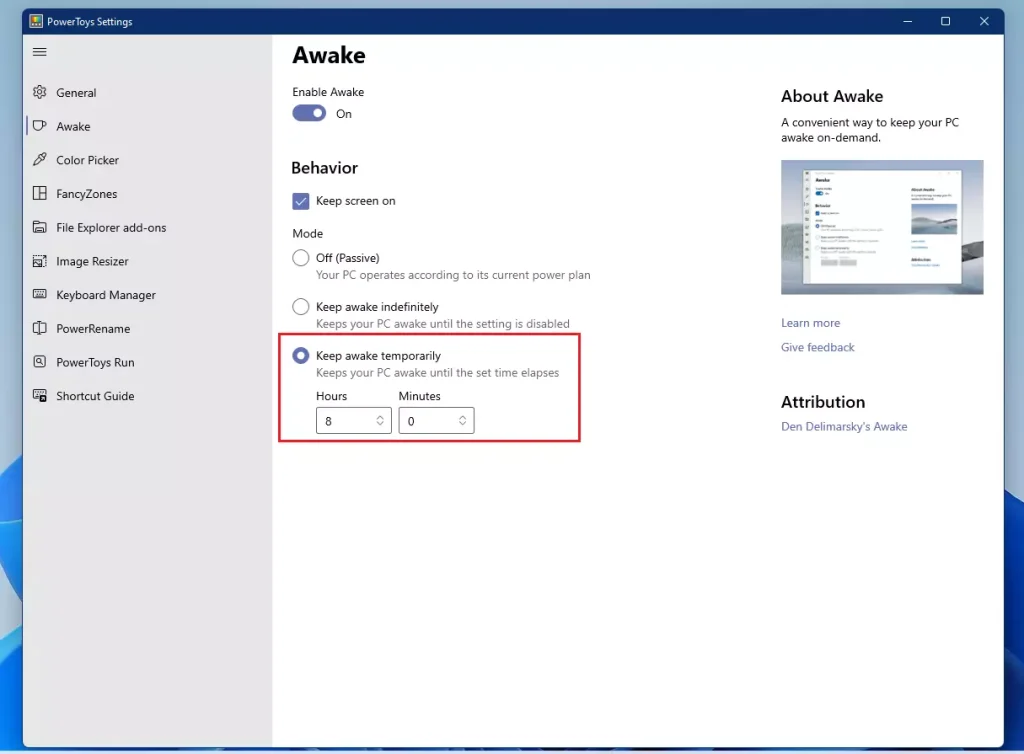
- Keep awake temporarily – Keep the machine awake for a pre-defined limited time. Once the time elapses, the computer resumes its previous awakeness state. This is the safer choice when you know how long the task will take.
To keep the PC awake temporarily, select Keep awake temporarily, then enter how long, in hours and minutes. The countdown starts as soon as you set it, and Windows goes back to its normal power behavior when the time is up.
Close PowerToys from its system tray icon, then restart your computer. After you sign back in, PowerToys should start on its own and Awake will be ready in the tray. This is a good check that the startup and administrator settings stuck.
How to use Awake from the Taskbar
You can control Awake from the taskbar without opening the main PowerToys window. This is the quickest way to switch modes during the day.
- Look at the bottom-right corner of your screen and click the upward-pointing arrow to show hidden icons.
- Right-click the small blue cup icon.
- Choose how long you want your computer to stay awake.
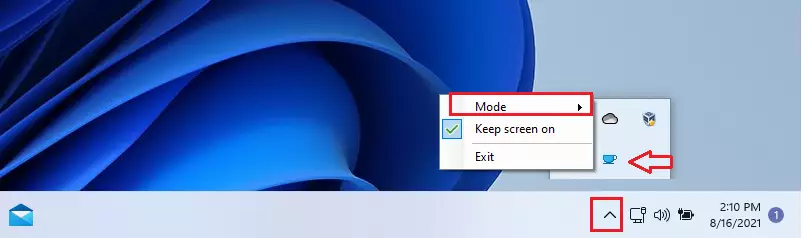
Click the show icons up arrow, then right-click the Awake teacup icon. Select the mode you want to keep the computer awake. To go back to the default power and sleep settings on the PC, choose Off (Passive). If you can't find the icon, drag it from the hidden icons panel onto the taskbar so it is always visible.
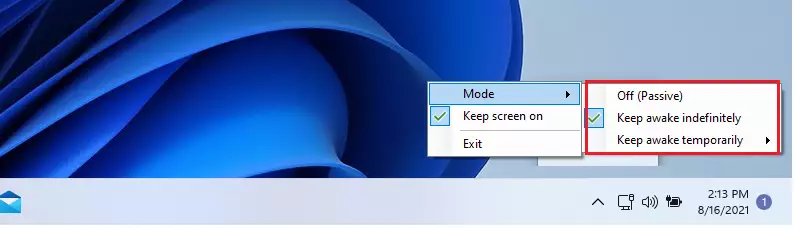
That completes the setup process. Awake now starts with Windows, and you can change its mode from the tray whenever you need to.
Microsoft PowerToys includes the Awake utility to prevent your Windows PC from going to sleep or turning off the display. Here is a quick recap:
- Microsoft PowerToys offers the Awake utility to prevent your Windows PC from going to sleep or turning off the display, without changing your power plan.
- It is especially useful in environments where corporate settings automatically limit display time, enhancing productivity.
- Users can customize Awake settings to keep their computers awake indefinitely or for a specified timeframe.
- Access and adjust Awake settings conveniently from the Taskbar for on-the-fly changes.
- Installing PowerToys is a straightforward process, ensuring you can quickly implement these features and improve your Windows experience.
Have a question about this guide?
Answered by AI from this guide. Good questions may be added to this page — please don't include personal details.
Did this guide fix your problem?

About the Author
Richard
Tech Writer, IT Professional
Richard is a writer at Geek Rewind who turns complex IT tasks into clear, step-by-step guides. He draws on years of hands-on experience in system administration and enterprise IT operations, focusing on Windows, Linux and WordPress: the problems people actually run into, and the fixes that work. His server and WordPress guides come from systems he runs himself. Richard builds and maintains the platform behind Geek Rewind, from its Ubuntu servers and Nginx configuration to its custom WordPress plugins. Many new tutorials start with readers' questions, and he's always glad to answer them in the comments.
Running v0.51.1
Since installing Windows 11 Pro Keep Screen On does not work any more!!
[…] How to keep Windows awake with PowerToys […]
[…] Windows users can install PowerToys to control up to 4 computers from the same machine. No additional hardware is […]
[…] How to keep Windows awake with PowerToys […]
[…] add this, you need to install a free tool from Microsoft called PowerToys PowerToys. This tool adds useful extra features to your […]