How to Turn On or off Let Windows Manage Default Printer in Windows 11

Let Windows manage my default printer is a Windows 11 setting that changes your default printer automatically. Windows picks the printer you used most recently at your current location, so the default can change when you move between a home office and a work network. Turning it off stops that, and the default stays whatever you choose.
The easiest place to change it is the Settings app , under Bluetooth & devices. There is also a Registry Editor method further down. It is meant for cases where you need to set this up on several accounts or by script.
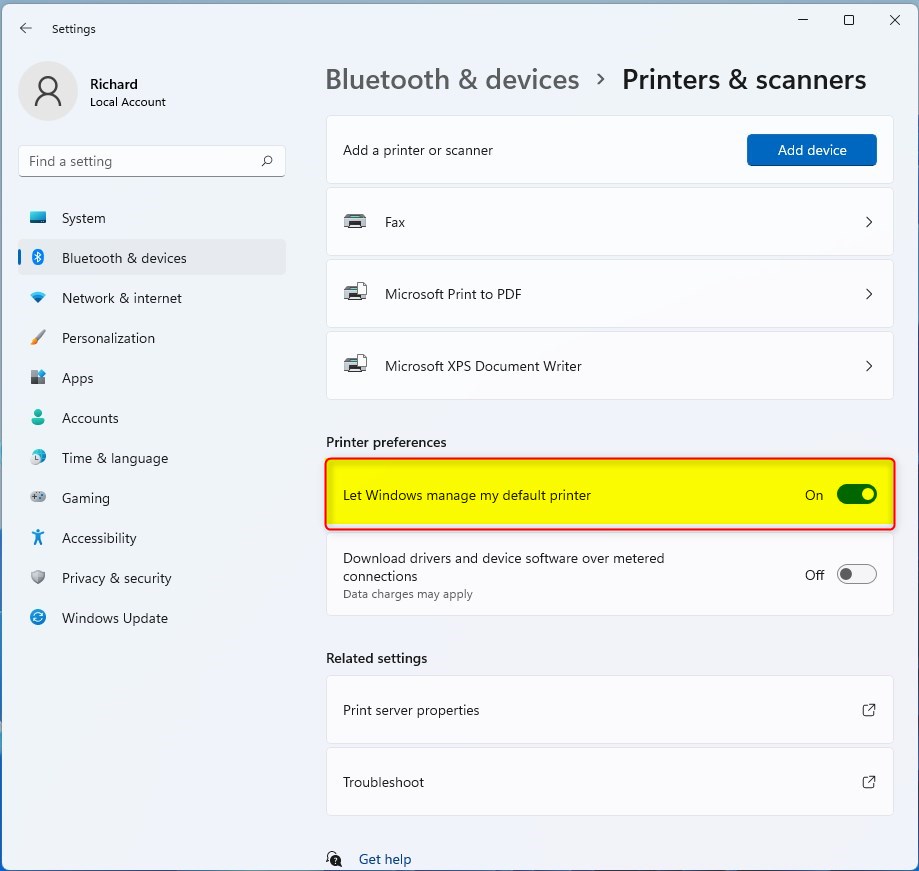
Disable “Let Windows manage my default printer” in Settings Bluetooth & devices Printers & scanners to manually select your default. Enable it for Windows to automatically choose the last printer you used.
Turn On or Off Let Windows Manage Default Printer in Settings
This feature decides whether Windows chooses your default printer for you or leaves it to you. It is on by default. With it on, the default printer follows your last-used printer. With it off, the default stays on the printer you set yourself until you change it. The setting takes effect right away, and you do not need to restart.
- Press Win+I to open Settings.
- Click Bluetooth & devices on the left side. You will see the device categories on the right.
- Click Printers & scanners. You will see a list of your installed printers, with the printer settings below it.
- Set the Let Windows manage my default printer toggle to On (the default) or Off, depending on what you want.
- Close Settings when you are done. The change is already saved.
If you turned the option off, you now pick the default yourself. Click the printer you want in the list, then click Set as default. While the option is on, that button is not available, because Windows is choosing for you. To undo the change, go back to the same page and flip the toggle to its previous state.
If the toggle is greyed out or you cannot change it, the PC may be managed by a work or school account. In that case a policy set by your administrator can control the option. Ask your IT department.
Option Two
Turn On or Off Let Windows Manage Default Printer Using Registry
You can also change this setting with the Registry Editor if you prefer an advanced method. It changes the value that the Settings toggle controls, so the result is the same as clicking through the menus. It is useful if you manage several user accounts or want to apply the setting with command-line tools.
Before you edit the registry, create a restore point or export the key you are about to change, so you can put it back if something goes wrong. Use the exact values shown below, and sign out and back in afterwards if the change does not show up in Settings right away.
Turn On Let Windows Manage Default Printer
This is the default setting. Use it if you want to return to how Windows ships.
reg add "HKEY_CURRENT_USER\Software\Microsoft\Windows NT\CurrentVersion\Windows" /v LegacyDefaultPrinterMode /t REG_DWORD /d 0 /f
Turn Off Let Windows Manage Default Printer
reg add "HKEY_CURRENT_USER\Software\Microsoft\Windows NT\CurrentVersion\Windows" /v LegacyDefaultPrinterMode /t REG_DWORD /d 0 /f
Summary
To sum up, you can manage the "Let Windows manage my default printer" setting from the Settings app or the Registry Editor. For most people the Settings app is the quicker and safer choice. Use the registry only when you need to apply the change in bulk or Settings is not an option.
Have a question about this guide?
Answered by AI from this guide. Good questions may be added to this page — please don't include personal details.
Did this guide fix your problem?

About the Author
Richard
Tech Writer, IT Professional
Richard is a writer at Geek Rewind who turns complex IT tasks into clear, step-by-step guides. He draws on years of hands-on experience in system administration and enterprise IT operations, focusing on Windows, Linux and WordPress: the problems people actually run into, and the fixes that work. His server and WordPress guides come from systems he runs himself. Richard builds and maintains the platform behind Geek Rewind, from its Ubuntu servers and Nginx configuration to its custom WordPress plugins. Many new tutorials start with readers' questions, and he's always glad to answer them in the comments.
No comments yet — be the first to share your thoughts!