How to Change On-Screen Indicator Position in Windows 11

The on-screen indicator in Windows 11 is the small volume or brightness pop-up box. It appears at the bottom-center of your screen when you press your keyboard’s media keys. Moving it keeps important buttons and text from being covered while you work or watch videos.
Recent Windows 11 updates include built-in options to move these boxes to a different spot. The option is still hidden on many builds, so this guide shows two ways to get at it: ViVeTool and the Registry Editor. Pick one. You do not need both.
Open Settings System Notifications and look for on-screen indicator position options. If they don’t appear, first enable the hidden feature by running ViVeTool with the command `vivetool /enable /id:36354409` in an administrator Command Prompt, then restart your computer.
How to Enable Position Settings
ViVeTool is a utility for managing hidden features. It can switch on the position settings for the volume and brightness overlays. The method has three parts:
- Download the tool.
- Run it from an administrator Command Prompt.
- Restart your computer so the hidden feature is switched on.
Only after the restart can you change the indicator position. ViVeTool works the same on Windows 11 Home and Pro.
Download a copy of ViVeTool before you touch the command line. Extract it to a folder you can find again, because you will need that folder path when you run the command. If Windows blocks the download or the extraction, check that the file came from the tool’s official page.
Then restart your computer. The restart is required, and the setting will not appear without it.
- After the restart, open Settings System Notifications
- Look for the new position options for the on-screen indicator. You should see them there now.
- Choose a spot that will not block your active windows.
Volume and brightness bars now appear in the corner you chose instead of the bottom center. If the options are missing, your Windows 11 build may not support the feature yet. Check that the command ran without errors and that you restarted afterward.
For more detail on how ViVeTool works, see this guide:
https://geekrewind.com/how-to-enable-or-disable-hidden-features-with-vivetool-in-windows-11
Changing Position via Registry Editor
Registry Editor is the built-in tool for the Windows registry, a database of core operating system settings. It lets you change the on-screen indicator position directly, with no extra software. It is included in both Home and Pro.
You need an administrator account to open it. The method has two parts: create a new DWORD (32-bit) value in the right pane, then set it to the position you want for the volume and brightness overlays.
Before you start, back up the registry. In Registry Editor, use File Export
Open Registry Editor with administrator permissions. Click Yes if User Account Control asks for approval. Then go to the key shown in the next step.
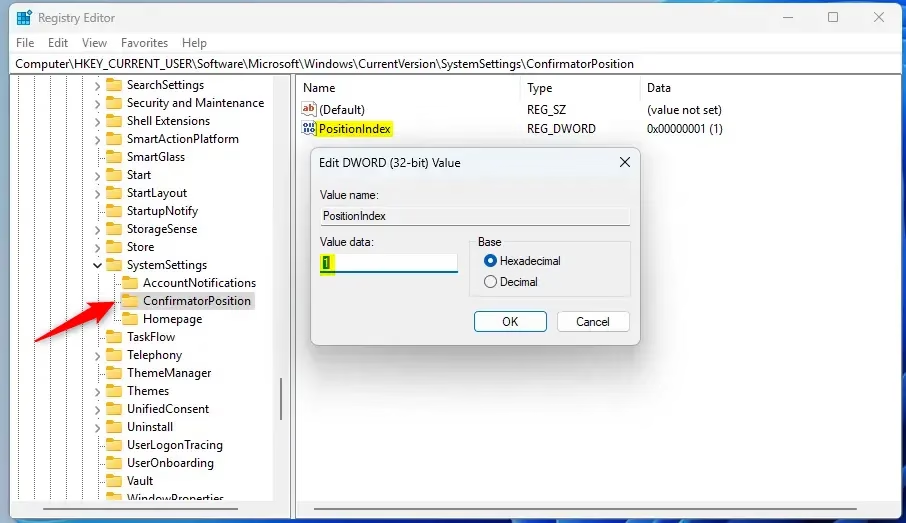
[Verification Required: Registry path should be confirmed]With that key selected, right-click an empty area in the right pane. Select New DWORD (32-bit) Value and give it the value name required for this setting. The new value should now show up in the right pane.
HKEY_CURRENT_USER\Software\Microsoft\Windows\CurrentVersion\Explorer\Advanced
- Right-click in the right pane. Select New DWORD (32-bit) Value and name it
Remove the registry step: there is no PositionIndex value in Explorer\Advanced; use Settings > System > Notifications (position option) after enabling the feature with ViVeTool.. - Double-click the new value and set its data to one of these:
1(Bottom),2(Top Left), or3(Top Center). Click OK.
Close Registry Editor when you finish. If the indicator does not move, sign out and back in, or restart the computer, and try again.
Troubleshooting and Reverting Changes
If the system becomes unstable or the indicators disappear, delete the Remove the registry step: there is no PositionIndex value in Explorer\Advanced; use Settings > System > Notifications (position option) after enabling the feature with ViVeTool. value you created in the registry. Then restart the computer. This puts things back the way they were.
Minor glitches usually clear up after a restart, so try that first. If you used ViVeTool, run vivetool /disable /id:48103152 to return to the default Windows 11 behavior, then restart again.
Summary
You can move overlays like volume and brightness by changing the on-screen indicator position in Windows 11. ViVeTool gives you access to the hidden setting in Settings, while Registry Editor gives you direct control. Either method helps keep your screen organized. Use ViVeTool if you want the Settings page, and use the registry if you prefer to avoid extra software.
Have a question about this guide?
Answered by AI from this guide. Good questions may be added to this page — please don't include personal details.
Did this guide fix your problem?

About the Author
Richard
Tech Writer, IT Professional
Richard is a writer at Geek Rewind who turns complex IT tasks into clear, step-by-step guides. He draws on years of hands-on experience in system administration and enterprise IT operations, focusing on Windows, Linux and WordPress: the problems people actually run into, and the fixes that work. His server and WordPress guides come from systems he runs himself. Richard builds and maintains the platform behind Geek Rewind, from its Ubuntu servers and Nginx configuration to its custom WordPress plugins. Many new tutorials start with readers' questions, and he's always glad to answer them in the comments.
No comments yet — be the first to share your thoughts!