How to Backup and Restore Device Drivers on Windows 11

Device drivers are small programs that let Windows 11 talk to hardware such as your graphics card, network adapter or audio chip. A backup of them saves time in two common cases: a driver breaks after an update and you want the old one back, or you are moving to a new PC and don’t want to hunt for each driver online.
Device Manager is the Windows tool for viewing and managing your hardware, and you will use it here to install a single driver from your backup. The backup itself is made with command-line tools that are built into Windows 11, and they work the same on Home and Pro. Each method below needs an administrator account.
You can back up Windows 11 drivers using Command Prompt with `pnputil /export-driver * 📁C:\
What happens when you are done?
When the backup finishes, you have a folder that holds the driver files. Copy that folder to a USB drive or another disk, not only to the PC you are backing up. If that PC fails or you wipe it, a backup on the same drive goes with it.
With the folder on a USB drive, you can reinstall drivers later without an internet connection. That helps most right after a clean install, when the network adapter itself may have no driver.
How to export (backup) your drivers using Pnputil
The quickest way to back up drivers on Windows 11 is the built-in Pnputil tool. It is a command-line utility that copies the drivers stored in the Windows Driver Store to a folder you choose. The Driver Store holds the third-party drivers installed on your PC, such as those from your graphics card or network adapter maker. Drivers that ship inside Windows come back with the operating system, so they are not the point of this backup.
Before you start, create an empty folder for the backup, for example on a USB drive. Make sure it exists before you run the command, because the tool will not reliably create it for you.
- Click the Start menu and type Command Prompt. It should appear at the top of the search results.
- Right-click it and choose Run as administrator. If a User Account Control prompt appears, click Yes. The title bar of the window should now start with “Administrator”, which confirms you have the rights the command needs.

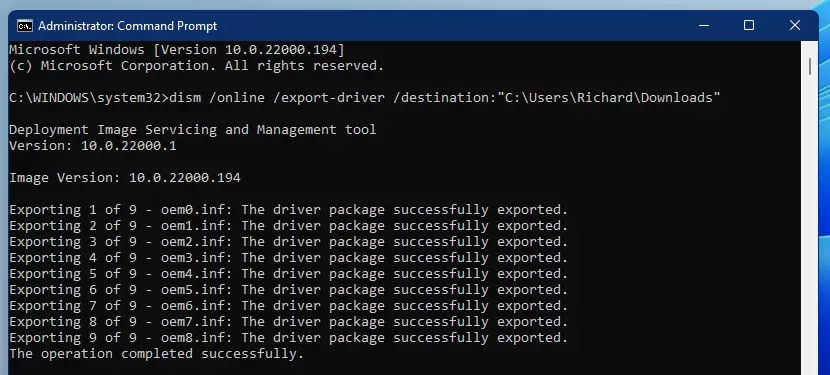
- With the Command Prompt window open, type this command to save your drivers, then press Enter:
pnputil /export-driver * C:\Drivers\Export
Replace C:\Drivers\Export with the full path of the folder where you want your files to go. If you are moving to a new PC, save this to a flash drive. If the path contains spaces, put it in quotation marks.
The window lists each driver as it is exported, which can take a minute or two. When the prompt returns, open the destination folder in File Explorer . You should see one subfolder per driver, each holding files such as an .inf file. An empty folder means the command did not run as administrator or the path was wrong, so check both and try again.
Exporting drivers with PowerShell
If you prefer PowerShell, you can use the Export-WindowsDriver cmdlet instead. It pulls the drivers from your current system into a folder, and the result is much like the Pnputil backup.
To open PowerShell as an administrator, click Start, type PowerShell, right-click the result and choose Run as administrator. Click Yes on the User Account Control prompt. As with the first method, create the destination folder before you run the command.
Export-WindowsDriver -Online -Destination C:\Drivers\Export
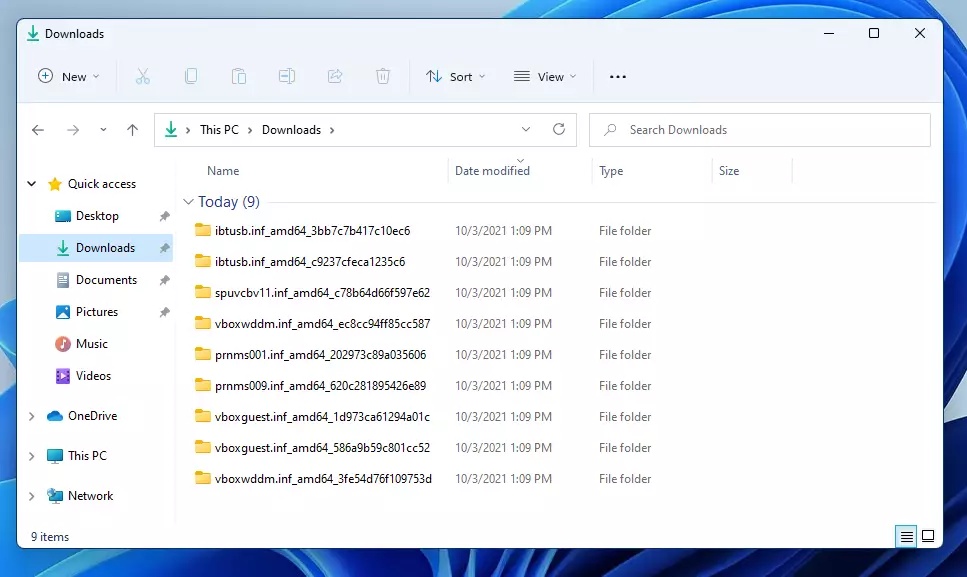
When the command finishes, check the destination folder. It should contain a subfolder for each exported driver. If PowerShell shows a red error message, the usual causes are a window that is not elevated or a destination path that does not exist.
How to restore drivers
To restore your saved drivers on Windows 11, you run one command in an administrator Command Prompt. It scans your backup folder and installs the drivers it finds back onto the system in one pass. You don’t have to download each driver separately from the internet.
Before you run it, connect the USB drive or otherwise make the backup folder reachable. Open Command Prompt as an administrator the same way as in the backup steps: search for Command Prompt on the Start menu , right-click it and choose Run as administrator.
pnputil /add-driver C:\Drivers\Export\*.inf /subdirs /install
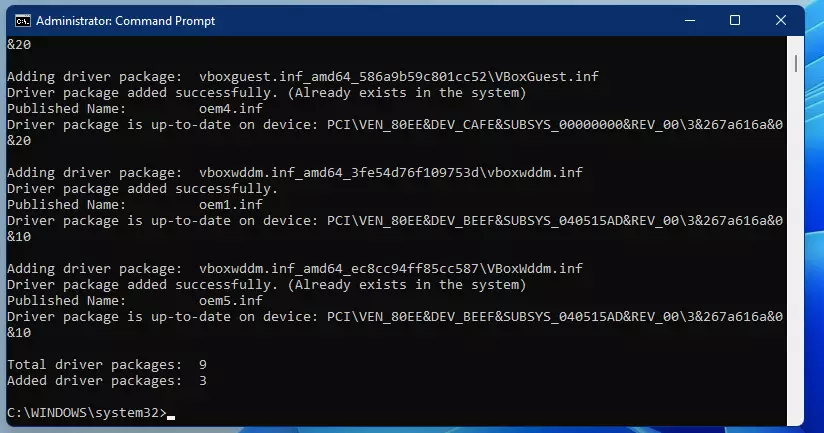
The window lists each driver as it is installed. When it finishes, restart the PC if Windows asks you to. Some drivers, especially graphics and storage drivers, only take effect after a reboot. Then open Device Manager and look for yellow warning icons, which mean a device still has no working driver.
If a restored driver causes problems, open Device Manager, right-click the device and choose Properties. On the Driver tab, you can use Roll Back Driver if it is available, or uninstall the device and let Windows pick its default driver again.
Learn how to do that here: How to install device drivers on Windows 11
Third-party tools for driver management
If you find command-line tools difficult, you can use third-party software like Driver Store Explorer (RAPR). This tool offers a visual way to view, back up and remove drivers from the Windows Driver Store, which makes handling many drivers much more practical for everyday users.
Download it only from the project's official page, and run it as an administrator so it can read and change the Driver Store. Be careful with the delete option. Removing a driver that a device still needs can leave that device without a working driver, so make a backup first.
Summary
Backing up your drivers on Windows 11 is a sensible step before you move to a new PC or start fixing hardware problems. You can copy all your driver files to a safe place with Pnputil or PowerShell, and restore them the same way when you need them. Keep the backup on a USB drive or another disk, and make a fresh one after major driver updates so the copy stays current.
Have a question about this guide?
Answered by AI from this guide. Good questions may be added to this page — please don't include personal details.
Did this guide fix your problem?

About the Author
Richard
Tech Writer, IT Professional
Richard is a writer at Geek Rewind who turns complex IT tasks into clear, step-by-step guides. He draws on years of hands-on experience in system administration and enterprise IT operations, focusing on Windows, Linux and WordPress: the problems people actually run into, and the fixes that work. His server and WordPress guides come from systems he runs himself. Richard builds and maintains the platform behind Geek Rewind, from its Ubuntu servers and Nginx configuration to its custom WordPress plugins. Many new tutorials start with readers' questions, and he's always glad to answer them in the comments.
No comments yet — be the first to share your thoughts!