How to Enable or Disable Magnifier Bars on Touchscreen in Windows 11

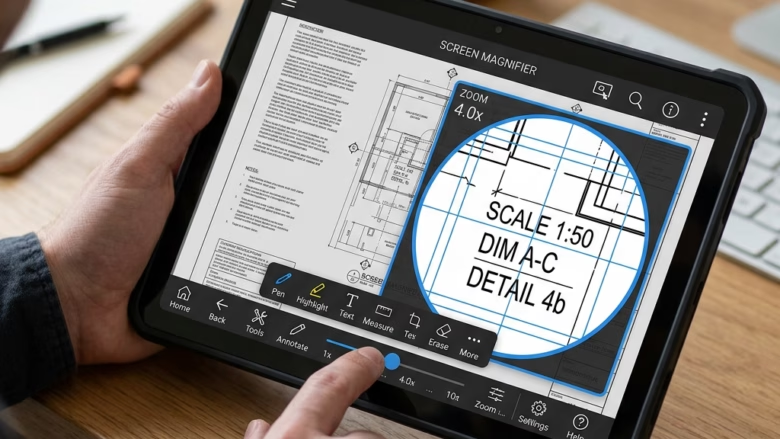
Magnifier bars are on-screen control buttons that appear on touchscreen PCs when you use the built-in Magnifier tool. They let you move around the magnified area and change the zoom level with a finger or stylus. You don’t need a keyboard or mouse to do either.
Windows 11 version 22H2 and newer updates normally hide these bars by default. This keeps the screen clear, especially on tablets and 2-in-1 laptops where space is limited.
You can turn the bars on or off at any time. Which one you choose depends on how you work:
- Bars on: useful if you use Magnifier mainly by touch. The zoom and move buttons stay in reach, so you don’t have to pinch or reach for the keyboard.
- Bars off: useful if you want a clean screen, or if you control Magnifier with a keyboard or mouse and the bars only get in the way.
Keep in mind that these bars only make sense on a device with a touchscreen. On a PC without one, you may not see the option, or it may have no visible effect. Changing the setting does not remove Magnifier itself. It only changes whether the touch buttons appear while Magnifier is running.
The sections below show how to switch the bars on and off. Either change can be reversed at any time.
Open Settings, go to Accessibility Magnifier, and toggle Show touch bars when using a touchscreen device on or off. The change takes effect immediately without restarting Windows 11.
Option 1Use Settings
You can turn magnifier touch bars on or off using the Settings app in Windows 11. This is the fastest way to change how the screen zoom tool works on your touch screen without changing system files. Open Settings, pick Accessibility from the left menu, and click Magnifier to find the toggle switch.- Open Settings. You can press the Win+I at the same time.
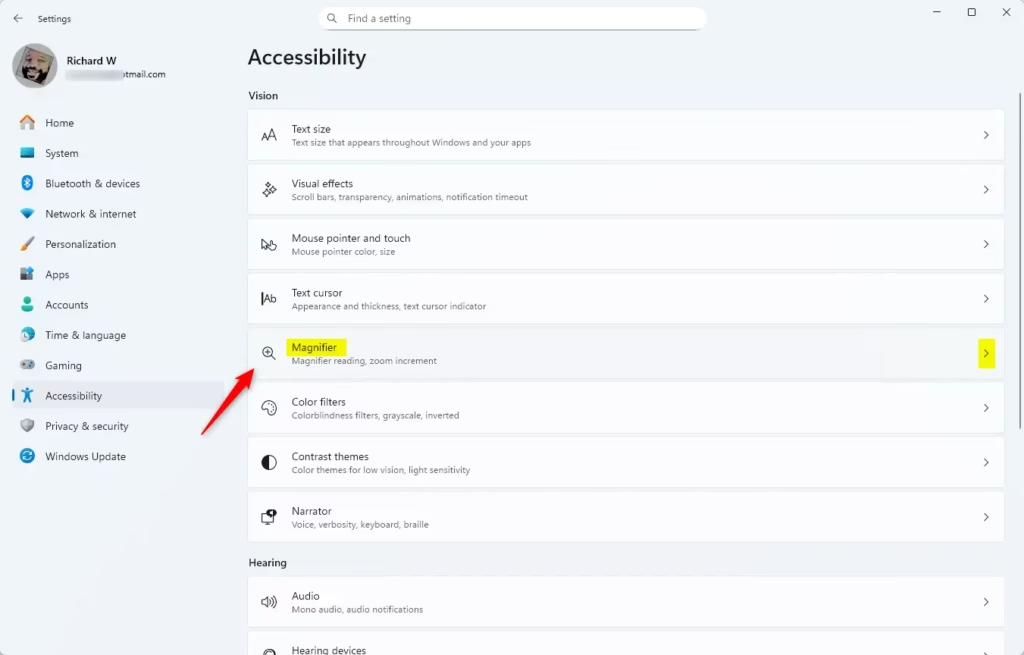
- On the left side, click or tap on Accessibility. Then, on the right side, click or tap on Magnifier. See the screenshot below.
- Click or tap on Magnifier to open its settings.
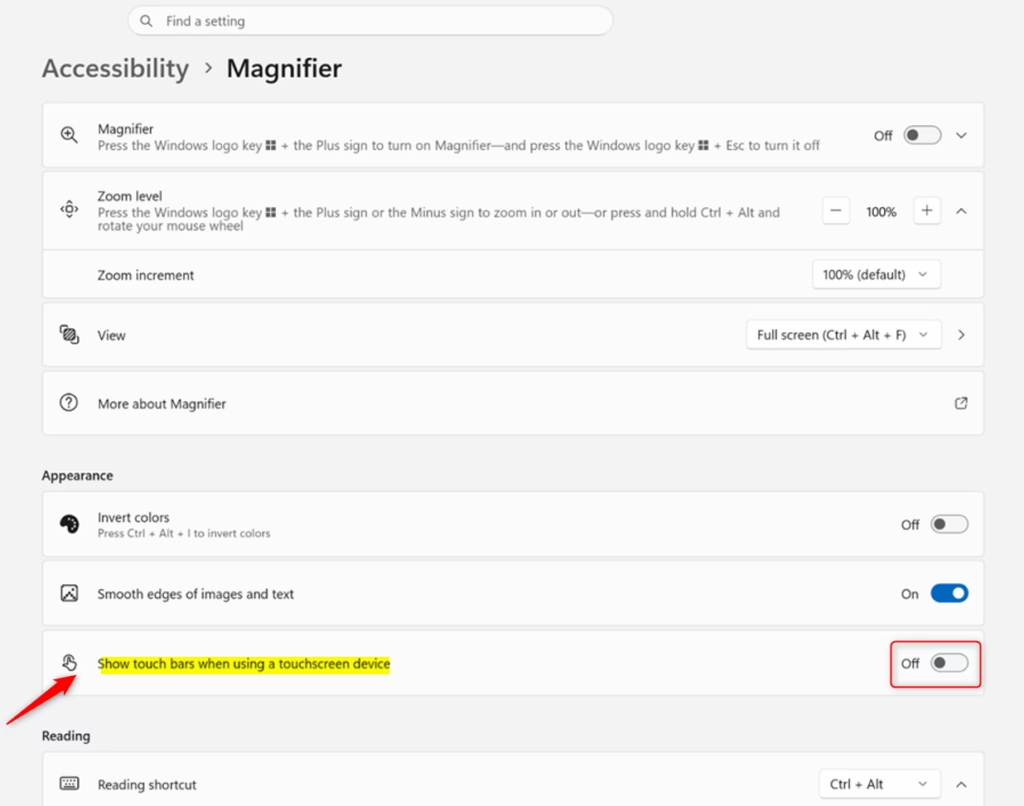
- Look under the Appearance section. You will see an option called Show touch bars when using a touchscreen device. Turn this option on or off depending on what you want. By default, it is off. See the screenshot below.
- You can now close the Settings window.
Option 2Use the Registry Editor (Advanced)
This advanced method lets you control the screen zoom tool if the main settings app is not working. Back up your registry before you start, because mistakes can cause system problems.
Changing Magnifier settings directly affects how the screen magnifier tool behaves on a Windows 11 touchscreen. This adjustment allows users to control whether Magnifier appears as a bar or a full-screen overlay.
Stick to the Settings app when uncertain about registry modifications. Review the following steps carefully before proceeding.
Administrator privileges remain necessary for this method.
To Turn On Show Touch Bars:
- Open Registry Editor. You can search for “regedit” in the Windows search bar.
- Navigate to the following key:
HKEY_CURRENT_USER\Software\Microsoft\ScreenMagnifier - Right-click on an empty space in the right pane.
- Select New > DWORD (32-bit) Value.
- Name the new value
FullscreenTouchPanels. - Double-click on
FullscreenTouchPanels. - Set the Value data to
1. - Click OK.
To Turn Off Show Touch Bars (Default):
- Open Registry Editor.
- Navigate to the following key:
HKEY_CURRENT_USER\Software\Microsoft\ScreenMagnifier - Double-click on
FullscreenTouchPanels. - Set the Value data to
0. - Click OK.
A system reboot often proves necessary after editing the Registry Editor to apply modifications.
Summary
Managing touch bars in Magnifier on Windows 11 touchscreens remains fully optional. The Settings app provides a reliable toggle for this interface element. Advanced administrators leverage the Registry Editor for deeper customization.
Have a question about this guide?
Answered by AI from this guide. Good questions may be added to this page — please don't include personal details.
Did this guide fix your problem?

About the Author
Richard
Tech Writer, IT Professional
Richard is a writer at Geek Rewind who turns complex IT tasks into clear, step-by-step guides. He draws on years of hands-on experience in system administration and enterprise IT operations, focusing on Windows, Linux and WordPress: the problems people actually run into, and the fixes that work. His server and WordPress guides come from systems he runs himself. Richard builds and maintains the platform behind Geek Rewind, from its Ubuntu servers and Nginx configuration to its custom WordPress plugins. Many new tutorials start with readers' questions, and he's always glad to answer them in the comments.
No comments yet — be the first to share your thoughts!