How to Move a Hard Drive in Windows 11

- 14 steps
- Needs administrator rights
Moving a secondary hard drive to a new computer lets you take extra storage, games and personal files with you in about 10 minutes, without reinstalling Windows. This only works for extra data drives. You cannot move your main C: drive, the one that runs the operating system, this way.
You need a screwdriver to open the case, usually a Phillips (cross-head) one, and physical access to the inside of both machines. Shut down both computers completely before you touch any internal part, and unplug the power cables. Restart does not count as shut down. On Windows 11, hold Shift while you click Shut down if Fast Startup is on, so the drive is fully released. Before you open the case, touch a bare metal part of it to discharge static electricity. Back up anything you cannot afford to lose before you start.
Open Settings System Storage Advanced storage settings Disks & volumes, find your drive, click its Properties, then click Take offline. Next, open Device Manager, expand Disk drives, right-click your drive, and select Uninstall device. Power off completely, unplug the power cable, remove the drive with a screwdriver, and install it in the new PC.
Before You Start
If your disk is external (like a USB drive), you can safely unplug it. External drives are the easy case: after you remove one safely, you just plug it into the new PC.
This tells Windows to let go of the drive, so nothing is still writing to it when you unplug it.
Make sure your disk is healthy and has no errors before moving it. If the drive is already failing, moving it can make things worse, and you will not know whether the problem came from the drive or from the move. The steps below check the disk’s status in Settings.
Step 1Check Your Disk’s Health and Prepare to Remove It
- Open the Windows Settings app using either method below. The Settings window opens with the categories listed on the left:
- Click the Start menu button and select Settings, or
- Press Win+I on your keyboard.

Next, go to the storage page. This is where Windows 11 lists your drives and shows how they are doing, so you can confirm the disk is in good shape before you disconnect it.
- In Settings, click System on the left, then choose Storage on the right. You should now see a bar showing how much space is used on your main drive, plus a list of storage categories.
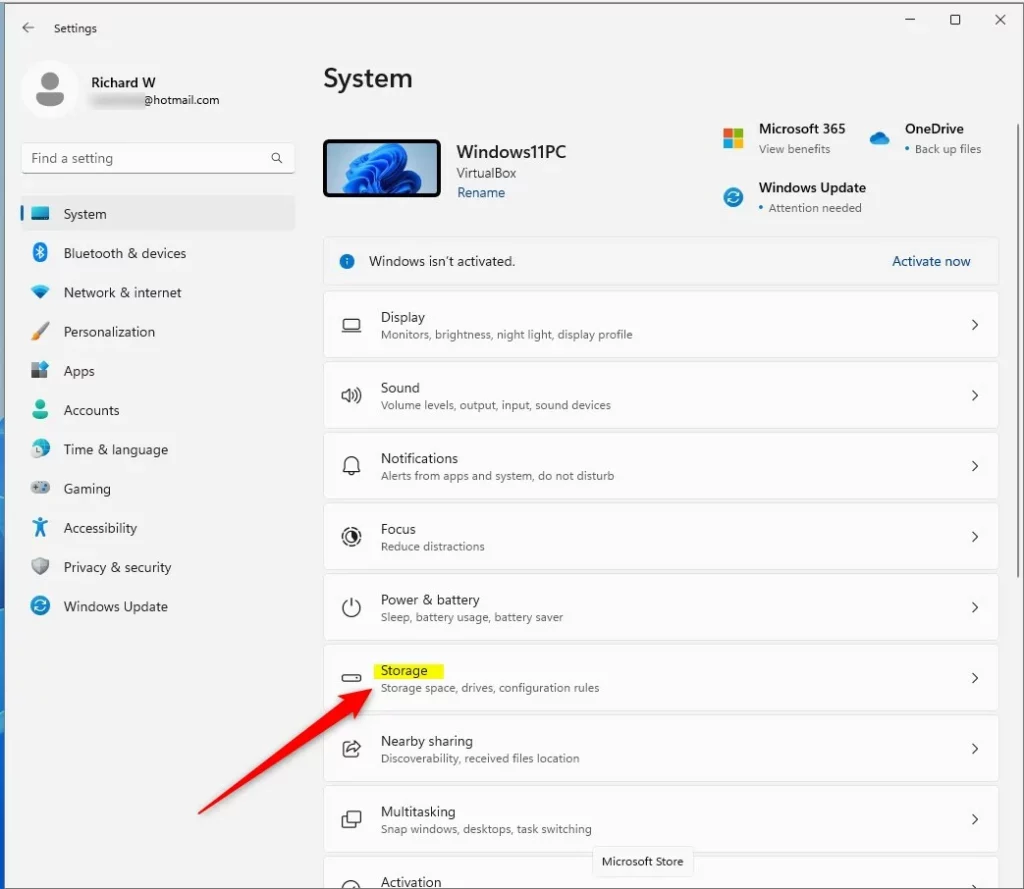
The Storage page only gives a summary. The detailed disk list is one level deeper, under the advanced settings.
- Scroll down and click Advanced storage settings, then select Disks & volumes. You should now see every physical disk in the PC, with the volumes (drive letters) on each one.
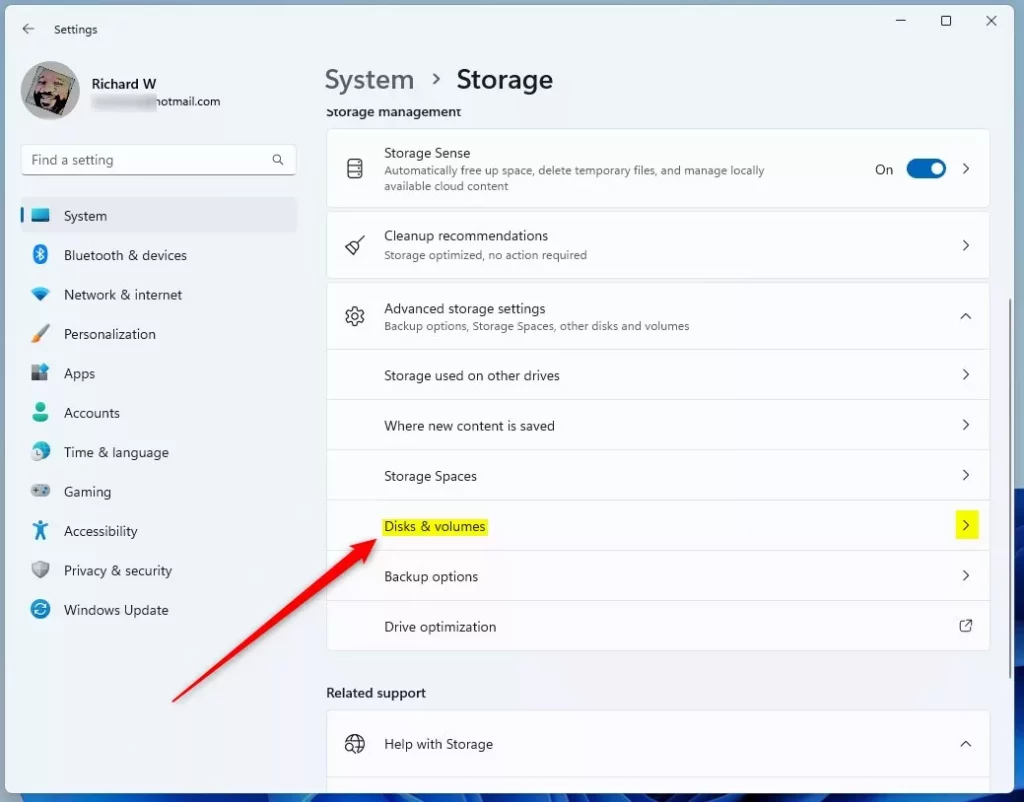
Check the name and size, and make sure it is not the disk that holds C:. Picking the wrong disk here is the most common mistake.
- Find the disk you want to move. Click its Properties button to check the status. The properties page shows the disk’s details and its health status.
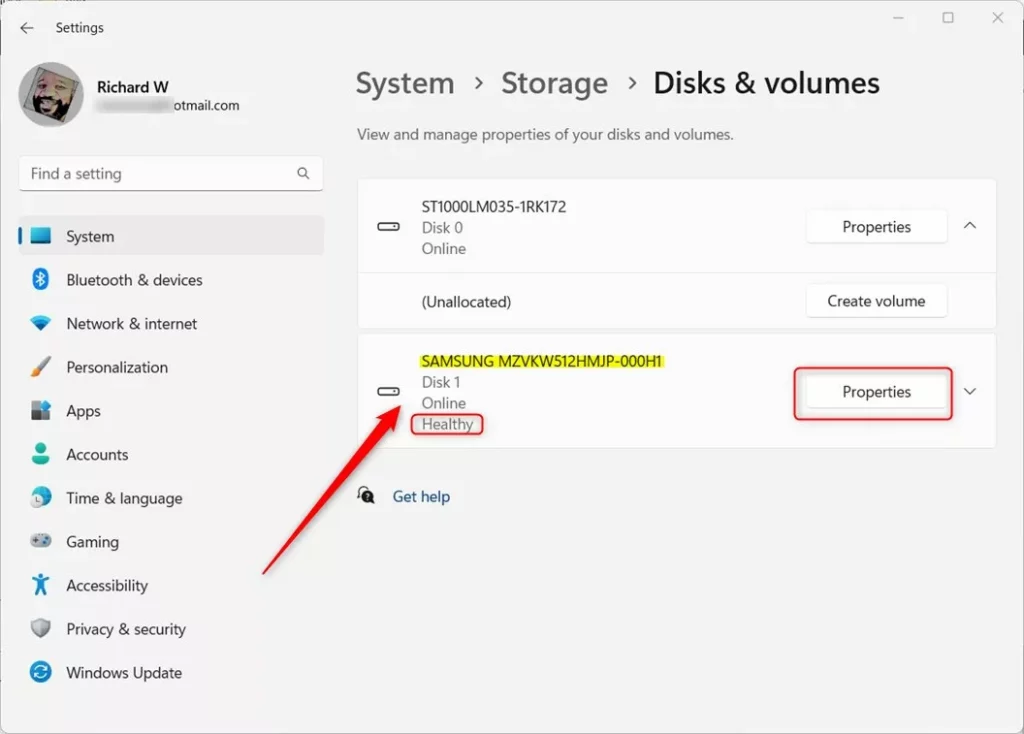
If the status reports a warning or a problem, copy your files somewhere safe first and do not rely on the drive. If the status looks normal, you can go ahead.
- If the disk looks healthy, click Take offline. This stops the disk from being used so it’s safe to remove. If you don’t see this option on your build of Windows 11, skip it. The Device Manager steps below still prepare the drive. To undo it later, bring the disk back online from the same place, or in Disk Management.
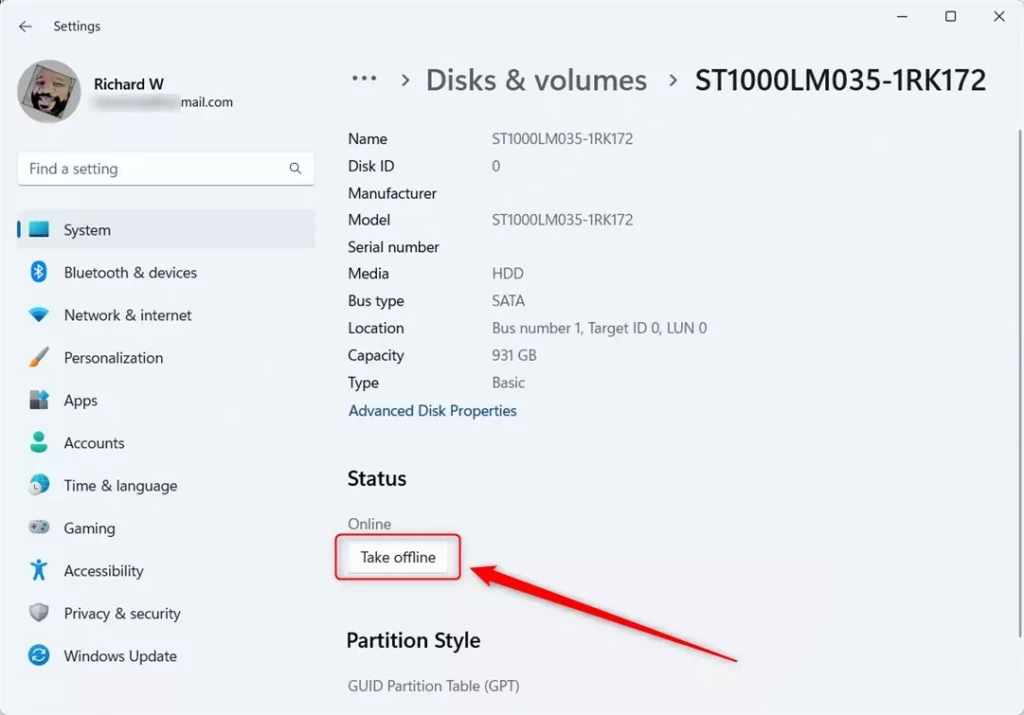
This check makes sure your files are intact before you disconnect the drive. A few minutes spent here costs far less than recovering data later.
Step 2Remove the Disk from Windows (Uninstall it)
- Open Device Manager by clicking the Start button, typing Device Manager, and selecting it. The Device Manager window opens with a tree of hardware categories.
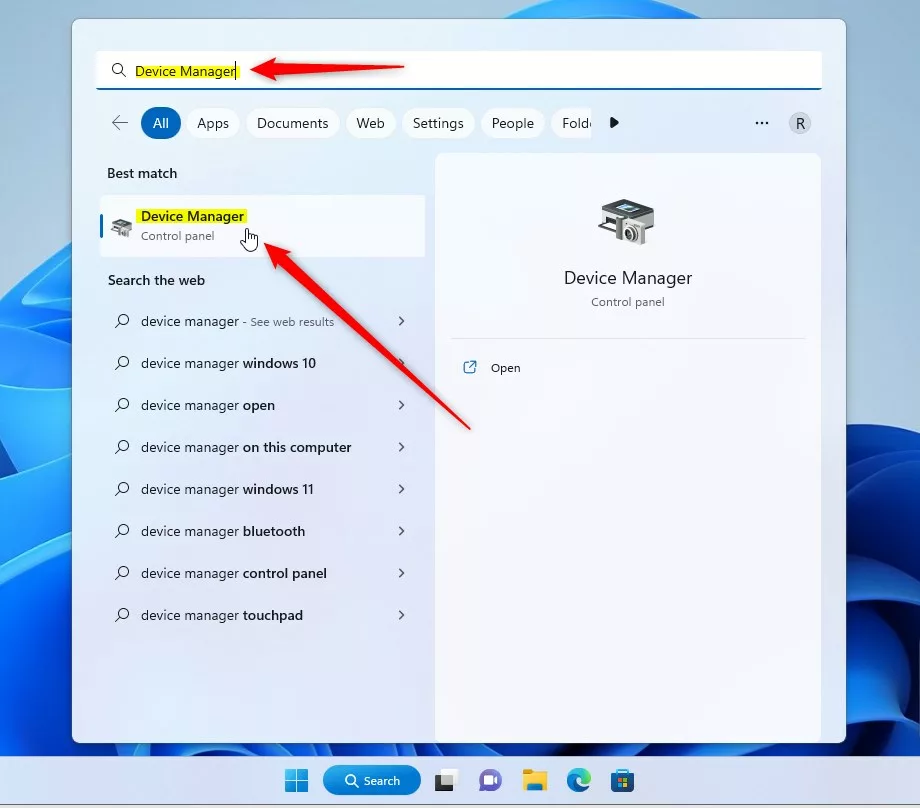
Device Manager is the Windows tool for listing and managing the hardware in your PC. Removing the drive’s entry here, before you unplug it, makes Windows release the disk cleanly. That lowers the risk of losing data when you disconnect the hardware.
- In Device Manager, double-click Disk drives to see your disks. The category expands and lists each drive by its model name.
- Right-click the disk you want to move, and select Uninstall device. A confirmation box appears.
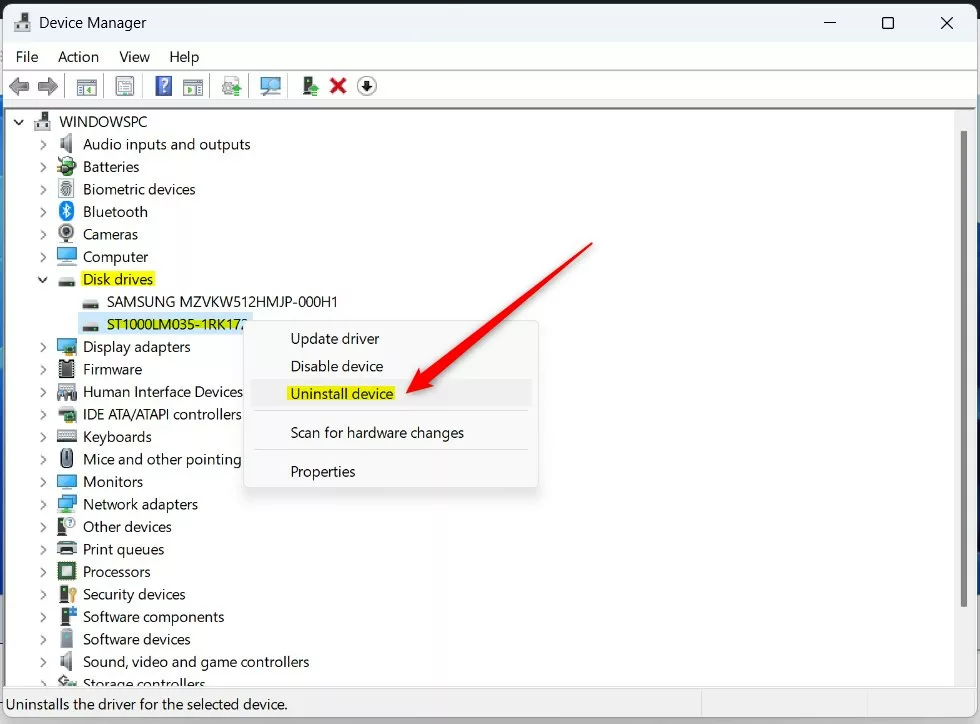
Take a moment to confirm the model name in the confirmation box matches the drive you mean to remove. Uninstalling the device only removes it from Windows. It does not erase the data on the disk.
- When asked to confirm, click OK. The disk disappears from the Disk drives list.
Make sure to log in with an administrator account, because this step requires elevated system privileges. On a standard account, Uninstall device may be missing or Windows will ask for administrator credentials.
If you use dynamic disks (volumes that span multiple physical disks), prepare them first. Open Disk Management, right-click the dynamic disk you want to remove, and select Remove Disk. This readies the disk for uninstallation and protects your data. Ordinary basic disks, which most home PCs use, do not need this step. If you are not sure which type you have, Disk Management shows “Dynamic” under the disk’s name.
Step 3Physically Move the Disk to the New Computer
How you move the drive depends on whether it is internal or external. For an external drive, plug it directly into a USB port on the new PC. If you are moving an internal hard drive, turn off the computer, open the PC case, and connect the drive to the motherboard and the power supply.
For an internal drive, power down the old computer completely and unplug it. Open the case, usually by removing 2-4 screws on the side panel with a Phillips head screwdriver. Slide the drive out of its bay or bracket, then do the same on the new machine: open the case, mount the drive in a free bay, and connect it to the motherboard with a SATA cable and to the power supply unit with a SATA power connector. A SATA drive needs both cables. Check that both fit snugly before you close the case.
Once everything is connected and the case is closed, plug the new computer back in and turn it on. Log in to Windows as usual.
Step 4Make Windows Recognize the Disk on the New Computer
- Open Disk Management on the new computer by right-clicking the Start menu and selecting Disk Management. The window shows each disk and its volumes in the lower pane.
- Click Action at the top menu, then click Rescan Disks. This makes Windows look for new drives. Give it a few seconds to finish.
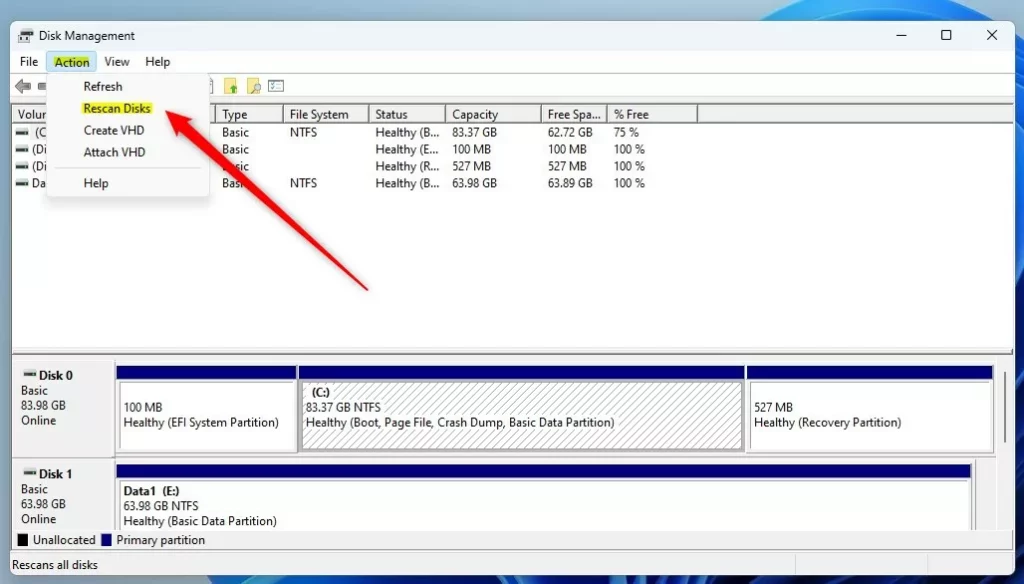
After the rescan, the moved drive should appear in the list with its volumes, and it normally gets a drive letter automatically. If it shows up without a letter, right-click the volume and choose Change Drive Letter and Paths to assign one. If the drive is missing altogether, shut down and recheck the SATA and power cables.
- If you see any disk marked as Foreign, right-click it and choose Import Foreign Disks. Follow any instructions you see. The Foreign label normally applies to dynamic disks that came from another computer. A basic disk usually appears without it.
The disk should now work on the new computer. Open File Explorer, find the drive under This PC, and check that your files open.
Where to Learn More
For more information, check out the official Microsoft guide: Move disks to another computer (Microsoft.com)
Summary
Moving a hard drive between Windows 11 computers comes down to three things: check the drive's health, remove it safely through Device Manager, and reconnect it on the new machine. Once the drive is connected, use Disk Management to rescan so Windows recognizes it.
- Moving a second hard drive between Windows 11 computers is easy when done carefully.
- Always make sure the disk is healthy and safely removed before unplugging.
- Use Device Manager and Disk Management to prepare the disk.
- Follow the steps to install it on the new computer.
- Ask questions or share your experience below if you want help!
Have a question about this guide?
Answered by AI from this guide. Good questions may be added to this page — please don't include personal details.
Did this guide fix your problem?

About the Author
Richard
Tech Writer, IT Professional
Richard is a writer at Geek Rewind who turns complex IT tasks into clear, step-by-step guides. He draws on years of hands-on experience in system administration and enterprise IT operations, focusing on Windows, Linux and WordPress: the problems people actually run into, and the fixes that work. His server and WordPress guides come from systems he runs himself. Richard builds and maintains the platform behind Geek Rewind, from its Ubuntu servers and Nginx configuration to its custom WordPress plugins. Many new tutorials start with readers' questions, and he's always glad to answer them in the comments.
No comments yet — be the first to share your thoughts!