How to Change the Taskbar Clock to 12 or 24 Hour Format in Windows 11

The taskbar clock in the bottom-right corner of the screen can show time in a 12-hour layout with AM/PM or in a 24-hour layout that counts from 00:00 to 23:59. Windows 11 stores this as the “Short time” format in your regional settings. You can change it in the Settings app or in the older Control Panel . Both methods change the same setting, so use whichever you find first. They work the same on Windows 11 Home and Pro, and neither needs admin rights on a normal personal PC.
You can change the Windows 11 taskbar clock format through either Settings or Control Panel . Navigate to Time & language Language & region Regional format and select your desired short time style. Alternatively, open Control Panel , go to Region, and adjust the Short time format.
Option 1Change Clock Format Using Windows Settings
- Open Settings : Press
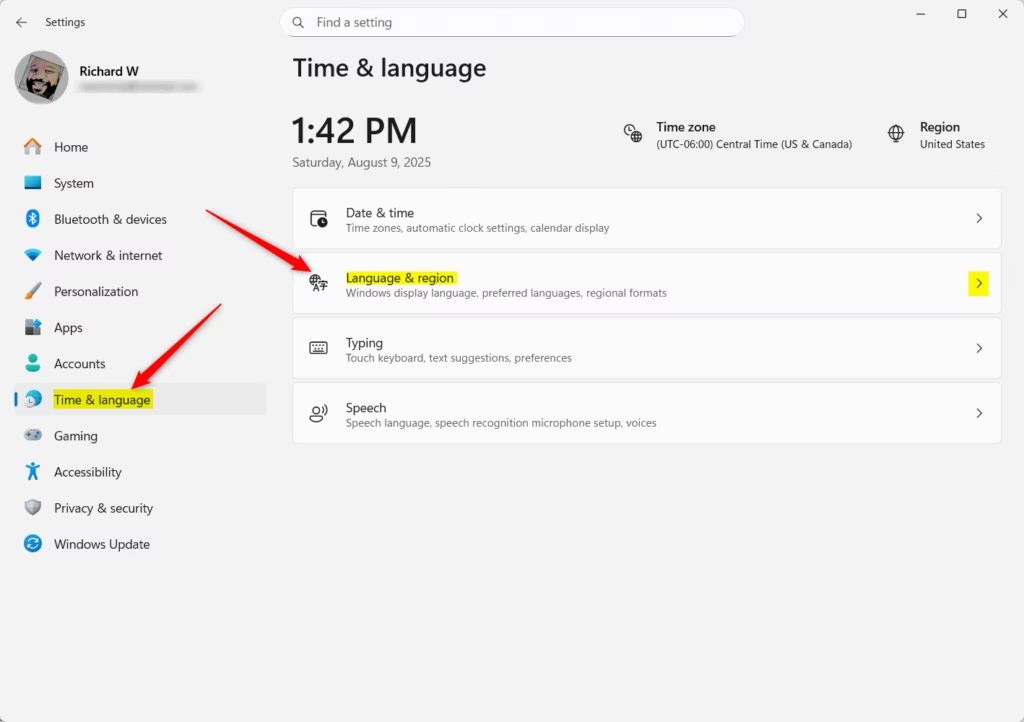
Win + Ion your keyboard. The Settings window opens. - Click Time & language in the left menu.
- Click Language & region on the right side. You should see your display language, preferred languages and region options.
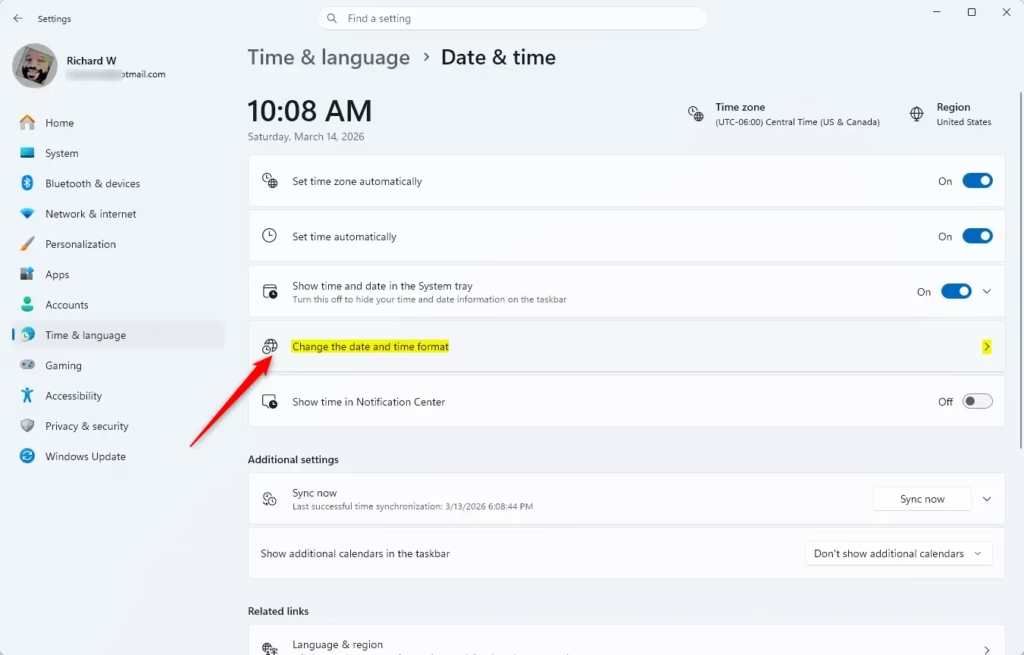
- Scroll down to Regional format. Click it to expand the section if needed, then click Change formats. A list of calendar, date and time options appears.
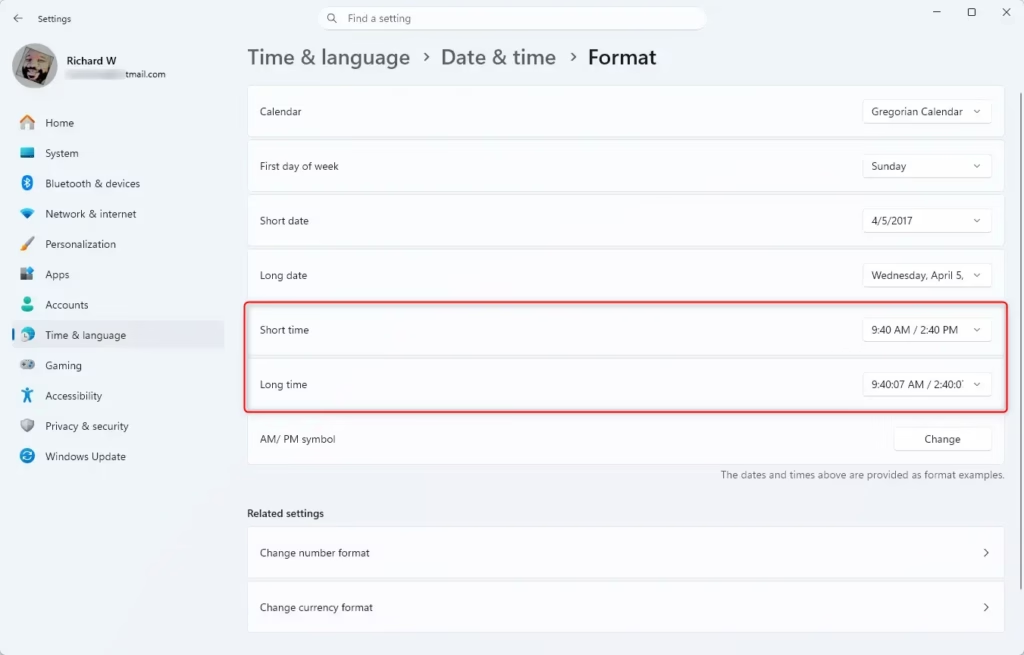
- Find the Short time dropdown menu and pick your preferred clock style:
- For a 12-hour clock, choose a format such as
9:40 AMor09:40 AM. - For a 24-hour clock, choose a format such as
9:40or09:40.
- For a 12-hour clock, choose a format such as
- Look at the bottom-right corner of the taskbar . The clock should already show the new style. Then close Settings.
The change normally applies right away, and you don’t need to restart. To undo it, come back to the same dropdown and pick your old format. If the dropdown is greyed out on a work or school PC, your organization probably manages regional settings, and you will need to ask your IT admin.
Option 2Change Clock Format Using Control Panel
- Open Control Panel . The quickest way is to click Start , type Control Panel and press Enter.
- Make sure Control Panel is in Icons view (not Category view). Use the View by menu in the top-right corner and choose Large icons or Small icons.
- Click Region. A small Region window opens.
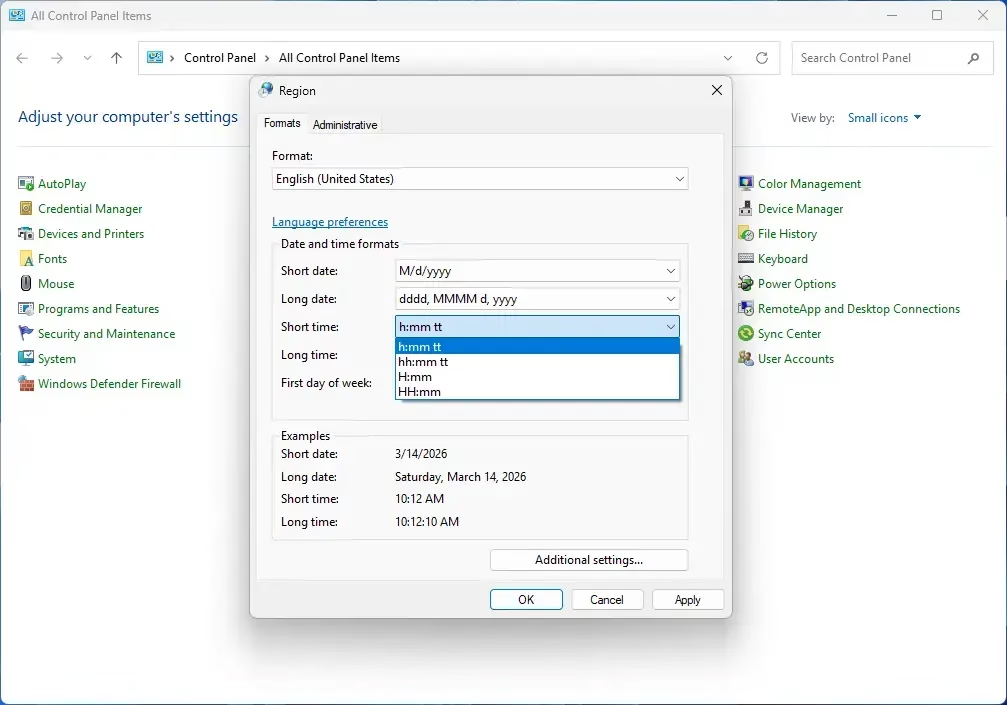
- Under the Formats tab, click the Short time dropdown and choose your time format:
- For a 12-hour clock:
h:mm ttorhh:mm tt. - For a 24-hour clock:
H:mmorHH:mm.
- For a 12-hour clock:
- If you don’t see the format you want, click Additional settings…, then go to the Time tab to type a custom format. The Customize Format window that opens also has a Reset button, which puts everything back to the Windows defaults for your region.
- Click OK to save your changes. If you came through Additional settings, click OK there first, then OK again in the Region window. The taskbar clock should switch to the new style.
- Close Control Panel .
The classic Control Panel is a good fallback when you want more control than the Settings app gives you. You can pick a preset from the short time menu, or type your own pattern on the Time tab. A custom pattern is also worth trying if the clock keeps showing the wrong style. Typing a format wrongly can give odd results, so if the clock looks strange, use Reset or go back to a preset from the list.
Summary
- You can switch your taskbar clock between 12-hour and 24-hour formats at any time, and the change is easy to reverse.
- You can do it through Windows Settings (Time & language Language & region) or through Control Panel (Region).
- Both methods change the same “Short time” setting, so you only need to use one of them.
- Pick whichever format is easiest for you to read. Changing this setting helps Windows match how you like to see time.
Switching the clock format takes a moment with either the modern Settings app or the traditional Control Panel . If the clock still shows the old format after you save, restart Windows Explorer to refresh the taskbar :
- Right-click the Start button and choose Task Manager .
- On the Processes tab, find Windows Explorer and select it.
- Click Restart. The taskbar and desktop disappear for a second or two, then come back with the clock in the new format.
If the clock is still wrong after that, sign out and back in, or restart the PC.
Was this guide helpful?

About the Author
Richard
Tech Writer, IT Professional
Richard is a writer at Geek Rewind who turns complex IT tasks into clear, step-by-step guides. He draws on years of hands-on experience in system administration and enterprise IT operations, focusing on Windows, Linux and WordPress: the problems people actually run into, and the fixes that work. His server and WordPress guides come from systems he runs himself. Richard builds and maintains the platform behind Geek Rewind, from its Ubuntu servers and Nginx configuration to its custom WordPress plugins. Many new tutorials start with readers' questions, and he's always glad to answer them in the comments.



No comments yet — be the first to share your thoughts!