How to Show or Hide File Extensions in Windows 11 File Explorer

Open Settings, go to System Advanced File Explorer , and turn on the Show file extensions switch. File extensions like.txt.docx now appear on all your files in Windows 11 File Explorer with no restart needed.
What is File Explorer?
File extensions are the short endings, usually three or four letters, such as .txt or .jpg, at the end of a filename. They tell Windows 11 which program should open that file. Windows 11 hides most of these endings by default to keep folders looking clean.
It also exposes tricks like a file named invoice.pdf.exe, which looks like a PDF when the real ending is hidden. Turning extensions on takes under 30 seconds, and you can turn them off again just as quickly.
File Explorer is the built-in file manager you use to browse documents, folders, and drives on your PC. You can open it from the taskbar , or by pressing the Win+E.
How to Show File Extensions Using Settings
Windows 11 has a setting that shows or hides file extensions. When it is on, you see the real file type, such as `.txt` for a text file or `.docx` for a Word document. That makes it much easier to tell similar files apart.
The setting lives in the Windows 11 Settings app , under System Advanced File Explorer . That page appears on recent builds of Windows 11 (version 24H2 and later, with current updates installed). If you don’t see Advanced under System, your build is older. In that case, open File Explorer , click View Show, and tick File name extensions. The setting works the same on Home and Pro, and you don’t need to restart.
Step 1Open Settings
- Click the Start button (the Windows logo) at the bottom of your screen. On Windows 11 it is usually in the center of the taskbar , unless you have moved the taskbar icons to the left.
- Click Settings. If you don’t see it in the pinned apps, type “Settings” into the Start menu search box and open it from the results. The Settings window should now be open.
Or press the Win+I on your keyboard to open Settings in one step. This works from any screen.
Step 2Go to System > Advanced
- In the Settings window, click System in the menu on the left. The System options appear on the right.
- Scroll down on the right side. The list is long, so keep going until you reach the bottom.
- Click Advanced to open more options. If it isn't in the list, your Windows 11 build is too old for this page. Use the File Explorer View menu method described above, or update Windows and try again.
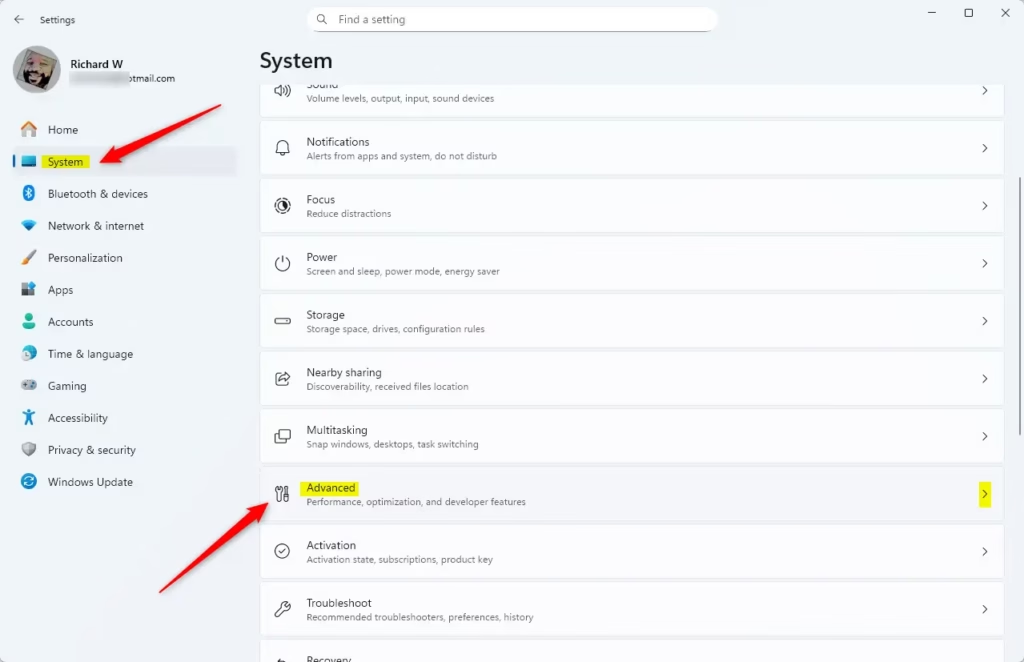
You should now be on the Advanced page, with a list of settings grouped by area.
Step 3Find File Explorer Settings
- Under Advanced, look for the File Explorer section. It sits among the other groups of settings on the page.
- Click File Explorer to expand it. The File Explorer options should now appear below the heading.
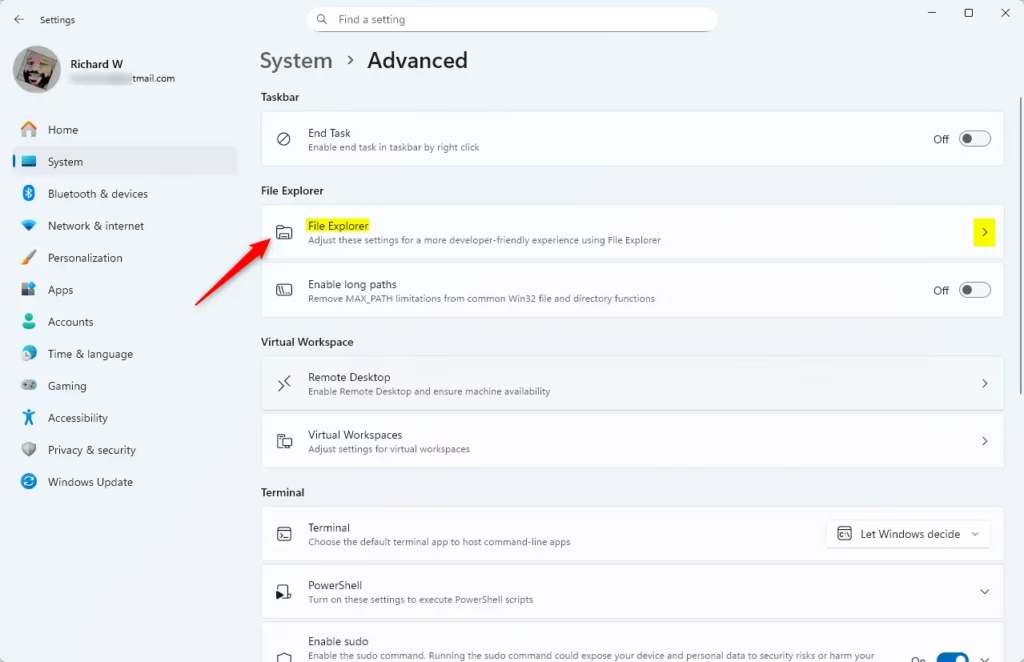
With the section expanded, you should see a short list of switches that control how File Explorer behaves.
Step 4Turn On File Extensions
- Look for the option labeled Show file extensions.
- Click the switch to turn it On. The switch label changes to On, and the change applies right away, with no restart or sign-out needed.
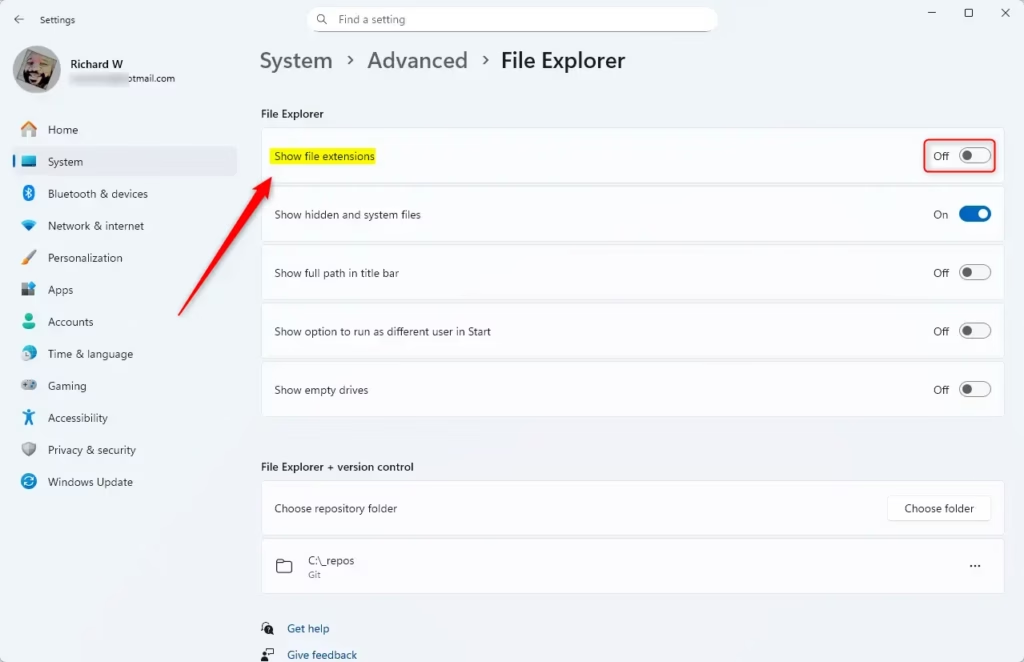
To undo this later, come back to the same page and switch Show file extensions to Off.
Step 5Close Settings
File extensions will now appear across all folders in File Explorer. Open any folder to check. A file that used to show as "Report" should now read "Report.docx" or similar. If a File Explorer window was already open, it normally updates on its own. If it doesn't, press F5 to refresh it, or close and reopen it.
Other Ways to Show File Extensions
Windows 11 File Explorer settings control whether file extensions are visible. Seeing the extension on every file makes it easier to sort documents from programs, and to notice when a file isn't what its icon or name suggests.
When you rename a file, change only the part before the dot. If you edit or delete the extension, Windows may no longer know how to open the file. Windows warns you before it applies an extension change, so read that prompt rather than clicking through it.
Why Show File Extensions?
File extensions show you the exact type of file you have, such as a picture or a document, through the letters after the final dot in the file name. Turning them on helps you spot dangerous files disguised as normal documents. It also stops you from accidentally breaking a file when you rename it.
- File extensions tell you exactly what type of file you're looking at, such as a picture, a document, or a program. Two files with the same name but different endings, like a .jpg and a .png, are easy to tell apart.
- It helps avoid confusion, so you don't accidentally open the wrong kind of file. A file ending in .exe or .bat is a program, not a document, and you can see that before you double-click it.
- It makes managing your files easier and safer, especially when you sort downloads or check attachments.
- Using the Settings app is quick and easy for anyone using Windows 11, and you can reverse the change at any time with the same switch.
Summary
To show file extensions in Windows 11, open Settings and go to System Advanced File Explorer. Then turn on Show file extensions. The change takes effect immediately, with no restart. File types become visible in every folder, which helps with organization and security. If your build has no Advanced page, use the View Show File name extensions option in File Explorer instead.
Have a question about this guide?
Answered by AI from this guide. Good questions may be added to this page — please don't include personal details.
Did this guide fix your problem?

About the Author
Richard
Tech Writer, IT Professional
Richard is a writer at Geek Rewind who turns complex IT tasks into clear, step-by-step guides. He draws on years of hands-on experience in system administration and enterprise IT operations, focusing on Windows, Linux and WordPress: the problems people actually run into, and the fixes that work. His server and WordPress guides come from systems he runs himself. Richard builds and maintains the platform behind Geek Rewind, from its Ubuntu servers and Nginx configuration to its custom WordPress plugins. Many new tutorials start with readers' questions, and he's always glad to answer them in the comments.
No comments yet — be the first to share your thoughts!