

Unlock Hidden Features in Windows 11 with ViVeTool

This article explains using ViVeTool to enable or disable hidden features in Windows 11.

ViVeTool is a third-party command-line utility that allows users to enable or disable hidden features and various settings in Windows 11. The tool is a free and open-source tool that can be downloaded from GitHub.

You can use the tool if you’d like to test hidden features in Windows Insider builds. The steps below will show you how.

Windows 11 users who want to test hidden features and unavailable settings through the regular Windows interface can use ViVeTool. It can be particularly helpful for Windows Insider users who wish to experiment with new features before they are officially released.

Download ViVeTool and enable or disable hidden features

As described above, Windows Insider users who want to test hidden features can use ViVeTool.

Here’s how to do it.

First, download the tool from GitHub.

Once downloaded, extract the zipped file and move the ViVeTool folder to a location that is easily accessible.

Next, open the extracted folder, right-click the ViVeTool.exe, and select ‘Copy as path.’
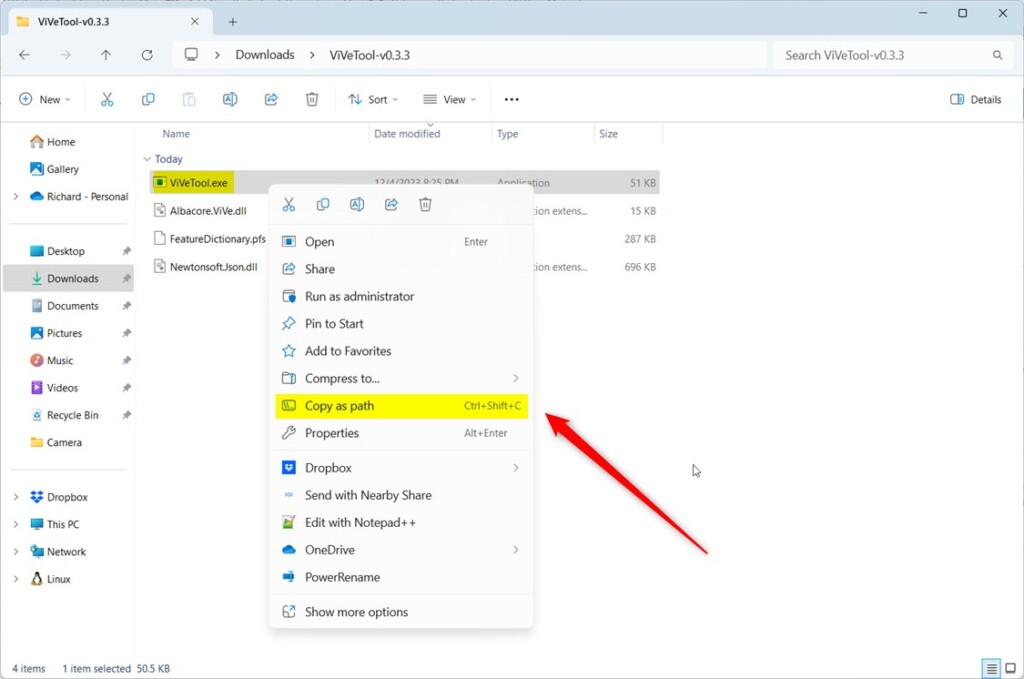
Windows 11 copy as path

When enabling a feature, open the Windows Terminal app and select the Command Prompt tab. Then, paste the path to the ViVeTool.exe file into the console.

Use the command format below to enable the feature using its ID.

"C:FullPathToViVeTool.exe" /enable /id:<feature ID>

To disable a feature, use the command below.

"C:FullPathToViVeTool.exe" /disable /id:<feature ID>

Replace <feature ID> with the feature ID you want to enable or disable.

You can also enable or disable multiple IDs followed by a comma.

For example, you can enable these features using the command below.

"C:UsersRichardDownloadsViVeTool-v0.3.3ViVeTool.exe" /enable /id:42880174,44281626,45393399

You can open the FeatureDictionary.pfs file inside the extracted zipped with Notepad to see a list of available feature IDs you can enable or disable.
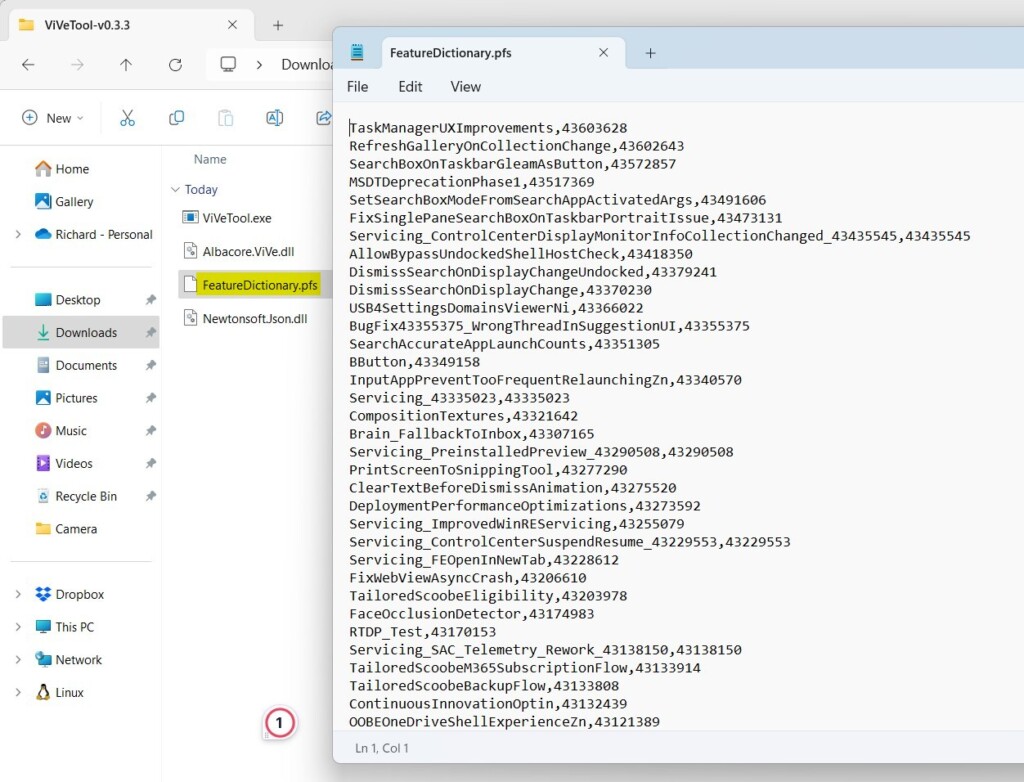
Windows 11 hidden features with ViVeTool

After running the command, restart your computer to apply the changes.

Windows 11 hidden features with ViVeTool successful

That should do it!

Conclusion:

  • ViVeTool is a valuable utility for Windows 11 Insider users to test hidden features and settings.
  • By following the steps outlined in this article, you can easily enable or disable hidden features using ViVeTool.
  • Experimenting with new features before their official release is made possible through the use of ViVeTool.
  • Feel free to share your feedback or additional insights in the comments below.
Frequently Asked Questions

What is ViVeTool and what does it do?

ViVeTool is a free, open-source command-line utility that allows Windows 11 users to enable or disable hidden features and settings that aren't available through the regular Windows interface. It's particularly useful for Windows Insider users who want to test new features before they're officially released.

Is ViVeTool safe to use on Windows 11?

ViVeTool is a legitimate open-source tool available on GitHub, making it safe for most users. However, since it modifies hidden Windows features, it's recommended primarily for Windows Insider users or advanced users who understand the risks of enabling experimental features.

How do I find the feature IDs to use with ViVeTool?

You can find available feature IDs by opening the FeatureDictionary.pfs file that's included in the downloaded ViVeTool folder using Notepad. This file contains a complete list of all feature IDs you can enable or disable with the tool.

Can I enable multiple features at once with ViVeTool?

Yes, you can enable or disable multiple features simultaneously by listing their IDs separated by commas in the command. For example: "C:PathViVeTool.exe" /enable /id:42880174,44281626,45393399

Do I need to restart my computer after using ViVeTool?

Yes, you must restart your computer after running ViVeTool commands to apply the changes. The restart ensures that the enabled or disabled features take effect properly on your system.

Categories:

Tags:

14 responses to “Unlock Hidden Features in Windows 11 with ViVeTool”

  1. […] for me” is a hidden feature in Windows 11 build 26052 that you can enable today using the ViVeTool. Microsoft may or may not release this feature to all Windows […]

  2. […] a hidden feature in Windows 11 build 26052 that you can enable today using the ViVeTool. Microsoft may or may not release this feature to all Windows […]

  3. […] feature isn’t visible in the beta version of Windows. One must use the ViveTool, which enables or disables hidden features in Windows to turn it […]

  4. […] feature isn’t visible in the beta version of Windows. One must use the ViveTool, which enables or disables hidden features in Windows to turn it […]

  5. […] Unlock Hidden Features in Windows 11 with ViVeTool […]

  6. […] Unlock Hidden Features in Windows 11 with ViVeTool […]

  7. […] Unlock Hidden Features in Windows 11 with ViVeTool […]

  8. […] Download and learn how to use ViVeTool here: How to enable hidden features with ViVeTool […]

  9. […] First, learn how to download and use ViVeTool. […]

  10. […] Windows 11 has a hidden feature that lets you show the emoji icon on your taskbar system tray. To turn it on, you need a free tool called ViVeTool. […]

  11. […] option is hidden in Windows 11 but you can turn it on using a free tool called ViVeTool. Follow these simple […]

  12. […] This feature is in a newer Windows 11 update (build 22635.3790 in the Beta Channel). It’s hidden by default, but you can turn it on using a free tool called ViVeTool. […]

  13. […] Download and install ViVeTool: You can learn how to use ViVeTool by reading this easy guide. […]

  14. […] Unlock Hidden Features in Windows 11 with ViVeTool […]

Leave a Reply

Your email address will not be published. Required fields are marked *

