How to Use Drag-and-Drop File Sharing in Windows 11

Windows 11 has a new feature that makes sharing files super easy. You can drag a file and drop it on an app right from your screen. No more copying and pasting!
What is Drag-and-Drop Sharing?
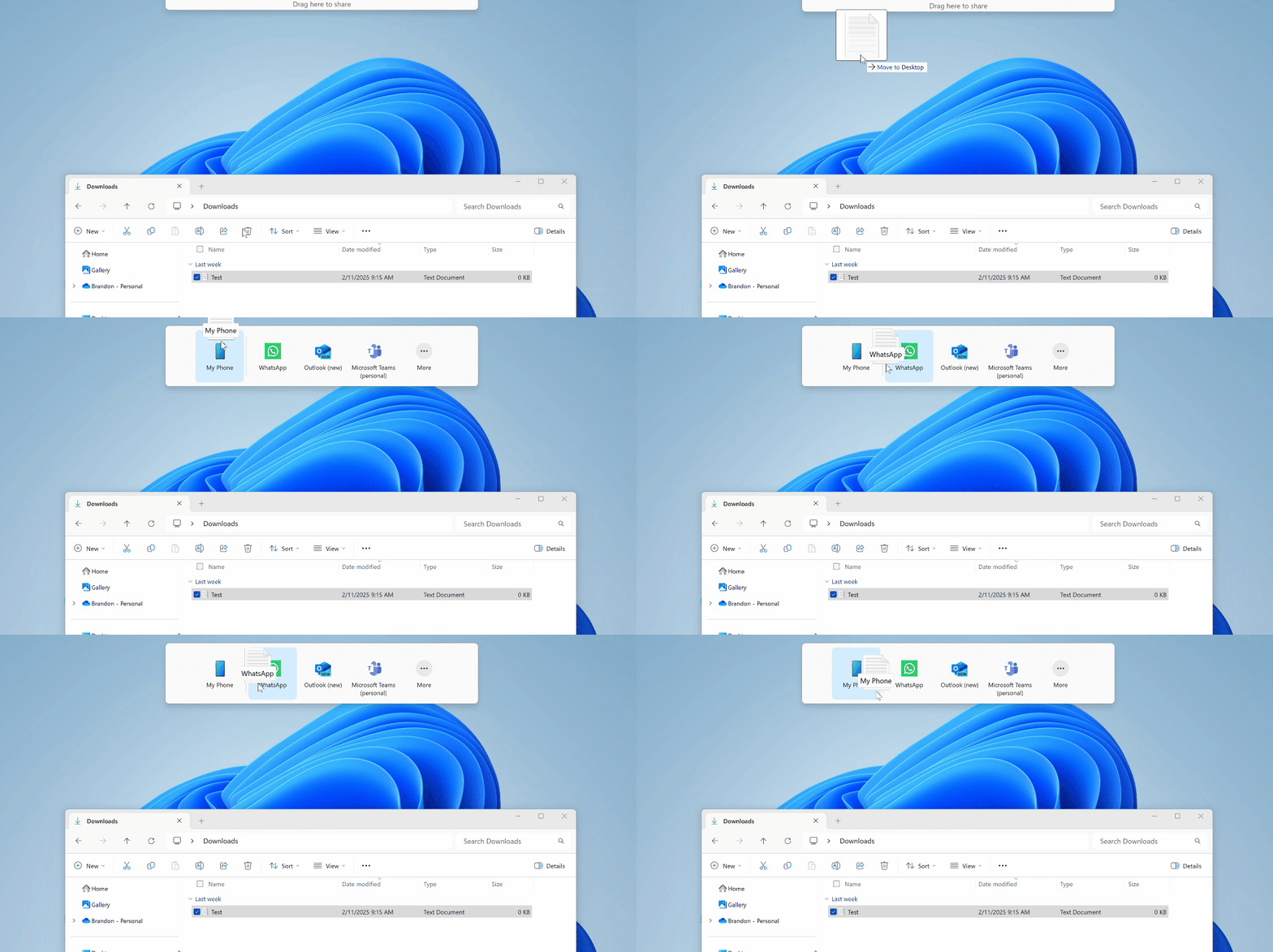
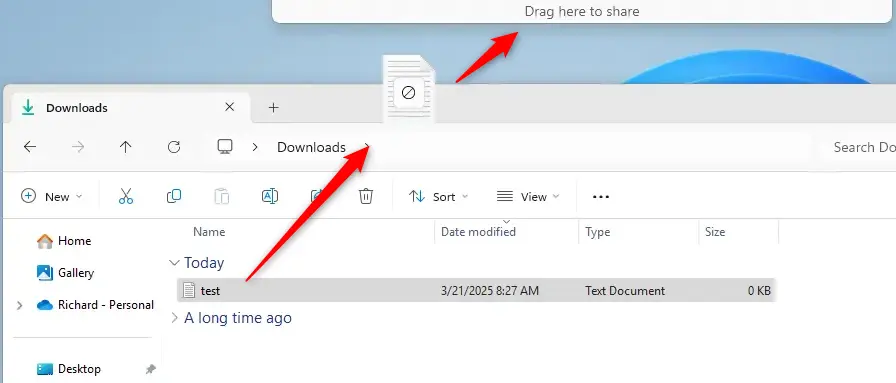
When you drag a file from your File Explorer or desktop, a small tray pops up at the top of your screen. This tray shows apps you can drop your file onto. It’s a quick way to share.
Why Use This Feature?
It saves time. Instead of opening an app and hunting for the file, you just drag and drop. Sharing becomes faster and easier.
How to Turn On This Feature
This feature is new and only available in special versions of Windows 11 called Insider Builds. You’ll need a tool called ViVeTool to enable it. Don’t worry. It’s simple!
Step 1: Download ViVeTool
First, learn how to get and use ViVeTool by following this easy guide:
How to Enable Hidden Features with ViVeTool
Step 2: Open Command Prompt or Windows Terminal
Press Windows + S. Type cmd or Windows Terminal and open it.
⚠️ Admin Required: Right-click and choose “Run as administrator.”
Step 3: Enable Drag-and-Drop Sharing
Type or copy this command and press Enter:
vivetool /enable /id:45624564,53397005
After running the command, restart your computer.
How to Share Files Using Drag-and-Drop
- Find the file you want to share on your desktop or in File Explorer.
- Click and hold the file. Drag it towards the top of your screen.
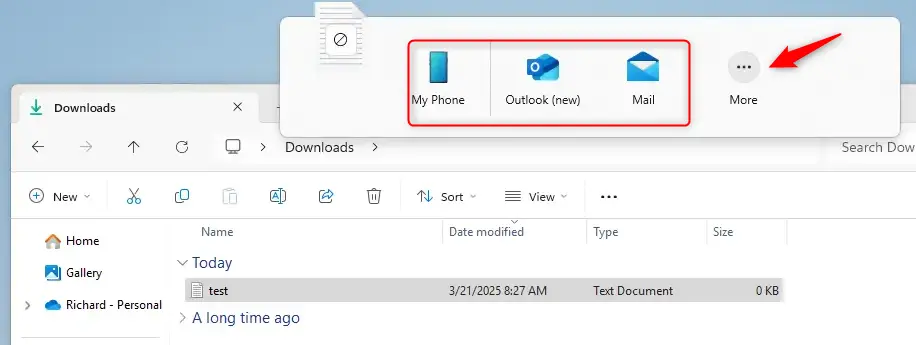
- The sharing tray will appear. It shows apps you can drop your file onto.
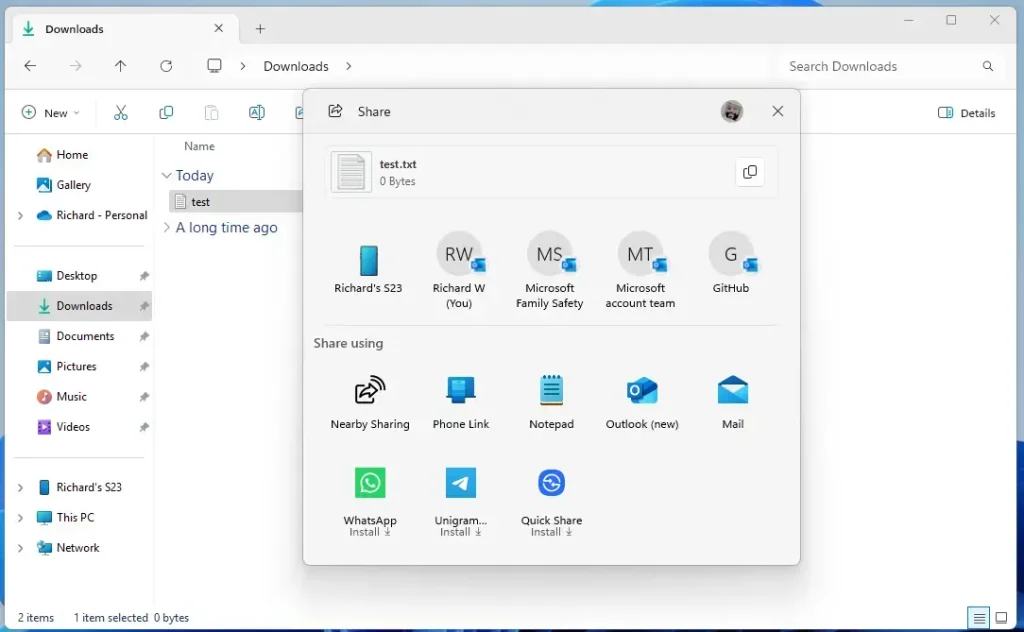
- Drop the file on the app you want to share it with. Need more options? Select “More…” to open the Windows share window.
Summary
Windows 11 now lets you share files easily with drag-and-drop. You drag files from File Explorer or your desktop to a small share tray at the top of your screen. To use this feature, you need to enable it using ViVeTool and a simple command. The new sharing tray makes picking apps to share with quick and simple. This feature is currently for Windows Insider users. Start enjoying faster and easier file sharing with Windows 11!
More info from Microsoft: Windows 11 Insider Preview Build 22635.4950 (Beta)
Was this guide helpful?





Leave a Reply