How to Enable or Disable Drop Tray in Windows 11


This tutorial shows you how to turn the Drop Tray feature on or off in Windows 11. The setting belongs to your user account, so it does not change anything for other people who sign in to the same PC.
Open Settings, go to System Multitasking, find Drop Tray, and toggle it On or Off. The change applies immediately without restarting your PC.
What is Drop Tray?
Drop Tray makes sharing files simpler. When you drag a file, a small tray appears with targets you can drop it on, so you don’t have to open extra windows or menus first.
Drop Tray also lets you move files to a folder you pick. It works with multiple files at once. The tray shows the apps you use most, so sharing is faster.
Why Use Drop Tray?
Drop Tray speeds up file movement because you drag a file and drop it straight onto a target, instead of opening folders and menus. That is also the downside. If the tray windows get in your way, or you drop files onto a target by accident, you can turn the feature off.
If you can’t find the setting described below, your build probably doesn’t include it yet. Check Windows Update and install any pending updates.
How to Turn Drop Tray On or Off
Option 1Use Settings
- Press
Win+Ion your keyboard to open Settings . The Settings window opens. - Click System on the left side.
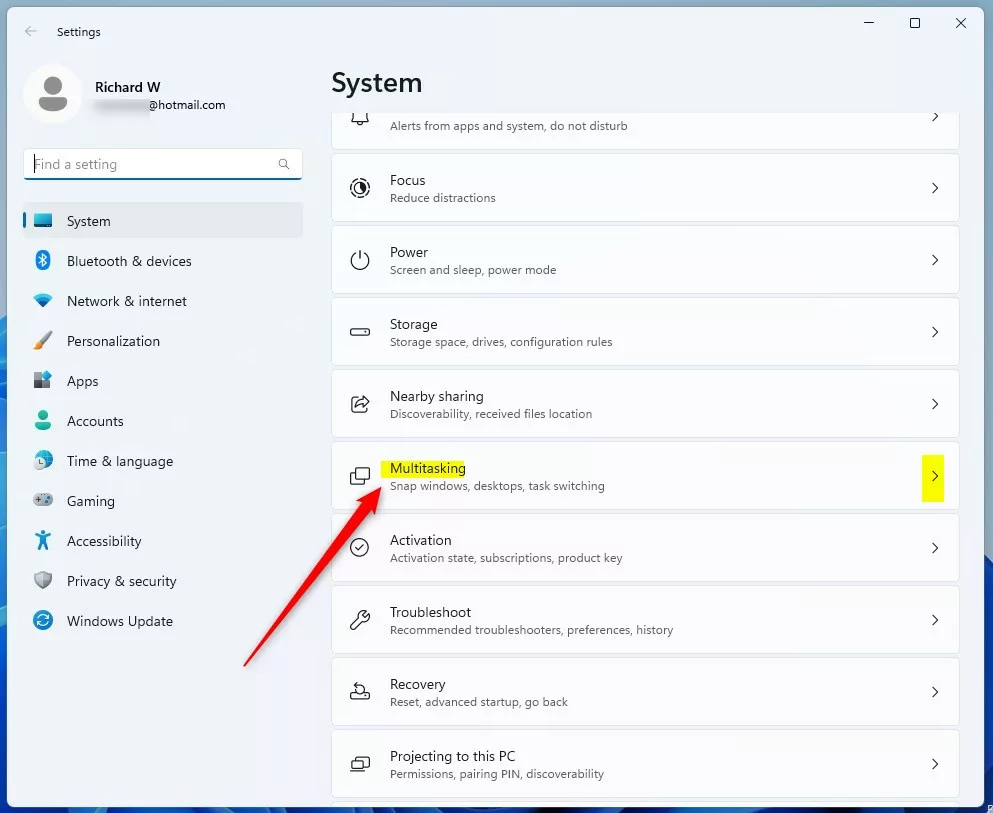
- Click Multitasking on the right side. You will see a list of multitasking options.
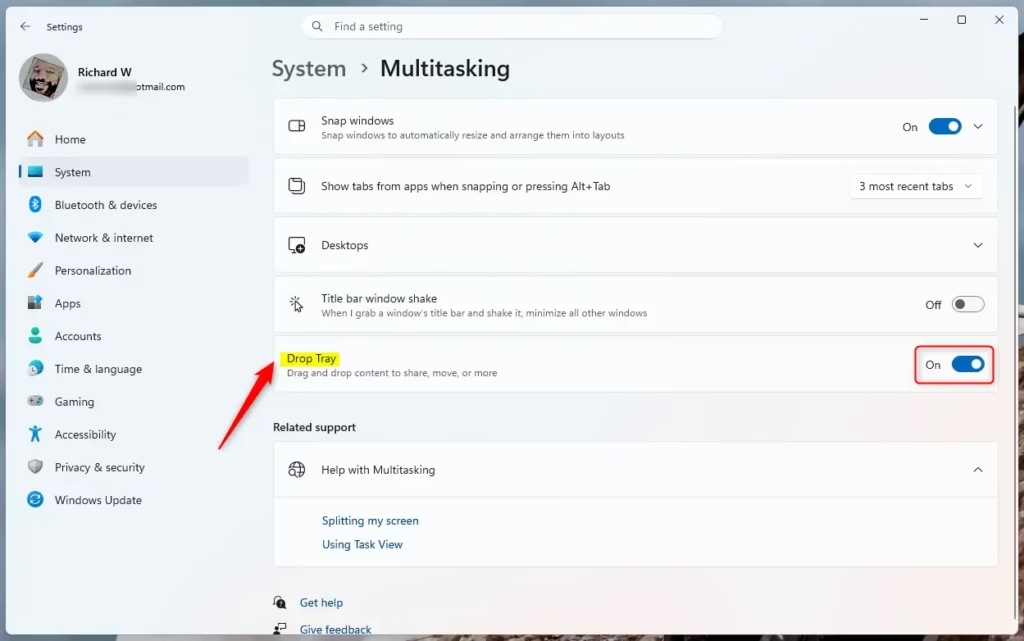
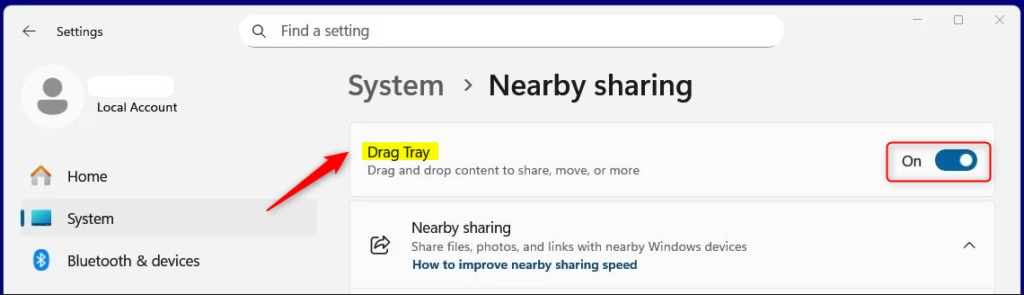
- Find the Drop Tray option. Set it to On (this is the default) or Off, depending on what you want.
- Close Settings. The change applies right away, and you don’t need to restart.
To undo the change, come back to the same page and flip the switch the other way.
Option 2Use Registry Editor
You can also change the Drop Tray setting in the Registry Editor. This method is for advanced users. It is also useful if you want to script the change or the option is missing from Settings. The setting is the same one the Settings toggle controls.
Flag: This method requires admin privileges.
If the change doesn't show up after you apply it, sign out and back in, or restart the PC.
To Turn On Drop Tray:
This is the default setting. Use the entry shown below to turn Drop Tray on. It is also how you undo the Off setting.
reg add "HKEY_CURRENT_USER\Software\Microsoft\Windows\CurrentVersion\CDP" /v DragTrayEnabled /t REG_DWORD /d 1 /f
To Turn Off Drop Tray:
Use the entry shown below to turn Drop Tray off.
reg add "HKEY_CURRENT_USER\Software\Microsoft\Windows\CurrentVersion\CDP" /v DragTrayEnabled /t REG_DWORD /d 0 /f
Summary
Drop Tray is a useful tool for quickly sharing files by dragging and dropping them onto apps or folders. If it gets in your way, you can turn it off in Settings or the Registry Editor, and turn it back on the same way at any time.
Have a question about this guide?
Answered by AI from this guide. Good questions may be added to this page — please don't include personal details.
Did this guide fix your problem?

About the Author
Richard
Tech Writer, IT Professional
Richard is a writer at Geek Rewind who turns complex IT tasks into clear, step-by-step guides. He draws on years of hands-on experience in system administration and enterprise IT operations, focusing on Windows, Linux and WordPress: the problems people actually run into, and the fixes that work. His server and WordPress guides come from systems he runs himself. Richard builds and maintains the platform behind Geek Rewind, from its Ubuntu servers and Nginx configuration to its custom WordPress plugins. Many new tutorials start with readers' questions, and he's always glad to answer them in the comments.
No comments yet — be the first to share your thoughts!