How to Restore ‘Run as Different User’ in Windows 11


Restoring the ‘Run as different user’ option in Windows 11 lets you open programs with another account’s login details.
This feature allows you to run an application using a different Windows profile without having to sign out of your current session. It’s a useful way to handle app permissions or access files that require specific user rights. Typical examples are launching an admin tool with an administrator account while you stay signed in as a standard user, or opening a program with a domain account that has access to a network share.
Microsoft removed this choice from the standard right-click menu in Windows 11, but you can get it back. The Settings app has a toggle for it, and if that toggle is missing, a registry edit does the same job. The registry setting lives in 🗝️HKEY_CURRENT_USER\
Open Settings System For developers and toggle Show option to run as different user in Start to On. If that setting is missing, press Win+R, type regedit, navigate to 🗝️HKEY_CURRENT_USER\
What Happens When You Enable It?
Turning on the ‘Run as different user’ option in Windows 11 lets you open apps using another account, which is handy if you need special permissions for a program.
You need the username and password of the other account before you start. That account must already exist on the PC or in your domain. You also need administrator rights on your own account to change the registry method. The Settings method is the quickest, so try it first.
Method 1Using the Settings App
The Settings app lets you turn on ‘Run as different user’ in Windows 11 through the developer menu. You can reveal this missing context menu option by opening your system settings, going to the developer section, and turning on the switch for running apps as a different user from the Start menu .
This toggle is not present in every Windows 11 build. If you don't see it, your version may be older or the setting may be managed by your organization. In that case, skip to the registry method.
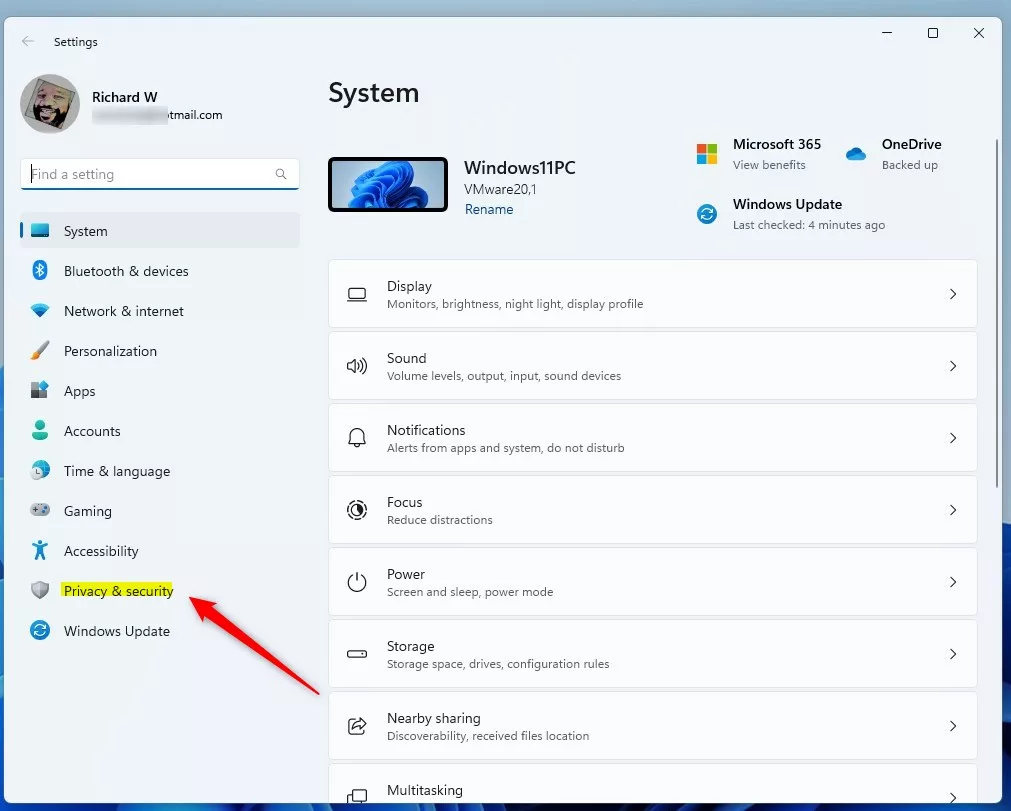
- Open the Settings app by pressing Windows key + I. The Settings window opens with the category list on the left.
- Click System on the left sidebar. The System settings page appears on the right.
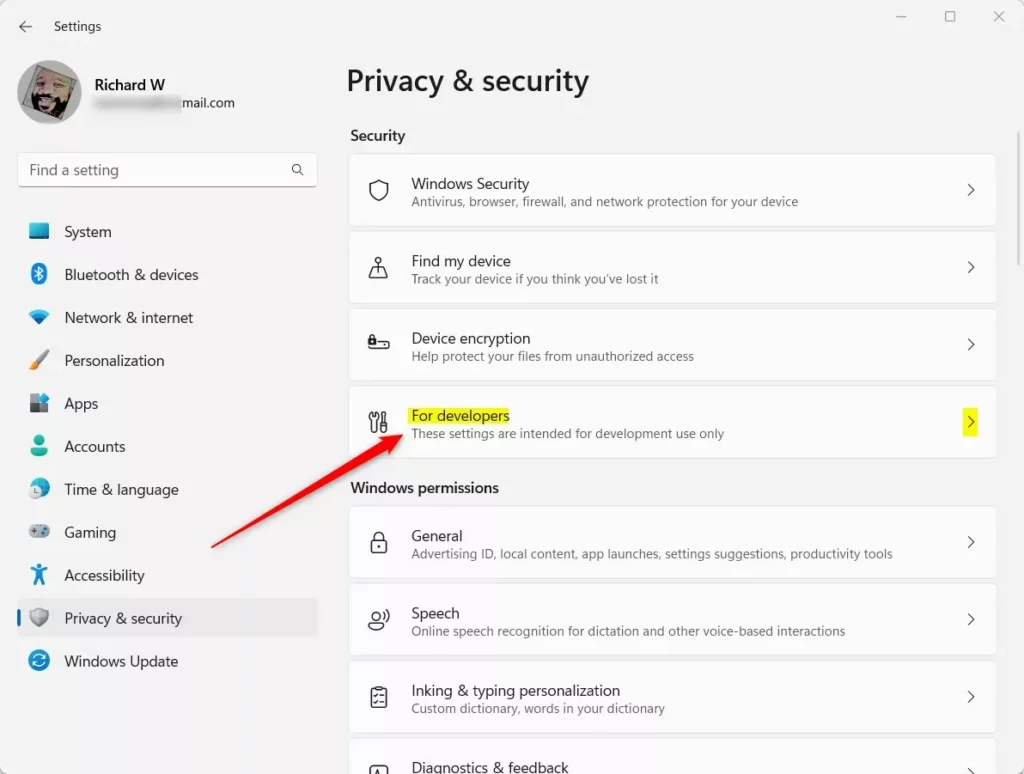
- Select For developers. You may need to scroll down the System page to find it. A list of developer options opens.
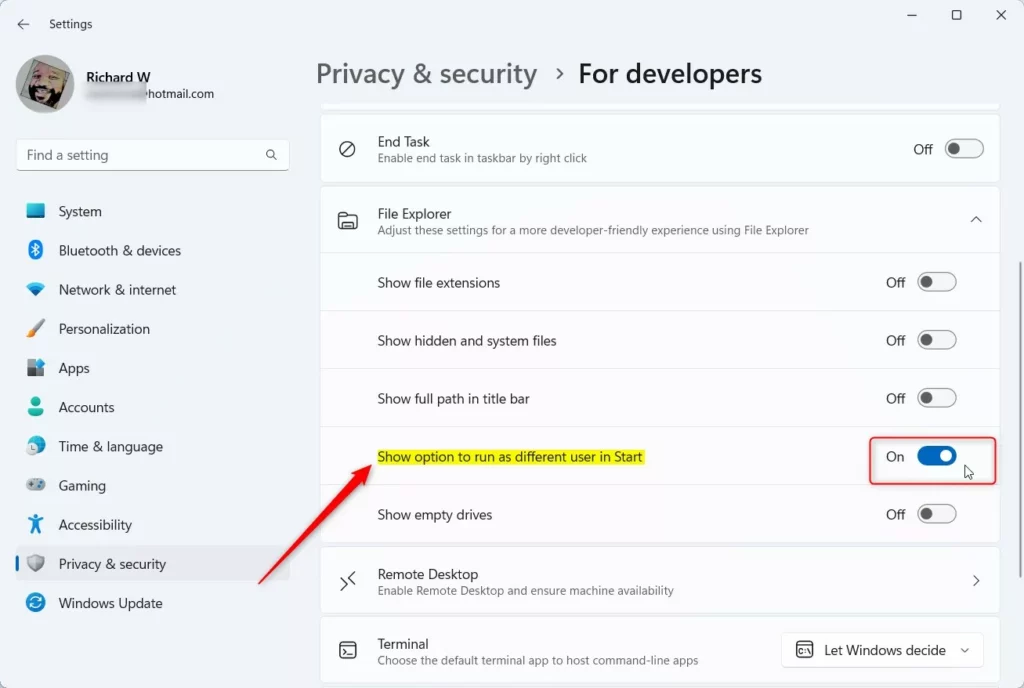
- Find the File Explorer section. On some builds you will need to scroll down to reach it.
- Toggle the switch for Show option to run as different user in Start to On. The switch turns blue, and the setting takes effect straight away. You don't need to restart. To undo it, set the switch back to Off.
Method 2Using Registry Editor
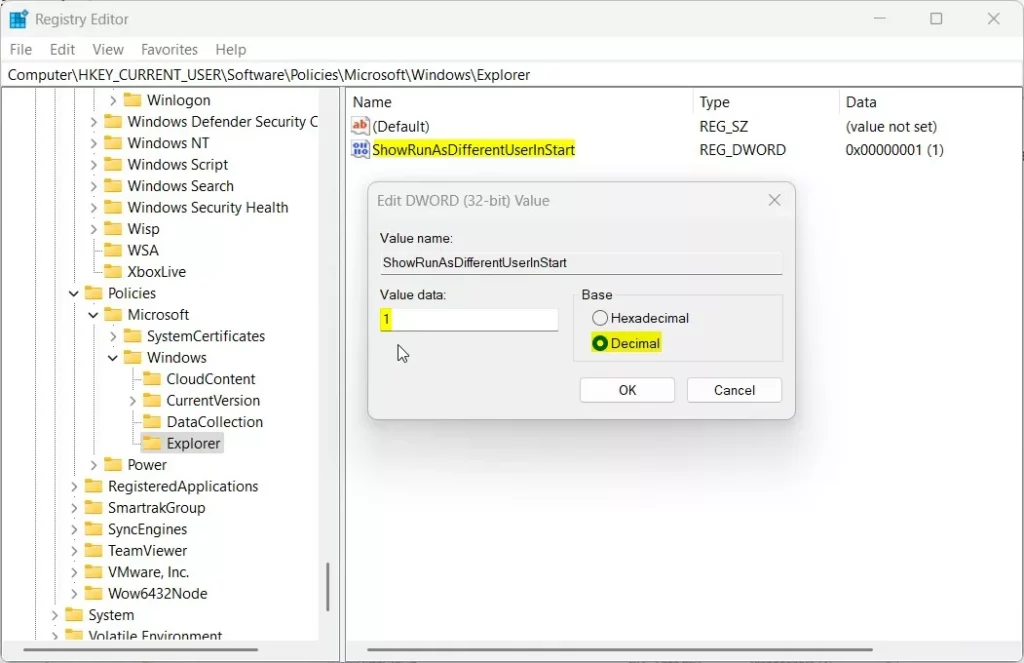
The Registry Editor provides a backup method to enable 'Run as different user' in Windows 11 if the toggle is missing from your developer settings. You can force this feature to appear by creating a specific DWORD value inside the Windows Explorer registry key.
On Windows 11 Home and Pro the steps are the same. Back up the registry or create a restore point before you change anything, because a wrong edit can cause problems. To undo the change later, set the value to 0 or delete it, then restart.
- Press Windows key + R, type
regedit, and press Enter. Click Yes if User Account Control asks for permission. The Registry Editor opens. - Navigate to:
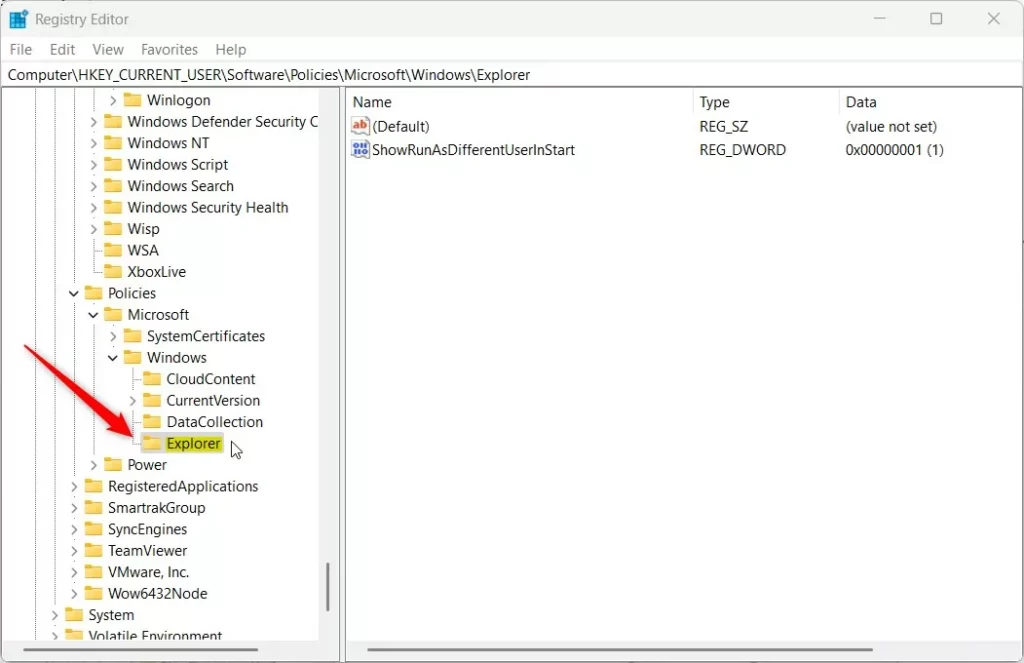
HKEY_CURRENT_USER\SOFTWARE\Policies\Microsoft\Windows\Explorer. Expand the folders in the left pane, or paste the path into the address bar at the top of the window. If the Explorer key is missing under Policies, right-click Policies, choose New Key, and name it Explorer. - Right-click an empty area in the right pane and select New DWORD (32-bit) Value. A new entry appears in the list with its name highlighted for editing.
- Name it
ShowRunasDifferentuserinStart. Type the name exactly as shown and press Enter. - Double-click the new value and set Value data to 1 to enable it. Click OK. The value now shows 0x00000001 (1) in the list.
- Restart your computer. After you sign back in, the option should be available.
Quick Tip: The Shift + Right-Click Trick
You don't always need to enable the menu option. Hold the Shift key while right-clicking an application icon or file. Run as different user will appear in the extended context menu automatically.
This works best on program files and shortcuts. Windows 11 normally shows the short menu first, and holding Shift skips straight to the full classic menu. After you click the entry, Windows asks for the username and password of the other account. The program then opens under that account.
Troubleshooting: Secondary Logon Service
If the option doesn't appear, or the program won't start after you enter the credentials, your Secondary Logon Service might be disabled. This service is crucial for the feature to work. The Registry Editor is not the place to fix it. Use the Services app instead:
- Click Start, type Services, and open the Services app. A list of services appears.
- Locate Secondary Logon in the list and double-click it. Its properties window opens.
- Set Startup type to Automatic, so the service starts with Windows.
- Click Start under Service status, then click OK. The status now reads Running.
If the Startup type is greyed out, you are not signed in with an administrator account, or a policy is controlling the service. Ask your IT administrator in that case.
Security Warning
Always close the application immediately after finishing your task to prevent unauthorized access to elevated privileges. Don't tick any option that saves the password, and use the least-privileged account that can do the job. On a work PC, check your organization's policy first, because some companies block this feature on purpose.
Summary
Restoring the 'Run as different user' option in Windows 11 helps you manage permissions effectively. Whether you use the Settings app, the Registry, or the Shift + Right-click shortcut, you can now execute tasks with different credentials. Try the Settings toggle first, fall back to the registry value if it's missing, and remember that Shift + Right-click works without either. Always ensure the Secondary Logon Service is running if you encounter issues.
Was this guide helpful?

About the Author
Richard
Tech Writer, IT Professional
Richard is a writer at Geek Rewind who turns complex IT tasks into clear, step-by-step guides. He draws on years of hands-on experience in system administration and enterprise IT operations, focusing on Windows, Linux and WordPress: the problems people actually run into, and the fixes that work. His server and WordPress guides come from systems he runs himself. Richard builds and maintains the platform behind Geek Rewind, from its Ubuntu servers and Nginx configuration to its custom WordPress plugins. Many new tutorials start with readers' questions, and he's always glad to answer them in the comments.




No comments yet — be the first to share your thoughts!