How to Change UAC Prompt Behavior in Windows 11

Open Settings System About, scroll down and click System Protection, then select the Sharing & Permissions tab.
What is User Account Control (UAC)?
User Account Control (UAC) is a built-in security check in Windows 11. It stops programs from changing system settings without your knowledge. When a program needs administrator rights, Windows pauses and asks for permission before it continues.
Why does this matter? UAC keeps unwanted software from changing your system, and that makes it one of the most useful security features in Windows.
This tutorial shows how to change what that prompt does. The setting affects standard users only. Administrator accounts use a separate UAC setting.
Your Options for UAC Prompt Behavior
Windows 11 lets administrators decide how the UAC prompt handles elevation requests from standard users. You can block the requests entirely, or ask for credentials on a locked-down screen or on the normal desktop. There are three options:
- Automatically deny elevation requests — The program won’t run, and Windows shows an “Access Denied” message instead. Use this if you want to keep things simple and avoid password prompts. Standard users can no longer approve admin tasks at all, so expect some support requests.
- Prompt for credentials on the secure desktop — Windows dims the screen and switches to a locked-down desktop that other programs can’t see or click. It asks for an admin username and password. If you enter them correctly, the program runs with admin rights. This is the strictest option that still allows elevation.
- Prompt for credentials (Default) — Windows asks for an admin username and password on your normal screen. If they are correct, the program runs with admin rights.
There are two ways to change the setting. Use the Local Security Policy editor if you have Windows 11 Pro, Enterprise or Education. Use the Registry Editor on Home.
How to Change UAC Behavior Using Local Security Policy
The Local Security Policy editor controls how the UAC prompt asks for permission. It is only included in Windows 11 Pro, Enterprise and Education. If the command in step 2 does nothing or shows a “cannot find” error, you are probably on Home and should use the registry method below. You need to be signed in with an administrator account.
- Press Windows Key + R to open the Run box.
- Type
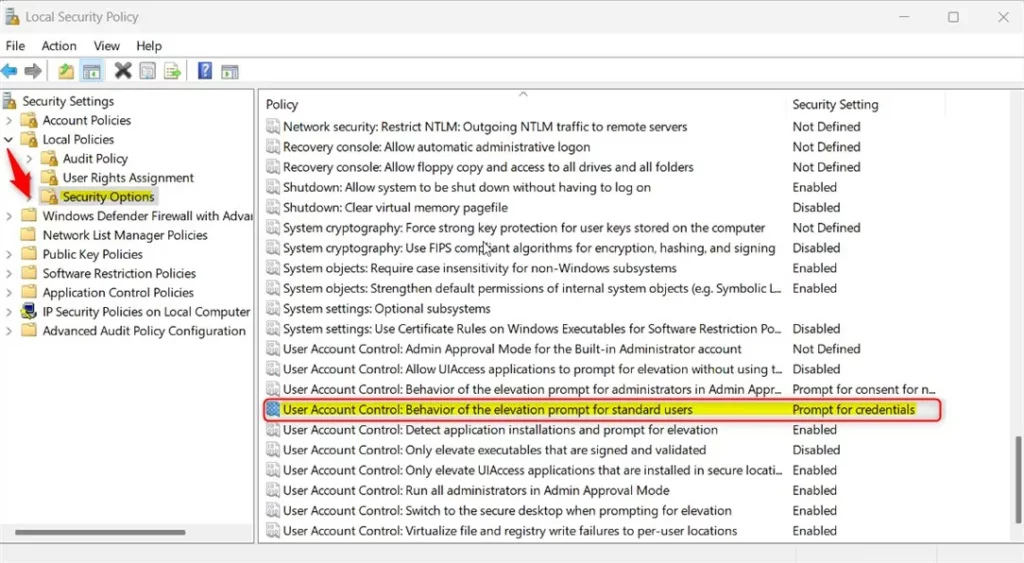
secpol.mscand press Enter. The Local Security Policy editor opens. If a UAC prompt appears first, approve it. - In the left panel, expand Local Policies Security Options The right panel now lists many security policies.
- Find and double-click User Account Control: Behavior of the elevation prompt for standard users in the right panel. The list is sorted by name, so the User Account Control entries sit together. A Properties window opens.
- Choose the option you want from the dropdown menu:
- Automatically deny elevation requests
- Prompt for credentials on the secure desktop
- Prompt for credentials
- Click OK to save your choice. The Properties window closes, and the policy list now shows your new setting.
- ⚠️ Admin privileges required — Restart your computer to apply the changes.
To undo the change, open the same policy again and select Prompt for credentials, which is the default. Then restart.
How to Change UAC Behavior Using Registry Editor
Specific registry values control the behavior. A wrong edit in the registry can cause problems, so go slowly and follow the steps exactly. You can also back up first: in Registry Editor, choose File Export
- Press Windows Key + R. Type
regeditand press Enter to open Registry Editor. Approve the UAC prompt if it appears. - Navigate to this folder:
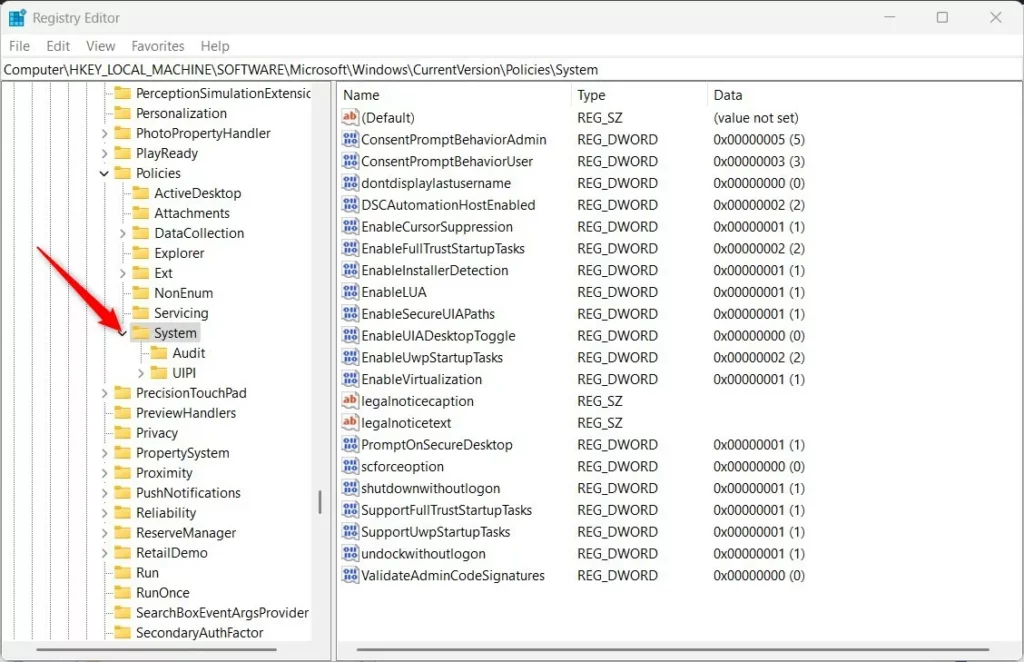
HKEY_LOCAL_MACHINE\SOFTWARE\Microsoft\Windows\CurrentVersion\Policies\System. You can paste the path into the address bar at the top of the window, or expand the folders in the left pane one by one. - If you don't see the System folder, right-click Policies and select New Key. Name it System. The new System key now appears under Policies.
- Select the System folder. Right-click in an empty area of the right pane and select New DWORD (32-bit) Value. A new entry appears with its name ready to edit.
- Name the new value:
ConsentPromptBehaviorUser. If the value already exists, skip this step and edit the existing one. - Double-click the new value. Set Base to Decimal. Enter one of these numbers in Value data:
- 0 = Automatically deny elevation requests
- 1 = Prompt for credentials on the secure desktop
- 3 = Prompt for credentials (default)
- Click OK and close Registry Editor. The value now shows your number in the Data column.
- ⚠️ Admin privileges required — Restart your computer to apply the changes.
To undo the change, set the value data back to 3 and restart.
Learn More
For more details, visit the official Microsoft page: Microsoft UAC Behavior Settings
Summary
Windows 11 uses User Account Control (UAC) prompts to ask for permission before programs make important changes, keeping the PC secure. Administrators configure prompt frequency and security screens. These settings change via the Local Security Policy Editor or the Registry Editor.- Windows 11 asks for permission before running some programs. This keeps your PC safe.
- You can change how Windows asks for this permission. You can deny requests, prompt on a secure screen, or prompt normally.
- You can make these changes using the Local Security Policy Editor or the Registry Editor.
- Always restart your computer after making changes so they take effect.
Have a question about this guide?
Answered by AI from this guide. Good questions may be added to this page — please don't include personal details.
Did this guide fix your problem?

About the Author
Richard
Tech Writer, IT Professional
Richard is a writer at Geek Rewind who turns complex IT tasks into clear, step-by-step guides. He draws on years of hands-on experience in system administration and enterprise IT operations, focusing on Windows, Linux and WordPress: the problems people actually run into, and the fixes that work. His server and WordPress guides come from systems he runs himself. Richard builds and maintains the platform behind Geek Rewind, from its Ubuntu servers and Nginx configuration to its custom WordPress plugins. Many new tutorials start with readers' questions, and he's always glad to answer them in the comments.
No comments yet — be the first to share your thoughts!